
 Français
 Deutsch
 English
 日本語
日本語 简体中文
简体中文
You can adjust various settings of the software under the “Settings” menu in the menu bar.
Language settings
« Settings » -> « Deutsch » , « English » or « Francais » or Portugues (BR)
(BR)
You can choose between the following languages: – German – English, German – French – Brazilian Portuguese
Note: If you change a language, it will be adopted directly.
adopted.
Measuring system: Switching Metric-Imperial
« Settings » -> « Metric (m) » oder « Imperial (ft) »
The measurement system can switch between Metric and Imperial. All dimensions will be specified according to your selection in meters (m) or feet (ft).
Laser Pointer on / off
« Settings » -> « Laser Pointer » »
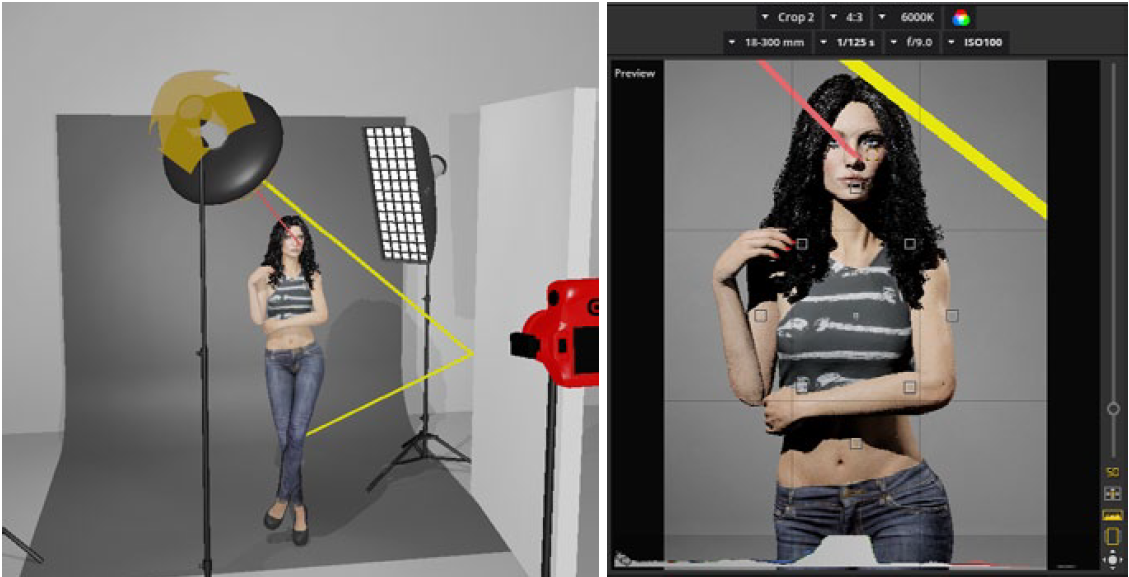
If a you move a light shaper in the studio, so the laser pointer indicates the direction of the light. This helps to orient he light sources quickly and specific.
Lens Flare on / off
« Setting » -> « Lens Flare »
You can enable or disable the glare (lens flare), that arises during back light photos, in the settings
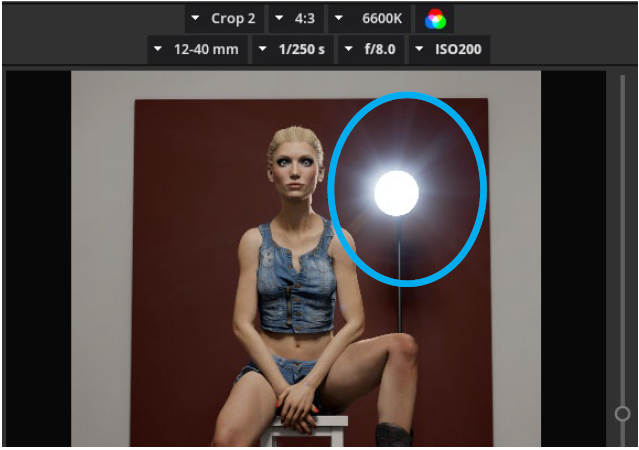
Note: Lens flare arises only by using hard light modifiers. By
using Softboxes with diffusor, the effect does not arise.
Quality options
« Settings » -> « Quality Settings »
Under the menu item « Settings » you can select the « Quality settings« . These settings let you regulate the response speed of your software.
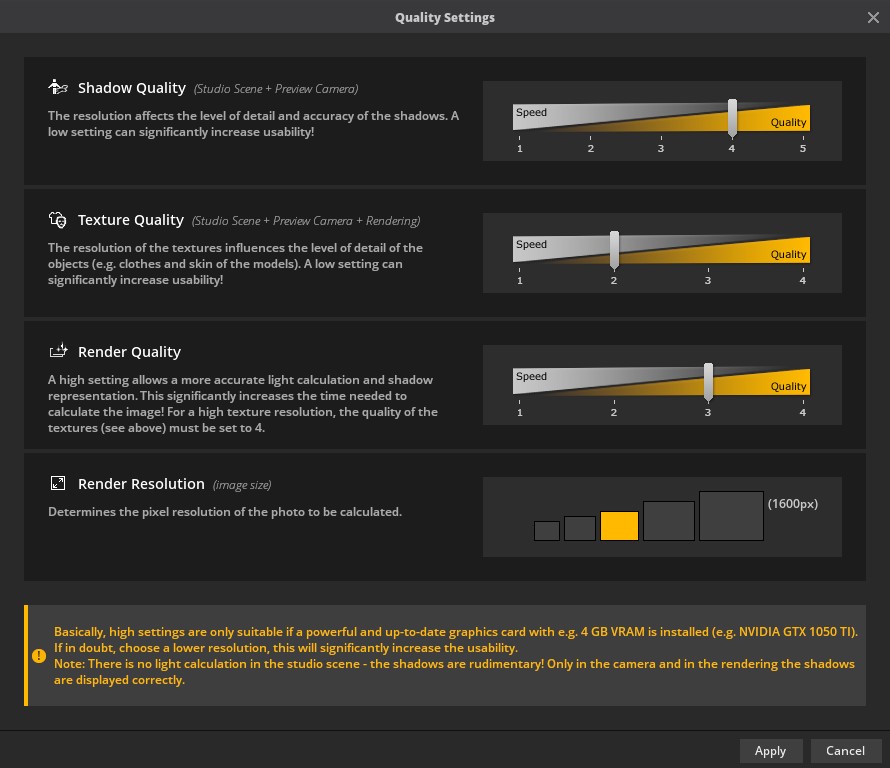
The following options are available:
1. Shadow quality
(affects preview camera)
The resolution affects the level of detail and accuracy of the shadows. A low setting can significantly increase usability.
Note: In level 1, only a heavily reduced light calculation takes place, which means the display is rudimentary.
takes place, which means that the representation is rudimentary.
2. Texture quality
(affects studio scene + preview camera + rendering) The resolution of the textures influences the level of detail of the objects (e.g. clothes and skin of the models). A low setting signifi signi – cantly increase usability.
2. Render quality
A high setting allows a more accurate light calculation and shadow representation. This significantly increases the time needed to calculate the image!
Note: For a high texture resolution, the quality of the
textures (see above) must be set to 4.
3. Render resolution
Determines the pixel resolution of the photo to be calculated.
Tip: Depending on the performance of your hardware,
we recommend the following settings:
Studio quality Level 3
Texture Quality Level 2
Render quality Level 3
Render resolution Middle setting (1200 px)
4K Display Mode
« Settings » -> « 4K Display Mode » «
If set.a.light 3D cannot correctly detect the resolution of your display, you can manually set the user interface to 4k resolution here.
Note: Use this option: Use this option only if the display does
not fit, because the display changes immediately