
 English
 Deutsch
 日本語
日本語 简体中文
简体中文 Français
A set plan is a stack of pages of five kinds. Which kinds you get depends on the plan type you chose when you created it, and each page carries its own settings. This page lists them with their ranges and defaults; the procedures are in Create a set plan and Build the pages of a set plan.
The page types
| Page | What it holds | JPG | |
|---|---|---|---|
| Cover | Your logo, the plan title, the project name and the values of Creator, Location, Client and Date | yes | — |
| Storyboard | Up to eight shots per page as numbered thumbnails with title and description | yes | yes |
| Shot pages | One or more pages per shot with the views you choose | yes | yes |
| Set List | Per shot: the cameras, lights, helpers and optionally the props of that shot with all their settings | yes | — |
| Equipment List | One list for the whole plan: cameras, lenses, flashes, speedlights, lights, light shapers, equipment and tripods with a quantity, a tick box and a note | yes | — |
A JPG plan therefore has no cover, no per-shot list and no equipment list — and, because the logo belongs to the cover, no logo either.
The Layout switches
The Layout section of the right panel carries the plan name and the switches for the page types. A PDF plan shows all four of them, all switched on. A JPG plan shows only two, because the other two pages do not exist there — and of those two, Shots is on and Storyboard is off when the plan is created.
| Entry | Effect | Shown for | Default |
|---|---|---|---|
| Name | The name of the plan; also printed as the plan title | both types | the name you gave the plan |
| Cover | The cover page | on | |
| Storyboard | The storyboard pages | both types | on in a PDF plan, off in a JPG plan |
| Shots | The pages of every shot | both types | on |
| Equipment List | The equipment list at the end of the plan | on |
The per-shot Set List page is not switched here. Select a page of that shot and use Set List (on) and Include Props (off) in the section of the same name; Include Props can only be changed while Set List is on.
The two view popups
Every Studio View and every Set View region on a page has a gear icon with its own set of options. The two popups have different contents, and every option belongs to that one region — not to the whole plan.
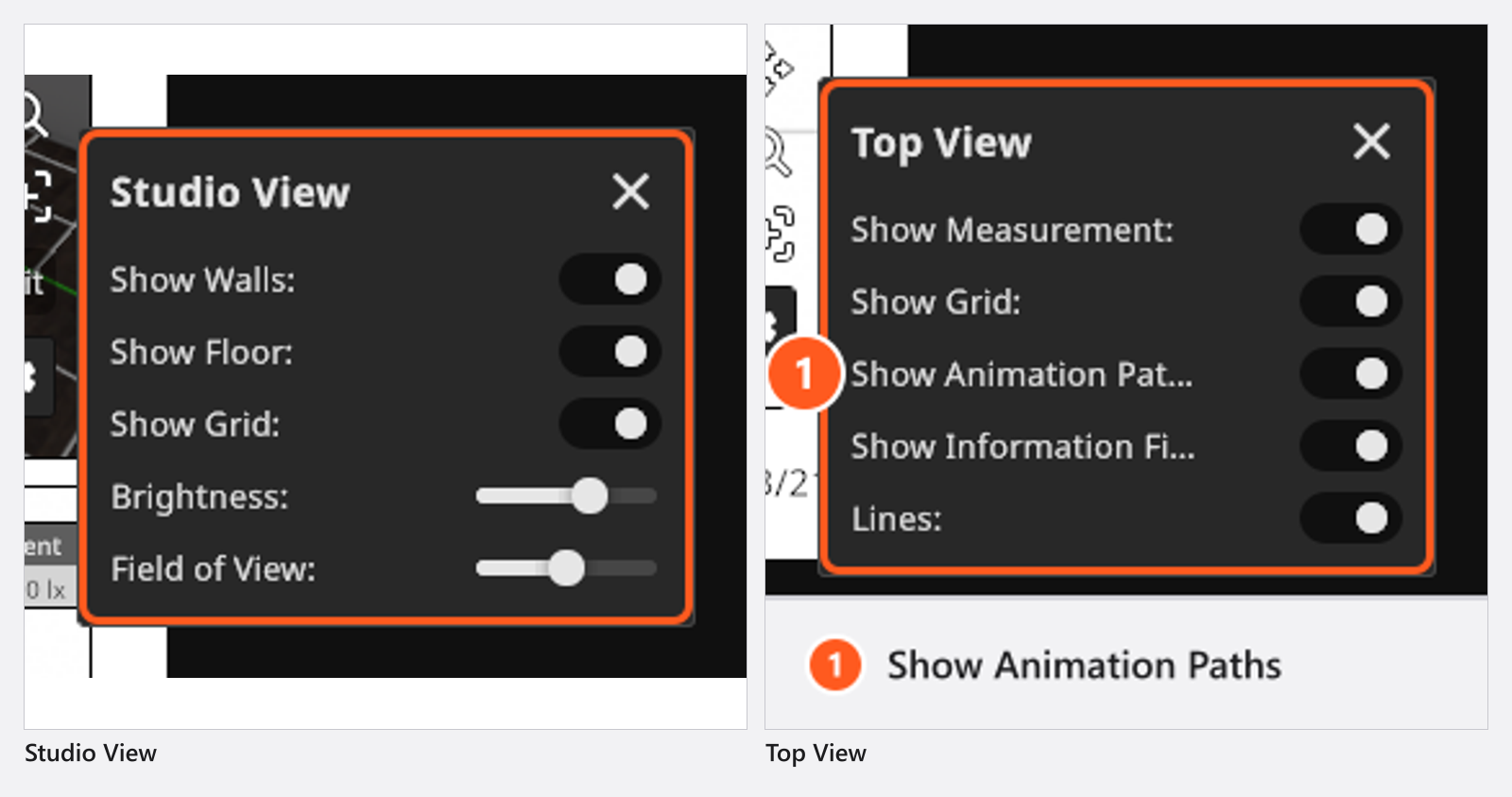
Studio View — the 3D view of the set:
| Option | Range | Default |
|---|---|---|
| Show Grid | on / off | on |
| Brightness | 0 to 1 |
0.65 |
| Field of View | 20° to 80° |
50° |
Top View — the top-down diagram:
| Option | Range | Default |
|---|---|---|
| Show Measurement | on / off | on |
| Show Grid | on / off | on |
| Show Animation Paths | on / off | on |
| Show Information Fields | on / off | on |
| Lines | on / off | on |
Show Measurement does two things: it prints the dimension lines, and it is the switch that lets you draw and edit them at all. Lines draws the thin connector from an info field to the object it describes, so it only shows while Show Information Fields is on.
What an info field prints
Every object in a Set View carries an info field with the numbers an assistant needs. The fields are arranged on the page in Build the pages of a set plan.
| Object | What its field prints |
|---|---|
| Light | name, shaper variant, light source and power, gel colour, height, pitch, roll; a speedlight adds head pitch and zoom |
| Camera | name, sensor, aspect ratio, white balance, lens and focal length, anamorphic factor, exposure, ISO, aperture, ND filter, height, pitch, roll |
| Reflector | name, size, height, pitch, roll |
| Diffuser | name, light reduction, colour, height, pitch, roll |
| Environment | the sun illuminance of the set in lx |
Page sizes
| Page | Size | Range |
|---|---|---|
| PDF pages | A4, 595 × 842 pt, landscape where the layout is horizontal |
fixed |
| JPG shot page | portrait 1000 × 1600 px, landscape 1600 × 1000 px |
100 to 4096 px per edge |
| JPG storyboard page | 1684 × 1190 px |
842 × 595 px to 6736 × 4760 px |
The two storyboard fields are one scale factor applied to A4 landscape, so the page always keeps its proportions: typing a width changes the height with it.
| Page setting | Where | Range | Default |
|---|---|---|---|
| Text Scale | JPG shot page | 100 to 800 % |
200 % |
| Info Field Size | PDF shot page | 50 to 200 % |
100 % |
| Region divider | pages with two or three regions | a tenth to nine tenths of the area it divides | half; the second divider of a three-split sits at about a third of its area, about two thirds in the landscape three-split |
What the export writes
| Plan type | Result |
|---|---|
| One document. You pick file name and folder; the finished file opens in your default PDF viewer. | |
| JPG | One file per page, named <page number>_<page name>.jpg — 1_Storyboard.jpg, then one file per shot named after the shot — written at the highest JPG quality into the folder you pick, which opens when the export is done. |
A region without a rendered image is exported with the shot’s low-resolution preview.
Language and fonts
A plan is written in the interface language of the program; there is no per-export language switch. Japanese, Korean and Chinese text is embedded with a matching font for each line, so a plan that mixes scripts still prints correctly. Change the interface language before you export if the plan is for a crew that reads another language.
If the export fails
| Message | What it means |
|---|---|
| Export Failed · “File is already in use by an other process.” | The target file is open somewhere else, usually in a PDF viewer. Try Again repeats the write, Cancel stops the export. |
| Export Failed · “Could not access file.” | The path could not be written: a missing drive, a folder without write permission. Same two buttons. |
| Export Failed · “Exporting the PDF has failed. If the issue persists, please report a bug.” | The document itself could not be built. |
| Export Failed · “Exporting Images has failed. If the issue persists, please report a bug.” | The same for a JPG plan. |
Set List or Equipment List?
Two list pages with similar names, doing different jobs:
- The Set List page belongs to one shot and follows that shot’s pages. It prints the camera line — sensor, aspect ratio, lens and focal length, aperture, ND filter, ISO, exposure, white balance, height — and one row per light with Power, Light Shaper, Color, Color Gels, Height, Pitch and Yaw, plus tables for equipment and, on request, props.
- The Equipment List covers the whole plan and answers a different question: what has to go in the car.