
 English
 Deutsch
 日本語
日本語 简体中文
简体中文 Français
Your imported models are stored once, in your own library, and every project only points at them. That makes them cheap to reuse — and it means a project file alone is not enough when you hand a setup on. .myassets is the archive that carries the objects.
Applies to BASIC, STUDIO, CINEMA · Needs the 3D Import add-on (included in the CINEMA trial) · You need: the 3D Objects group of the ASSETS tab, or the App Manager.
Hand objects to someone else
| What you want to hand over | Route |
|---|---|
| One object | select it in the 3D Objects group, then Export 3D Object in its settings |
| A few objects | select them with Ctrl / Cmd held, or a run of them with Shift, then Export Selected 3D Objects |
| One folder | right-click the folder in the narrow column, then Export |
| Your whole collection | File → Export My 3D Objects |
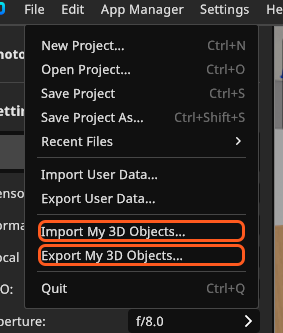
All four routes pack every texture of every material with the object, the metal map included. Send the archive together with the .set file whenever a setup uses your own models. Reading an archive in needs the add-on; a setup that only uses objects already on that computer opens, renders and edits without it.
Read an archive in
Import 3D Objects in the 3D Objects group, or File → Import My 3D Objects, then pick the .myassets file. Objects that are new to you are written into your collection. They keep their identity, so a setup that used them finds them again.
Objects are compared by revision, which rises whenever an entry is written. Same revision or older, and one is skipped: such an archive imports nothing and ends in No 3D objects were imported. All 3D objects are already up to date. Newer, and Duplicated 3D Object opens — it counts what is duplicated and what is new, and offers Overwrite Existing, New Only and Cancel. Overwrite Existing replaces your copy in place, for every setup that uses it.
An import can be partial for two more reasons: an object written by a newer version of the program is skipped, and so is an entry the program cannot read. If the archive file is open elsewhere you are offered Try Again. The summary at the end names how many objects and textures really arrived — compare it with what you expected.
Bring in a corrected version
The settings of a library entry carry Edit 3D Object, Delete 3D Object and the Export 3D Object of the table above. Replace 3D Object sits elsewhere: it is a button at the bottom of the 3D Importer, so you reach it through Edit 3D Object.
- Edit 3D Object, in the entry settings, re-opens the importer on the object. It writes over the object you already have, for every setup that uses it, and says so first. There is no Save to Folder row this time: the object stays where it is.
- Replace 3D Object, at the bottom of the 3D Importer, swaps the model file and keeps the library entry, so every copy already standing in a set survives. Settings are carried over per material and per clip, matched on the name they carry inside the file, upper and lower case included. Renaming a material or a clip in set.a.light 3D is safe; renaming it in your modelling program is not. The object name, size and orientation are worked out from the new file again, so check them.
- Delete 3D Object, in the entry settings, removes it from the library; setups that used it show a warning marker.
An edited material changes the object everywhere — but a copy already standing in a set keeps the Color and Shine stored on that copy, so your correction can be invisible in exactly the set you are looking at. Set the two values on the copy, or place the object again.
For a correction that arrives as an archive, see Read an archive in above.
Back up and move the collection
File → Export My 3D Objects writes every object and every texture into one archive. Keep a fresh one outside the program folder: your own models are the one part of set.a.light 3D we cannot restore.
An archive is not a complete backup, though: it carries the objects and their textures, not the way you organised them — folders, favourites and hidden entries stay behind. For a real backup, copy the library folder itself.
Move the 3D Objects library
App Manager → Library Settings → 3D Objects Library holds the path. While it is empty it shows Default Path and the program uses its own folder; point it at synchronised storage instead and the same files serve several computers. The field cannot be typed in — the folder button beside it sets the path. Open in Explorer (Open in Finder on a Mac) opens the folder in use, Open Default Path the built-in one, Reset to Default Path clears the setting.
Changing the path copies nothing. Copy your files first and set the path afterwards. Your folder structure is written back to the library you leave and the new one brings its own, so a destination without one starts empty and a colleague’s on a shared drive is left alone.
- Press Open in Explorer. → The folder that is in use opens.
- Copy everything in it to the new location, including the
texturessubfolder. → Objects and textures are two collections in one folder tree; without the subfolder every object arrives without its maps. - Set the new path with the folder button beside the field.
- Close the App Manager. → The library is read again from the new folder right away. No restart.
Keep the collection tidy
| What you do | What happens |
|---|---|
| Add a folder — Add New Folder in the library, Add Folder in the App Manager, the same control | the same folder appears in both, and in the importer under Save to Folder |
| Name a folder | up to 30 characters |
| Drag an object onto a folder | it leaves every other folder — an object sits in one folder at a time |
| Drag entries inside an open folder | that order is kept; while a search is running the manual order is off |
| Delete a folder | the folder goes, its objects stay in the collection |
| Close the eye on an entry in the App Manager | it disappears from the library, undeleted |
| Delete an object | every setup that used it shows a warning marker instead |
From 05:31 the walk-through reaches the 3D Objects page, with Add Folder and entries dragged into folders:
The library panel does the same work, and this quick tip shows the folder button in action:
Troubleshooting
- My library is empty after moving it, or an import says everything is already up to date. → 3D import problems
- A corrected archive imported nothing. Its revision is not newer than yours: the sender has to write the entry again (Edit 3D Object → Apply) and export once more.
Related
- 3D import: what the add-on reads
- Import a 3D object
- Shaders and textures of an imported object
- Manage your resources in the App Manager
- Save your own rigs to My Library
Next step
If an import misbehaves, see 3D import problems; for a worked example, follow Import your own 3D location or prop.