
 English
 Deutsch
 日本語
日本語 简体中文
简体中文 Français
A prop is anything on the set that is not a light, a camera or a person: furniture to sit on, a car to lean against, a plant for the corner, a mirror to bounce a light with, a box to block one. In a lighting plan they count twice — as content in the frame, and as surfaces that reflect, shade and colour your light.
Where props come from
Props live in the Props group of the ASSETS tab, at the bottom left of the SETUP tab. The group holds 335 tiles: 298 props, plus the 14 basic shapes, the 6 mirrors, the 12 windows and doors, the 2 rooms, the wall element, the floor and the picture wall. Three prop families joined the catalogue recently and are easy to miss: the Music Stand under Accessories, and the three screens TV Flatscreen, TV Classic and CRT Monitor under Furniture.
Two routes put a prop in the set: drag the tile into the studio view and it lands on whatever surface is under the pointer, or double-click the tile and it lands in the middle of the set. Either way a new row appears in the set list, in the Props group of that list. The full behaviour of the panel — tags, search, favourites and folders — is in Find and place things from the library.
Not here, but next door
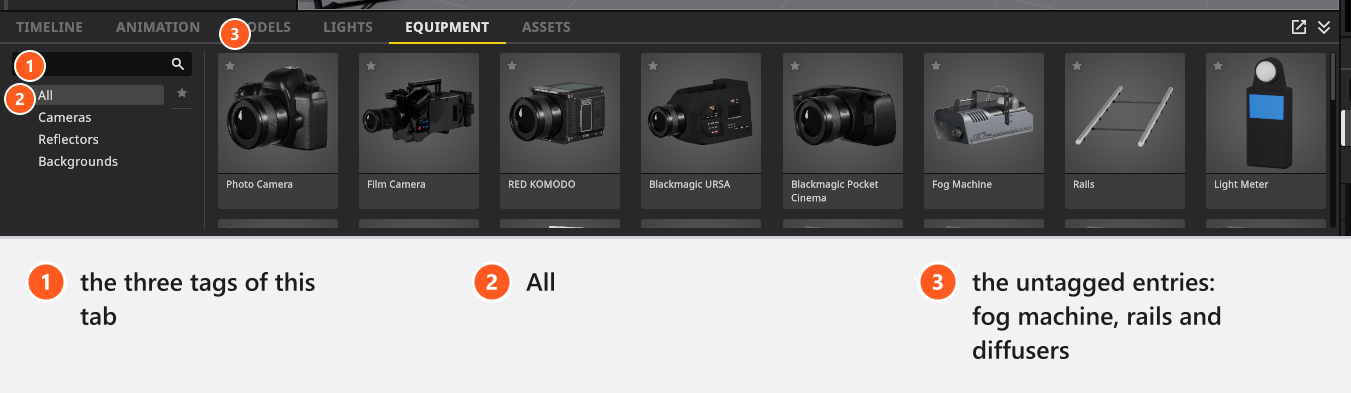
Several things a photographer calls a prop are in the EQUIPMENT tab instead, and carry no tag at all, so no filter shows them — use All or the search field: the Fog Machine (see Add a fog machine), the Rails for a camera dolly, the five diffusers and, outside BASIC, the Light Meter. The picture wall is in the Props group but is likewise untagged. So are five props whose tags the program never registers: Kitchen, Light Tripod, Photo Tripod, Camera Tripod and C-Stand M.
Prop settings
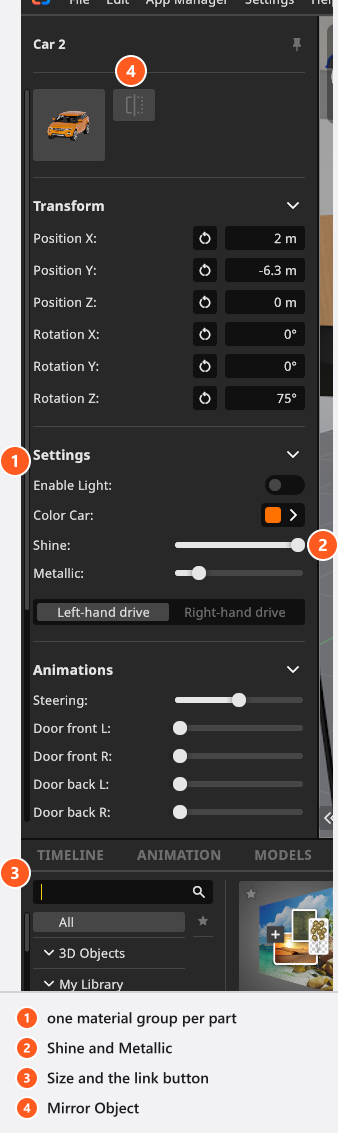
Select a prop and the inspector shows these groups, in this order.
| Group | What is in it |
|---|---|
| header | Mirror Object flips the model left to right. |
| Transform | Position and rotation, and Attachment Point once the prop hangs off something — see Attach one object to another. |
| Settings | Enable Light on props with built-in lamps, then one block per material group. |
| Animations | One slider per moving part, on the 18 props that have any. |
| Size | Width, Length and Height, with a link button that keeps the proportions. |
| footer | Remove From Set, Duplicate, Save to My Library. |
Size is in metres and the three fields are linked by default; unlink them to stretch one axis. One prop behaves differently: the Carpet always keeps Width and Length in step, and takes its height on its own.
Material groups, and the two kinds of part control
A prop is split into material groups — the frame and the cushions of a chair, the body and the glass of a car. Each group offers a Color, and where the model allows it a Shine slider (69 of the 298 props), a Metallic slider (19) and a list of alternative materials (25). Color can be keyframed; Shine and Metallic on a prop cannot. See Change the surface of an object.
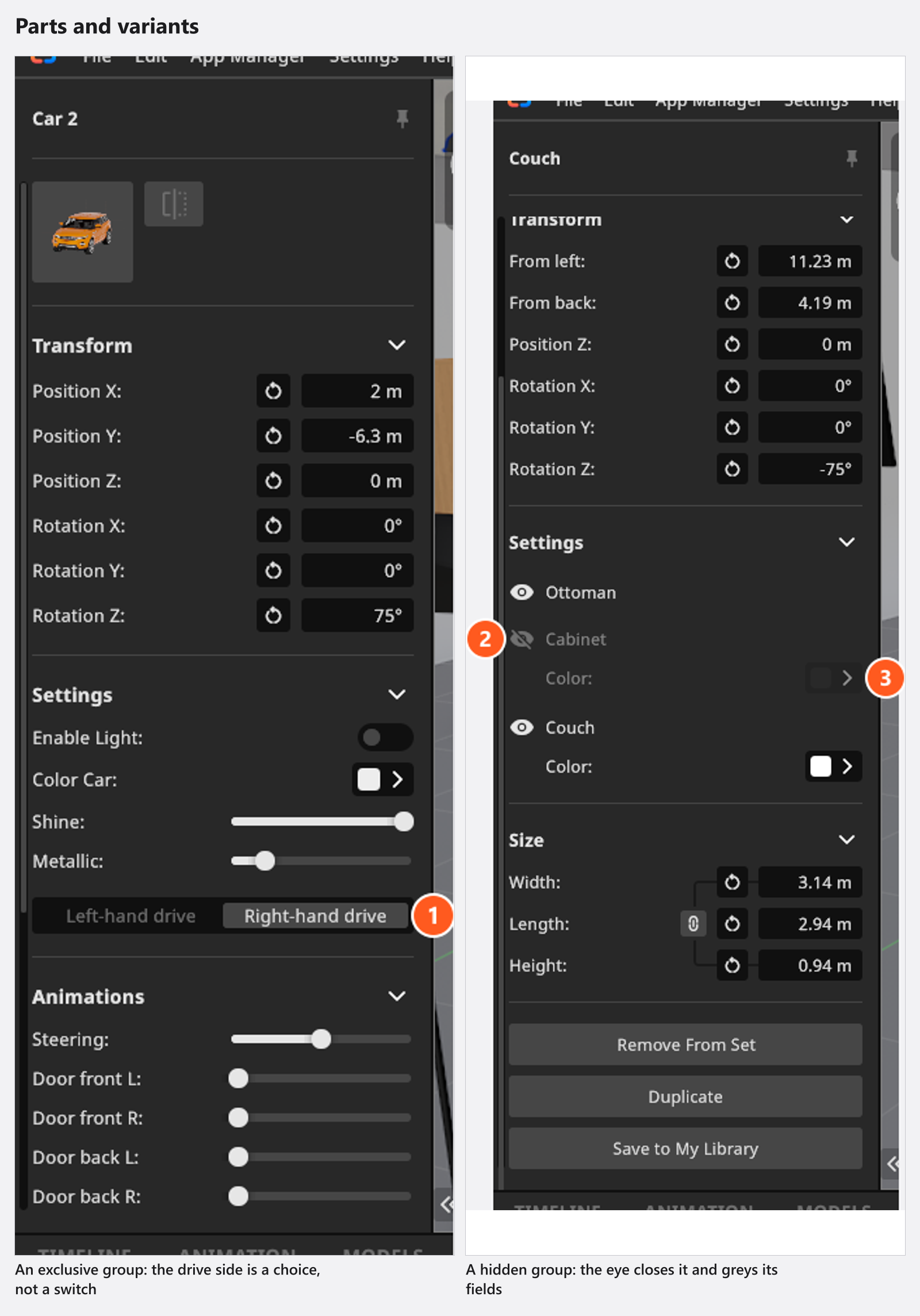
The button in front of a group name decides whether that part is there at all, and it comes in two forms:
- An eye button hides that one group — the cushions off a couch, the doors off a van. The colour and shine fields of a hidden group grey out; other groups are unaffected.
- Variant buttons are a set in which exactly one group is visible, so choosing one hides the others. Four props use them: Car 2 and Car 3 switch between Left-hand drive and Right-hand drive, Police Car and Taxi between two roof-light versions.
Moving parts
Eighteen props carry an Animations group. Every slider in it can be keyframed (add-on: Animation Tool), so a door can open over time.
| Props | Sliders |
|---|---|
| Car 1 | Steering |
| Car 2 | Steering, Door front L, Door front R, Door back L, Door back R |
| Car 3, Police Car, Taxi, Firetruck, Freightliner, Pickup | Steering, Door L, Door R, Windows |
| Van, Ambulance Van, Security Truck | Steering, Door L, Door R, Door Back, Windows |
| Trailer | the five above plus Swing |
| Light Tripod, Photo Tripod, Camera Tripod, C-Stand M | Height |
| Posing Stool | Seat Height (0.521–0.88 m, default 0.6 m), Footrest Height (0.116–0.43 m, default 0.2 m) |
| Music Stand | Height (1.05–1.6 m, default 1.45 m) |
Save to My Library
Save to My Library opens the Save to Library dialog: give the entry a Name, pick a Folder, click Save. The button in the inspector saves the selected prop; the same command in the set list’s context menu saves everything you have selected, each object with everything attached below it. Keyframes are not part of it — a library entry stores objects, not animation.
Basic shapes
Fourteen primitives sit under the Basic tag. They are the fastest way to build a flag, a riser, a wall stub or a test object, and unlike a prop their Color, Shine and Metallic can all be keyframed.
Basic shapes
| Name |
|---|
| Arch |
| Box |
| Cone |
| Cylinder |
| Hollow Cube |
| Hollow Cylinder |
| Hollow Sphere |
| N-Gon |
| N-Gon Cone |
| N-Gon Sphere |
| N-Gon Torus |
| Sphere |
| Stairs |
| Torus |
Their dimensions live in a Shape group, not in Size, and the group only shows what the primitive has:
| Primitive | Shape controls |
|---|---|
| Box | Width, Length, Height |
| Hollow Cube | the three above plus Thickness |
| Cylinder, Cone | Width, Length, Height |
| Hollow Cylinder | the three above plus Cutoff Angle and Thickness |
| Sphere | Width, Length, Height |
| Hollow Sphere | the three above plus Cutoff Angle and Thickness |
| Torus | Width, Length, Thickness |
| Arch | Width, Height, Length, Arch Width, Arch Height |
| Stairs | Width, Step Height, Step Depth, Steps (1–100, default 10), Thickness |
Segment counts belong to the four N-Gon variants and to nothing else. The plain Cylinder, Sphere, Cone and Torus are built smooth and offer no such control:
| Variant | Segment controls |
|---|---|
| N-Gon | Segments 3–12 (default 3) |
| N-Gon Cone | Segments 3–12 (default 6) |
| N-Gon Sphere | Column Segments 3–12 (default 4), Row Segments 2–8 (default 2) |
| N-Gon Torus | Circle Segments 3–12 (default 5), Tube Segments 3–12 (default 5) |
Mirrors
Six mirrors sit under the Mirrors tag. They are props, but they work like light shapers: aim a light into one and you get a second, bounced source.
Mirrors
| Name |
|---|
| Mirror 1 |
| Mirror 2 |
| Mirror 3 |
| Mirror 4 |
| Mirror 5 |
| Mirror 6 |
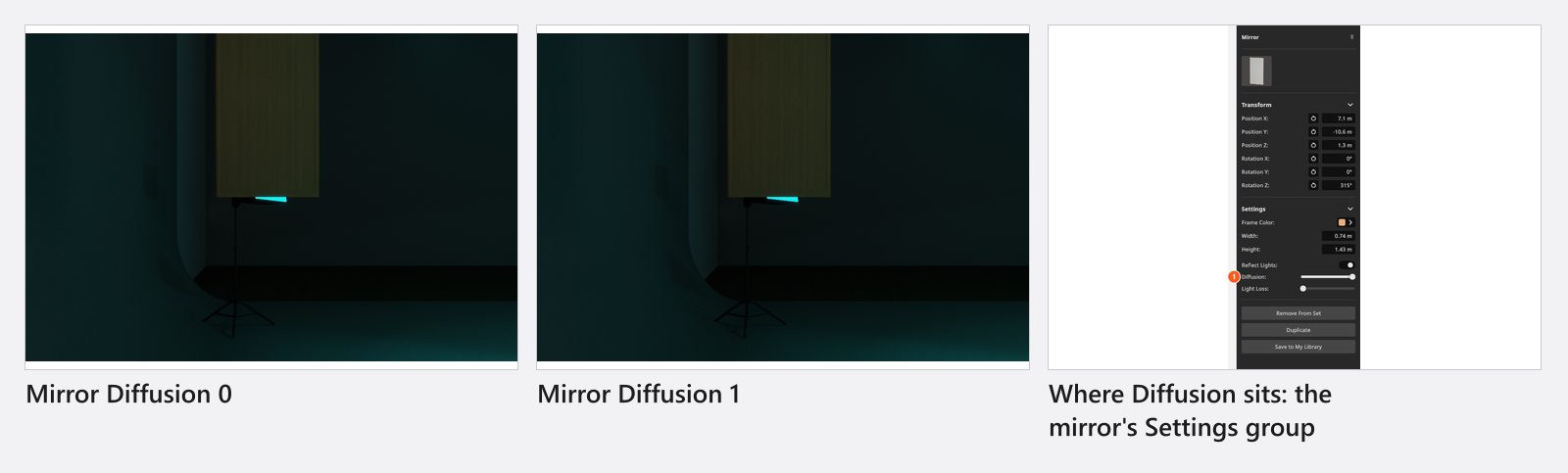
- Reflect Lights switches that bounced source on and off, together with the guide lines that show you where it goes while you drag. It does not stop the mirror from showing a reflection of the set — the glass still reflects in the render either way.
- Diffusion (default 0.1) softens the bounce, from a hard mirror towards a soft bounce card.
- Light Loss (0–1) models an imperfect surface, measured in stops: 1 is as much as the slider offers and costs the bounce one stop of light.
- Frame Color, Width and Height are the visible part.
Mirror
| Setting | Range | Default | Unit | Animatable |
|---|---|---|---|---|
| Diffusion | 0 – 1 | 0.1 | no | |
| Frame Color | depends on the prop | yes | ||
| Light Loss | 0 – 1 | 0 | no | |
| Reflect Lights | on | no | ||
| Size | depends on the prop | m | yes |
The picture wall
The picture wall is a prop too, but it is four instruments in one — a printed backdrop, a cut-out with a shadow, a panel to flash a pattern through, and the only surface in the program you can make glow. It has its own page: Use a picture wall.
Limits
- Heavy props — buildings, vehicles, dense plants — cost render time. Take the ones you cannot see out of the set instead of hiding them behind the camera.
- (BASIC) A set holds at most 5 lights. Props with built-in lamps do not count towards that limit.
- A prop is geometry: a white table under a portrait is a fill card whether you meant it that way or not.
- The Grand Piano and the Upright Piano got an adjustable body gloss and a colourable frame in 3.1.14. More props offer Shine than before, and the range often starts at 0.3 rather than 0.
Troubleshooting
- The prop will not move. It is locked. The padlock in the set list shows and clears it.
- A prop shows only a colour swatch and no material list. That slot cannot be swapped; only 25 of the 298 props have one that can.
- Some material fields are greyed out. The group they belong to is hidden. Show it with its eye button.
- The tile I want is under no tag. Switch the filter to All or use the search field.
More symptoms: Objects, rooms and measurement problems