
 English
 Deutsch
 日本語
日本語 简体中文
简体中文 Français
The storyboard is one of the page types of a set plan. It shows the shots of the plan as numbered thumbnails, each with a title and a line of description — the page you hand round before the shoot so that everybody knows how many setups there are and what each one is for. Filmmakers call it a shot list, photographers an overview page; it is the same page.
Applies to BASIC, STUDIO, CINEMA · You need: a plan with at least one shot, open in the PLANS tab.
Where to find it
Open the PLANS tab, select a plan and make sure Storyboard is ticked in the Layout section on the right. The storyboard is available in both plan types, but only a PDF plan has it on to begin with: in a JPG plan you switch it on yourself. It sits right after the cover, or first in a JPG plan, which has no cover, and it fills itself from the shots of the plan.
How to fill the storyboard
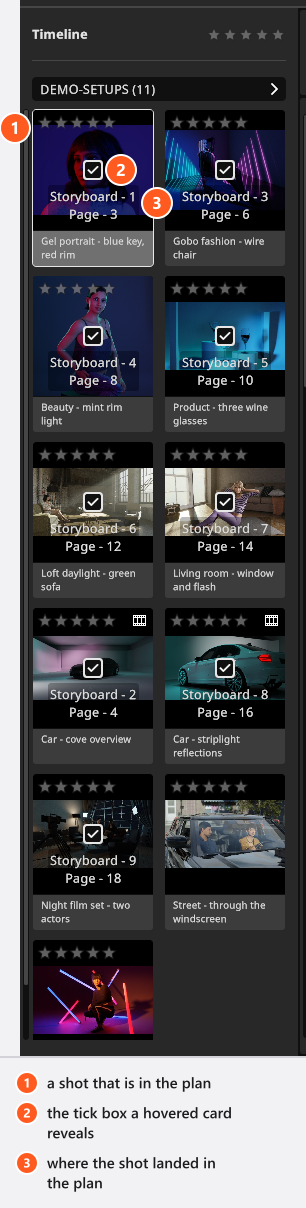
Every shot that is part of the plan gets a slot, in plan order. From 00:34 the clip ticks two shots into a plan and types their descriptions; the thumbnails appear by themselves.
- Hover a shot in the panel on the left to reveal its tick box, and tick it. → The shot is added to the plan and appears on the storyboard with its thumbnail. You can also drag a shot out of that panel onto an empty Add Shot slot. If the card you tick is part of a selection, the whole selection is added.
- Click the title beside the running number to name the entry, and the line underneath it to write the description. → Both texts belong to the plan, so the shot itself keeps its name.
- Drag entries around to reorder them. → The new order is also the order of the shot pages that follow.
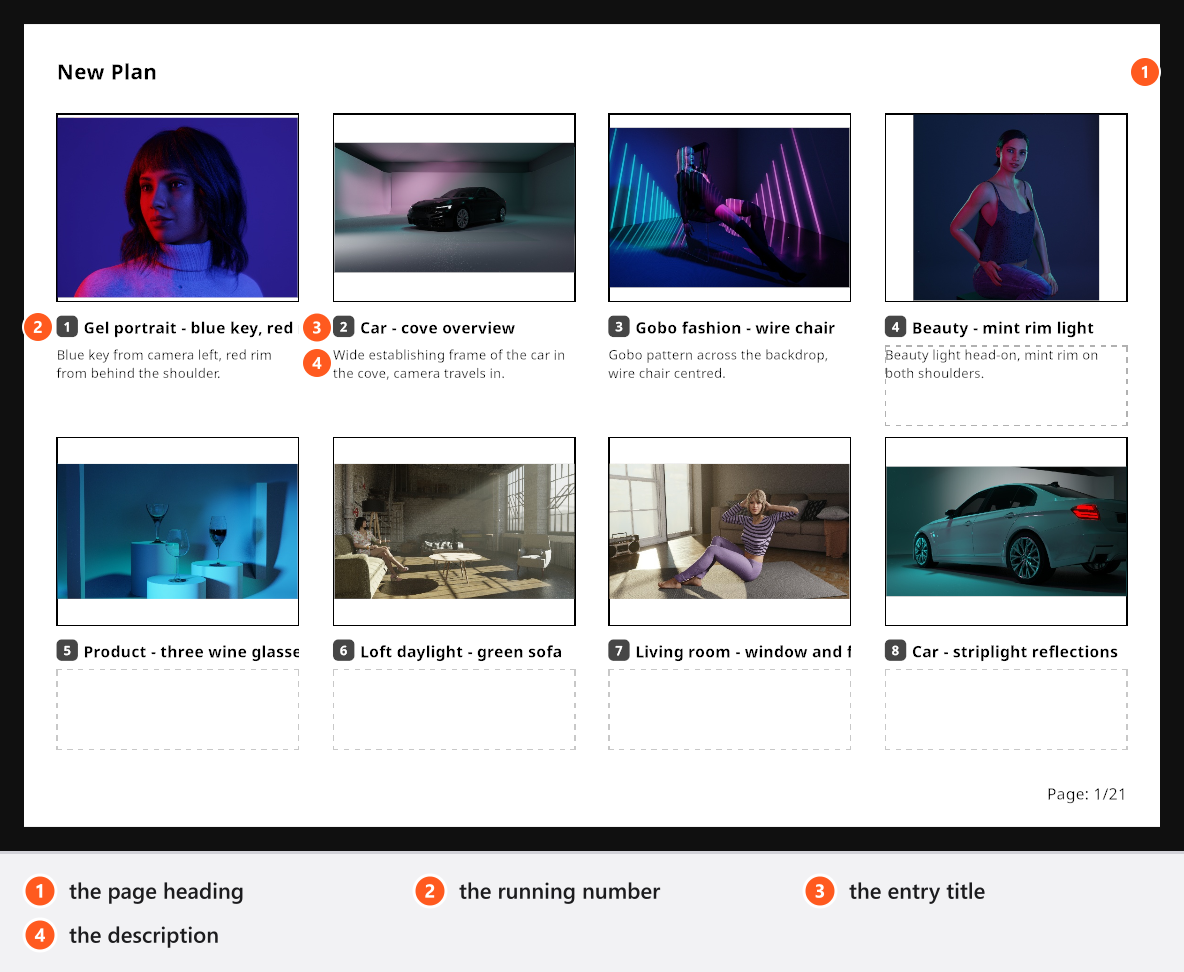
Two more gestures: a double-click on a thumbnail jumps to that shot in the project, and the bin icon on a thumbnail takes the shot out of the plan altogether — including its shot pages, not only this slot.
Keep the descriptions about the moment, not about the lighting: “driver talks to passenger” tells the team what the frame is for, and the shot page behind it carries the technical detail.
How many pages you get
A storyboard page holds eight shots. The ninth starts a second page with the same heading, and the running numbers carry on across pages.
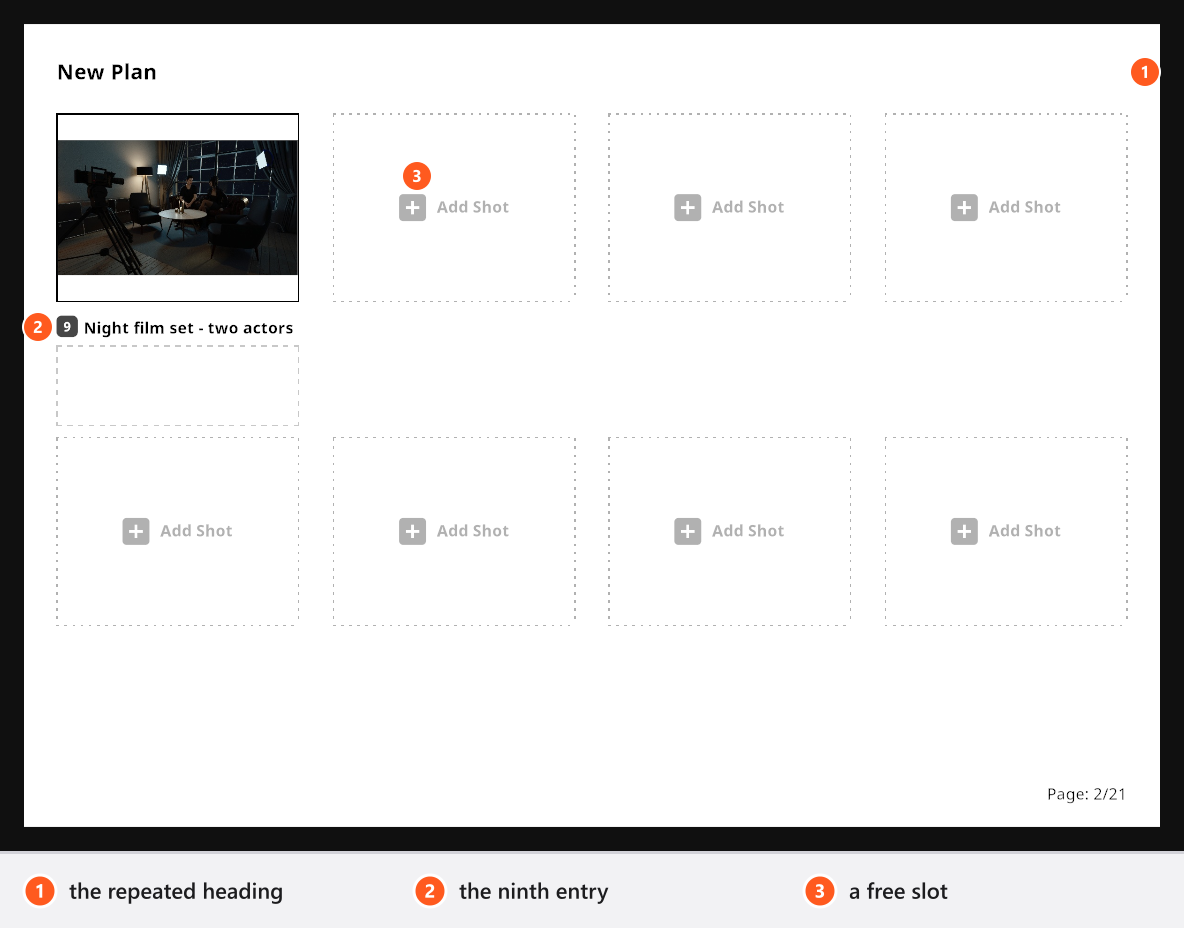
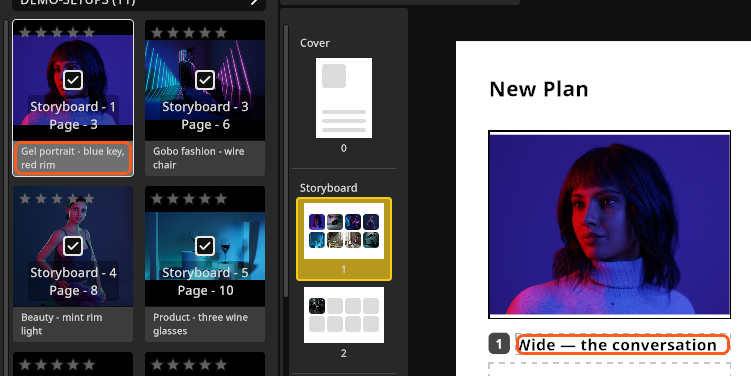
Click the page heading to give the storyboard a title of its own; while that field is empty the page carries the name of the plan.
When the last page is exactly full, a Next Page button appears and adds one more, empty page — room for shots you will only decide on set. That extra page is not stored with the plan: as soon as you add or remove a shot, or open the project again, it is gone until the last page is full once more.
Titles on the storyboard belong to the plan
A title you type here is the plan’s own title for that shot. It survives a later rename of the shot, and it is the same text that heads the shot’s first page. Clear it and the entry shows the shot’s current name again.
Page size
PDF plans put the storyboard on an A4 page in landscape orientation.
For JPG plans, the Page section on the right offers Width and Height in pixels. Both come from one scale factor applied to the A4 landscape format, so the proportions never change: 1684 × 1190 px by default, 842 × 595 px at the smallest and 6736 × 4760 px at the largest.
Tips & limits
- While you work, the thumbnails are the preview images of your shots. On export, a shot that has been rendered contributes its rendered image instead — so render before you print.
- The description is not the Internal Note of the shot. That note stays inside the project and is never printed.
- A shot without a description shows nothing there; the layout does not change.
- A long entry title is cut off at the edge of its slot in the exported page.
Troubleshooting
- My JPG plan has no storyboard. A new JPG plan starts with Storyboard switched off — switch it on in the Layout section on the right.
- I cannot find the tick box on a shot. It only appears while the pointer is over the card, or once the shot is already in the plan.
- My empty extra page has vanished. It was never saved — press Next Page again when the last page is full.
- The thumbnails look soft in the PDF. Those shots have no render yet — see Where your images are saved.