
 English
 Deutsch
 日本語
日本語 简体中文
简体中文 Français
When the move looks right in the studio view, the program renders it out frame by frame with the same renderer that makes your stills, and writes the frames into an MP4. You can render the shot you are working on, or select several animated shots and let the machine work through them. This page is the workflow; what ends up in the file is described in The video file you get.
Applies to BASIC, STUDIO, CINEMA · Needs the Animation Tool add-on (included in the CINEMA trial) · You need: a shot that contains an animation. Resolutions above 1920 px need STUDIO or CINEMA.
Where to find it
There are two routes, and both open the same Render Video dialog.
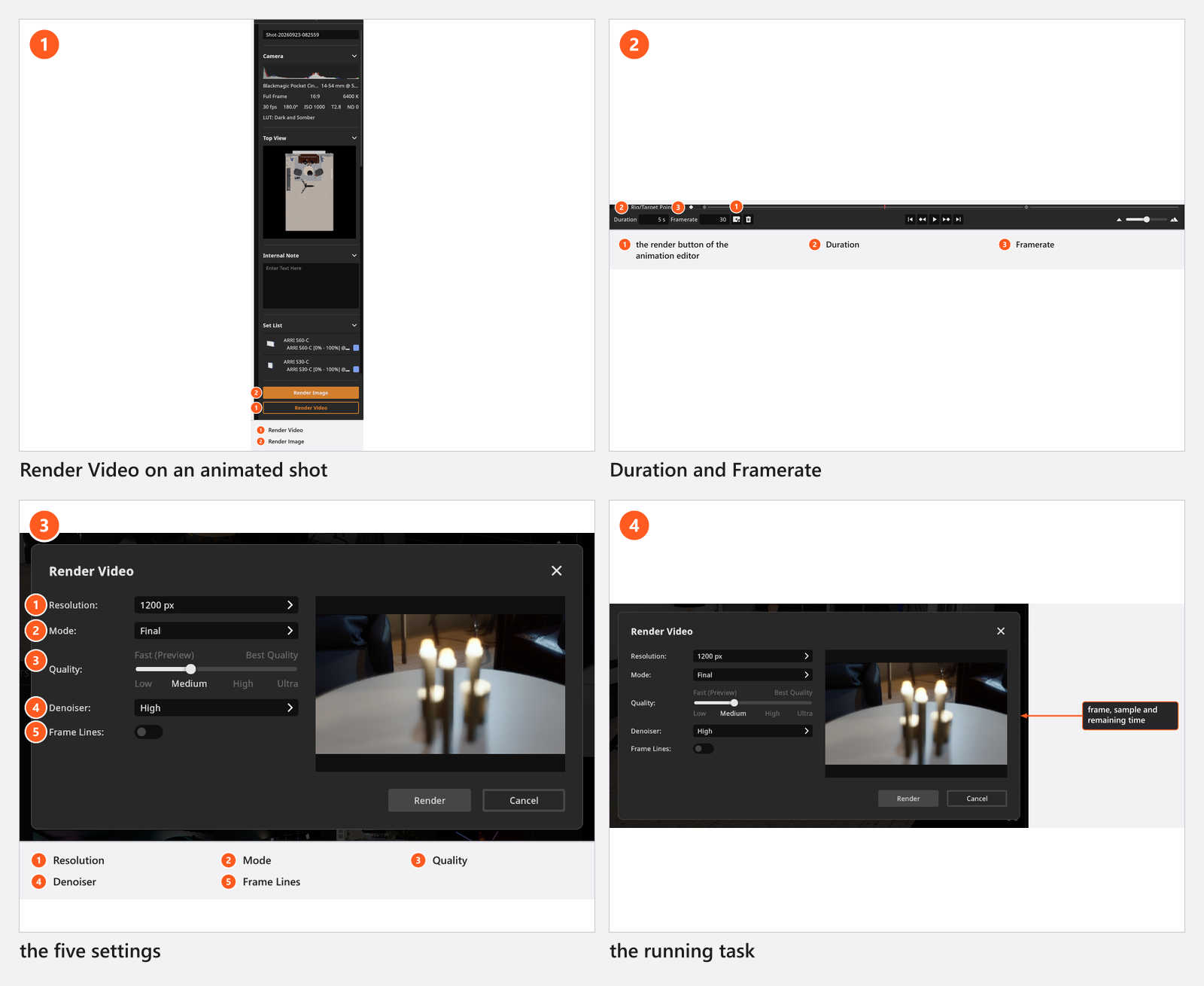
The shot you are working on: the render button at the bottom of the ANIMATION tab, beside Duration and Framerate. It renders the shot that is loaded and asks for a file name. Without a shot loaded, the button is greyed out.

Several shots at once: the RENDER tab. Select the shots in the timeline on the left and click Render Video in the panel on the right. Shots without animation are dropped from the batch, and the button stays greyed out until at least one selected shot contains an animation — the tile of an animated shot carries a small film icon. Without the add-on the button is not there at all.
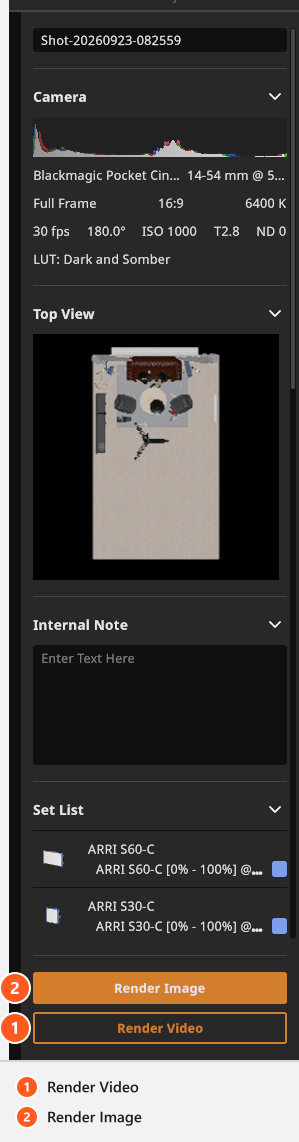
From 06:06 the clip walks both routes — the button in the ANIMATION tab first, then several shots at once in the RENDER tab. It also suggests leaving the machine to render overnight; we cannot promise that yet, so plan with the arithmetic under “How long it takes” instead.
How to render a video
- Set Duration and Framerate in the ANIMATION tab. Together they decide the number of frames:
5s at30fps is 150 frames. - Open the dialog by either route. Where the playhead stands does not matter — a video always runs from the first frame to the last, and the playback brackets do not narrow it.
- Choose Resolution, Mode, Quality, Denoiser and Frame Lines.
- Click Render and say where the file goes: a file name for one shot, a folder for a batch.
- Watch the task. → It counts the frames (
Frame 3/150), the samples of the frame in flight and the time remaining. You can cancel at any point.
Render settings
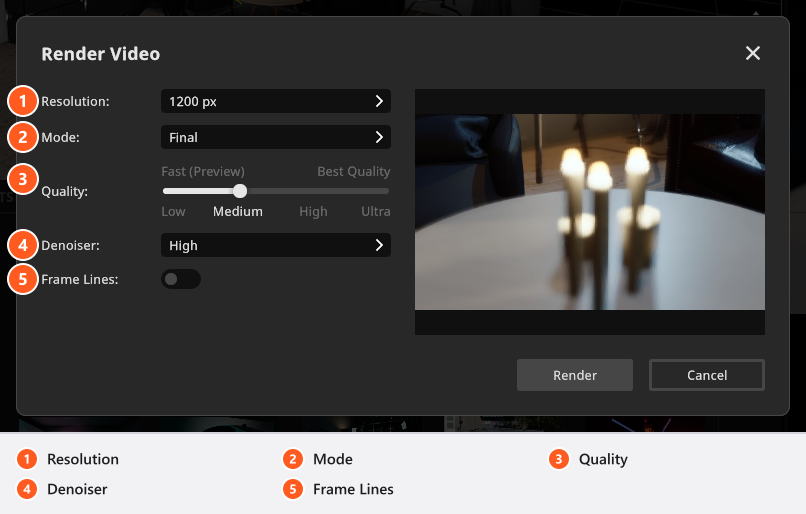
Two of the five decide the render time, and they are the two worth understanding. The names of the two modes, the four quality steps and the Render Error dialog of a single export are English in every language; the batch’s Render Failed dialog is translated.
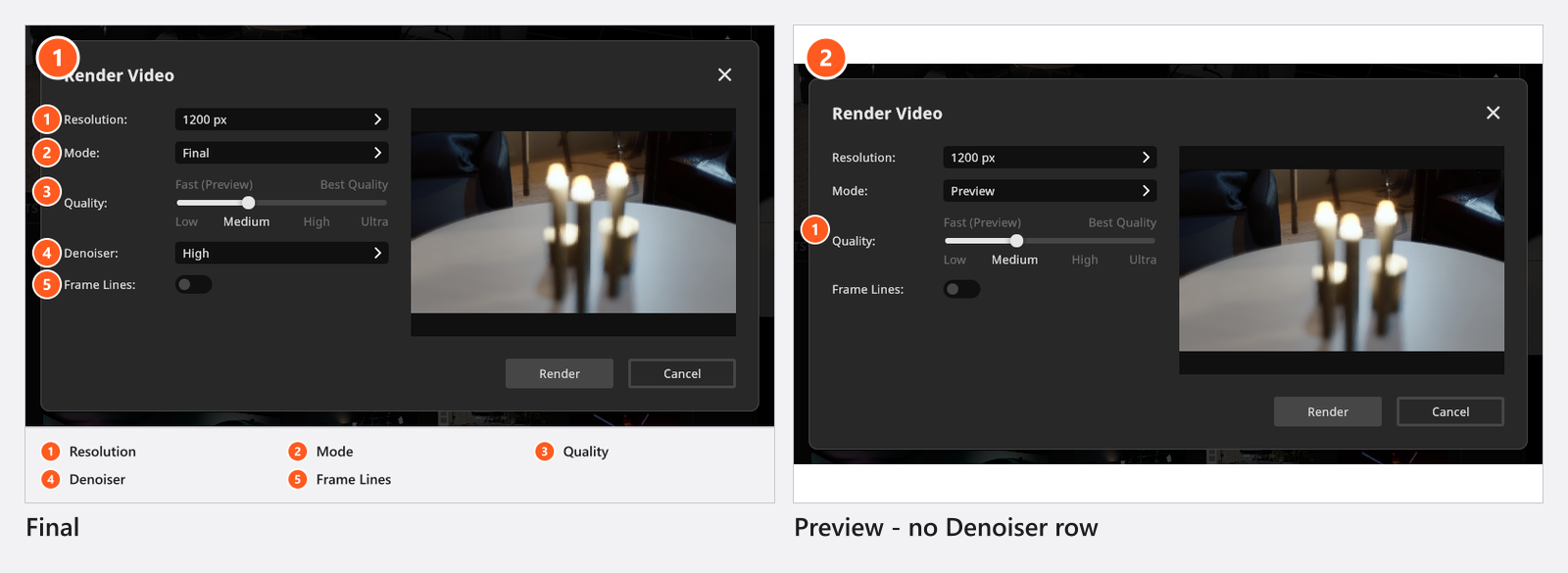
Mode is Final or Preview. Final renders every frame like a finished photo. Preview renders the same frames with a small fraction of the samples, which is what you want while you are still judging the timing of a move. The denoiser row disappears in Preview.
Quality is the four-step ladder the still render uses, and it sets the samples per frame:
Quality levels
| Level | Samples in a final render | Samples in the live preview | Texture detail |
|---|---|---|---|
| Low | 60 | 40 | Two steps lower |
| Medium | 90 | 60 | One step lower |
| High | 120 | 80 | Full |
| Ultra | 210 | 200 | Full |
In Mode Preview the same level spends far less per frame — this is the one place in the program where that budget applies:
Video render modes
A video render — and only a video render — offers a Mode: Final and Preview. Preview trades quality for speed and uses a much smaller sample budget than the same level would give a still. Still images have no Mode and always render with the count in Samples in a final render above.
| Level | Samples in a video render in Mode Preview |
|---|---|
| Low | 4 |
| Medium | 8 |
| High | 8 |
| Ultra | 8 |
In Final at High every frame gets 120 samples, so those 150 frames are 18 000 samples. The same shot in Preview renders 8 samples per frame.
Resolution, Denoiser and Frame Lines work exactly as they do for a still image — see Resolution and Quality and denoiser settings. All five settings are shared with the image render, so whatever you last used in the RENDER tab is preselected.
From 06:40 the clip fills in the same dialog — resolution, quality, denoiser — and then shows the progress read-out with the frame, the sample and the time left.
How long it takes
A video costs one still render per frame. There is no shortcut and no saving from one frame to the next, so the arithmetic is honest and simple: render a single still of your shot at the settings you want, time it, and multiply by the number of frames. At 40 seconds a frame, 150 frames are about 100 minutes.
Three levers, in the order they pay off: fewer frames (a shorter Duration, or 30 fps instead of 60), a lower Quality, a smaller Resolution. Do the timing pass in Preview and keep Final for the version you hand over.
How to render a batch
Select every animated shot in the RENDER tab, click Render Video and pick a folder. Each shot becomes its own file, named after the shot with any character a file name cannot carry replaced, plus .mp4 — so rename a shot called Key 1/2 before you start. If files of those names are already in the folder, you are asked before anything is overwritten. The progress message counts the shots as well as the frames.
If a shot in the batch fails, the batch finishes the rest and then names it: one Render Failed dialog lists the title of every shot that produced no file. The usual cause is a shot with no active camera; a target the encoder cannot write to asks per file first, with Try Again and Cancel, and a cancelled file joins the same list. A single export reports its failure on its own, in a Render Error dialog that reads Failed to render animation.
Tips & limits
- The two routes remember two different folders: the editor remembers the last folder you saved a video in, the batch the one the RENDER tab uses.
- The last frame of the editor is not in the file. A 5-second shot at
30fps ends at frame 150 in the ruler, while the file holds frames 0 to 149. Put the closing pose on the last rendered frame. - The frame size is fixed by the camera that is active on the first frame. A cut to a portrait camera later in the shot does not change the file — see Animate the camera.
- Cancelling keeps what was finished: the file is closed with the frames rendered so far, and the frame that was in flight is dropped.
- A still of an animated shot does not need a video at all — Render Image renders the shot’s preview frame, which you set in the frame ruler (Work in the Timeline Editor).
- There is no motion blur, and no audio; both are in The video file you get.
Troubleshooting
- Render Video is greyed out. None of the selected shots contains an animation. Look for the film icon on the tile.
- Render Video is not in the panel. The licence has no Animation Tool add-on.
- The video is a frame shorter than expected. The file holds frames 0 to 149 of a 150-frame shot.
- More symptoms: Animation problems.