
 English
 Deutsch
 日本語
日本語 简体中文
简体中文 Français
“Position 1.8 m” only means something once you know what it is measured from. The zero point is that reference: pick a corner of your room, or click a point on the set, and every number in Transform is suddenly a distance you could check with a tape measure. Changing it moves no object at all — only the numbers you read and type.
Applies to BASIC, STUDIO, CINEMA · You need: a project open on the SETUP tab; a room in the set for the corner modes.
Where to find it
Zero point is the pin button on the studio toolbar, with the tooltip Choose the zero point for coordinates. Clicking it opens a menu, and the entry with a tick is the one in force. The button itself lights up whenever the zero point is anything other than the plain set origin.
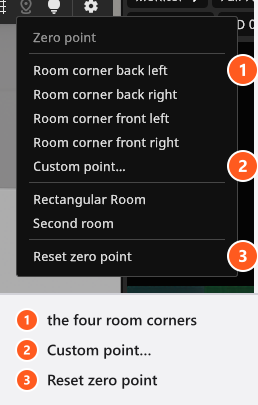
A new project that contains a room starts at Room corner back left. A project you open keeps whatever it was saved with, and a file from before this feature keeps the older coordinates — which is why the same object can show different numbers in two projects. If a position looks unfamiliar, open the menu and see which entry is ticked.
How to measure from a room corner
- Open the Zero point menu and choose Room corner back left, Room corner back right, Room corner front left or Room corner front right. Without a visible room all four are greyed out: the zero point stays at the plain set origin, and the read-out over a dragged object says No room – set origin.
- Select any object and look at Transform. → The two floor fields have renamed themselves: From left or From right, and From back or From front, after the corner you chose. Their values are now the distance from that corner.
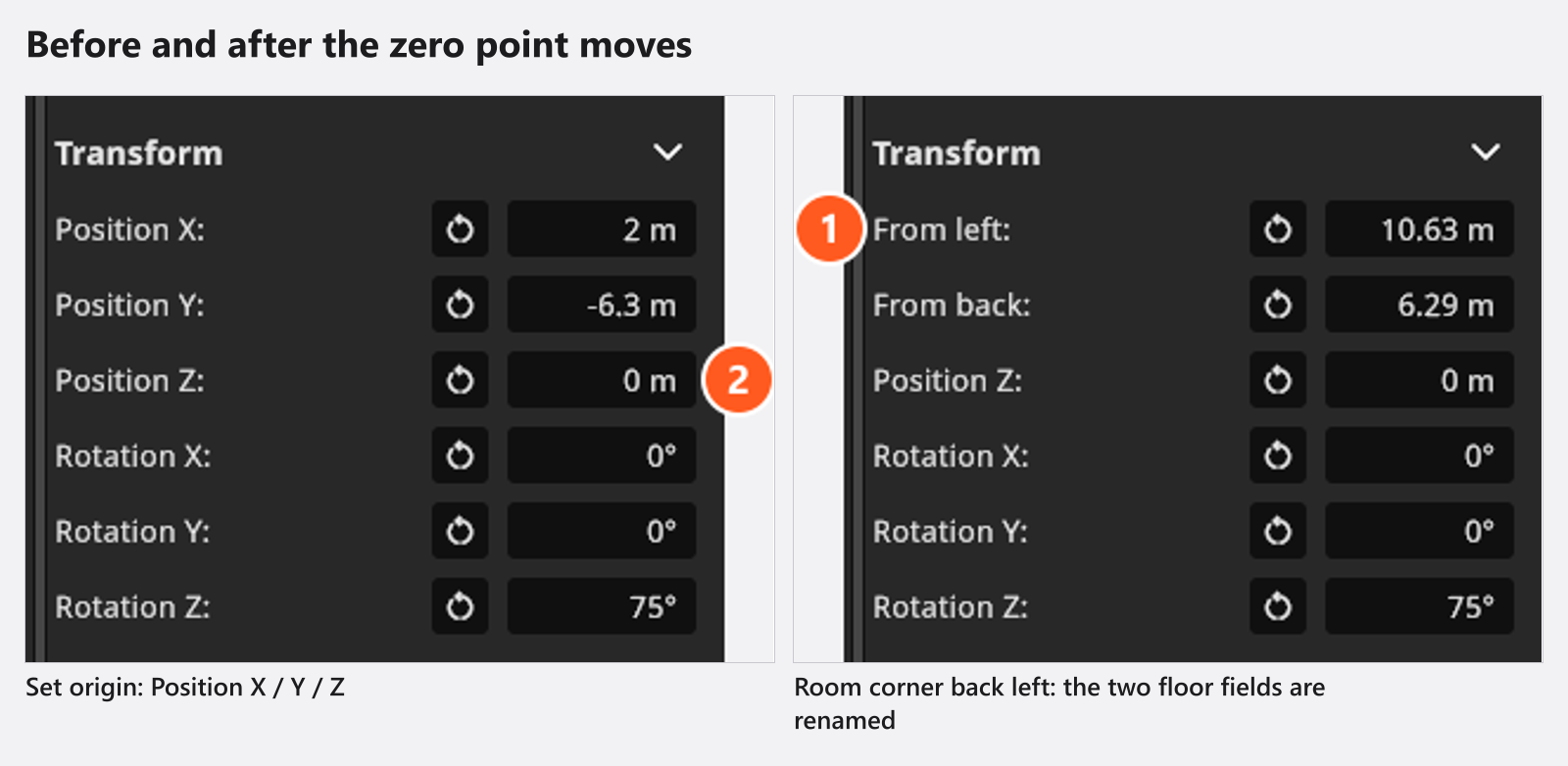
The third field is always height, and height is never re-based: it stays measured from the floor no matter which zero point is active. That is the one thing worth remembering before you report a bug.
Two more rules follow from the same logic:
- The frame never applies to the object that carries it — the room of a room-corner zero point, and the object a picked point is bound to. Those keep their own raw coordinates, because measuring one against itself would show a constant.
- Which wall counts as “back” follows the direction the camera looks into the room, so the corner names stay readable from where you shoot.
How to pick your own point
Some sets have no useful corner — an outdoor scene, a set built round a mark on the floor, a room you measured from a door frame.
- Choose Custom point… from the menu, or press
O(by default). → The banner SET ZERO POINT appears at the top of the studio view. - Move the pointer. A read-out follows it and names what it would snap to — a corner name, Wall edge, the name of an object, or Free point when nothing is near enough — followed by the coordinates that point would produce and the reminder Click a room corner, wall edge or object – Esc cancels.
- Click to set it.
Escleaves the mode without changing anything.
The magnet offers three kinds of target: the floor corners of every visible room, the lines where a wall meets the floor, and the foot point of an object that stands on the floor — a light stand, a camera, a model, a prop, a background. Objects that do not stand on the floor are left out on purpose, because their pivot sits at wall or ceiling height: the ground plane, the light meter, wall elements, windows and doors, architectural lights and mirrors.
A point snapped to an object follows that object for as long as it is in the set and visible. Move the stand and the coordinates move with it. Delete or hide it and the last stored point is used instead.
Rooms, resets and what is saved
- More than one room: the menu grows a list of the visible rooms below Custom point…, so you choose which one the corners belong to.
- Reset zero point at the bottom of the menu goes back to the plain set origin. Double-clicking the marker in the studio view does the same thing in one step.
- The mode, the corner, the room and the picked point are all saved in the project, so the next person to open the file reads the same numbers you did.
A worked example: rebuilding your own studio
Measure your real studio once: 6.20 m by 4.10 m, ceiling 2.80 m. Build the room to those figures, then set Zero point to the corner you measured from — say back left. Now walk the tape out on the real floor and type what you find. The key light stands 2.10 m from the left wall and 1.40 m from the back wall: type 2.10 into From left and 1.40 into From back, and its height into the third field. Do the same for the model and the camera. What comes out of the program is a plan your assistant can rebuild without guessing, and the dimension lines you add on top print straight onto the set plan — see Select, move and measure objects.
Tips & limits
- Set the zero point before you type a long list of positions. Switching afterwards is harmless but rewrites every number on screen, which is confusing halfway through a build.
- The corner names describe the room, not the world. A rotated room still has a “back left”.
- If you share a project, say which corner you measured from in the shot’s note — the file carries it, but a reader looking at a printed plan does not.
Troubleshooting
- My clicks set a zero point instead of selecting. Pick mode is still running. Press
Esc. - The room corner entries are greyed out. There is no visible room. Add one, or unhide it.
- My position numbers changed when I opened an old project. That file stores a different zero point — or none, in which case it keeps the older coordinates. Check the menu.
- The height field ignores my zero point. It is meant to: height is always measured from the floor.
More symptoms: Objects, rooms and measurement problems