
 English
 Deutsch
 日本語
日本語 简体中文
简体中文 Français
This walk-through takes one subject from an empty set to a finished, re-usable model: a woman in a matte top, standing two metres in front of the background, turned a quarter towards the key light and looking into the lens. It takes about twenty minutes and touches every part of the chapter once, so you know where to come back for detail.
Applies to BASIC, STUDIO, CINEMA · You need: a project open on the SETUP tab with a background or a room, and the library panel visible (N shows and hides it, by default).
The model tutorial opens on the first move of this walk-through: after a short intro it deletes the model that is there and, from 00:14, brings a new one in from the MODELS tab.
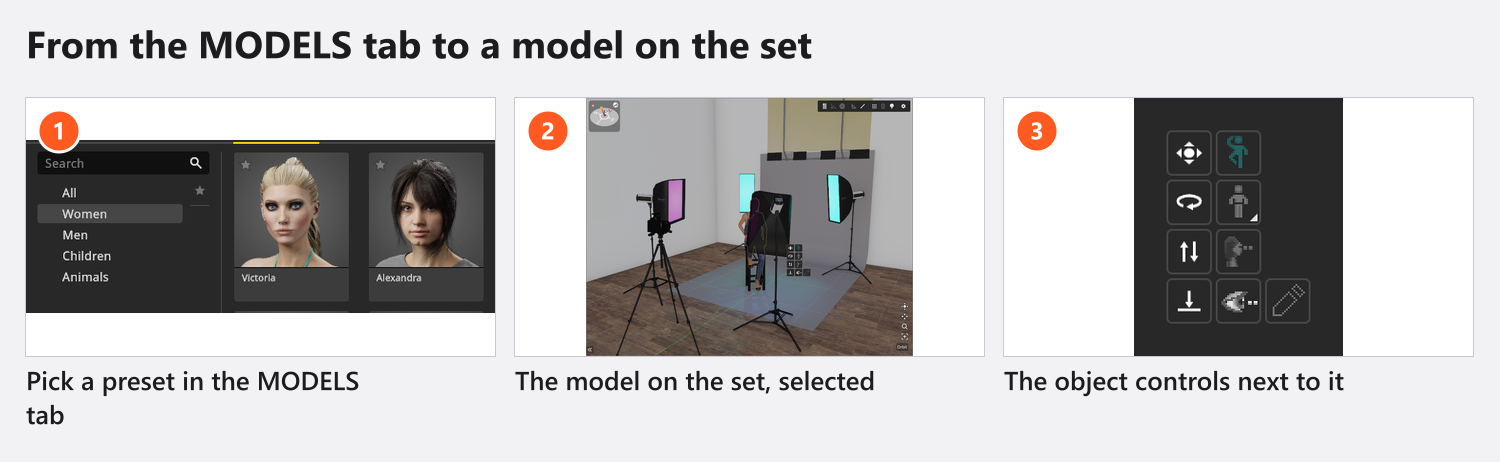
What you will build
A single-light portrait setup with a subject you can re-use: preset chosen, position measured, shoulders turned, one arm posed by hand, eyes on the lens, wardrobe checked in the camera preview, and the whole thing stored in your own library.
Before you start
Open a project that already has a background, and put one light roughly 45° to the left of where your subject will stand. You do not need a finished lighting setup — Your first lighting setup does that part. Nothing in this walk-through needs an add-on.
Step by step
- Open the MODELS tab in the library panel and click the Women tag. → The list shows the 15 presets built on the Victoria base model.
- Double-click Linda. → The model appears at the centre of the set, standing on the floor. If a prop was already there she is offset sideways in 20 cm steps until the spot is free.
- Press
G, by default, to show the studio grid, and drag the model back until two grid squares lie between her and the background. → One square is 1 m, so she now stands 2 m clear — far enough that your key light does not spill onto the paper. - Click the model, then click and hold the second button in the left column of the object controls and drag sideways. → She turns on the spot. Stop at roughly a quarter turn towards the light; watch the silhouette in the camera preview change from flat to three-dimensional as you go.
- Open the inspector’s Pose mode and click a tile in the Standing group. → She takes that pose at once. Pick one where the weight sits on one leg; it reads as relaxed where a symmetrical stance does not.
- Press
P, by default, to enter posing mode. → Lights and cameras disappear and a frame marks the studio view. On a fresh installation you land in the simple mode described here; otherwise you land in the mode you used last, andXswitches between the two. Hover her forearm until it turns yellow, drag the hand up towards the hip, and pressPagain to leave. → The arm keeps the new position and the rest of the pose is untouched. - Switch Rotate Eyes Towards Camera on in the object controls, and Rotate Head Towards Camera next to it. → She looks into the lens. The eyes only travel 40° from the head direction, which is why the head toggle matters at wide angles.
- Switch the inspector to Clothing mode, open the Top group, click the wide button and pick a plain shirt. Pull its Shine down towards the bottom of the slider. → In the camera preview the specular highlight on the shoulder collapses into a soft gradient: the difference between satin and cotton under one hard key.
- Scroll to the bottom of the inspector and click Save to My Library. Name the entry, choose a folder and save. → She is now one double-click away in every future project, pose and wardrobe included.
What to try next
- Turn her head a few degrees the other way and watch the lighting pattern flip between broad and short — the cheapest lighting change there is (Position a model).
- Give her an expression: the Facial Expression mode has a face you can drag (Match a model to your subject).
- Put a coffee cup in her hand and close the fingers around it (Let a model hold a prop).
- Store the pose you built in a group of your own, so the next subject can start from it (Reuse poses, expressions and models).