
 English
 Deutsch
 日本語
日本語 简体中文
简体中文 Français
Almost everything you configure once and forget lives in one window, the App Manager. Four pages of it are the settings: the interface, two working preferences, the keys, and the folder your own 3D objects come from. This page lists what is where, what it starts at and how far it goes.
Applies to BASIC, STUDIO, CINEMA · The library path only does something with the 3D Import add-on.
Everything on these pages is stored on this computer, not in the project file and not with your licence. That is why File → Export User Data exists — see “Where the settings live” below.
Where to find them
Two routes open the same window on the same page: Settings → Settings… in the menu bar, and the App Manager button beside it. The window is titled App Manager — that is the same window, not a second one. Settings → Shortcuts… opens it on the shortcut page instead.
Four tabs sit at the top, in this order:
| Tab | What it holds |
|---|---|
| Program Settings | Interface scale, language, units, autosave |
| Project Settings | Two working preferences — despite the name, stored per computer |
| Shortcuts | The key editor, new in 3.1.14 |
| Library Settings | The folder for your own imported 3D objects |
The App Manager tutorial opens on this page: about 35 seconds on interface scale, language, units and autosave.
Program Settings
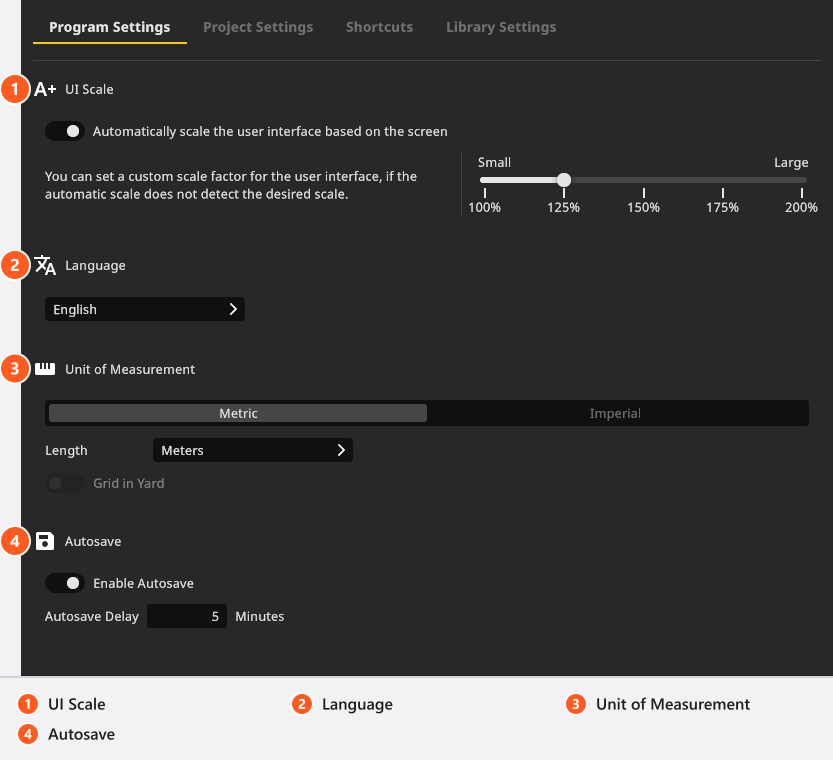
UI Scale — enlarges the whole interface. Automatically scale the user interface based on the screen is on by default and follows your display. Switch it off and the slider below takes over: it runs from Small to Large in five steps — 100 %, 125 %, 150 %, 175 % and 200 %.
Language — nine interface languages: Deutsch, English, Español, Français, Italiano, 日本語, 한국어, Português (BR), 中文(简体). The change takes effect immediately, and the same list is repeated at the top of the Settings menu so you can switch without opening this window.
Unit of Measurement — Metric or Imperial, plus the unit used for lengths: meters or centimeters for metric, feet or inches for imperial. Grid in Yard switches the floor grid to yards and can only be set while Imperial is active.
Autosave — Enable Autosave is on by default. Autosave Delay accepts 1 to 60 Minutes; the default is 5, counted from the first unsaved change rather than as a fixed clock interval. The files do not sit next to your project: they go into the program’s own data folder on this computer, reachable through Help → Show Autosave Folder. What to do with one is described in Recover a project after a crash.
Project Settings
Two working preferences, grouped as Editing and Timeline:
- Align New Objects With View — eligible library objects are turned towards the current studio view when you drop them, instead of keeping their stored orientation. Off by default.
- Display Most Recent Shot at Front — the order of the TIMELINE: newest shot first (the default) or oldest first. See The set list and the timeline.
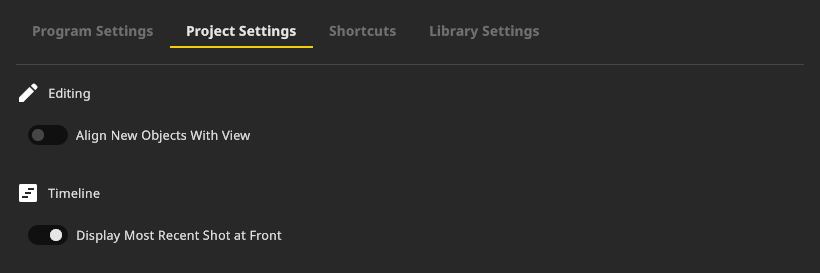
Despite the tab name, both are preferences of this computer — they do not travel inside the .set file.
Shortcuts
The third tab is the key editor: one row per action, a search field that also finds a row by its combination, per-row reset and one Restore Defaults for everything. The procedure, the conflict messages and the rows that cannot be changed are in Change a keyboard shortcut; the full key list is in Keyboard shortcuts.
Library Settings
3D Objects Library sets the folder your own imported models are read from and written to. It only has an effect with the 3D Import add-on.
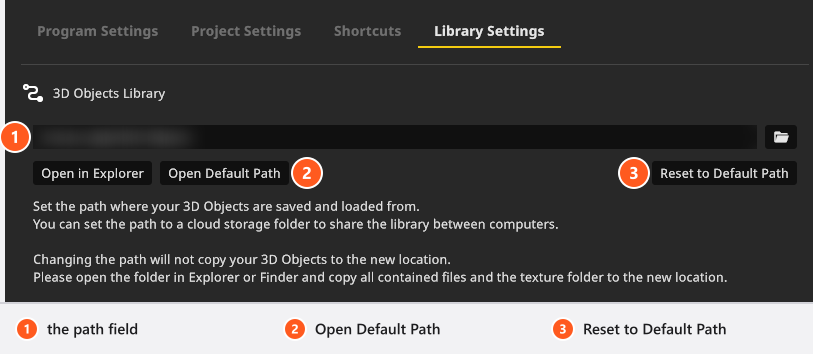
Four things are worth knowing before you change it:
- The field itself is read-only. Pick a folder with the browse button beside it.
- The change is applied when you leave the page, and the library is re-read then.
- Changing the path does not move any files. Copy the contents of the old folder across yourself — the page says so too — or the library looks empty afterwards.
- Leave it empty and the built-in Default Path is used. Open in Explorer (Open in Finder on macOS) opens the folder in use, Open Default Path the built-in one, and Reset to Default Path goes back to it.
A folder that is synchronised between computers can serve the same files on both. Point both machines at it after the files are in place — see Share, update and back up your 3D objects.
One CINEMA-only setting in the App Manager
On the Continuous Lights page of the App Manager, each model carries a Default Dimming Curve — Exponential or Linear — which decides how its dimmer behaves when you place one. Creating or editing a continuous-light model needs CINEMA (CINEMA). The per-light switch itself is in Light settings.
The rest of the App Manager
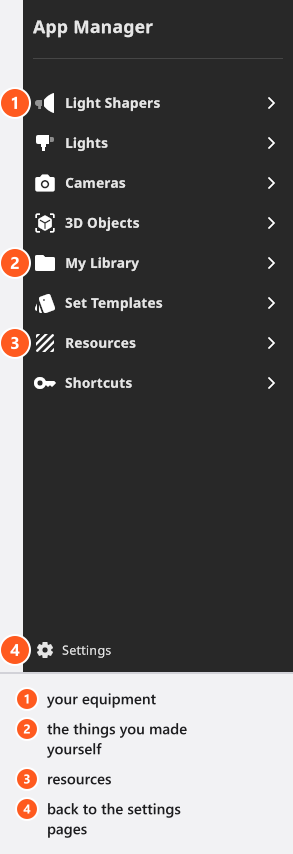
The category list on the left is not part of the settings: it manages your equipment and resource libraries, from light shapers to HDRIs and logos. Hiding the gear you do not own is the quickest way to shorten a long library list. The whole tour is in Manage your resources in the App Manager.
Controls that live somewhere else
- Render quality, preview quality, denoiser and resolution belong to the RENDER tab and to the camera preview, not here — see Quality and denoiser settings and Resolution.
- The working light and the quality of the studio view sit behind the gear in the studio tool strip, see The user interface.
- Guides, the focus guide, the histogram, the floor grid and the transform handles are switched in the interface itself and remembered between sessions, see Keyboard shortcuts.
- Sending error reports automatically is a toggle in the Help menu — off on a fresh installation, see Something looks wrong: start here.
Where the settings live
Everything above is stored on this computer. To move it, use File → Export User Data and File → Import User Data; the archive is a single .xdat file. It carries three things: your settings, your resources and your presets — and your own 3D objects count as resources while they sit in the default folder. Two things stay outside: your set templates, and a 3D-objects folder you pointed somewhere else. Back those up separately. See Supported file formats.
Troubleshooting
- My 3D objects are gone after changing the library path. The files were not copied. Point the path back, copy the folder contents to the new location, then set the path again — see 3D import problems.
- The interface is too small or too large on a high-resolution screen. Switch the automatic scaling off and set the scale by hand, see “Program Settings” above.