
 English
 Deutsch
 日本語
日本語 简体中文
简体中文 Français
Every key in set.a.light 3D is a default you can replace. If you come from another program, work on a keyboard layout where Ctrl+Z is awkward, or want the shots of a session on one hand, the shortcut editor lets you record your own combination for almost any action — and tells you what you would be taking that key away from.
Applies to BASIC, STUDIO, CINEMA · New in 3.1.14 · You need: nothing open in particular; the editor is part of the App Manager.
Where to find it
Two routes lead to the same page:
- Settings → Shortcuts… in the menu bar opens the App Manager straight on the shortcut page.
- With the App Manager already open, use the Shortcuts tab at the top of the settings pages, or the Shortcuts entry at the bottom of the category list on the left.
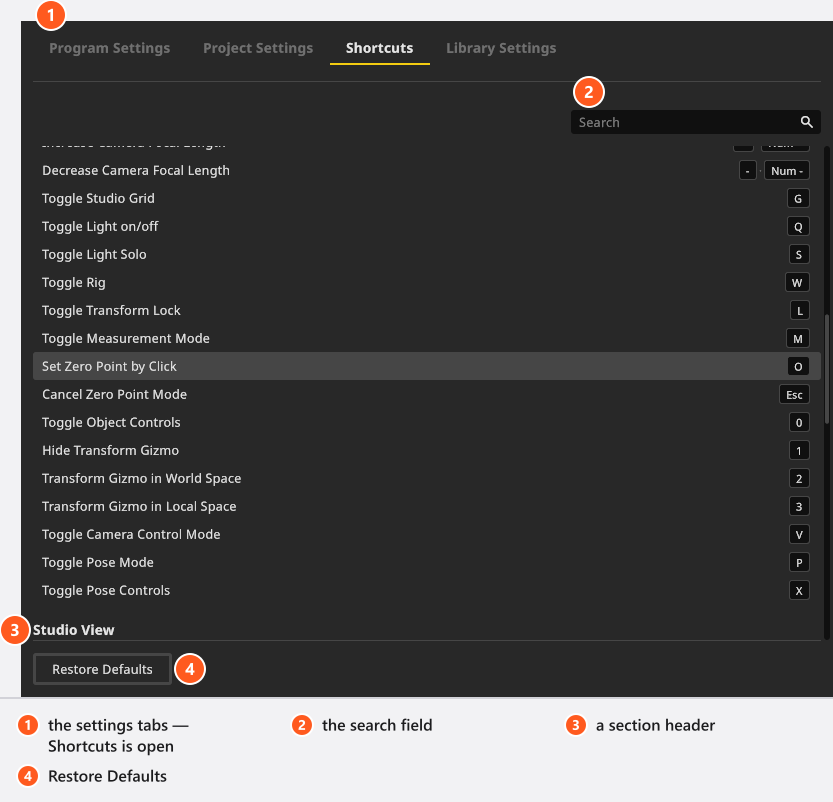
The rows are grouped by the part of the window that listens for them — Global first, then Studio, Studio View, Camera Preview and the other panels. A row shows the action, what it does, and its current key.
Find the action you want to change
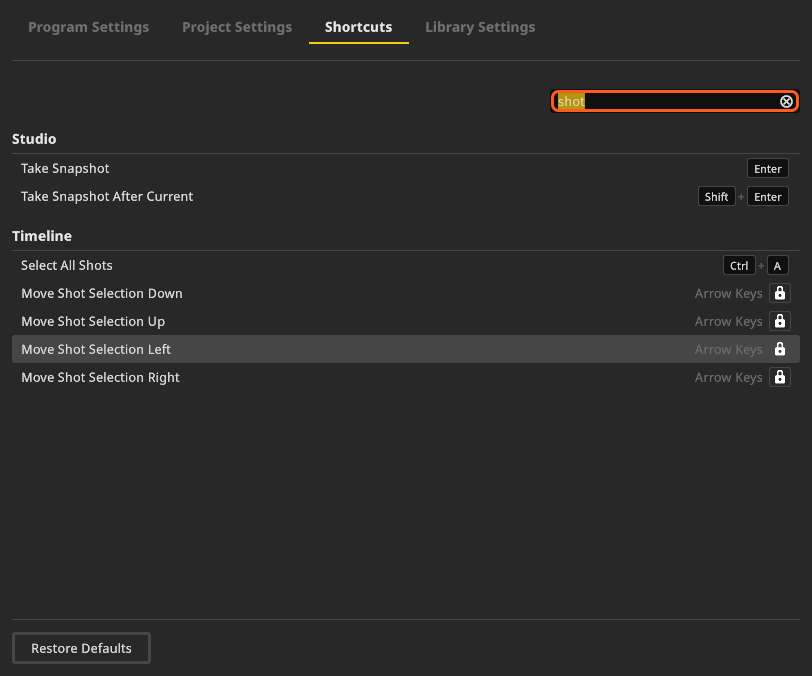
The list holds just over sixty rows, so start with the search field at the top right. It matches two things:
- The name of the action: type
shotand you keep the rows whose name contains it — Take Snapshot, Take Snapshot After Current, Select All Shots and the four that move the shot selection. The search reads the name and the key, not the sentence beside them. - The key itself: type
ctrl+sand you get the rows bound to that combination — the fastest way to find out what a key already does. Spell the key the way the interface spells it: the editor writes its key names in your language, so a German app answers tostrg+sand not toctrl+s.
Clear Search empties the field. If nothing matches you get No shortcuts match your search.
Change a key
- Double-click the row. → The key field turns into a recorder and shows Press New Shortcut… with the hint Esc to cancel · Backspace to clear the binding. A selected row also starts recording on
Enter, and a click straight on the key does the same — its tooltip says click to change. - Press the combination you want, modifiers included. → The row takes the new key at once and is marked modified.
- Leave the settings when you are done. Your changes are saved as you close the page.

Esc leaves the recorder without changing anything, Backspace clears the row instead — an action without a key reads Not Assigned and can be given one again later.
When the key is already taken
The editor distinguishes two cases, and only the first one asks you to decide.
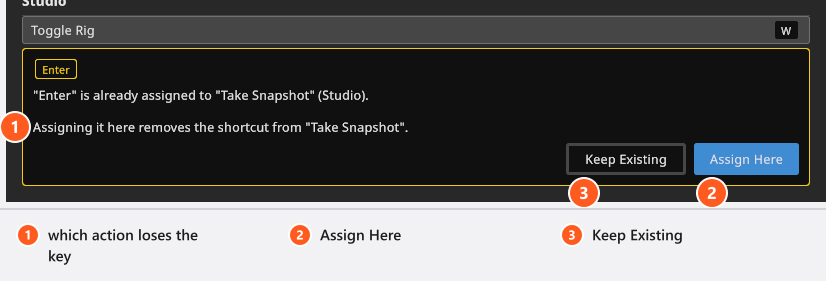
Same part of the window — you have to choose. A message names the collision: “{Combo}” is already assigned to “{Action}” ({Context})., followed by Assigning it here removes the shortcut from “{Action}”. Pick Assign Here to move the key to the row you are editing, or Keep Existing to leave everything as it was. If the other row is one of the locked ones, the message reads “{Action}” is fixed and cannot be changed. Choose another key. — pick a different combination.
Different part of the window — nothing to fix. You get a hint instead: “{Combo}” is also used in {Context}: {Action}. Different context. That is allowed and normal; F frames the selection in the studio view and fits the image in the viewer, and both keep working, because dispatch follows the mouse pointer. Also Used In on the selected row lists every other place a key is busy.

Put one row, or all of them, back
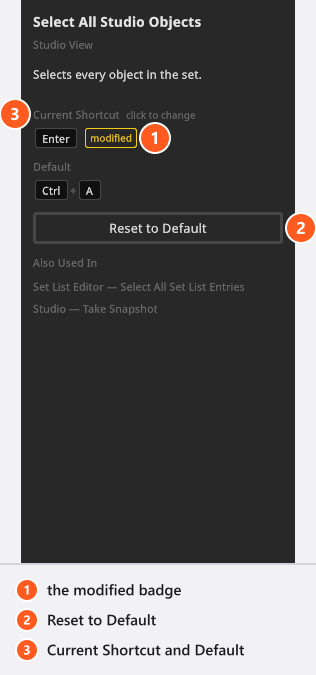
A row you changed carries a modified badge and a reset button; the panel beside the list shows Current Shortcut next to Default, so you can see what you replaced. The reset button on the row restores that one key.
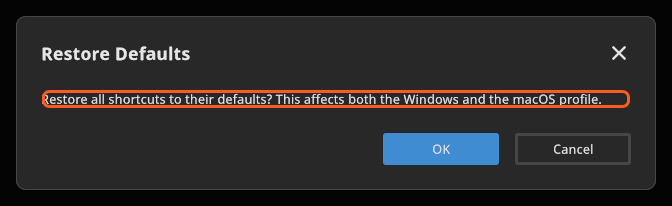
Restore Defaults at the bottom of the page resets everything, and asks first: Restore all shortcuts to their defaults? This affects both the Windows and the macOS profile. Read that literally. set.a.light 3D keeps one set of keys per operating system, so if you work on a Windows desktop and a Mac laptop with the same configuration, this button throws away the other machine’s changes as well.
Tips & limits
-
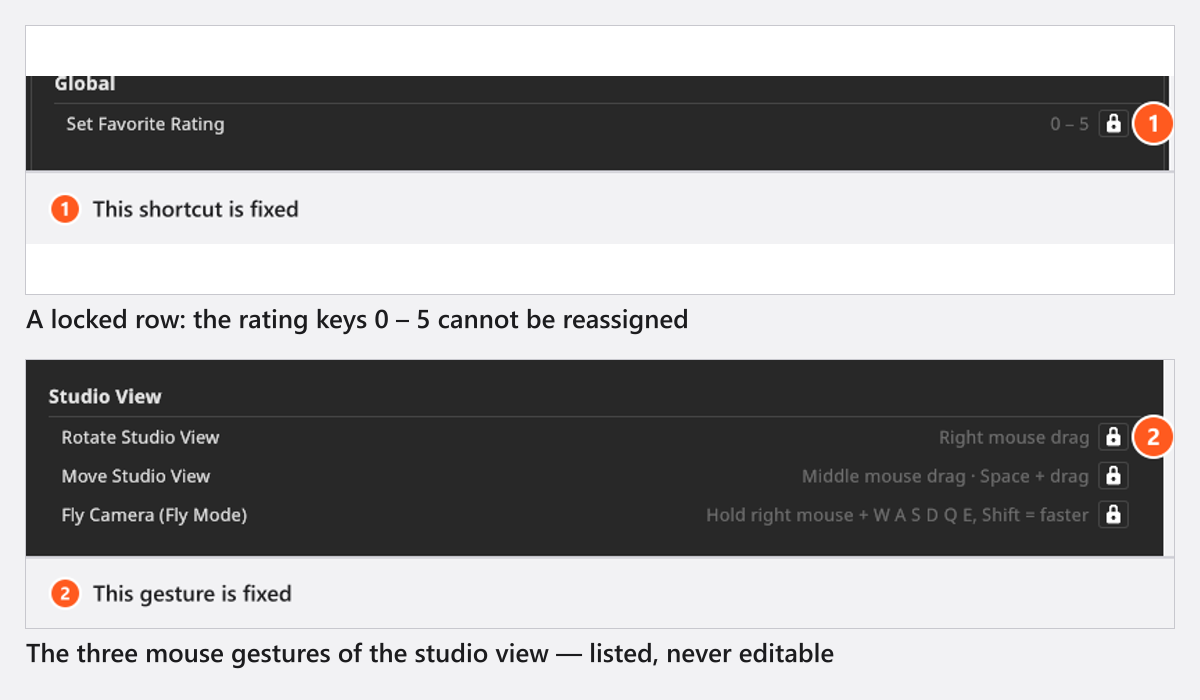
Three groups of rows cannot be changed: the rating keys, the rows that accept any modifier key (the studio nudge row and the four shot-selection rows), and the three mouse gestures. A locked row shows a padlock with This shortcut is fixed, a gesture row This gesture is fixed. The full list is in Keyboard shortcuts.

A locked rating row and the three mouse gestures - One change can reach several views. The two community share views, the shot view of the PLANS tab, the 3D object importer and the set list are edited through the matching studio row, so they follow along.
- Keys are stored on the computer, not in the project, and not with your licence. Moving them to another machine means moving your configuration — see Settings.
- Two rows are not in the editor at all:
Esccloses an open dialog everywhere in the program, and typing any character jumps into the search field of a selection popup. Do not go looking for them.
Troubleshooting
- The new key does nothing. Shortcuts follow the pointer: move the mouse into the panel the row belongs to, leave any text field, and make sure no dialog is open — a modal dialog blocks even the Global rows. See Keyboard shortcuts for the precedence rules and Something looks wrong: start here.
- A key I never touched behaves differently. Search for the combination in the editor; a row that was rebound shows the modified badge next to its name.