
 English
 Deutsch
 日本語
日本語 简体中文
简体中文 Français
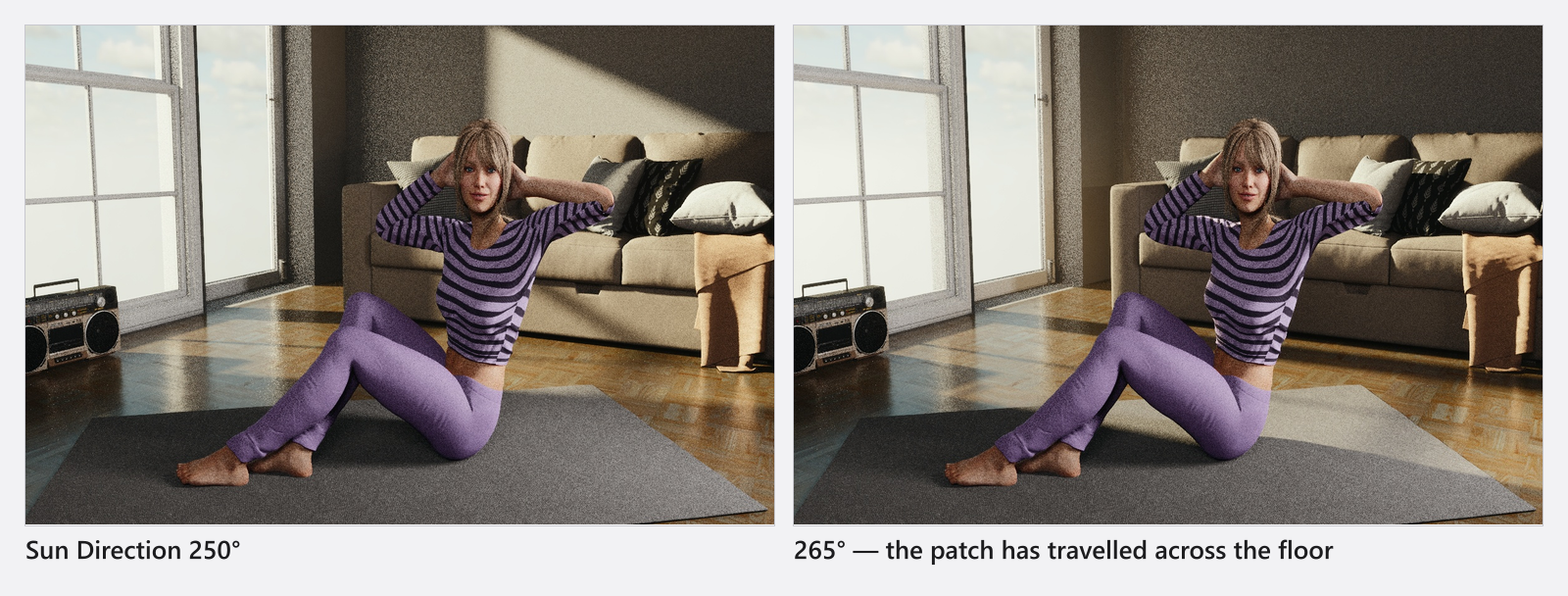
Sun and sky only reach the inside of a room through an opening. A window or a door in a wall is a real opening in the simulation, so the daylight that falls through it behaves like the real thing: it throws a hard patch on the floor, it travels as the sun moves, and it gets softer the smaller the opening is. This is the setup for an available-light portrait, a shaft across a studio floor, or a check on whether the light will really come through that window at the time of day you planned.
Applies to BASIC, STUDIO, CINEMA · You need: a project open on the SETUP tab with a room or a free-standing wall element in the set.
Where to find it
Two different objects are involved, and that is the thing to get right: the opening is a prop you drop into a wall, and the light belongs to the Environment. Nothing about the sun is set on the window.
Openings live in the library panel: ASSETS tab → Props → Doors & Windows. The sun sits on the Environment, the first row of the set list.
How to light a room through an opening
- Drag a window or a door onto a wall. It snaps flat into the wall it lands on, and you can slide it along that wall afterwards. A free-standing Wall Element takes one the same way, so you can have a window without building a whole room — sizes, frames and the rest are in Build a room, a background and a window.
- Select the Environment and drag Sun Direction in the Sun group, under Baked Settings in the Background group. → The patch of daylight travels across the floor while you drag.
- Set Sun Altitude to decide how deep the light reaches into the room. → A low sun throws a long patch far inside; a high one keeps it close to the wall.
The clip below walks through all three steps in 47 seconds: the drop onto the wall first, the sun from 0:19. One correction while you watch: the sun settings it reaches for are on the Environment, not on the window — select the Environment row first.
How to judge what you get
The size of the opening decides how much light gets in and how hard it stays, so plan with the window you will really have on the day. A small high window gives a narrow, hard shaft; a wide glass front gives a broad, soft wash.
If none of the models matches your real window, Empty Window is the one whose Width and Height you type in yourself. In exchange it is a bare opening: no frame, no glass colour and nothing to open. Use a built model whenever the window itself is in frame.
Judge the result in the camera preview or in a render, not in the studio view — the working view is a building aid with its own quality setting.
How to clean up the noise
Daylight through a small opening is the hardest case for the renderer: a lot of the light in the room arrives through a small area, so an interior can come out grainy where a set outdoors is clean. Sample Portals (0 … 1, default 0.5) in the Rendering group of the environment inspector aims more of the render effort through the openings. Raise it when window light stays noisy; the price is render time.
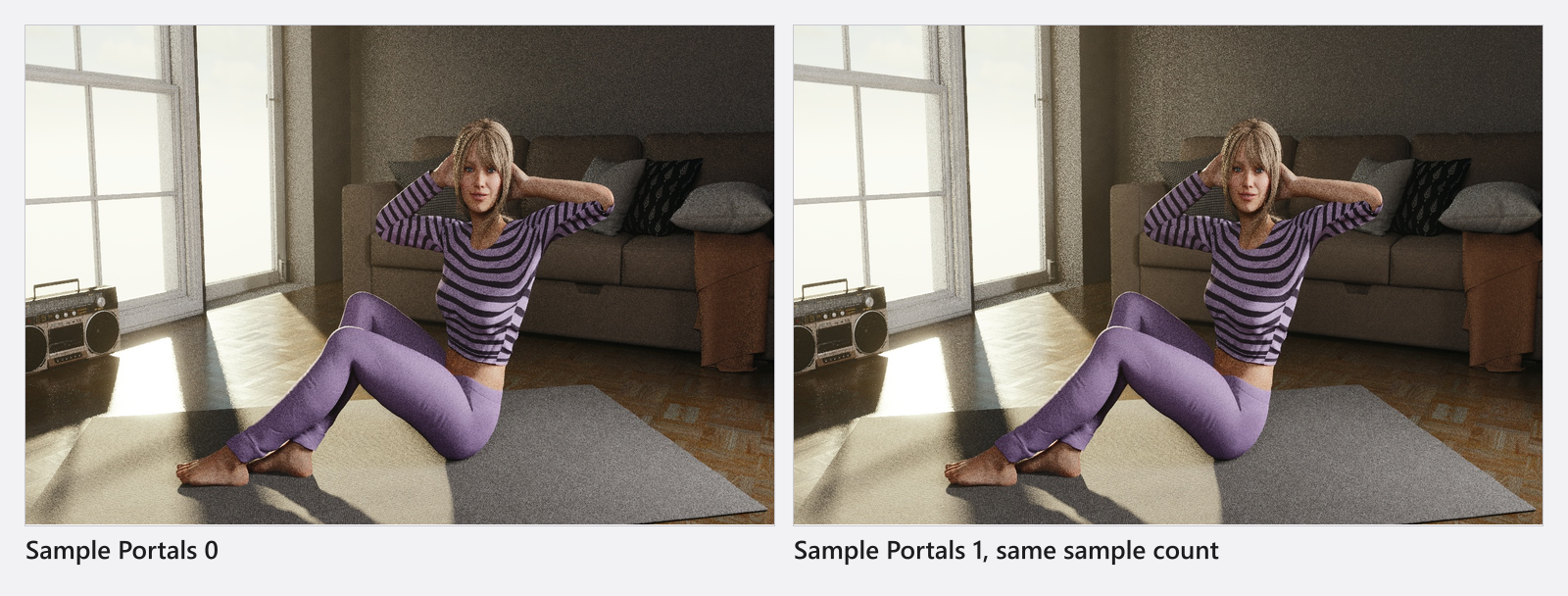
The slider is only active when three things are true at once: the sun or the sky light is switched on, the active camera is not sealed in a room without an opening, and the set contains at least one visible window or door.
Tips & limits
- A room with no visible opening blocks sun and sky completely, and the Environment row disappears from the set list while the camera is inside it. That is deliberate.
- Whether a door counts as an opening depends on whether it is visible, not on how far its Open slider is pushed. A closed door still lets the calculation through.
- Hiding a window with the eye icon in the set list takes the opening out of the calculation as well, which is a quick way to compare the room with and without daylight.
- The sky image is the other half of the light coming through the opening — see Use an HDRI environment.
Troubleshooting
- No light comes in at all. Check that the sun is on (the sun icon in the Environment header), that Sun Altitude is above the horizon, and that the opening is not hidden. At or below the horizon the direct sun is switched off.
- The Environment row is gone and I cannot select the sun. The camera is in a room with no visible opening. Click the compass in the corner of the studio view to select the Environment, then add a window to a wall.
- Sample Portals is greyed out. One of its three conditions is missing — see above.
- The room is grainy around the window. Raise Sample Portals, then the render quality — see Quality and denoiser settings.
More symptoms: Lighting problems.