
 English
 Deutsch
 日本語
日本語 简体中文
简体中文 Français
Something interrupted your session and the last save is older than your work. Read this from the top and do not save anything over your project until you have. Three different files can hold what you are missing, and they live in three different places.
Applies to BASIC, STUDIO, CINEMA · Windows and macOS · You need nothing switched on: autosave is on by default.
Which file are you looking for
| File | Written when | Where |
|---|---|---|
| The autosave | While you work, after a change, once the delay has passed (default 5 minutes) |
One central autosaves folder in your local application data |
| The rescue file | At the moment of a fatal fault, if a project was open | The elixxier folder in your documents folder |
| Your own last save | When you pressed Save Project | Wherever you keep your projects |
The autosave is the one that usually has the most recent state. The rescue file is the one that exists after a hard stop. If both are there, open both and compare them before you decide.
The program asks whether to load the autosave
You re-open the project and get Autosave Exists.
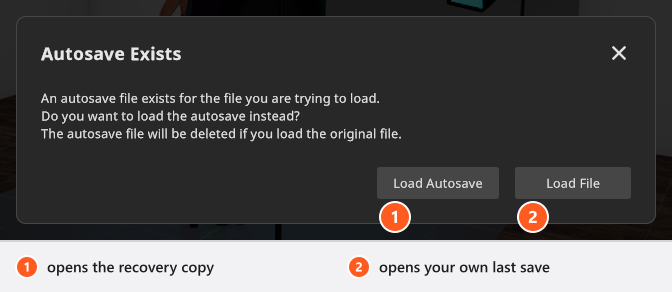
Cause. An autosave for exactly this project file is on disk.
What to do. Press Load Autosave. Neither button deletes the recovery copy, so you can still go back to Load File afterwards — as the dialog says, the copy is kept until your own changes are autosaved over it. What you must not do is carry on working and save normally: a project loaded from an autosave is deliberately not linked to a file, so the first thing to do is File → Save Project As under a new name. Then compare it with your own last save and keep the better one.
Find the autosave yourself
If the prompt did not appear — you opened a different file, or you want to look before you decide — open the folder directly.
- Help → Show Autosave Folder. The folder opens in your file manager.
- Look for the file whose name starts with your project name. It ends in
.autosave.set, and between the two there is a short code derived from the project’s full path, so two projects of the same name from different folders do not collide. A project that was never saved has no such code. - Copy the file somewhere of your own and rename it to
<name>.setbefore you open it. Working on a copy means the running program cannot overwrite it while you look.
The folder holds at most ten of these files. Once there are more, the next program start deletes the oldest ones until ten are left, so an autosave of a project you have not opened for a while may already be gone. Copy what you may need out of the folder as soon as you find it, and do that before you start the program again.
File → Delete Autosave removes the recovery copy of the project you have open, and only that one — the entry appears in the menu while such a copy exists and is gone again afterwards. Use it when you have secured your work and do not want to be asked about the copy the next time you open the project.
Find the rescue file after a hard stop
When a fatal fault happens with a project open, the program writes the project and a log side by side into the elixxier folder in your documents folder, named after the moment it happened:
CRASH_2026-09-22_14-32_Portrait.setCRASH_2026-09-22_14-32_Portrait.log
- Open the
.setfile like any other project. The next start does not offer it to you — you fetch it yourself. - Save it at once under a proper name with File → Save Project As.
- Attach the
.logfile to your report, together with what you were doing. See Something looks wrong: start here for how a report is sent.
Why a recovery copy can be older than you expect
Autosave is not a clock. The timer starts with your first change after a save, and when it fires the program checks that the moment is safe: no dialog open, no load or save running, no model still loading its meshes. A set that is being rebuilt would be written half-finished, so the timer waits and fires as soon as the scene is quiet again. On a heavy set with a lot of models that wait can be noticeable.
Two more things follow from the mechanism:
- An autosave is a single state, not a history. Each new one replaces the previous one for that project.
- Closing a project normally removes an autosave that this session wrote itself. One that was already there when you opened the project is left alone.
You can change the interval in the App Manager under Program Settings, group Autosave: Enable Autosave and Autosave Delay in Minutes, between 1 and 60. See Settings.
Limits — what recovery cannot promise
- The safety net is armed for the first two faults of a session. After the second one the program stops writing rescue files and stops offering the report, so restart as soon as you have secured your work instead of continuing.
- A rescue file is an attempt, not a guarantee: it is written while the program is already in trouble.
- The autosave folder is capped at ten files, and each start trims it back to that number, oldest first. It is not an archive: copy out what you want to keep.
- Rescue files, in contrast, are never cleaned up. Check that folder now and then and delete what you no longer need.
- An abrupt end — a power cut, a forced quit — can also catch an autosave in the middle of being written. That is why you open a copy, keep your own last save, and compare.
- Rendered images are not part of any of this. They are files on disk and are neither autosaved nor rescued; see Render problems if they are missing.