
 English
 Deutsch
 日本語
日本語 简体中文
简体中文 Français
A material decides how much of your light a surface sends back, how sharply, and in what colour. That is not cosmetics: a glossy black table under a beauty dish is a different instrument from a matte one. By the end of this page you can recolour any part of any object, judge Shine and Metallic by what they do to the picture, and match an exact colour.
Applies to BASIC, STUDIO, CINEMA · You need: a project open on the SETUP tab and an object selected.
Where to find it
Select the object; the group differs by what it is.
| Object | Group |
|---|---|
| Prop | Settings, one block per material group |
| Basic shape | Color |
| Room | Color — Ceiling, Wall, Floor, each with Shine, plus Floor Texture |
| Background | Color |
| Floor object | Material |
| Wall element | Presets → Image Template, and Color |
| Picture wall | Material — see Use a picture wall |
| Imported object | in the importer — see Shaders and textures of an imported object |
Three systems sit behind that list, and they do not offer the same things:
| System | Controls | What can be keyframed |
|---|---|---|
| Prop material group | Color, and where the model allows it Shine, Metallic and a material list | Color only |
| Basic shape | Color, Shine, Metallic | all three |
| Imported object | five shaders with colour, normal, gloss, metallic and transparency maps | none of them |
How to recolour part of a prop
A prop is split into material groups — the frame and the cushions of a chair, the body and the glass of a car — and each group appears on its own in Settings.
- If the group carries a material list, open it first and pick the material. → Choosing one on a floor also writes that material’s own colour and shine, so doing it first saves work.
- Click the colour swatch of the group and set the colour.
- Set Shine, and Metallic where the model offers it.
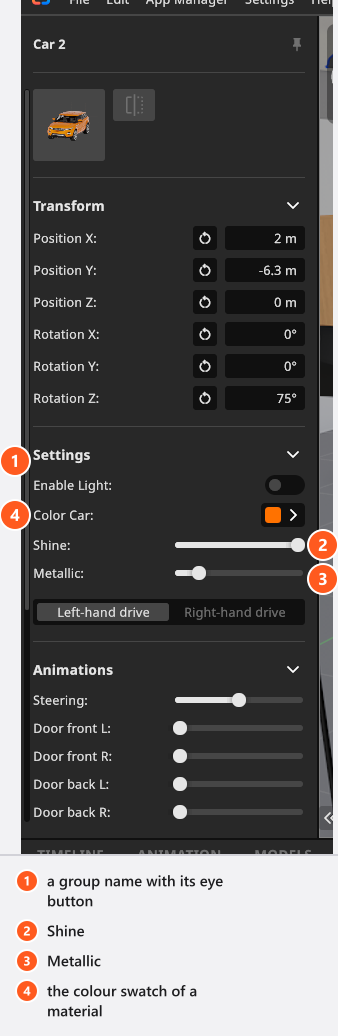
A material list only appears where the model allows that slot to be swapped, which is rare: 25 of the 298 props have one. If you see a colour swatch and nothing else, that surface has no alternatives — change its colour and its shine instead. The eye button in front of a group hides that part altogether, and the fields of a hidden group grey out.
What Shine does
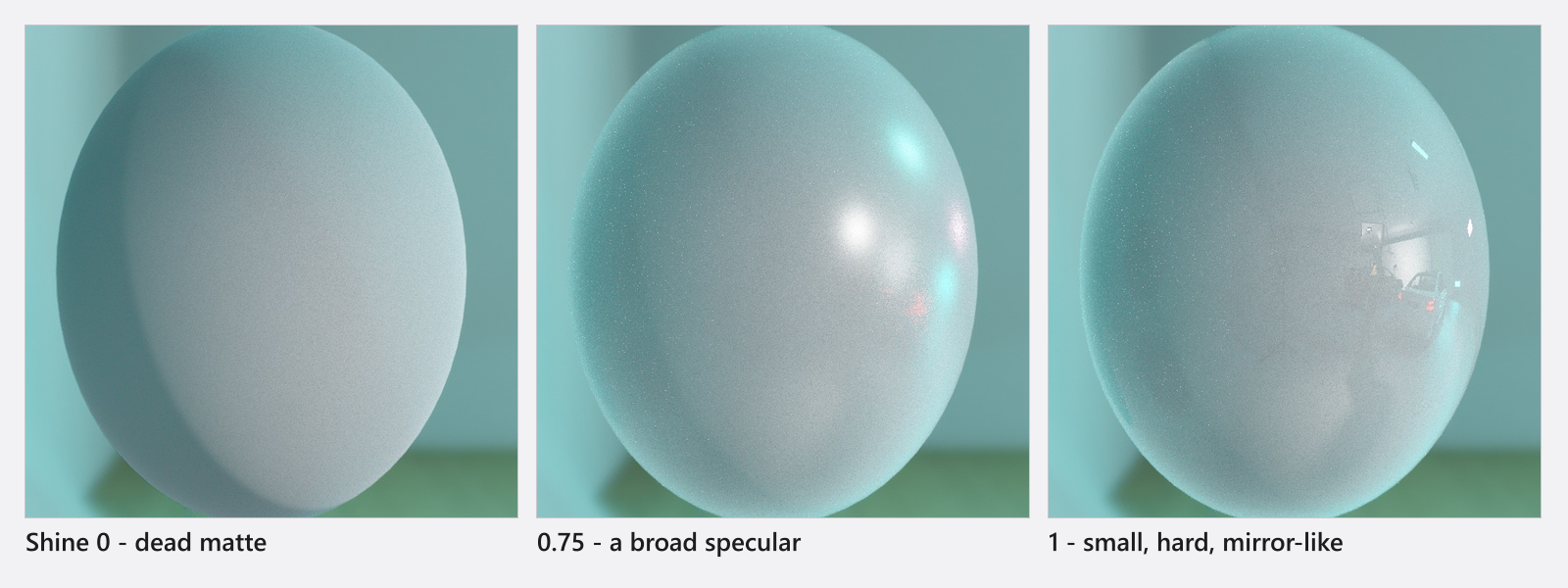
Shine (0–1) runs from dead matte to a mirror finish. Judge it by the specular highlight, not by the swatch: the size and the shape of the highlight is what tells a viewer whether a surface is lacquered, satin or matte. Almost all of the visible change sits above 0.5 — below it the highlight stays broad and dull, so work in the upper half of the slider.
What Metallic does
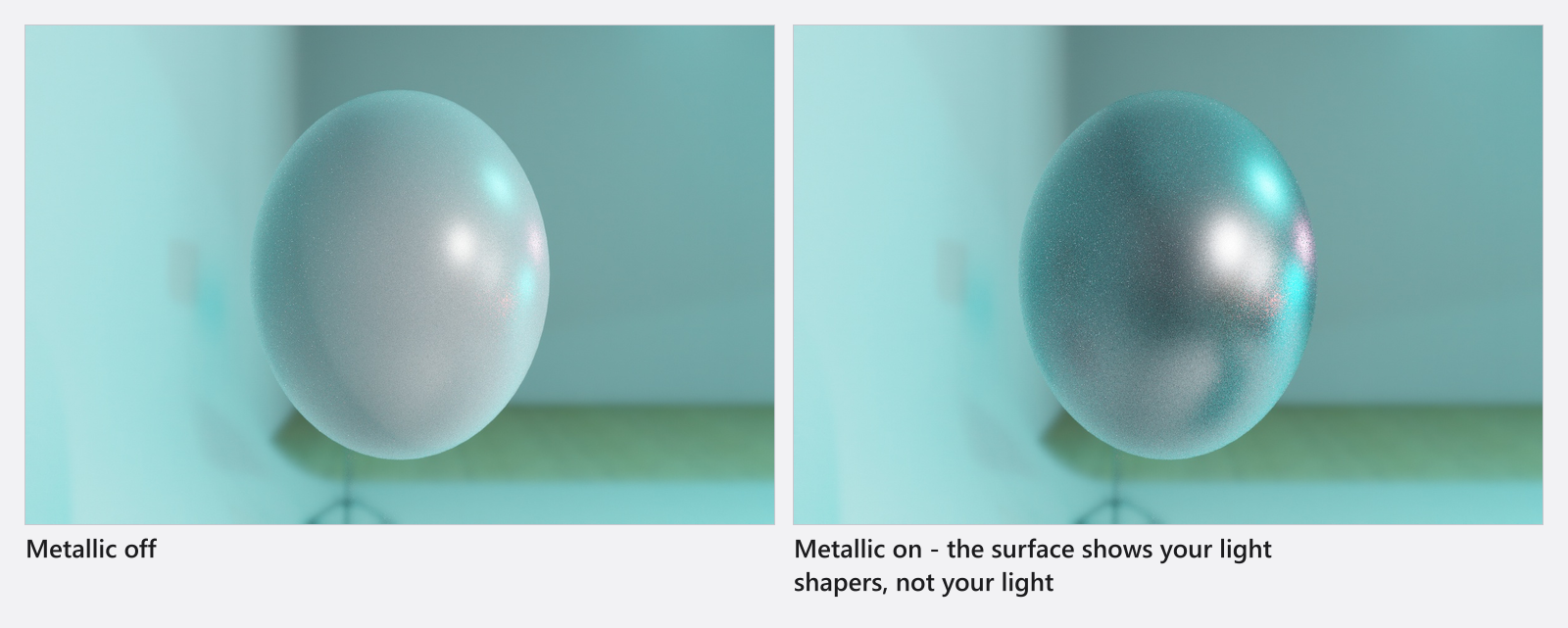
Metallic (0–1) turns a painted surface into bare metal. A metallic surface stops having a colour of its own and shows your light shapers instead, which is why a metal prop under a bare head looks dull no matter how much power you add. The fix is a bigger or better-placed source, not more light.
Walls and floors are lighting instruments
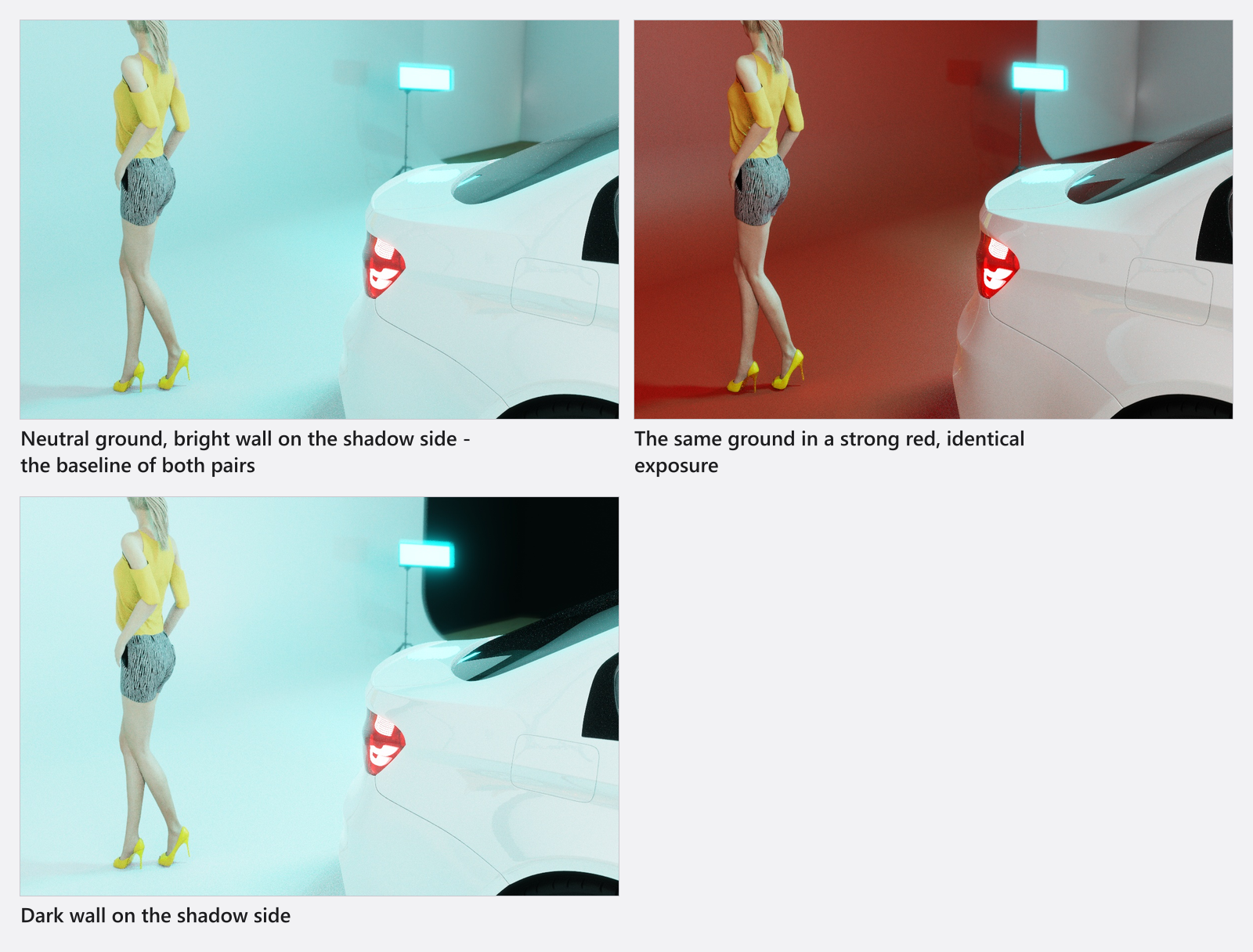
Every surface in the set bounces. A coloured floor tints everything above it, a bright matte wall on the shadow side is fill, and a dark one is negative fill — all of it correct behaviour that happens in your real studio too. Change the material of a wall or a table before you add another light to fix contrast.
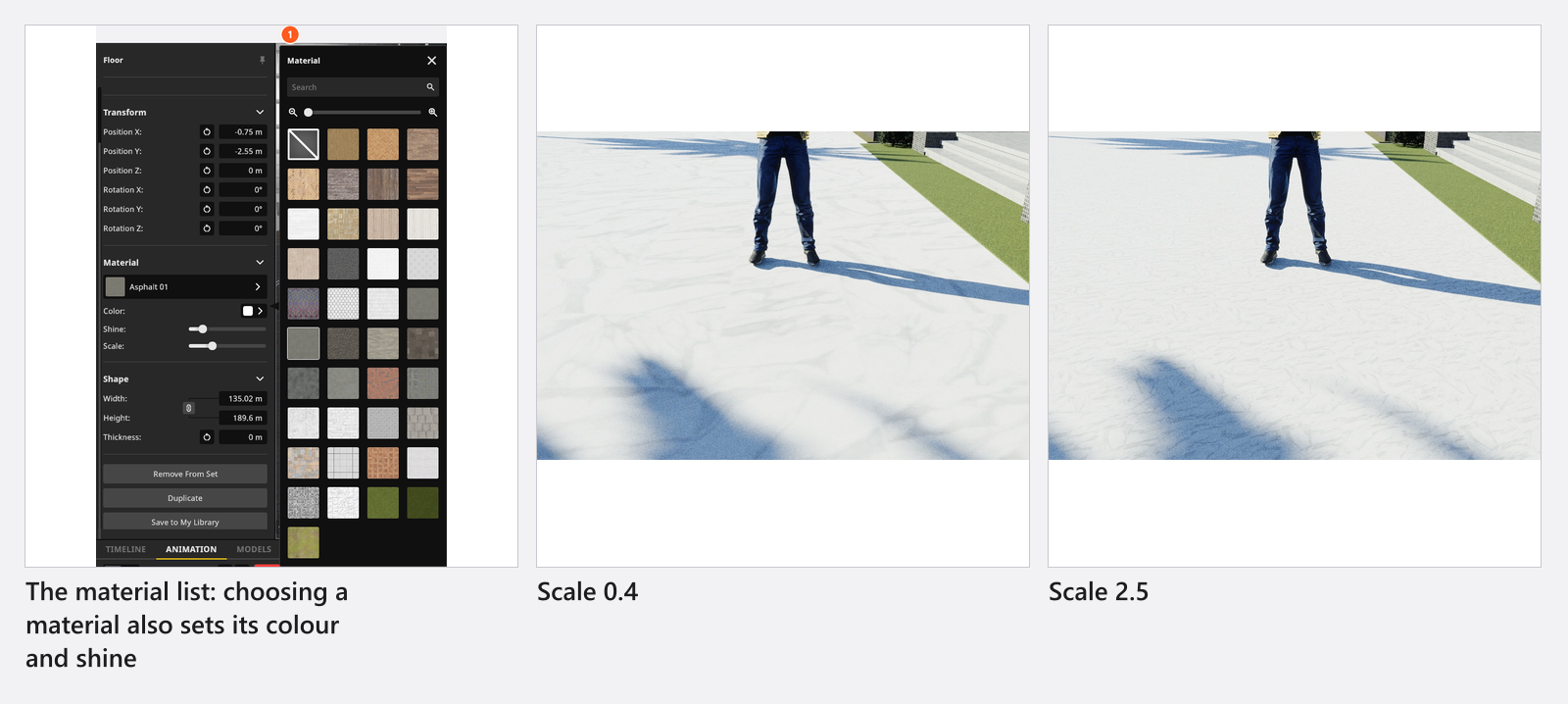
Thirty materials are available for wall elements and forty for floors, where the list also opens with No Texture for a plain colour. Both carry a Scale (0.4–2.5) that sets how large the pattern is tiled; a wall element adds Rotation.
Wall materials
| Name |
|---|
| Basic 01 |
| Bricks 01 |
| Bricks 02 |
| Bricks 03 |
| Bricks 04 |
| Bricks 05 |
| Bricks 06 |
| Bricks 07 |
| Bricks 08 |
| Bricks 09 |
| Bricks 10 |
| Bricks 11 |
| Bricks 12 |
| Bricks 13 |
| Canvas 01 |
| Concrete 01 |
| Concrete 02 |
| Concrete 03 |
| Rust 01 |
| Stone 01 |
| Stone 02 |
| Stone 03 |
| Tiles 01 |
| Tiles 02 |
| Wood 01 |
| Wood 02 |
| Wood 03 |
| Wood 04 |
| Wood 05 |
| Wood 06 |
How to pick an exact colour
Every colour swatch opens the same popup: a hue strip beside a saturation and brightness square, and under them a mode selector with three ways to type a value.
- Hex takes up to 7 characters,
#RRGGBB— the field for a brand colour off a style guide. - RGB takes three whole numbers from 0 to 255.
- HSB takes hue, saturation and brightness from 0 to 1.
Two swatches sit at the top left: the colour you started with and the one you are choosing. Click the left one to put the original back. Beside them are the four colours you used most recently.
Custom Colors at the bottom is your own palette: type a Name, click the add button, and the current colour is stored under that name for every project on this computer. Right-click a stored swatch and choose Delete Color to remove it.
Images you bring in yourself
Three image libraries take files of your own. What you may bring in and what the program keeps are two different things:
| Library | What you may bring in | What is kept |
|---|---|---|
| Picture wall | JPG, JPEG, PNG, TGA, TIF, TIFF up to 8192 px per edge (BASIC: JPG and JPEG only) | at most 2048 px on the long edge |
| Projector slide | the same formats and limit | at most 2048 px on the long edge |
| Gobo mask | the same formats and limit | 512 × 512 px, converted to greyscale |
An image that a project already carries is re-limited to 4096 px per edge as the project loads. The note in the import dialog quotes the stored size rather than the file size you may pick, so bring in the best file you have and let the program scale it. (BASIC) Each library holds at most 7 images of your own, and gobos are not available at all.
Tips & limits
- On a prop, Shine and Metallic hold still through an animation; only Color takes keyframes. Use a basic shape when a surface has to change on camera.
- More props offer Shine in 3.1.14 than before, and the range often starts at 0.3 rather than 0 — a model-specific floor, not a bug.
Troubleshooting
- My floor colour reset itself. Choosing a material applies that material’s own colour and shine. Pick the material first, then adjust.
- The colour fields of a part are greyed out. The group is hidden. Show it with its eye button.
- A prop offers a colour swatch and no material list. That slot cannot be swapped.
More symptoms: Objects, rooms and measurement problems