
 English
 Deutsch
 日本語
日本語 简体中文
简体中文 Français
This tutorial builds the setup most portraits start from: one soft key light to the side of the model, a reflector opposite it to open the shadows, and a camera exposed for the key. Place, aim, set the power, judge — every move in it returns in every setup.
Applies to BASIC, STUDIO, CINEMA · You need: about 10 minutes and a new project on the SETUP tab. BASIC holds at most five lights; this setup uses one.
The official starter clip covers the same ground with a different set.
Step 1 — Start from the Indoor scene and clear it
The Indoor card does not open an empty room. It loads a finished demo set, so the first job is to take that set apart.
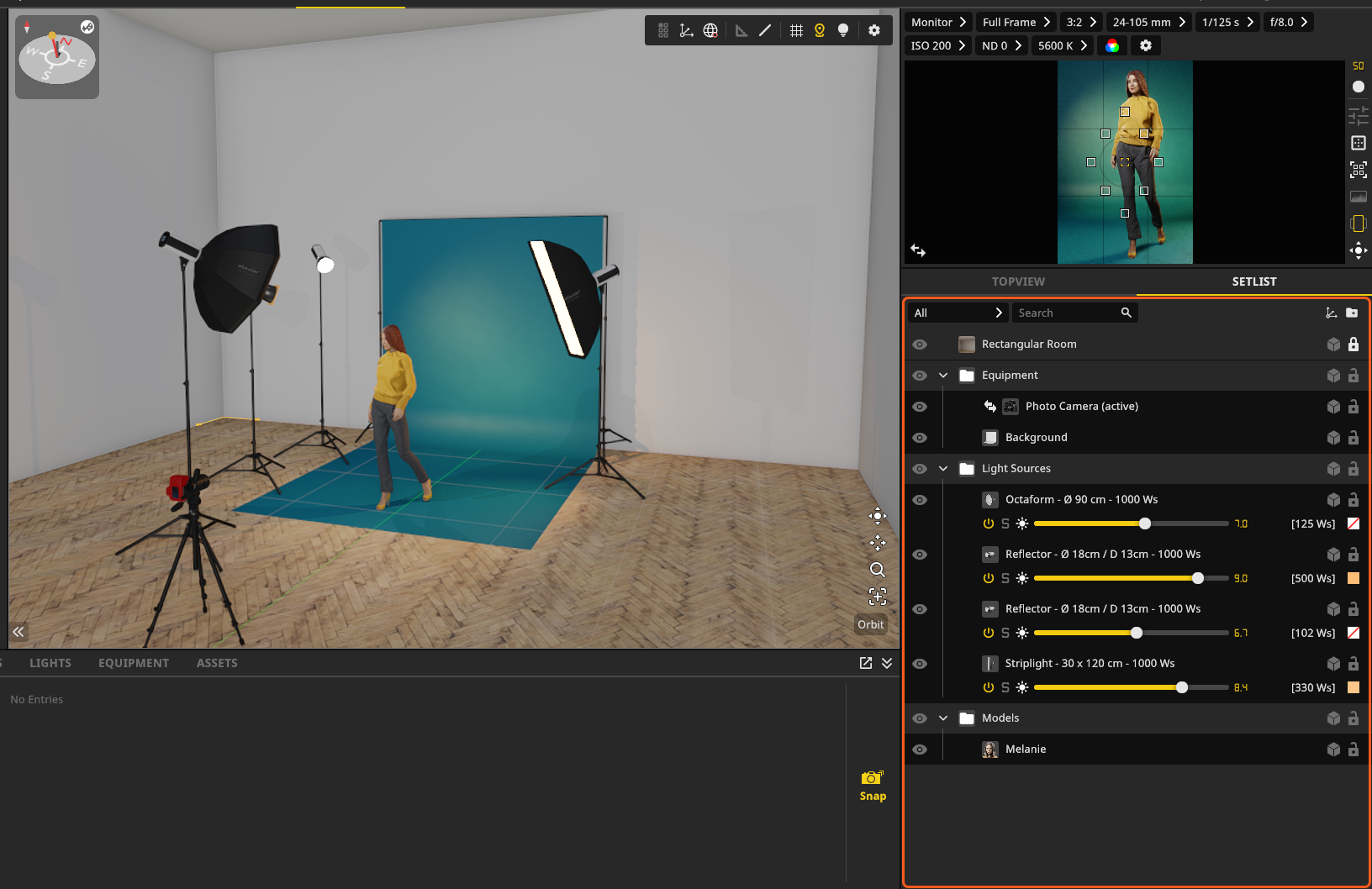
- Start a new project and click the Indoor card. → A room loads on the SETUP tab, with a background, a model, a camera and four flash heads in it.
- Open the SETLIST tab in the lower right panel and read the list. → It shows everything standing in the room right now.
- Choose Edit → Clear Set. → Everything but the room and the camera is removed. One undo brings the demo set back.
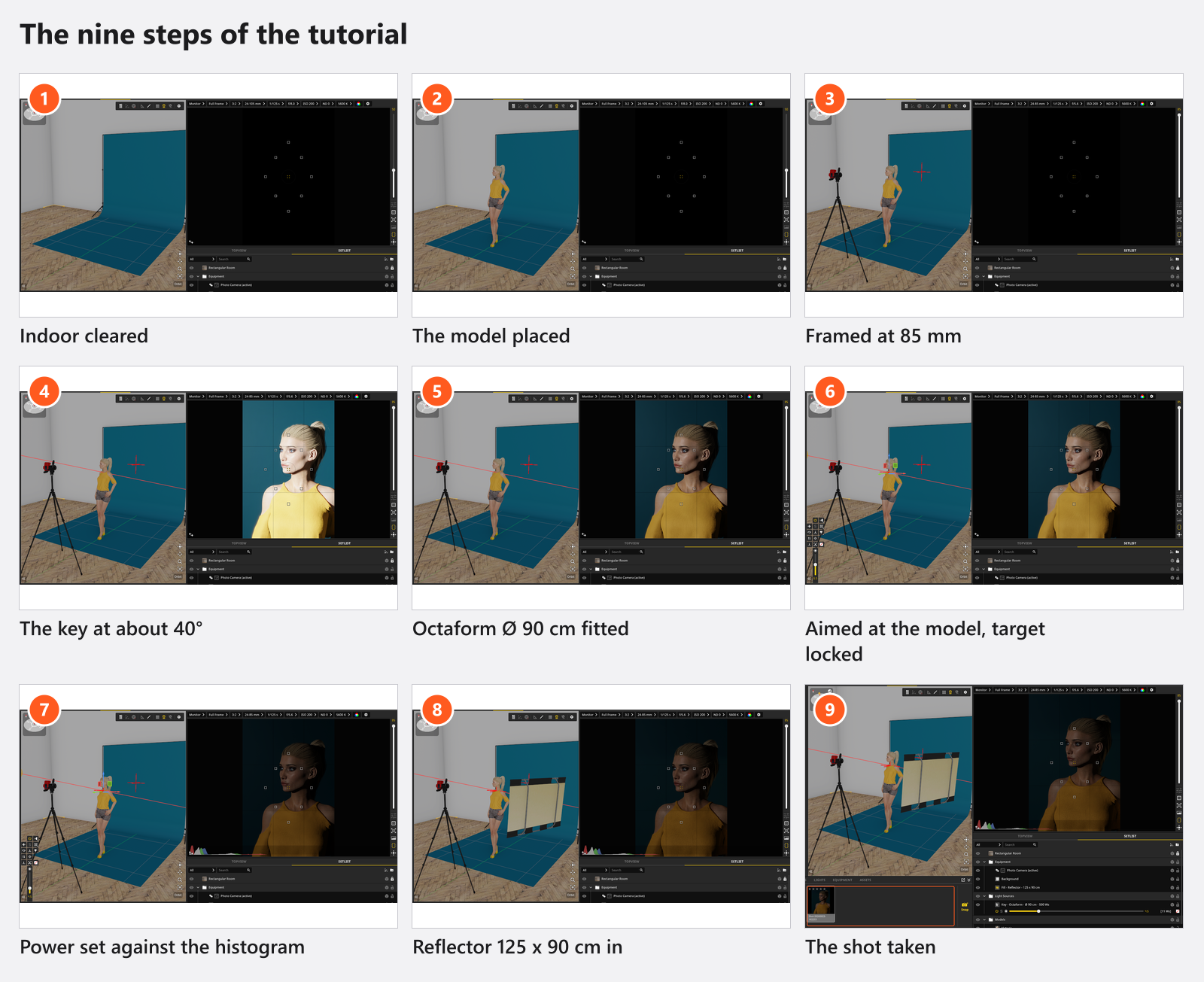
Step 2 — Place the model
- Open the MODELS tab in the library and drag a model into the studio view, roughly two to three metres in front of the back wall. → The model stands there and is selected.
- In the inspector on the left, set the pose and where the model looks. The object controls beside the selection carry Rotate Head Towards Camera and Rotate Eyes Towards Camera.
Keep the model away from the wall behind: the further apart they are, the less your key spills onto it, which is what lets you light the two separately.
Step 3 — Frame the shot
Set the framing before you light. Everything after this is judged through the camera preview.
- Select the camera in the SETLIST, or click it in the studio view.
- Read the Lens dropdown in the row above the camera preview. → Focal Length cannot leave the range of the fitted lens. The Indoor camera carries the
24-105 mm; a camera you drag in yourself starts on the default lens,24-70 mmout of the box, which is too short here. Pick70-200 mmif yours does not reach. - Set Focal Length to
85 mm. → The frame tightens. 85 mm to 135 mm is the classic portrait range on a full-frame sensor. - Set the height so the lens sits at about eye level of the model. → The camera preview follows every change.
Step 4 — Add the key light
- Open the LIGHTS tab in the library and set the filter column to Flash.
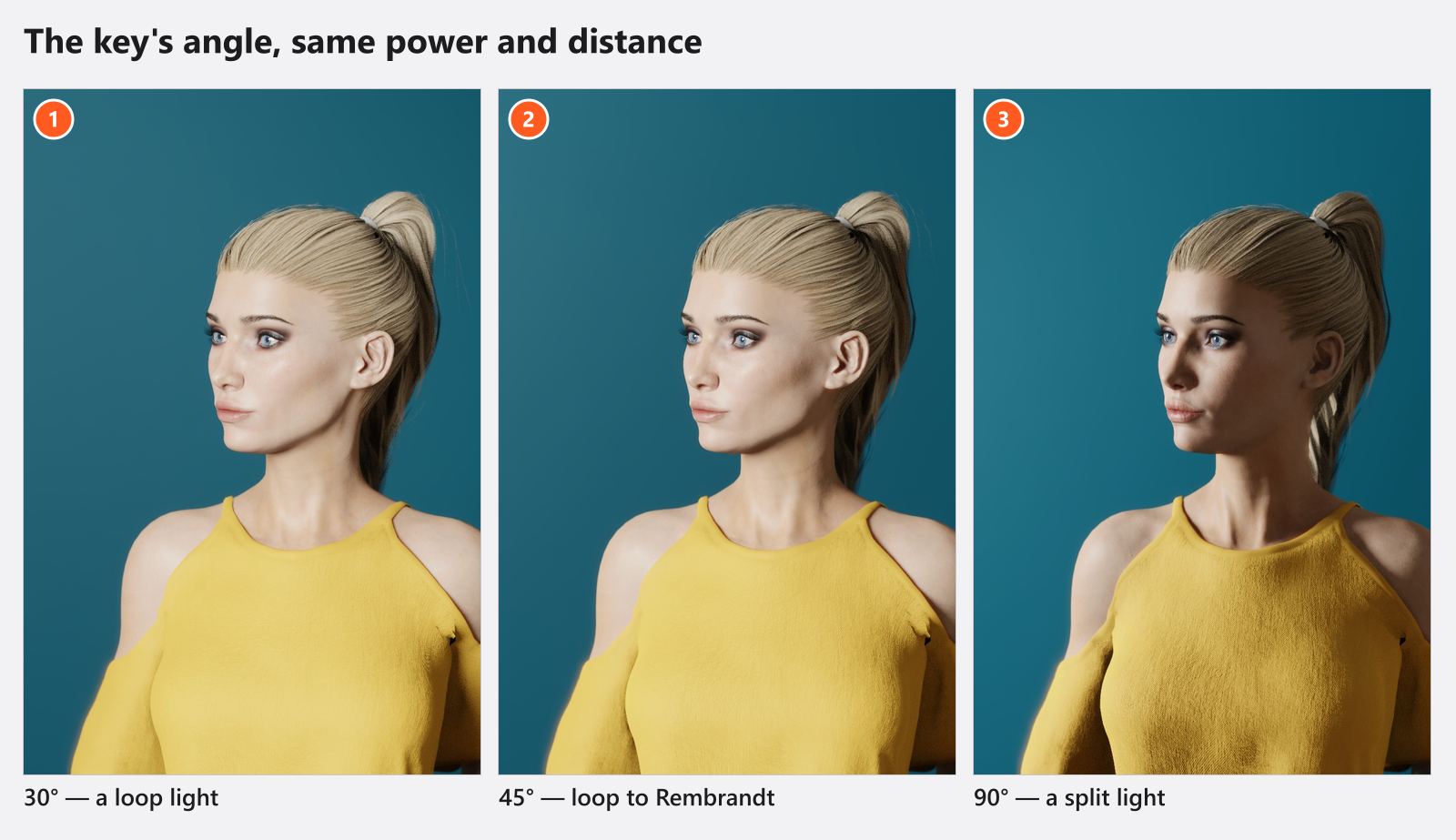
- Drag the 1000 Ws studio flash into the studio view, to the model’s left or right, at roughly 30° to 45° off the line between camera and model.
- Raise it so it sits about 30 cm above the top of the head and tilts slightly down. → The head does not arrive bare: a light from the catalogue comes with the default light shaper already fitted, out of the box the standard Reflector, and the camera preview shows its hard, contrasty light.
That angle produces loop lighting: a small, detached nose shadow pointing down towards the corner of the mouth, and the most forgiving portrait pattern there is. Move the light further to the side and that shadow joins the cheek shadow — Rembrandt lighting, more dramatic and harder to keep clean.
Step 5 — Fit a light shaper
A reflector that small gives you hard, edgy shadows. Skin wants a large source.
- With the light selected, open the Equipment group in the inspector and use its Light Shaper row.
- Pick an Octaform,
Ø 90 cm. → It replaces the reflector. The shadow edges on the face soften and the whole image gets darker: every diffuser costs output. - Read the Variants row: Open, Grid, Internal Diffuser, Internal & External Diffuser, Int & Ext Diff + Grid. The box arrives on Internal & External Diffuser. Set it to Open. → Both diffusion layers come out, so the light gets harder and brighter. Put them back one at a time to see what each layer costs.
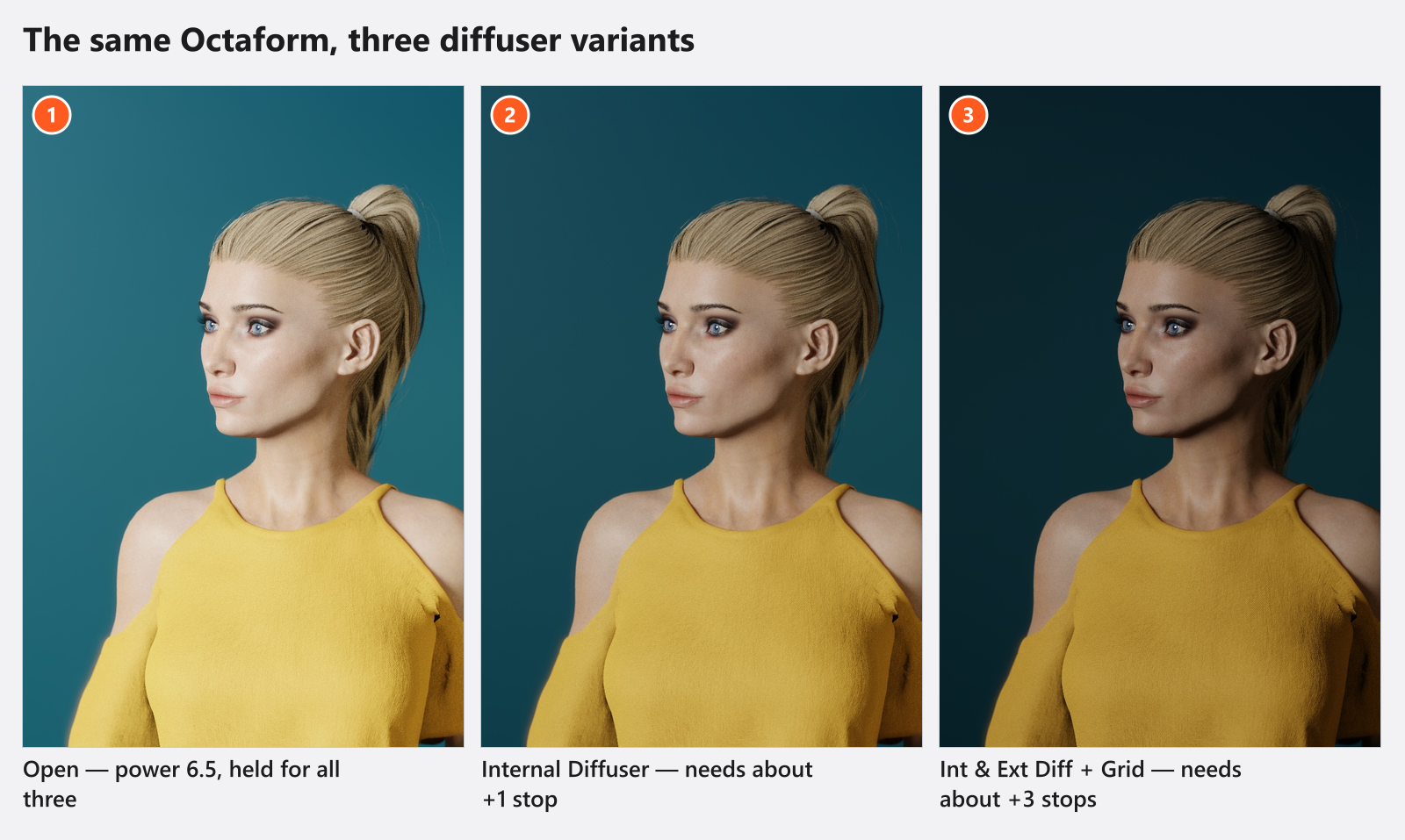
Softness comes from the apparent size of the source at the model, not from the label on the box: a 90 cm octabox one metre away is soft, three metres away nearly hard. Bring it as close as your frame allows.
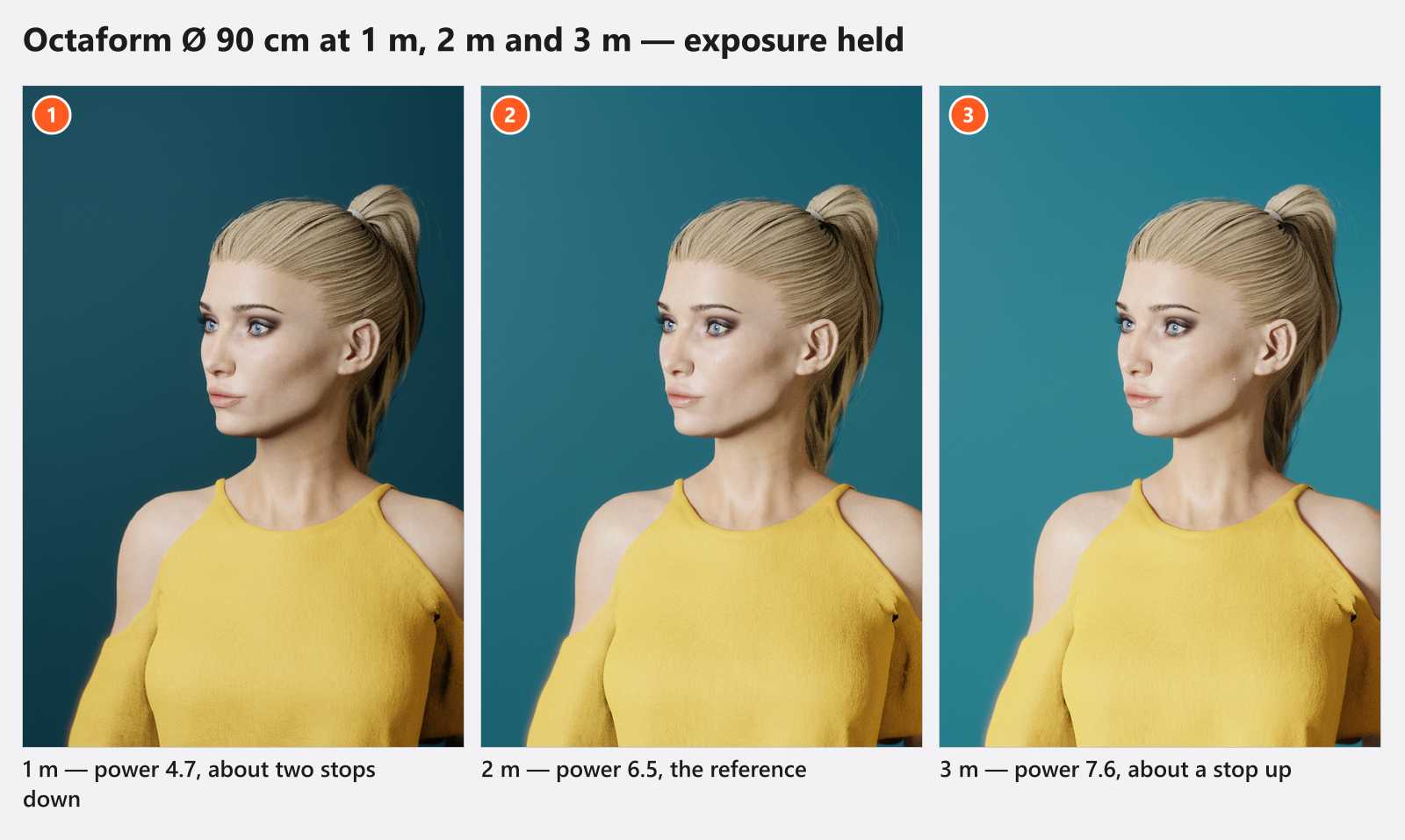
Step 6 — Aim the light
Two buttons at the top of the light inspector do the aiming. They carry no caption — hover to read them.
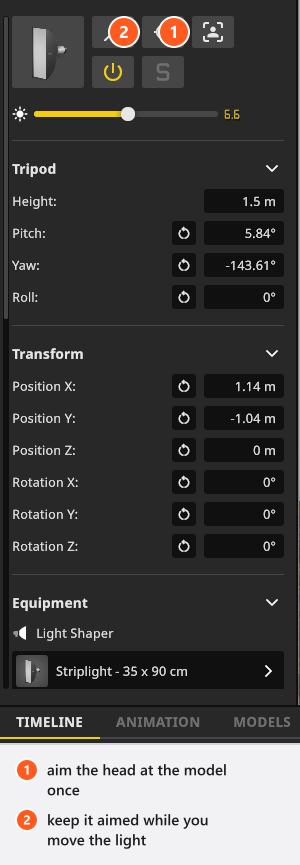
- Click Rotate Light Towards Model. → The head turns towards the model once.
- Switch on Lock Light Source on Target. → The head stays on its target while you move the light, so you can try distances without re-aiming.
- Move the light closer and further away. → The bright patch on the face stays put; only its hardness and the exposure change.
Step 7 — Set the power and check the exposure
Under the row of buttons sits the power slider. It runs in the scale of the head: the 1000 Ws flash steps from 3.0 to 10.0, the numbers the real head shows, while a continuous light runs in percent.
- Put the pointer over the camera preview and press
Hby default. → The histogram appears over the calculated image. - Bring the highlights on the lit cheek to just below clipping. → The right end of the histogram almost touches the edge without piling up.
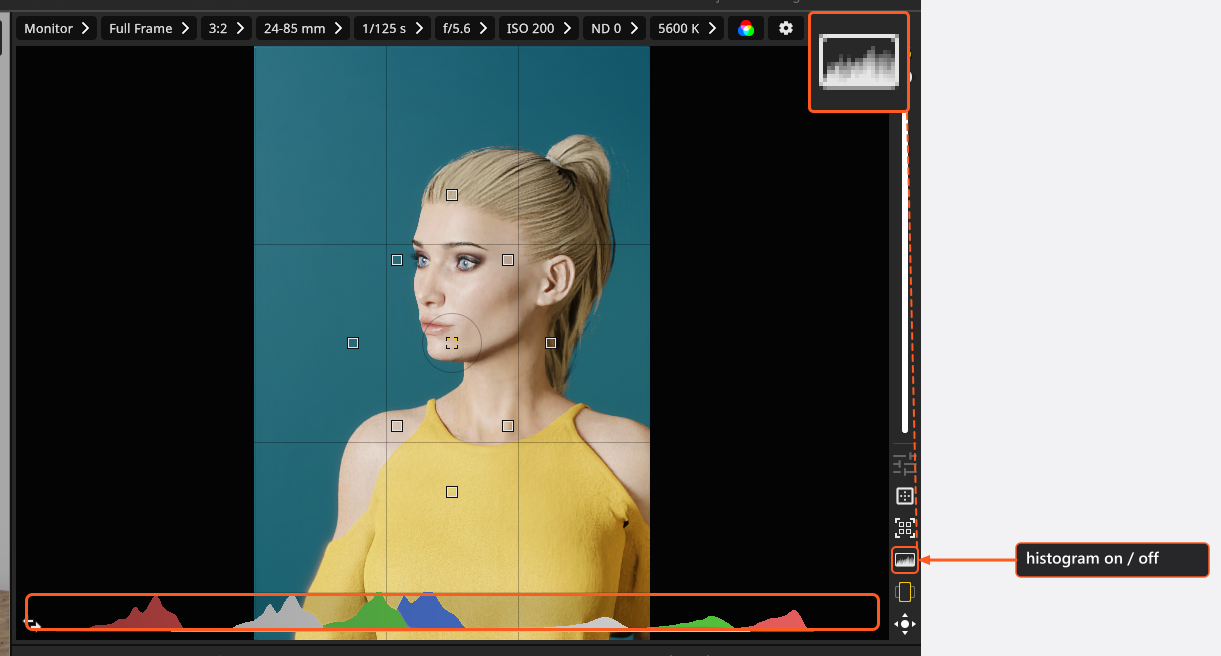
Correct with the light power or with the camera, which starts at f/8, ISO 200 and 1/125 s in this scene. Aperture is the control photographers reach for, because it changes the depth of field too.
+ and - step the power of a selected light, or the focal length of a selected camera. Q switches a light off and on — the fastest way to see what it contributes.
Step 8 — Open the shadows with a reflector
The shadow side is dark now. Instead of a second light, use a reflector — it costs nothing in a real studio either.
- Open the EQUIPMENT tab in the library and set the filter column to Reflectors.
- Drag the Reflector
125 x 90 cminto the studio, opposite the key light, close to the model and just outside the frame. - Move it in and out while you watch the shadow side in the preview. → It lifts, and no second catchlight appears in the eyes: that is the difference between a reflector and a second light.
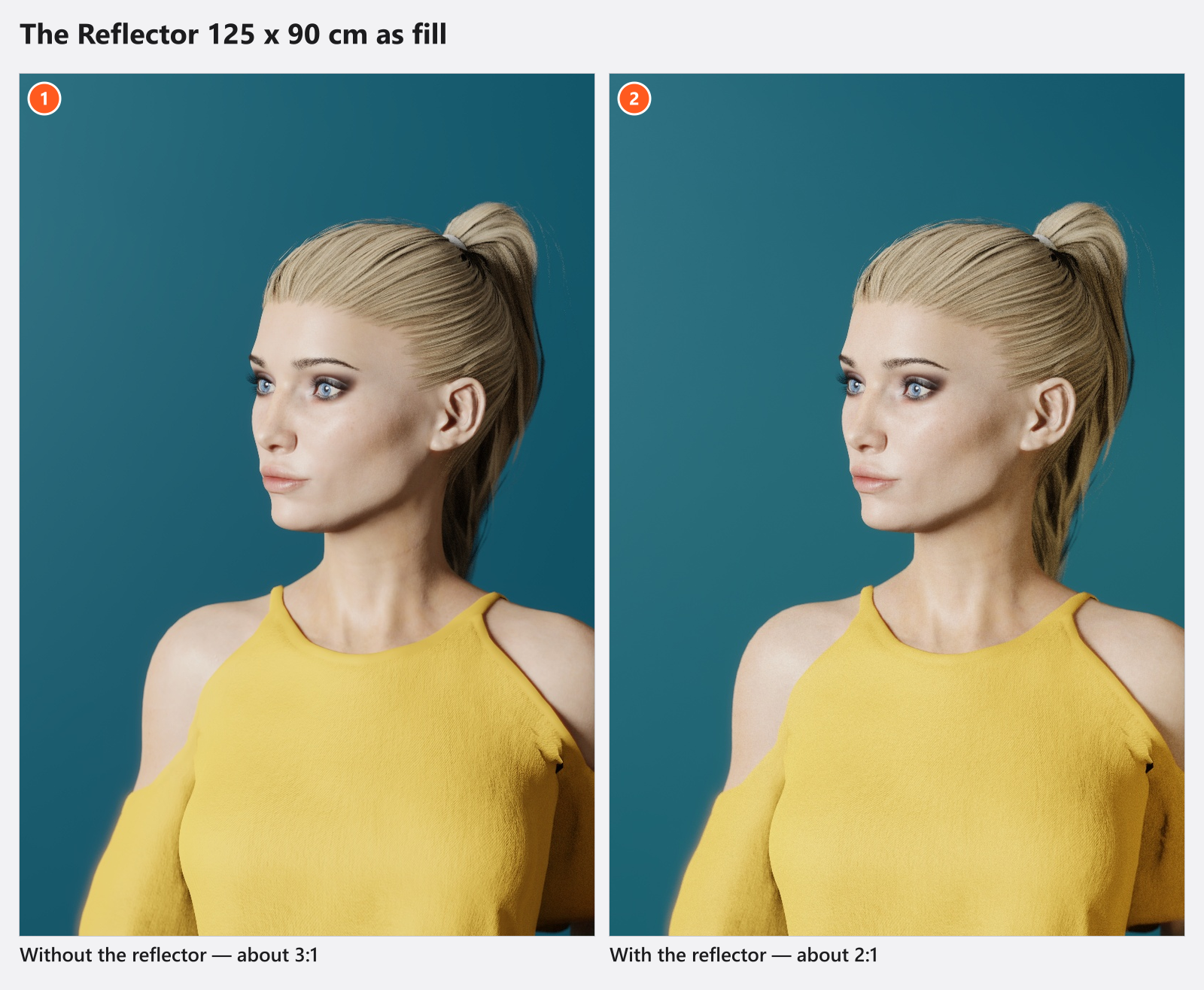
Aim for a key one to one and a half stops brighter than the fill — a 2:1 to 3:1 ratio. Equal brightness looks flat, much more turns dramatic. The light meter reads the ratio for you (STUDIO+).
Step 9 — Store the result and try a variation
- Click Snap in the TIMELINE tab, or press
Enterby default. → A tile appears in the TIMELINE: your first shot. - Change one thing — move the reflector, turn the model, add a gel — and take another snapshot. → A second tile appears; double-click each in turn to compare.
- Save the project with
Ctrl+S(Cmd+Son macOS).
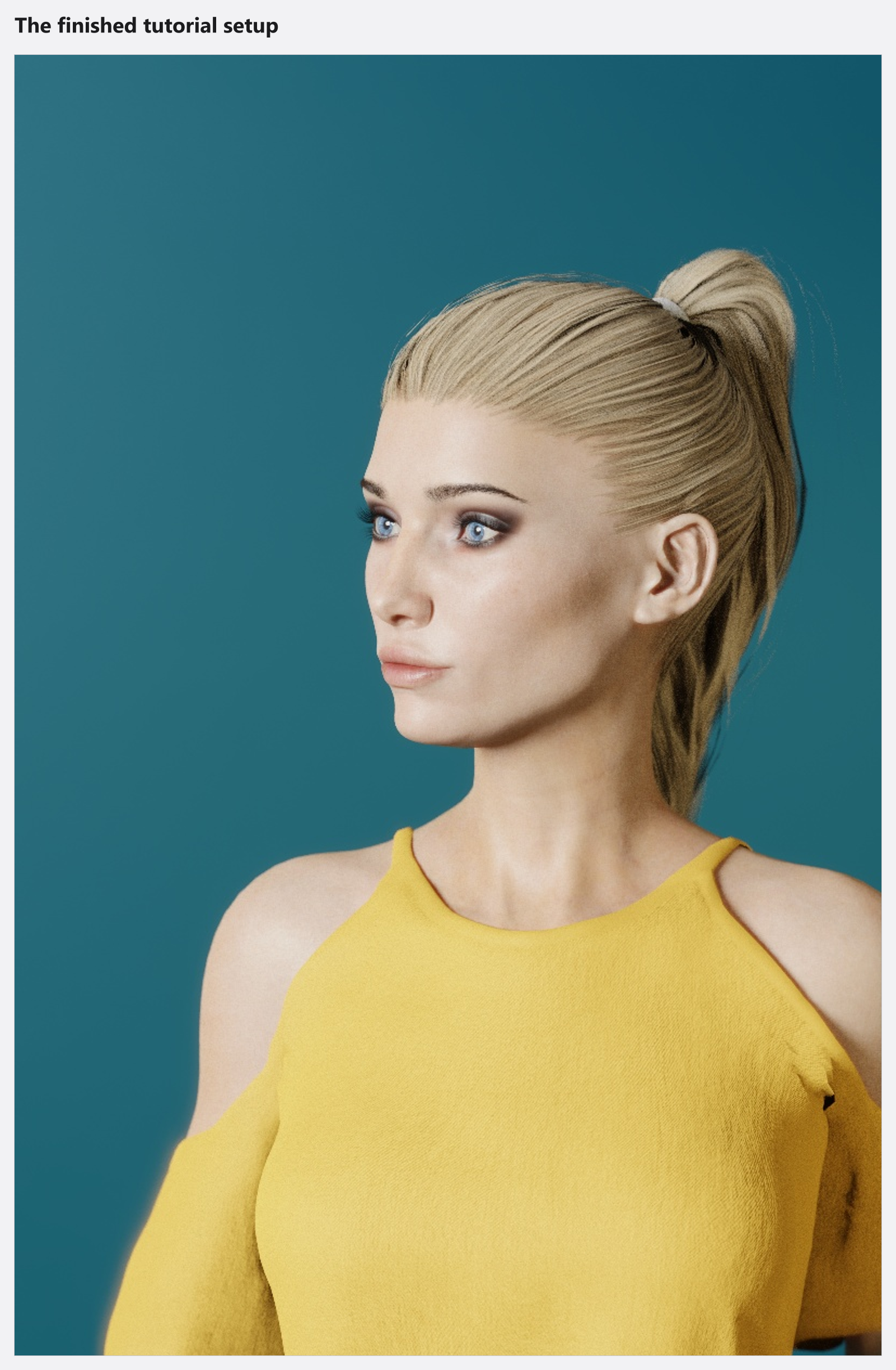
Rendering both shots is the next page: Your first render.
What usually goes wrong
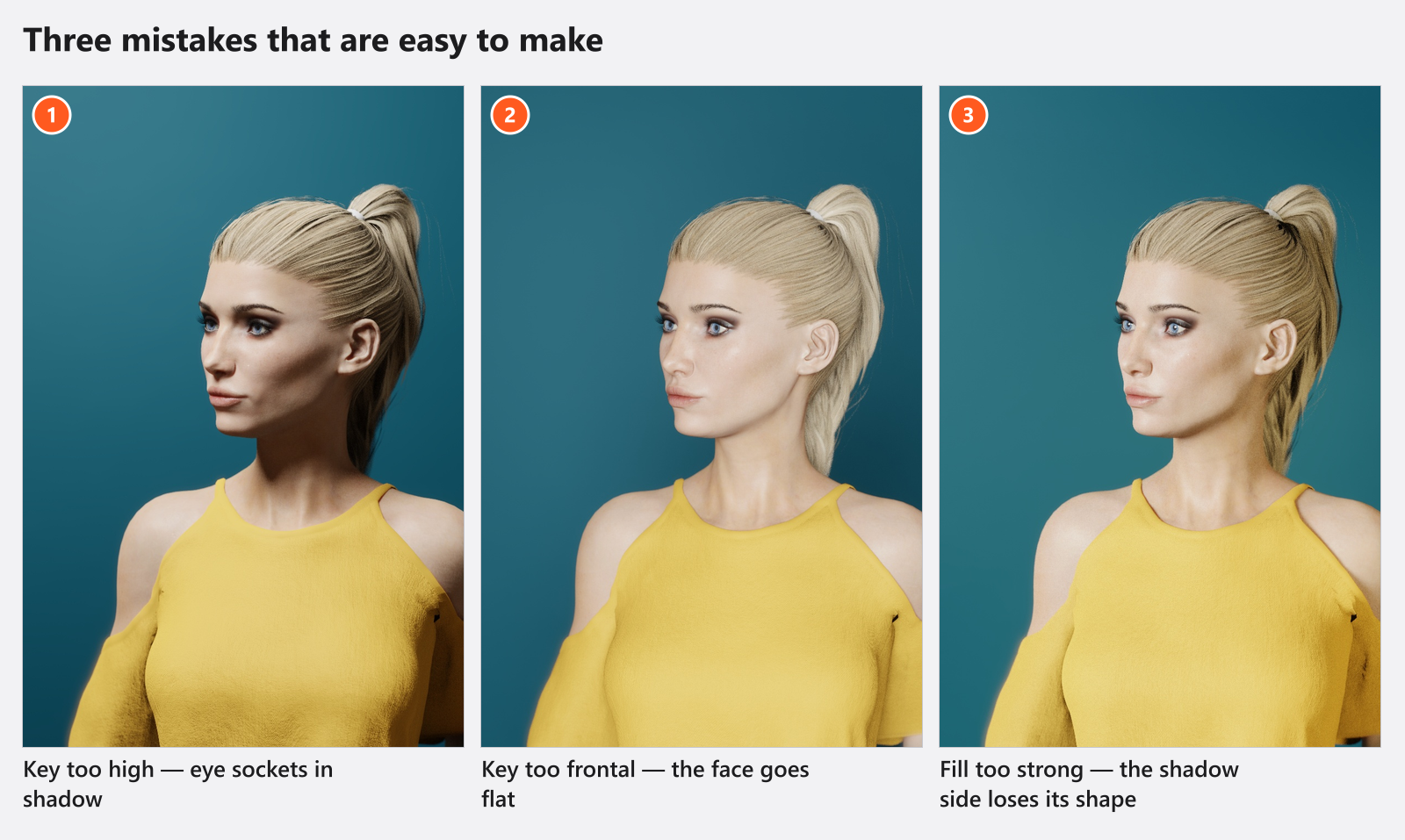
- The key sits too high. The nose shadow drops onto the lip and the eyes go dark. Lower it until the shadow points at the corner of the mouth.
- The key sits too frontal. Nothing is modelled: the face goes flat and the wall gets the same light. Move the light to the side.
- The fill is too strong. The reflector flattens what the key just built. Pull it back until the shadow side reads as a shadow side.
Tips & limits
- Judge light in the camera preview or in a render. The studio view is the cheap working view.
- If the model is lit and the wall behind is not, that is correct: light falls off with distance. Give the background its own light if you want it brighter.
- In BASIC the library refuses a sixth light with a notice titled BASIC Edition Restriction.
Troubleshooting
- The preview stays dark after I dropped the light in. Check that the light is switched on in its SETLIST row and that its power is not at the bottom of the scale. → Lighting problems
- My old set looks darker than it used to after the update. Scrims and diffusers now pass light differently. → Lighting problems
- The shot I stored does not match what I see. You changed the studio after taking it; the program asks what to do when you leave the shot. → Take and manage shots
Related
- Your first render — turn the shot into an image.
- Add and place lights — the rest of the catalogue.
- Choose and fit a light shaper
- Aim a light (target lock)
- Soften, bounce and subtract light
- Set the exposure — aperture, shutter and ISO.