
 English
 Deutsch
 日本語
日本語 简体中文
简体中文 Français
Some 3D files bring movement with them: a rigged figure with a few walk cycles, a van whose doors open, a machine that turns. set.a.light 3D reads those clips during the import and gives you two ways to use them — freeze one moment as the pose of an object standing in your set, or lay clips on the timeline of a shot and let the object move.
Applies to BASIC, STUDIO, CINEMA · Needs the 3D Import add-on (included in the CINEMA trial) · Putting clips on the timeline additionally needs the Animation Tool add-on; choosing a still pose does not · You need: an imported object whose file brought clips.
What arrives from the file, and what does not
What comes in is movement of the parts: the position, rotation and size of every node, and the bone transforms of a skinned mesh. Shape animation (morph targets or blend shapes), animated materials and parts that appear and disappear do not come in — the importer reads none of them.
Every key is played back in a straight line from one to the next. An ease you authored in your modelling program arrives as straight segments, which makes a slow start look mechanical. If the timing matters, bake dense keys before you export the file.
Look through the clips before you save
In the 3D Importer the Animation group appears only when the file brought clips — for a file without them it is not there at all, whatever its extension.
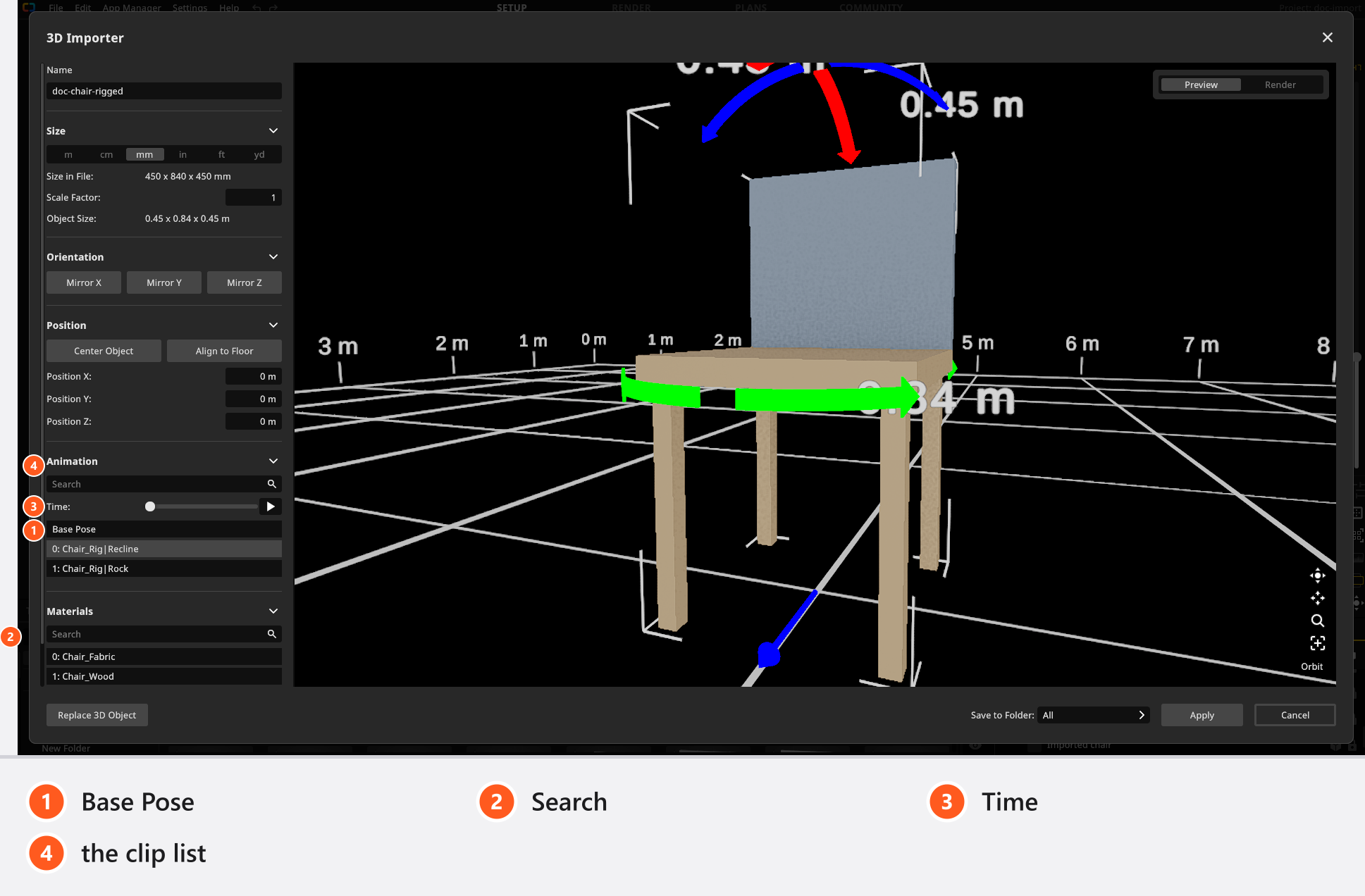
The list starts with Base Pose, the model as it was modelled, and then numbers the clips in the order they stand in the file. The first clip is already active when the importer opens. Click one to switch to it, drag Time to scrub through it, or press the play button next to the slider. Search filters a long list. A double-click on a clip renames it — a good moment to turn Take 001 into walk slow, because that name is what you will look for later.
Comparing clips here is much quicker than in the animation editor. This clip does it on an imported wolf:
Apply saves the geometry, the materials, the clips and the transforms — but not the moment you were looking at. The pose of an object in a set is a separate setting, and it belongs to that one copy.
Freeze one moment as a pose
Select the placed object and open the Pose group in its settings. The picker offers Base Pose and every clip the object carries; Time then chooses the moment inside the clip and runs from the start of the clip to its end. While Base Pose is selected there is nothing to scrub, so the slider is switched off.
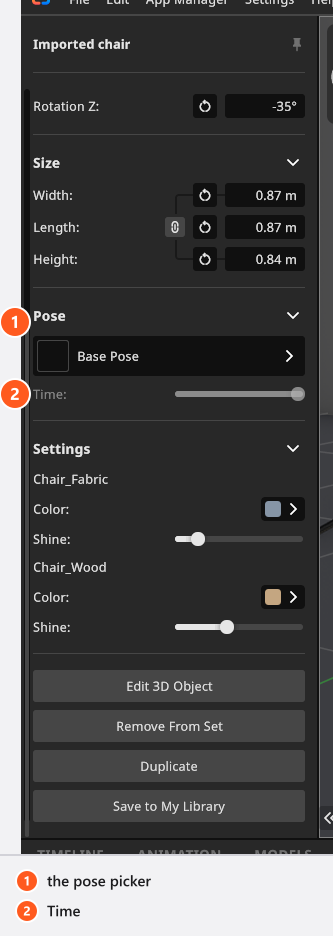
This is the setting you want for a lighting study: the figure stands still, in the attitude you picked, and nothing else in the project has to be animated. Two copies of the same object can stand in the same set in two different poses.
Put a clip on the timeline
For movement inside a shot you need the Animation Tool add-on and the ANIMATION tab.
- Select the object and find its Animation row in the animation editor. → An object without clips has no Animation row at all.
- Click the button on that row. → The Animations window opens and shows the clips of this object.
- Drag a clip from that window onto the track. → The clip appears as a block you can move and stretch.
The clip carries on from the importer to the timeline here: the Animation row, the Animations window, and the clip dragged onto the track.
Clips on the track are played in the order of their start times. Where two of them overlap, the program blends between them, and the blend follows the fades at the two ends: right-click a clip and pick Fade In or Fade Out, then drag to set how long the fade is. Both commands stay English in every language. Where there is a gap, the object falls back to the still pose you chose in the Pose group.
The two ends of a block do different things. Pulling the left end moves the start of the clip and makes the block shorter — it does not cut into the recorded movement. Pulling the right end beyond the length of the clip repeats it from the beginning, with no marker to tell you so, so a walk cycle that does not end where it started shows a visible jump at the seam.
Tips & limits
- A clip belongs to the object it was imported with. The window offers only that object’s clips, and a clip from another object is refused — this is not a way to retarget movement from one figure to another.
- Renaming a clip in set.a.light 3D is safe and changes only what you read on screen.
- If you replace the model file later, clips keep their settings as long as the names inside the file still match; see Share, update and back up your 3D objects.
- The general rules of the timeline — keyframes, playback, rendering a video — are in the animation chapter, starting with Work in the Timeline Editor.
Troubleshooting
- The object has no Animation group, or the movement looks different from my modelling program. → 3D import problems
Related
- Import a 3D object
- 3D import: what the add-on reads
- Share, update and back up your 3D objects
- Animate props and the room
- Work in the Timeline Editor
Next step
To move your objects to another computer, share them or keep a backup, continue with Share, update and back up your 3D objects.