
 English
 Deutsch
 日本語
日本語 简体中文
简体中文 Français
Depth of field is planned here the way it is shot: decide what has to be sharp, then use the aperture to decide how much of the rest goes with it. The camera preview shows the blur while you work and the render uses the same physical lens model, so what you plan is what you get.
Applies to BASIC, STUDIO, CINEMA · You need: a project open on the SETUP tab and a camera in the set. The focus points always work on the active camera; the inspector rows work on the camera you selected.
Where to find it
The focus points sit in the camera preview, the focus settings in the Settings group of the camera inspector. With the pointer over the preview, F (by default) shows and hides the points; the same switch is in the control strip at the edge of the preview. Whether they are visible is remembered per installation, not per shot.
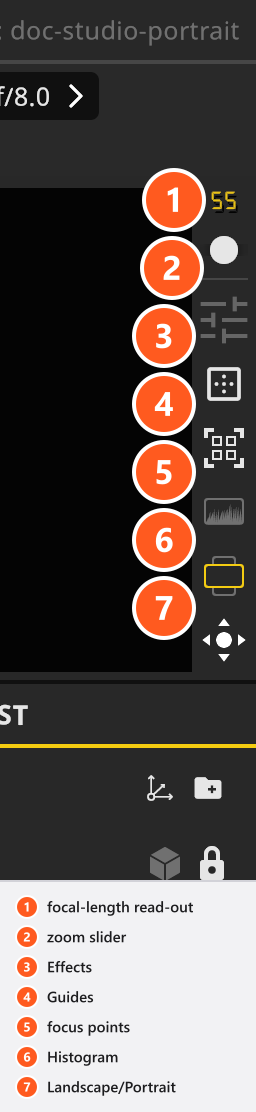
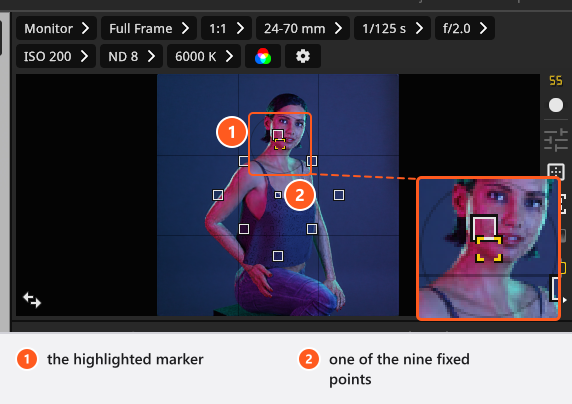
Focus on a point in the frame
The preview offers nine fixed points — one in the centre, four on the horizontal and vertical axis and four on the diagonals — plus one highlighted marker that sits on whichever position is in use.
- Click one of the nine points. → The highlighted marker jumps there and the preview refocuses.
- Or drag the highlighted marker anywhere in the frame. → The camera uses that free position instead of one of the nine.
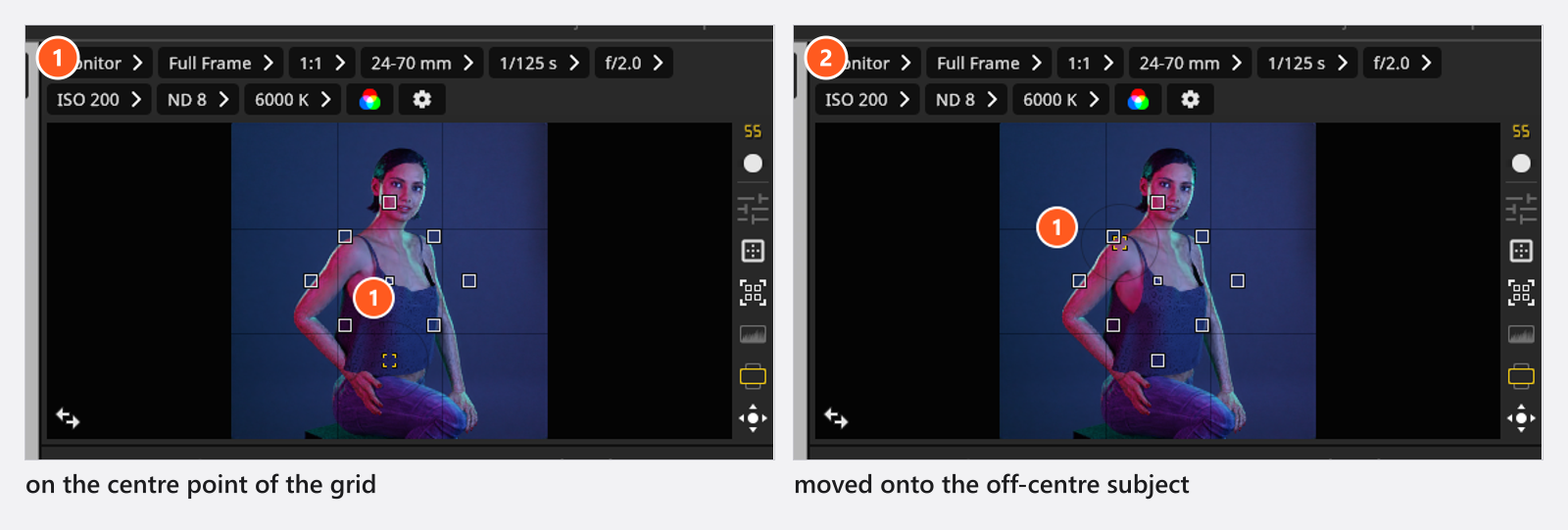
The camera looks straight through that point into the set and focuses on the first surface it meets there — so a strand of hair, a veil or a glass in front of the eye takes the focus. It is a point in the frame, not a link to the model: move the model out from under the point and the focus jumps to whatever now stands behind it, so move the point too. If the point meets nothing at all, the distance becomes 10000 m — nothing in the frame says so, and pressing Update the Focal Distance then writes that number into Focus Distance.
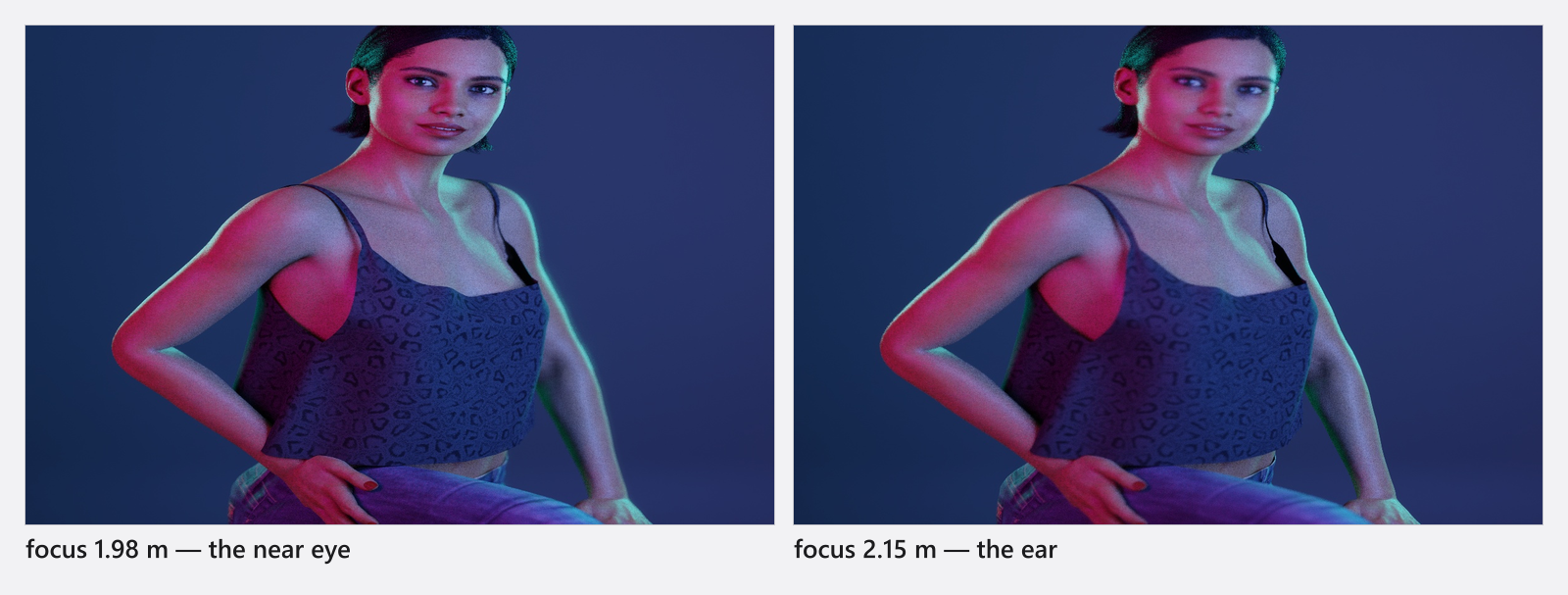
On a portrait it is worth being precise: put the point on the eye closer to the camera and the classic “eyes sharp, ears soft” look falls out of the aperture on its own.
Focus at a fixed distance
For a table-top, a product line-up or a focus pull you want a focus plane that stays where you put it.
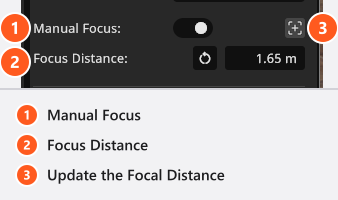
- Switch Manual Focus on. → The distance field and the button beside it become editable.
- Click Update the Focal Distance to copy the distance the focus point is measuring right now into the field — a good starting value.
- Adjust Focus Distance. The default is
1 mand the field accepts distances from0.01 mupwards, in the unit set by Unit of Measurement in the program settings.
While Manual Focus is on, the studio view draws a focus marker at that distance, so you can see the focus plane against the model, the background and the props. Drag the marker along the camera’s line of sight and Focus Distance follows. Every camera with Manual Focus on draws its own marker, whether it is the selected one or not.
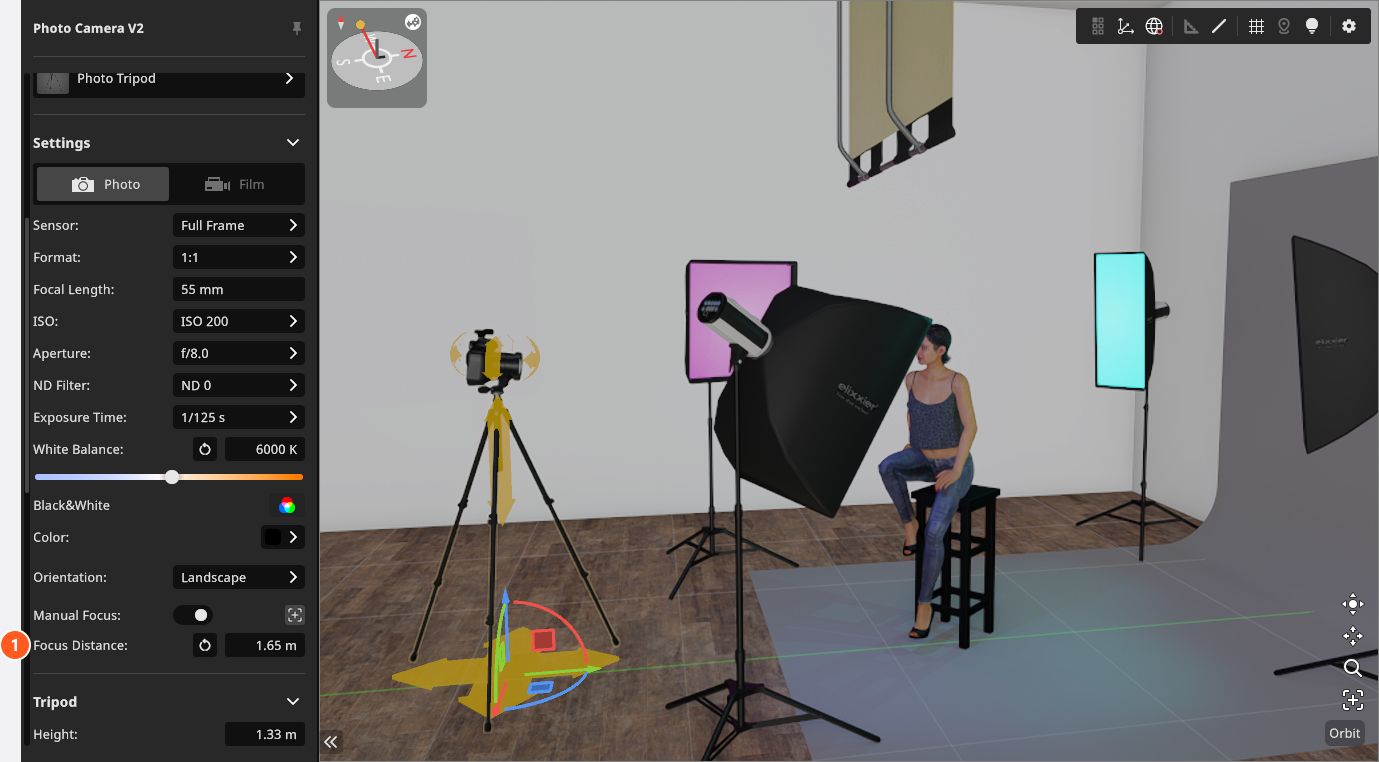
The trade-off is the point of the setting: a fixed plane does not follow anything. Move the camera or the model and the shot goes soft. Manual Focus also overrides the focus points completely — while it is on, clicking or dragging them changes nothing you can see. Switch it off to use the points again.
Decide how much stays sharp
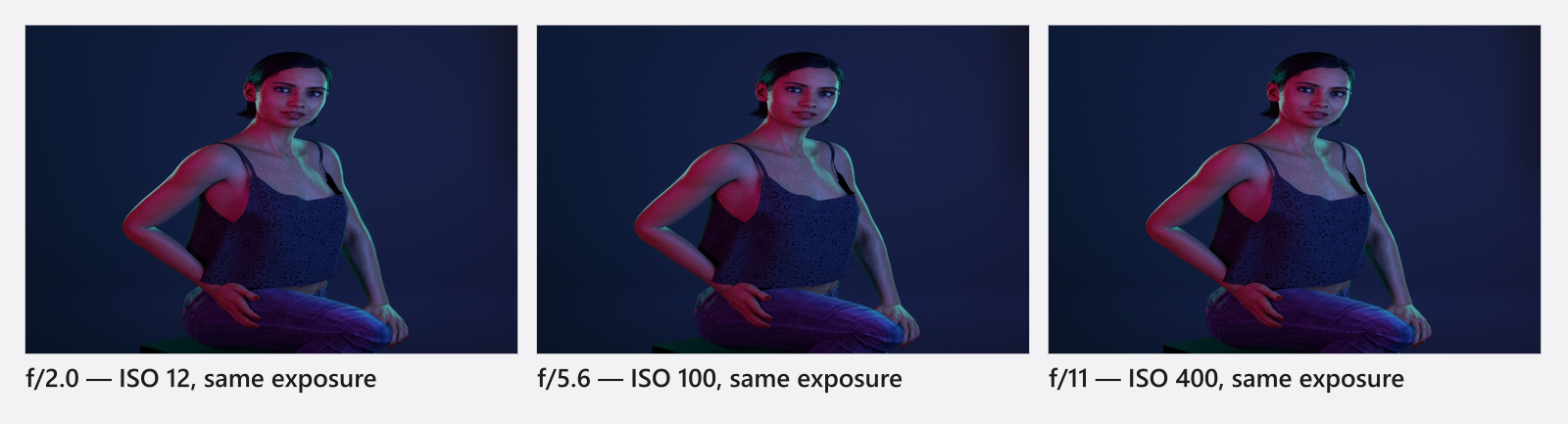
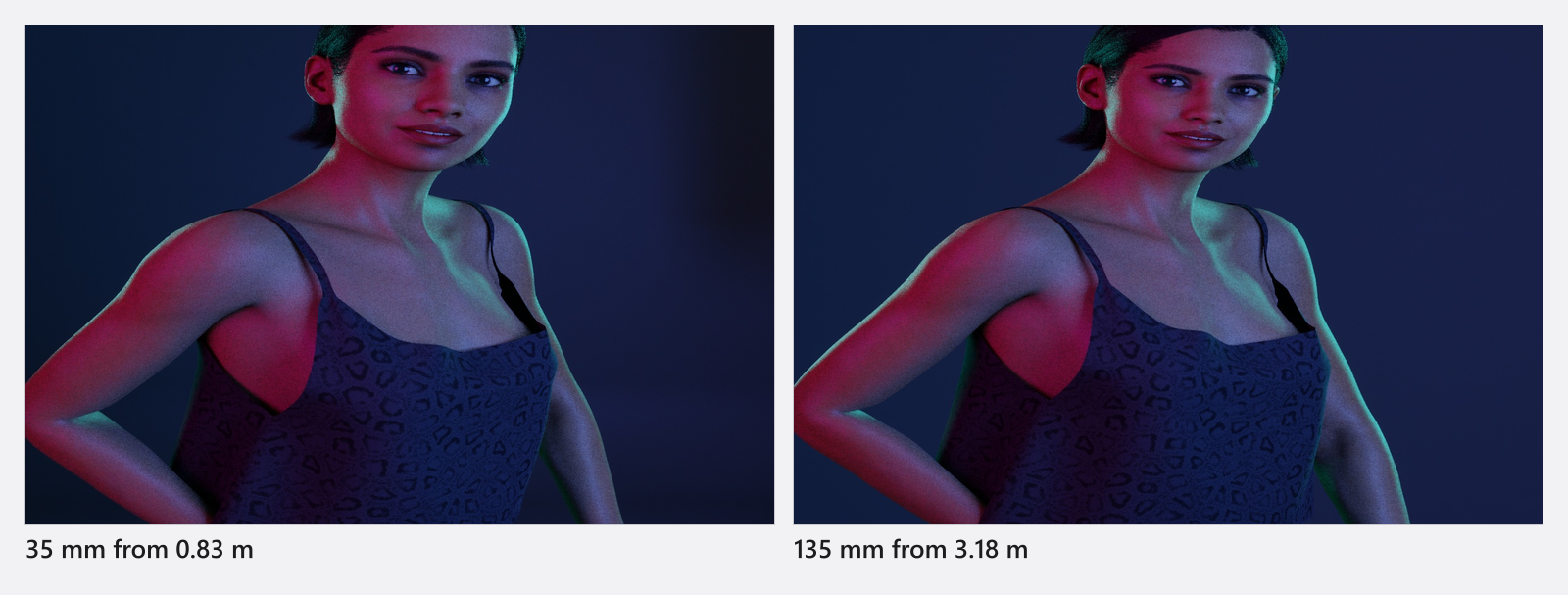
The renderer samples a real lens opening rather than applying a blur filter, so the three familiar levers behave as they should.
- Aperture — the wider the opening (the smaller the f-number), the shallower the sharp zone.
f/2.0separates a head from a background,f/11holds a group together. - Focal Length — the opening follows from focal length and f-number, exactly as on a real lens: a
200 mmatf/2.0opens far wider than a50 mmat the same f-number, which is why it blurs so much more at the same framing. - Distance — the closer the camera is to the subject and the further the background sits behind it, the softer that background gets.
Tips & limits
- Depth of field appears in the camera preview and in the render. The studio view draws everything sharp — never judge focus there.
- At wide apertures, check the result for residual noise and raise the quality level if you see it — see Quality and denoiser settings.
- Manual Focus, Focus Distance, the free focus point, Aperture and Focal Length can all be keyframed, which is what a focus pull is made of (add-on: Animation Tool) — see Animate the camera. Jumping between the nine fixed points cannot. An animated free point only has an effect while the camera is actually on the free point — drag the marker once first — and none at all while Manual Focus is on.
- Focus and exposure are independent: changing the aperture for depth of field changes brightness too, so compensate with shutter, ISO, an ND filter or light power — see Set the exposure.
Troubleshooting
- Everything is blurry. A wide aperture plus a short focus distance blurs almost the whole set. Close the aperture a few stops or check Focus Distance.
- The focus jumped to the background when I moved the model. The focus point is a point in the frame. Move the point onto the model’s new position.
- Clicking the focus points does nothing. Manual Focus is on and overrides them.
- The studio view looks sharp but the preview is blurred. The studio view draws everything sharp. Judge focus in the camera preview or in the render, never in the studio view.
- More symptoms: Camera problems.