
 English
 Deutsch
 日本語
日本語 简体中文
简体中文 Français
Everything you see is ray-traced, so speed is mostly a question of how many light samples the program has to calculate and how many pixels it has to calculate them for. This page lists the levers in the order that pays off, and it separates the three pictures that have their own settings: the studio view you build in, the camera preview you judge in, and the finished render.
Applies to BASIC, STUDIO, CINEMA · Windows and macOS · You need: nothing open in particular. The three quality settings are program settings — they stay as you set them and do not travel with the .set file.
Start here
| What you see | Pull this lever |
|---|---|
| Dragging a light or turning the view stutters | Studio-view quality, then the working light |
| The camera preview stays noisy for a long time | Camera-preview quality, and give it time to finish |
| A render takes hours | Resolution first, then render quality |
| A render seems to hang before the first sample | Nothing — it is preparing geometry, see below |
| One particular set is slow and others are not | Fog first, then the number of models |
Where to find it
Each of the three pictures has its own gear, and each gear opens a small popup titled Settings:
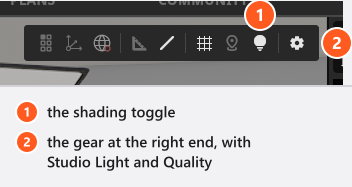
- Studio view — the gear in the studio toolbar. It holds Studio Light (the brightness of the working light) and Quality.
- Camera preview — the gear at the end of the camera bar above the preview. It holds Quality and Denoiser.
- Final render — the gear in the RENDER tab, and the same block in the Render Image dialog. It holds Resolution, Quality, Denoiser and Frame Lines.
Every Quality control is the same four-step slider, labelled Fast (Preview) on the left and Best Quality on the right, with the steps Low, Medium, High and Ultra. All three start at Medium, and turning one down never touches the others. The numbers behind the steps are in Quality and denoiser settings.
Shorten a render
Three levers, in the order that pays off:
- Resolution. It is the only setting with a squared effect: a render at
3840 pxhas about ten times as many pixels as one at1200 px. The dropdown does that arithmetic for you and prints an estimate such as10x sloweror3x fasterbeside the entries that differ noticeably from the one you have selected. (BASIC) The list offers up to1920 px. - Quality next. For a final render it sets how many light samples the renderer accumulates and how much texture detail it loads;
Ultraalso samples indirect light more finely. Every step up costs more time than the one below it. - Denoiser last, and leave it on
High. It is the default for preview and render, and it is what makes a moderate sample count usable at all. Switching it off keeps the same sample count and skips the denoising stage; how much that saves depends on the scene, the image size and the device, so treat it as a comparison tool, not a speed setting.
Resolution applies to the final render only. It changes neither the studio view nor the camera preview.
Make the studio view react faster
Three things help, and they are independent of each other:
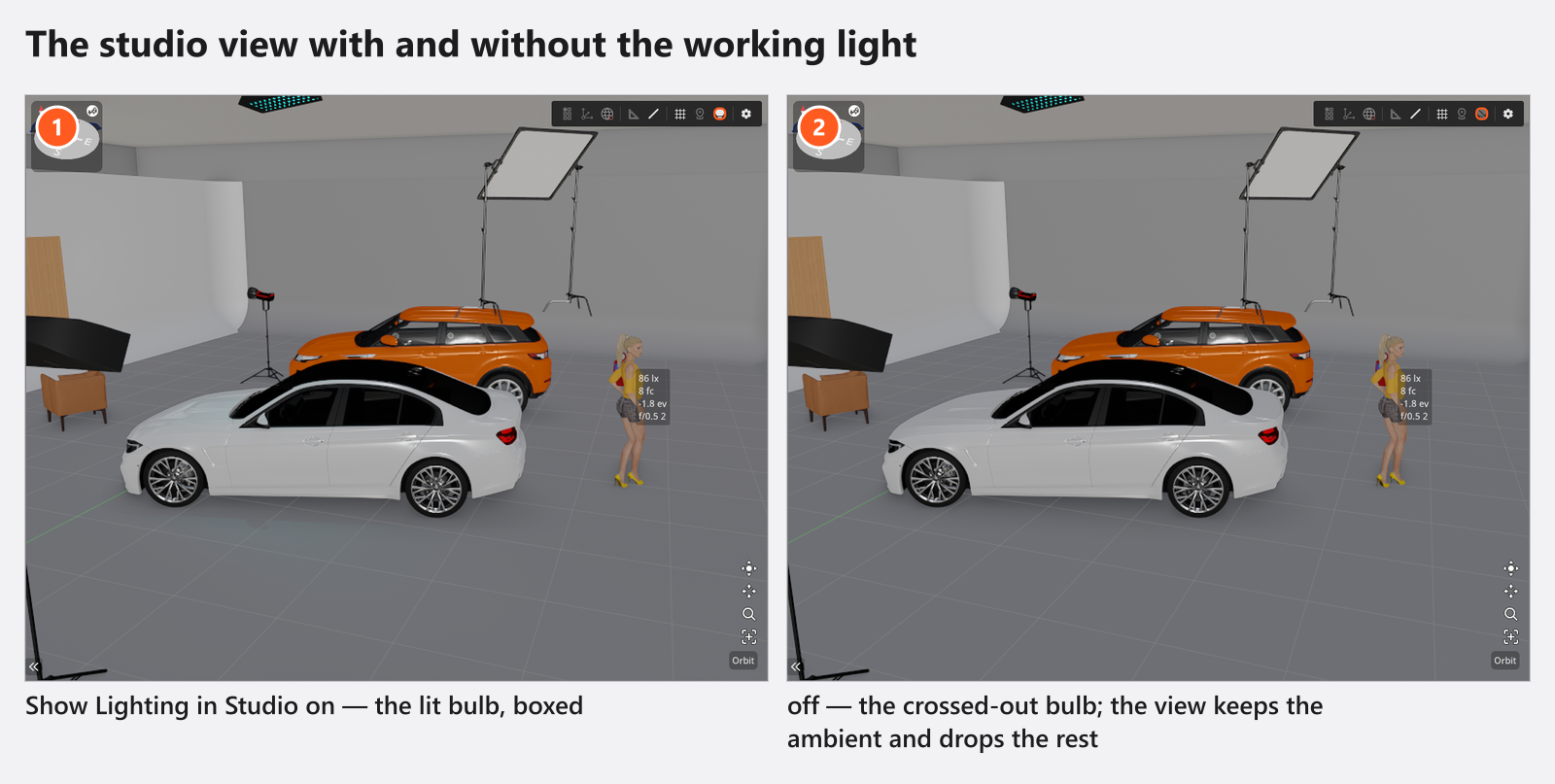
- Open the gear in the studio toolbar and pull Quality down. The studio view is a working view, and a low setting there costs you nothing in the finished image.
- Switch off the light bulb in the studio toolbar (Show Lighting in Studio). That puts the view into its simplified shading mode, which is the cheapest state it has.
- Judge the light in the camera preview, not in the studio view. Press
T(by default) to swap the large and the small viewport, andTagain to swap back.
Two things in the set itself that cost a lot
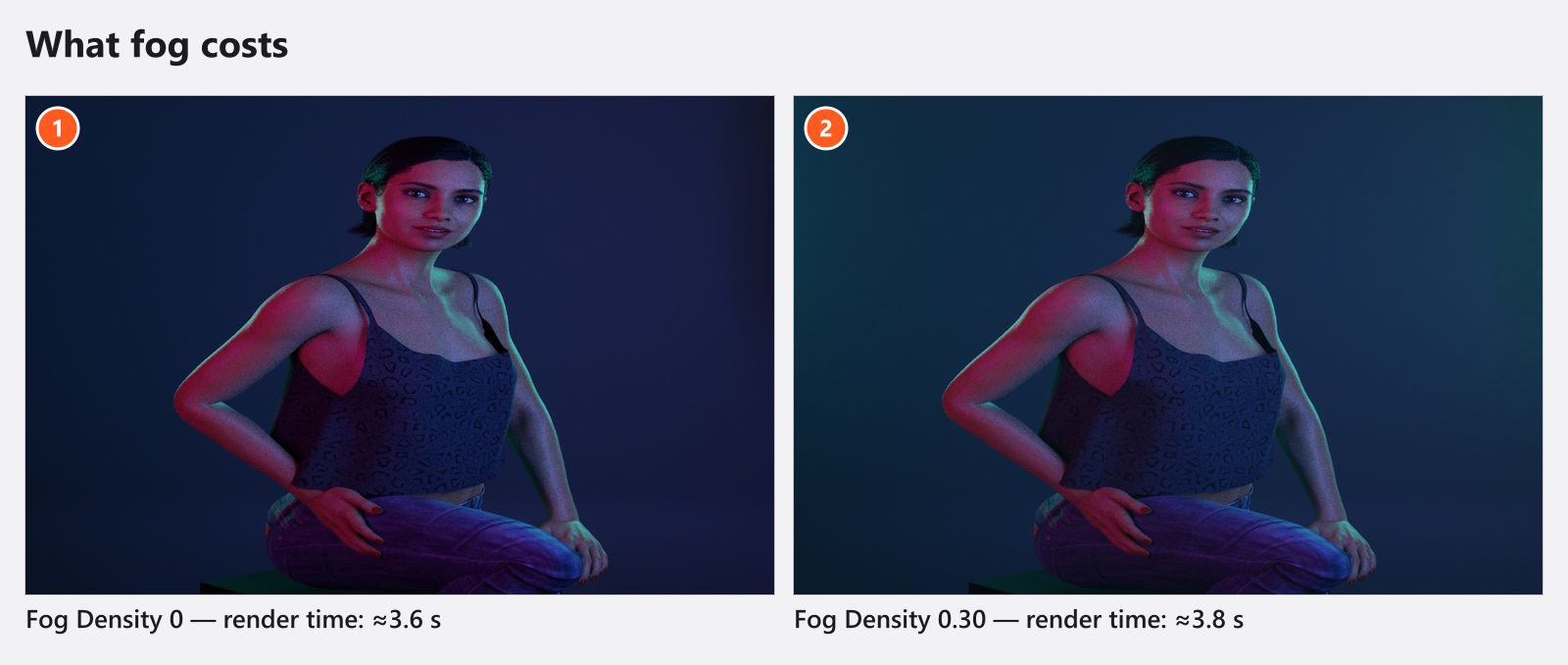
Fog. A set with fog or haze is far more expensive per ray than the same set without it, and it is the most common reason why one project is slow while everything else is fine. Lower the density or switch it off while you build the light. Be aware that the studio view deliberately shows less fog than the render, so the cost does not look as big as it is until you render.
Many models. From five loaded, visible models the program reduces hair and body detail by itself, choosing the level from how large each head is on screen. It does the same in the final render, where the level follows the output size — so the same crowd scene can look slightly different at 1200 px and at 3840 px. That is the mechanism working, not a defect.
A closed room with walls and a ceiling also gives the renderer far more light bounces to follow than an open set, so the same lighting can take noticeably longer in one scene than in another.
When a render seems stuck
- Nothing happens before the first sample. The program is preparing geometry — models finish loading, detail levels are chosen, the ray-tracing structures are rebuilt. It waits up to 60 seconds for that and then renders with what it has. On a heavy crowd scene that wait is normal.
- The progress display shows the sample count and an estimate of the remaining time. If the sample counter is moving, the render is working.
- Only one render runs at a time. A second one refuses to start until the first has finished.
- Switching to another tab does not stop a render. Cancelling does, and it writes nothing at all — see Render problems.
Not a bug: the window goes quiet
The program deliberately drops to a very low frame rate when it loses focus or when you have not touched it for three seconds, and picks up the moment you come back. A refining preview or a running render keeps the full rate. It reads like a freeze and is a power-saving measure.
Tips & limits
- Texture detail is a global setting while you work, and it follows the camera preview quality:
Lowloads textures two steps below full detail,Mediumone step,HighandUltraat full detail. A final render applies its own level for its duration and hands the working limit back afterwards, which is why detail can visibly change without anyone touching a slider. - The denoiser picks its device by itself and there is no setting for it. A slower fallback is not a defect — see Graphics problems.
- A render uses the whole graphics card. Close other GPU-heavy programs before a long render, and expect a notebook on battery to be considerably slower than the same notebook on mains power.
- (Windows) On a notebook with two graphics chips, check that set.a.light 3D is running on the dedicated one. The steps are in Graphics problems.
- What the machine needs in the first place is in System requirements.
Troubleshooting
- The picture is wrong rather than slow → Graphics problems.
- A render produced no file, or the wrong one → Render problems.
- Playback of an animation stutters while the render is smooth → Animation problems.