
 English
 Deutsch
 日本語
日本語 简体中文
简体中文 Français
A set plan is the paperwork of your shoot: a cover sheet, a storyboard, one or more pages per shot with the camera image, a 3D view and the top-down lighting diagram, plus lists of the gear you need. You build it in the PLANS tab and export it as a print-ready PDF or as one JPG per page. A plan is stored inside the project, so it is there again the next time you open the file, and one project can hold several plans.
Applies to BASIC, STUDIO, CINEMA · You need: a project with at least one shot in the TIMELINE.
The clip builds a plan from two shots and exports it. It calls the document a shot plan, as most photographers do; the program calls it a Set Plan, and this manual follows the program.
Where to find it
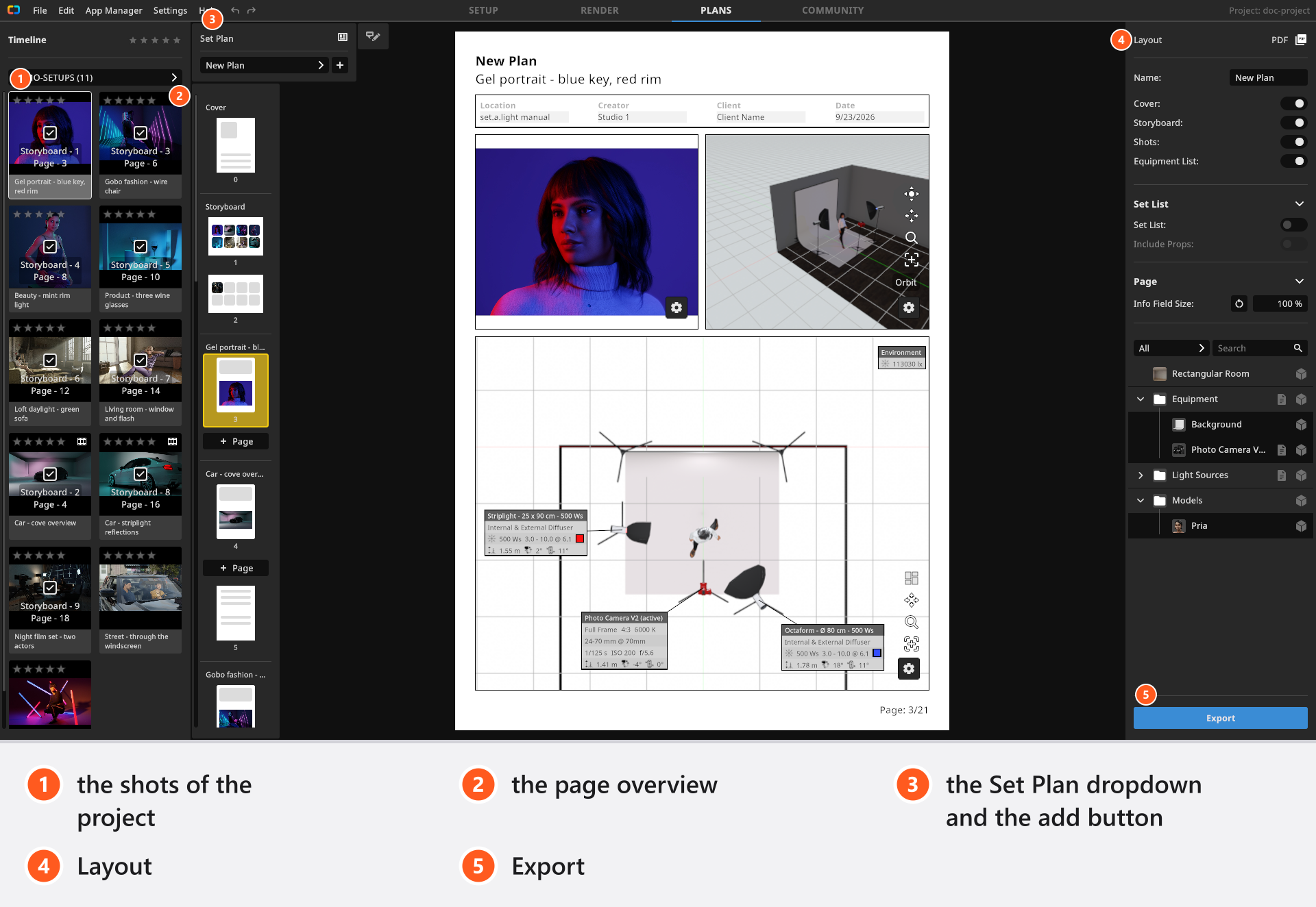
Open the PLANS tab in the header. The shots of the project are listed on the left, the page you are working on sits in the middle with the page overview along its left edge, and the plan settings are on the right.
Pick PDF or JPG first
The two plan types do not carry the same pages, and the type is fixed when you create the plan — for the other one, create a second plan.
| JPG | ||
|---|---|---|
| Pages | Cover, storyboard, shot pages, a Set List page per shot, one Equipment List for the plan | Storyboard and shot pages |
| Page size | A4, 595 × 842 pt |
per page in pixels, 100 to 4096 |
| Page types on at creation | all four | Shots; Storyboard has to be switched on |
| First page of a shot | portrait A4 with plan title, shot title and header values; fixed splits, cannot be deleted | landscape, three regions, no titles; dividers can be dragged, page can be deleted |
| Result | one document, opened in your PDF viewer | one image file per page, in a folder you pick |
| Your logo | on the cover | not available — put it on a page as a Custom Image |
PDF is for printing and for sending to a team; JPG for a quick diagram on a website or in a message to your crew.
How to create a plan
- In an empty PLANS tab, click Create New PDF Plan or Create New JPG Plan. → A plan named
New Planis created and loaded. A PDF plan starts with every page type switched on. A JPG plan starts with Storyboard switched off — switch it on in Layout if you want the overview page. - For a second plan, click the
+beside the Set Plan dropdown (its tooltip reads Add New Plan). → The New Set Plan dialog opens with the nameNew Set Planand the type of the plan you have open. Change both if you need to; Create loads the new plan. - In the panel on the left, tick the shots the plan should contain. → Every ticked shot gets a storyboard slot and its own page or pages, in the order in which you ticked them.
The tick box only appears while you hover a card, or once the shot is in the plan; a card that is part of a selection adds or removes the whole selection.
Rename a plan at any time in the Name field of the right panel, switch between plans with the Set Plan dropdown, and remove one with the bin icon in that dropdown. The confirmation warns that the deletion cannot be undone; undo does not bring a deleted plan back.
How to fill the cover (PDF)
Click any text on the cover and type: the plan title, the project name and the values of Creator, Location, Client and Date. The four labels themselves are fixed.
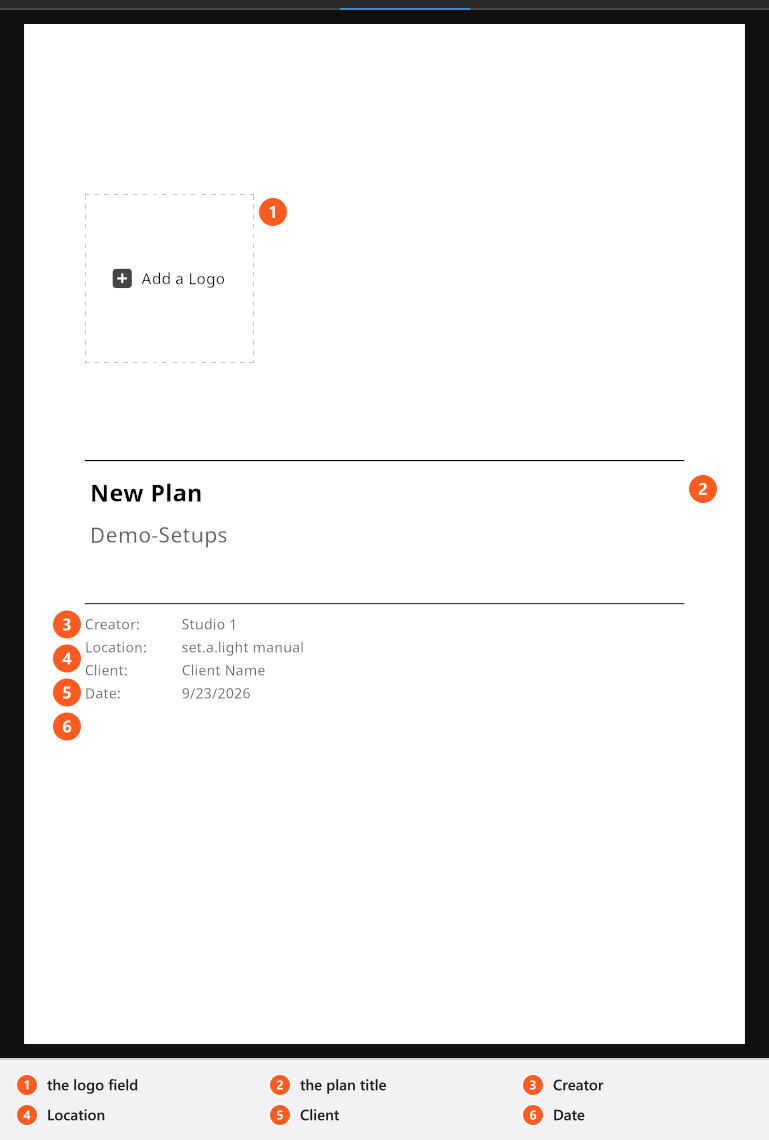
Click the Add a Logo placeholder to import an image file. From the second logo on, the placeholder opens a picker with the logos you already have; a right-click on it offers Import Logo and Remove Logo. The same four values appear again on the first page of every shot and can be overridden there — see Build the pages of a set plan.
What the plan is made of
The Layout section on the right switches the page types: Cover and Equipment List in a PDF plan, Storyboard and Shots in both. All four start on in a PDF plan; in a JPG plan Storyboard starts off. The full list of page types, sizes and view options is in What a set plan contains.
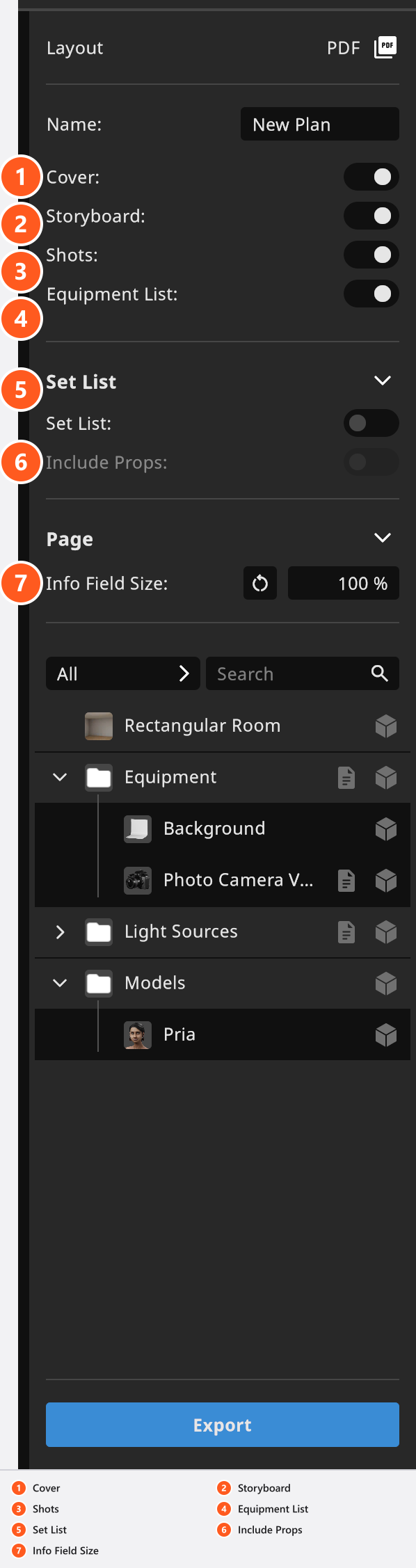
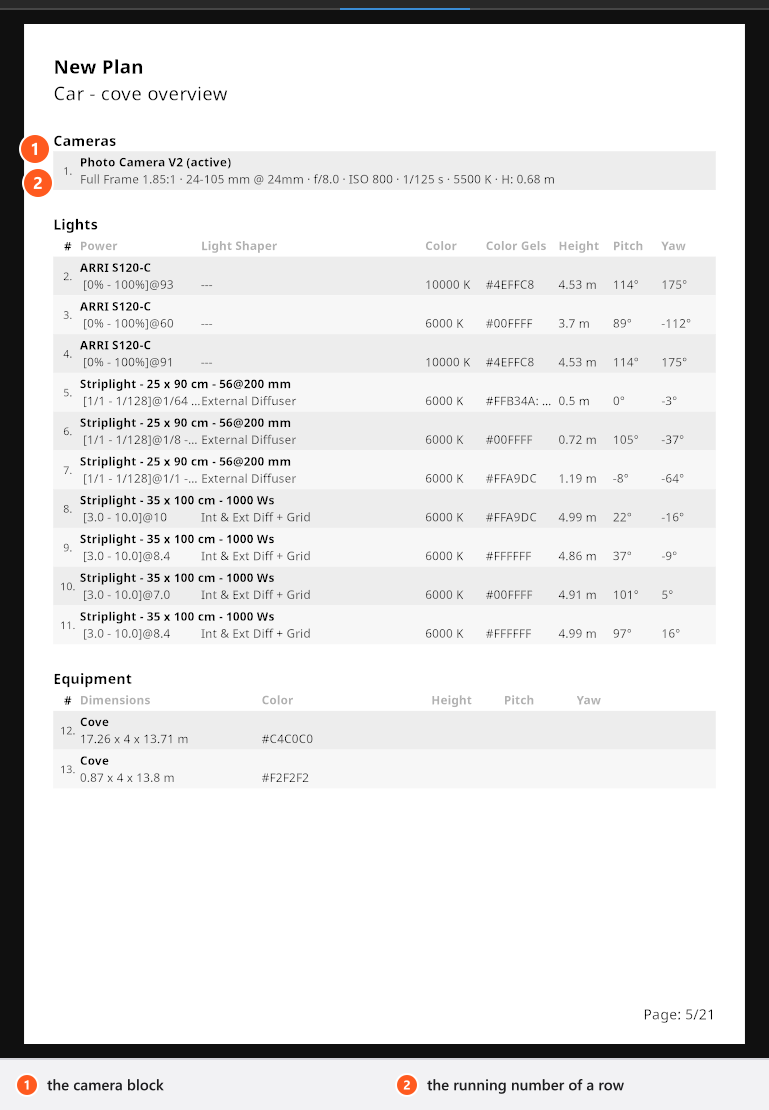
The per-shot Set List page is the exception: it is not in Layout. Select a page of that shot, then use Set List and Include Props in the section of the same name. It is the page an assistant rebuilds the lighting from.
How to export
Click Export at the bottom of the right panel. It stays greyed out until the plan has at least one page.
- PDF: pick a file name and a folder. The finished document opens in your default PDF viewer.
- JPG: pick a folder. Each page becomes its own file, named
<page number>_<page name>.jpg— for example1_Storyboard.jpg— at the highest JPG quality, and the folder opens when the export is done.
Two things are worth doing first. Render the shots that matter: a shot without a render is exported with its low-resolution preview, which looks soft on paper. And arrange the info fields of each top-down view yourself, by dragging them or with the layout button (Calculate Info Field Layout) — the export does not re-arrange them for you. Both gestures are in Build the pages of a set plan.
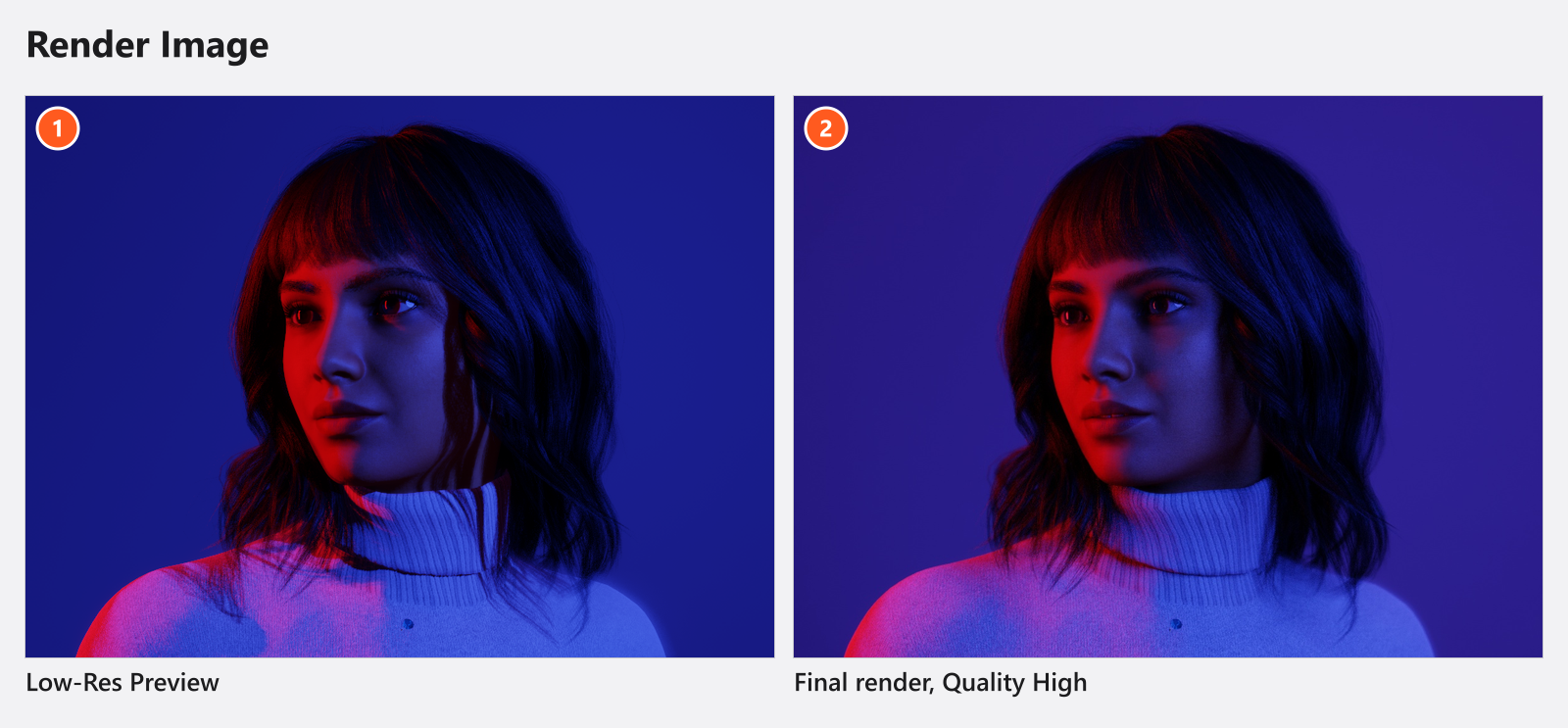
Every view is re-drawn at full output size, so the export takes a moment.
If the file cannot be written, Export Failed names the reason — “File is already in use by an other process.” or “Could not access file.” — plus the path, and offers Try Again and Cancel. Closing the old PDF in your viewer is usually enough.
Tips & limits
- The Internal Note of a shot is never printed. Use the storyboard description, a Note region on a page or a sticky note instead.
- A plan lives inside the project file. Exporting or appending a selection of shots carries the shots, not the plans — see Move shots between projects.
- Set plans written by versions before 3.0.26 are dropped when such a project is converted on opening.
- Switching plans, deleting a plan or leaving the PLANS tab clears the undo history — of the plan and of the studio work you did before it. Save before you switch.
Troubleshooting
- Export is greyed out. The plan has no pages yet: tick at least one shot, or switch a page type back on in Layout.
- The pages of my plan look soft. The shots were not rendered, so the plan used their previews — see Where your images are saved.
- A page shows “Exporting the PDF has failed.” The document could not be built; report it as a bug — see Something looks wrong: start here.