
 English
 Deutsch
 日本語
日本語 简体中文
简体中文 Français
A render calculates the picture of a shot at the resolution and sample budget you chose and writes it next to your project as a JPG. It is the only image you can hand to a client or take into a retouching program — everything before it lives in the application.
Applies to BASIC, STUDIO, CINEMA · You need: a saved project with at least one shot in the timeline.
Where to find it
Renders happen in the RENDER tab. Your shots are listed on the left in the Timeline panel, the image gallery fills the middle, the render controls sit in the toolbar under the gallery, and the panel on the right shows the data of the selected shot. From the SETUP tab you get there with Open Viewer on a selected shot.
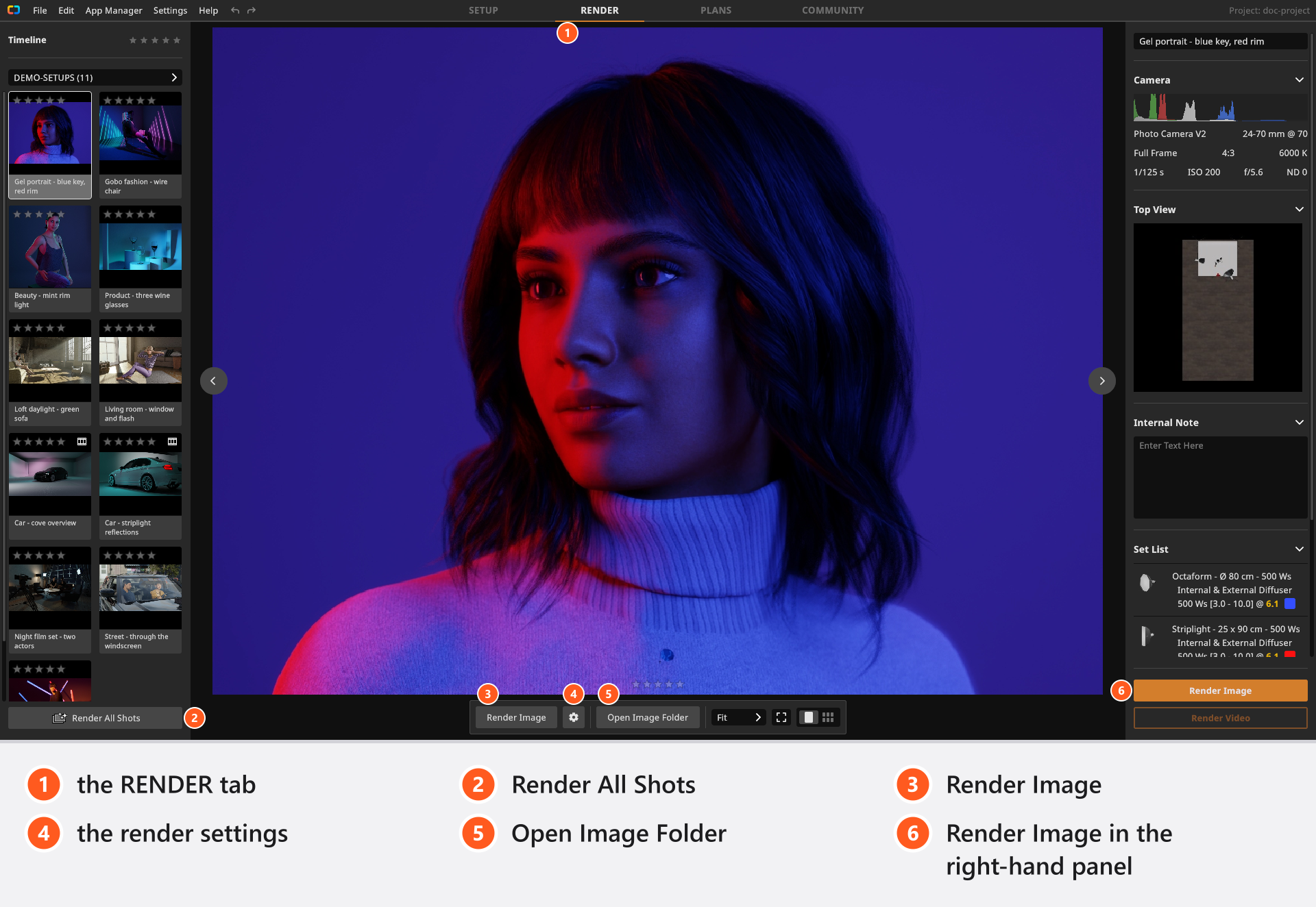
How to render a shot
- Select one or more shots in the list on the left.
Ctrl+A(Cmd+Aon macOS) selects all of them, by default. - Click Render Image in the bottom toolbar. With more than one shot selected the button reads Render Images. → The gallery switches to the shot being rendered and the render controls appear over the picture.
- Wait for the progress display: samples done of the target, an estimate of the time remaining, a progress bar and Cancel. → When it disappears, the JPG is on disk.
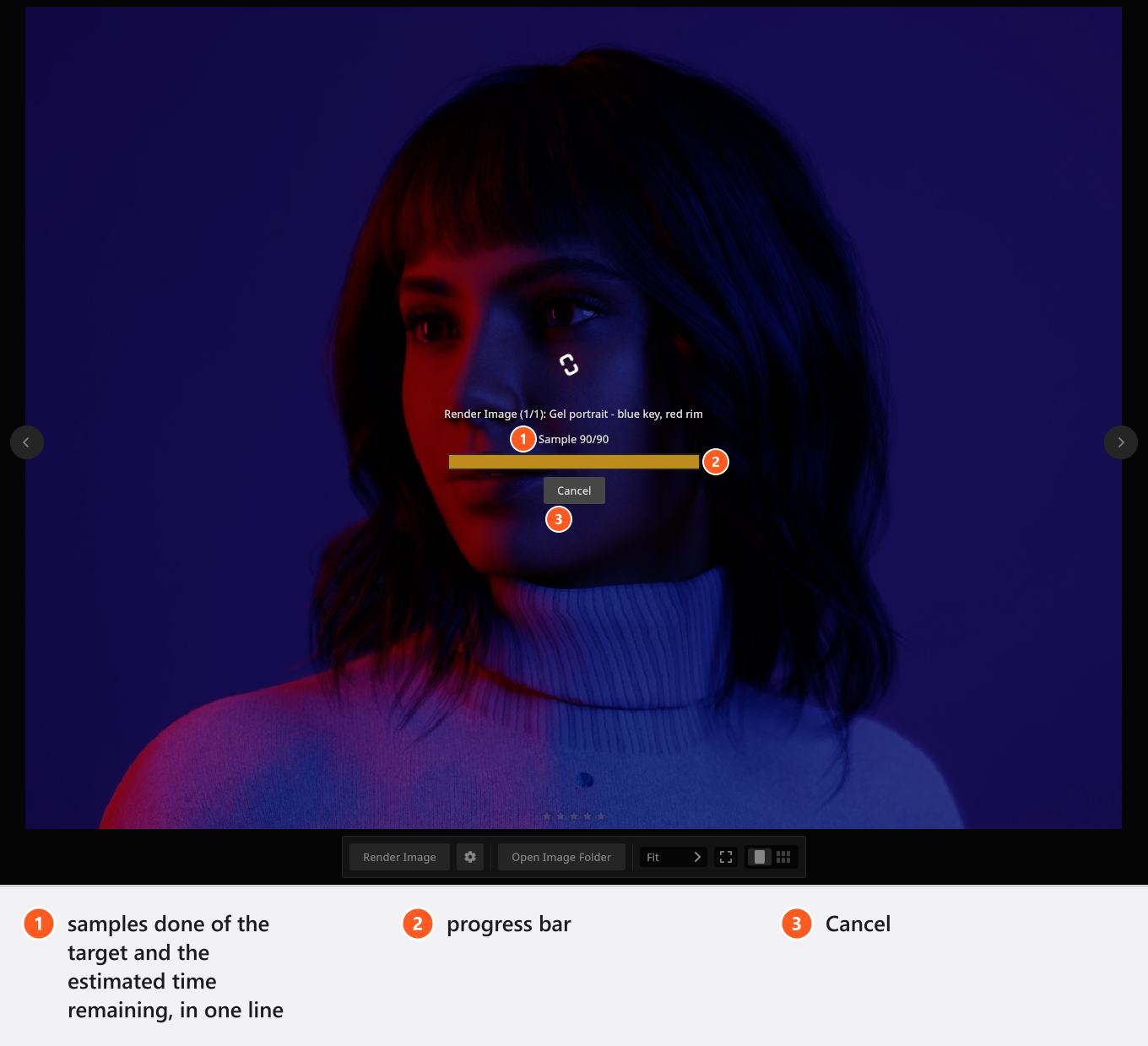
The time estimate only appears after about three seconds, because the first samples are needed to measure a rate. A shot with several people can also stand still before the first sample while the renderer waits for their geometry.
Cancel interrupts the image that is being calculated at the next checkpoint. That image is not written — you keep the previous file, or no file at all. The remaining shots of the batch are skipped; images that were already finished stay. Switching tabs does not stop a render, and only one render job runs at a time.
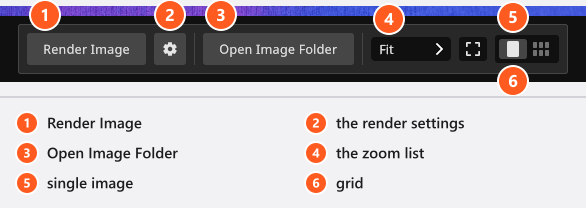
Four ways to start a render
| You want to … | Use | What it does |
|---|---|---|
| render the one shot you are looking at | Render Image, one shot selected | renders it again, whether it has an image or not |
| render a selection | Render Image, several shots selected | renders only the shots that have no image yet — unless every selected shot already has one, in which case all of them are rendered again |
| render everything that is still missing | Render All Shots, under the shot list | walks every shot of the project and skips each one that already has a JPG. It ignores the active group and the star filter, so hidden shots are rendered too, and it never refreshes an existing image |
| change the settings first, or force a whole selection | Render Image in the right-hand panel | opens the Render Image dialog with the settings block and a thumbnail per shot; Render renders every selected shot, whether it has an image or not, and reports its progress as a cancellable task with a shot counter instead of the display over the picture |
Two more buttons reach the same renderer: in the gallery, a tile you point at offers Render Shot — Re-Render Shot once that shot has an image — and in the PLANS tab, a shot page’s render view carries Render Shot, so the page shows the finished picture instead of the stored preview.
If you are unsure, use the bottom toolbar: it is the shortest route, and its selection rule is the one most people expect.
Trial renders carry a watermark
On a trial, every finished image gets a watermark: it covers about two thirds of the image width in the lower part of the picture. There is no setting to switch it off, and it is burned into the file at the moment of rendering — activating a licence later does not clean up images you have already rendered. Render them again.
Where did my rendered image go?
Save the project before you render. As long as a project has never been saved, its images go to a temporary cache folder instead of next to the project — and that is where people lose a night of rendering.
Renders are saved automatically; there is no export step and no file dialog. A saved project gets a folder beside it with the same name, and one JPG per shot title:
…/Beauty-Campaign/Beauty 01.jpg for the project …/Beauty-Campaign.set
Open Image Folder in the bottom toolbar opens that folder in Explorer or Finder. It is available whenever the project’s image folder exists, so from the first render onwards.
Every file is a JPG at quality 99, eight bit, and carries the camera data as EXIF: aperture, shutter speed, ISO and focal length. There is no PNG, TIFF or EXR option and no quality control. More on the files and on what to hand over: Where your images are saved.
The render settings
The gear in the bottom toolbar opens the settings the next render uses. The same block sits on the left of the Render Image dialog.
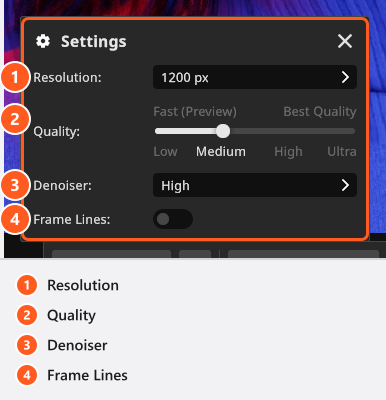
1200 px, Quality Medium, Denoiser High, Frame Lines off- Resolution — the long edge of the image,
800 pxto3840 px, default1200 px. See Resolution. - Quality — the sample budget and the texture detail, default
Medium. See Quality and denoiser settings. - Denoiser —
Off,MediumorHigh, defaultHigh. - Frame Lines — off by default. Switched on, the enabled crop rectangles of the camera are burned into the JPG. See Plan one shot for several deliveries.
These are program settings: they apply to the next render, not to images you have already made.
What the gallery shows
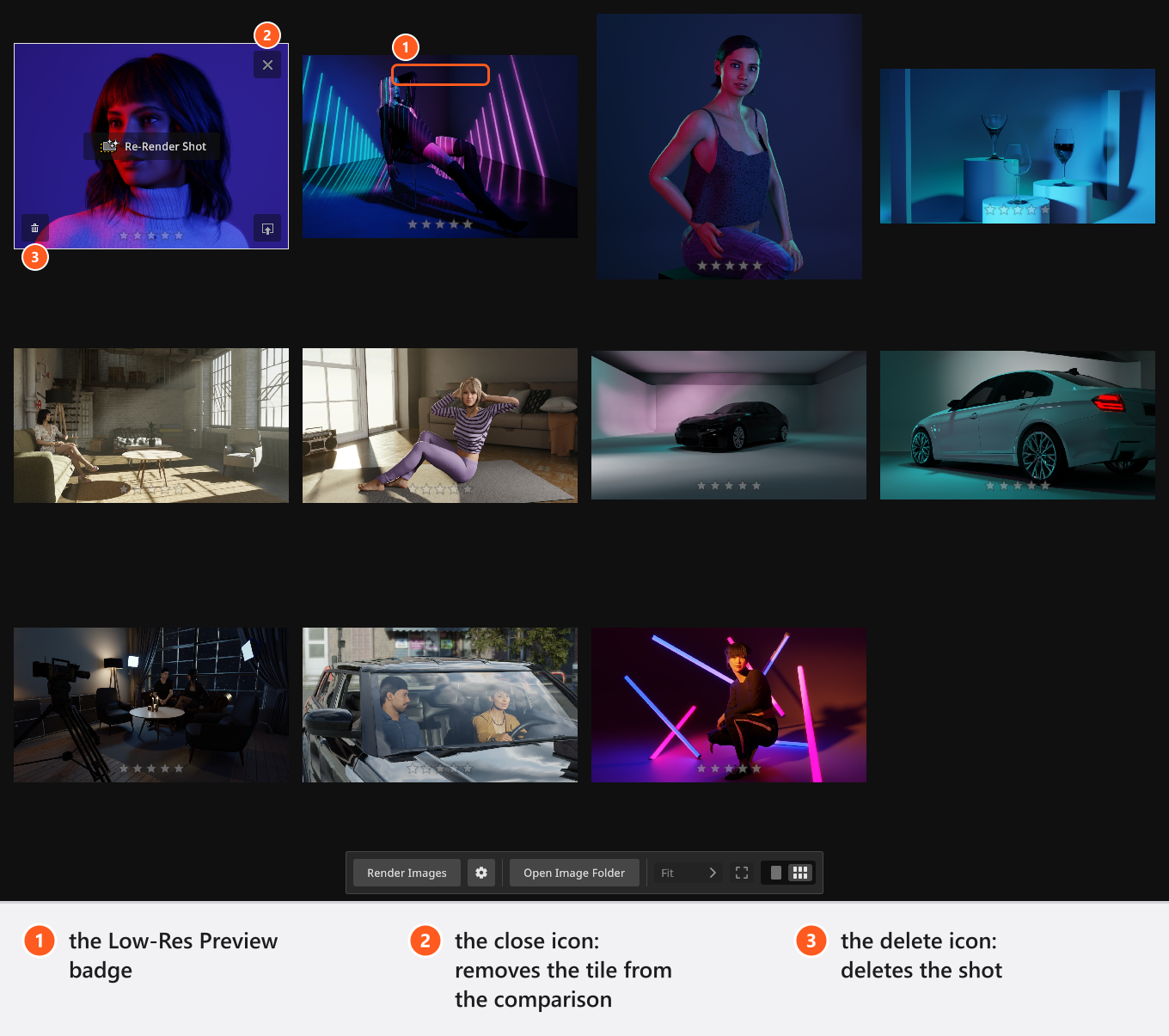
A picture with the badge Low-Res Preview is not a render: the gallery is showing the 512-pixel preview stored with the shot, either because that shot has never been rendered or because its file is still loading. The badge stays English in every interface language. Picking finalists, zooming and comparing is described in Review and compare your renders.
Tips & limits
- A re-render overwrites the JPG of that shot without asking. Copy the old file somewhere else first if you need both — renaming the shot moves the existing file with it instead of leaving a copy behind.
- Applying the current set to an existing shot with Apply deletes that shot’s rendered image. Render it again afterwards.
- A shot title longer than 50 characters is shortened, and duplicate titles are made unique — the file name follows the title.
- Rendering a shot loads that shot into the studio, so after a batch the SETUP tab shows the last shot that was rendered, not the set you were working on.
- A render keeps the graphics card busy, so the rest of the application reacts slowly while it runs.
- (add-on: Animation Tool) Render Video sits below Render Image in the right-hand panel; a still render of an animated shot always uses that shot’s preview frame. See Render a video.
Troubleshooting
- Nothing was written, my image is gone, or the render will not start. → Render problems
- A render takes far too long. → Make it faster