
 English
 Deutsch
 日本語
日本語 简体中文
简体中文 Français
The inspector shows everything a light can do, and it changes with the light: a flash head has a modelling light, a speedlight has a zoom and a tilt, a gobo has a beam angle, and an Area Light has a width and a brightness in lux. This page lists the settings group by group, with their ranges and defaults. The stand, the height and the aiming controls live in Aim a light (target lock).
Applies to BASIC, STUDIO, CINEMA · Continuous fixtures, practical lamps and gobo shapers need STUDIO or CINEMA · The Area Light needs CINEMA, or a licence that carries the extended-lights entitlement · You need: a light selected on the SETUP tab.
Where to find it
Select a light; its settings fill the inspector on the left (B shows and hides the panel, by default). The most-used controls are repeated twice: on the object controls floating next to the light in the studio view (0 shows and hides them, by default) and in the light’s row in the set list, which carries the on/off toggle, the solo toggle, the brightness slider, the current output and the gel button.
The button row
At the top of the inspector sit the light’s icon and up to six buttons: Tripod on/off, Lock Light Source on Target, Rotate Light Towards Model, Turn Light on/off, Set as Solo Light and Barndoors on/off. What each one does, and the key bound to it, is listed once in Aim a light (target lock).
Brightness
Below the buttons sits the brightness slider. Its scale is the scale of the real device:
| Scale | Looks like | One click of + / - |
|---|---|---|
| Decimal control range | 3.0 – 10.0 |
a tenth of a stop; one whole number is one stop |
| Fractional control range | 1/1 – 1/128, 1/1 – 1/256 |
a third or a tenth of a stop, whichever readout the head was built with |
| Percentage | 0 % – 100 % |
one per cent |
+ and - (also on the numeric keypad, both by default) step every selected light — practical lamps included — by one step of its own scale, and round it on its own scale. With several lights selected, dragging the slider instead moves all of them by the same amount — but each head rounds and clamps the result on its own scale, so a mixed selection of flash and percentage fixtures can drift apart, and a head that reaches its limit stops while the others go on. Check a ratio you care about with the light meter.
Two numbers that are easy to confuse: a new flash arrives four stops below its maximum, while the brightness an animation records runs on one common scale from 0 to 100 for every kind of light.
Linear or exponential dimming
Fixtures that dim in per cent carry a small button at the right end of the horizontal slider that switches the dimming curve between Exponential and Linear. Of the 100 fixtures that dim in per cent, 51 start out exponential and 49 linear. Exponential spreads the useful range over the top of the slider the way a lamp behaves; linear maps the percentage straight onto the output. Flash heads never show the button, because they are dimmed on a control range instead. Which curve a fixture starts on comes from the fixture itself and can be changed for good in the App Manager (STUDIO+) — see Add your own lights and light shapers.

Equipment
| Setting | What it is |
|---|---|
| Light Shaper, Variants | the fitted light shaper and its build state, see Choose and fit a light shaper |
| Light Source, Variants | the head, and the version of it on the fixtures that ship in several; the label shows the head’s current output — a 500 Ws strobe dimmed four stops down reads Light Source [31 Ws] |
| Rig | the stand, see Aim a light (target lock) |
| Flash Active | on a flash head: switches the flash tube off and leaves the modelling light burning |
| Color Temperature | 1700 K – 20000 K. The slider marks the head’s nominal value, and on a bi-colour fixture the range it really covers; you can push it past those markers, which is a deliberate “this fixture cannot do that” |
| Modeling Light Active | the pilot light of a flash head, with its own Power (1 W – 2000 W, default 300 W) and its own Color Temperature (default 3200 K). Proportional / Full below it decides whether it follows the head’s power setting or always burns at its own power; the pair is greyed out while the pilot light is off |
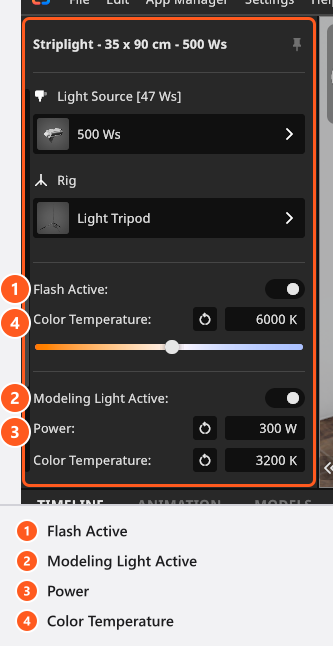
Two behaviours that read like faults and are not: choosing a new head adopts the new head’s nominal colour temperature, but only while you have not set one by hand — a hand-set value survives the change. And the modelling light arrives switched on in STUDIO and CINEMA and switched off in BASIC; Modeling Light Active turns it on.
Barndoors
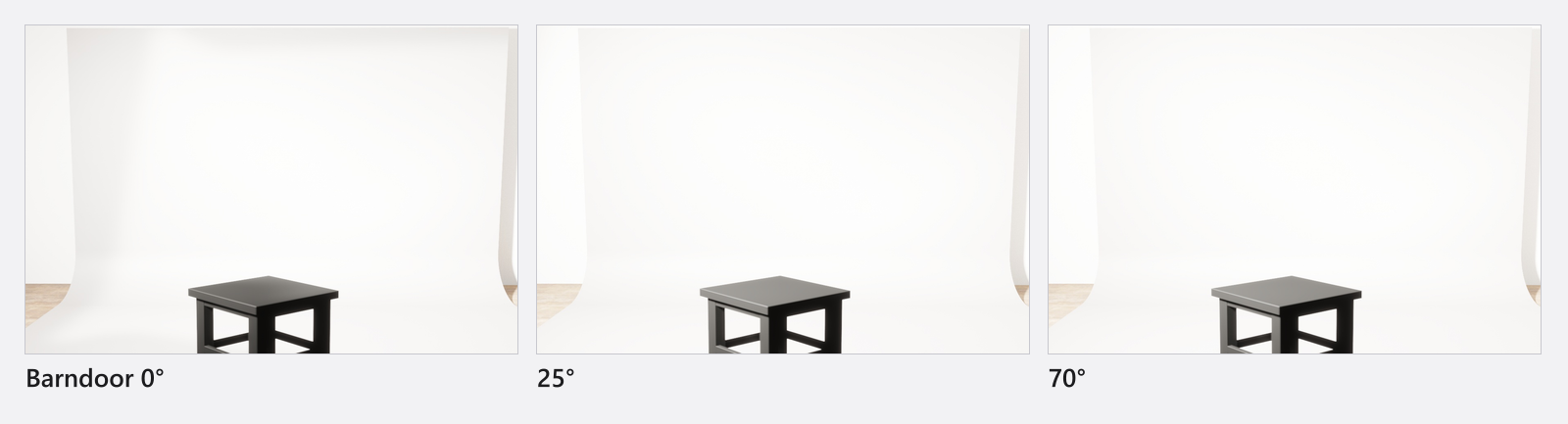
Enable Barndoor appears on heads and shapers that have barndoors — the same switch as Barndoors on/off in the button row. One slider drives all four flaps and one drives each flap, from −90° to 90° (default 25°); the two link buttons couple left with right and top with bottom. In the generated table and in the animation editor the same value is called Barndoor Angle.
Zoom and head tilt
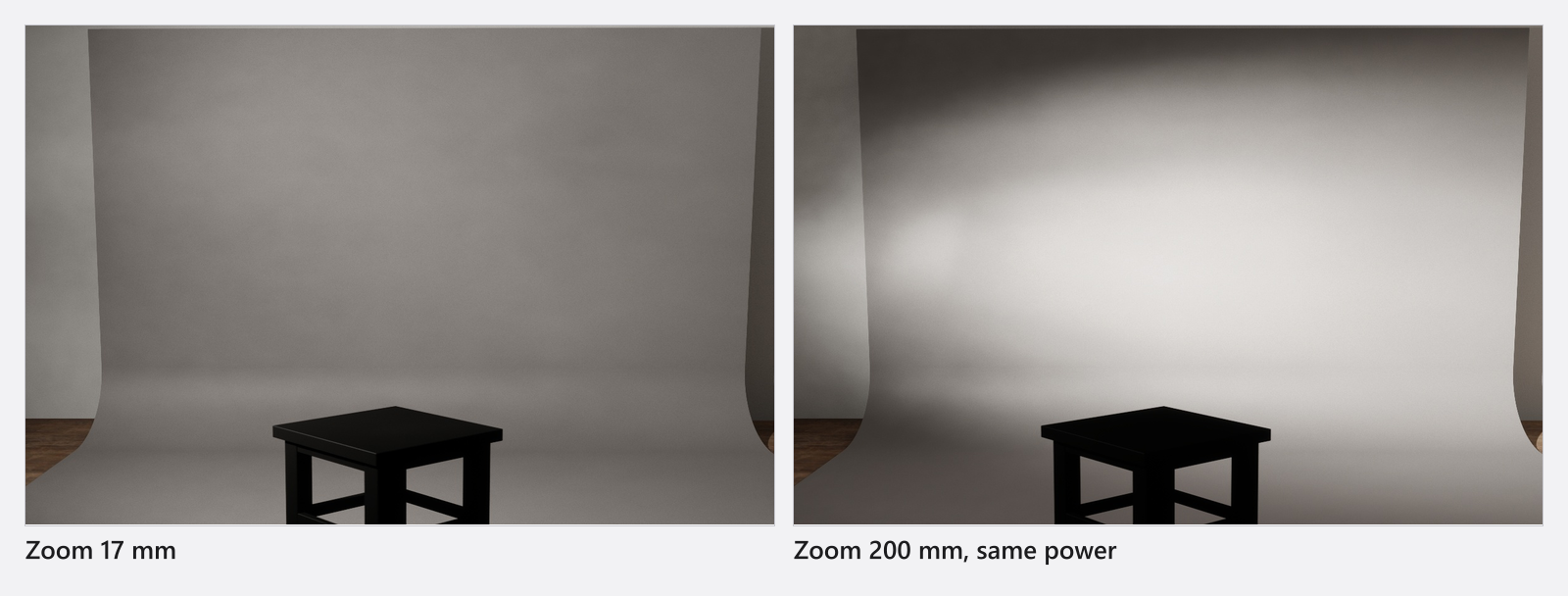
Zoom appears on every head whose distribution holds more than one zoom position. On a speedlight it snaps to the real focal-length steps of the device; elsewhere it runs continuously. Speedlight Pitch tilts a speedlight head up from 0° to 90° for bounce flash.
The Area Light
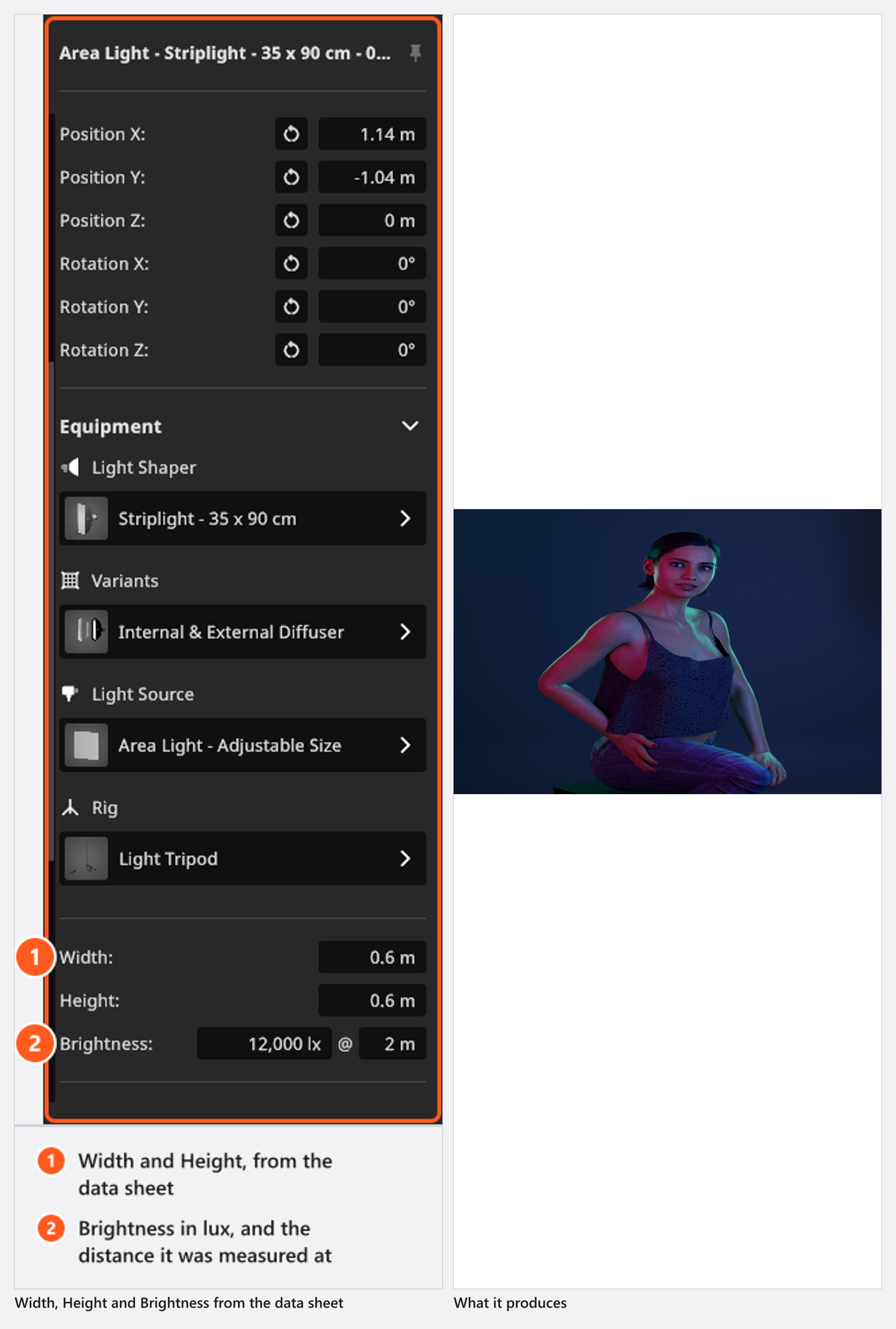
The Area Light has no catalogue data, so you type it in from the fixture’s photometric sheet.
| Setting | Range | Default |
|---|---|---|
| Width, Height of the emitting surface | 0.01 m – 10 m |
1 m × 1 m |
| Brightness as an illuminance | 1 lx – 10 000 000 lx |
4000 lx |
| the distance that illuminance was measured at | 0.1 m – 100 m in the inspector (1 m – 100 m in the dialog that creates a fixture) |
3 m |
Colour
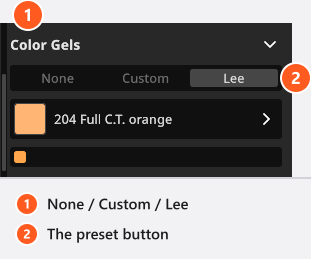
Color Gels has three modes: None, Custom (any colour from the picker) and Lee (one of 56 filter presets). The whole workflow — filters, favourites, colour-correction gels, neutral density and your own swatches — is in Colour a light with gels and filters.
Gobo and projector
With a Gobo – Projector fitted, Equipment gains Gobo Mask, Aperture Angle (10° – 170°, default 90°) and Gobo Blur (0 – 0.04, default 0 = sharp; the generated table below and the animation editor both list the angle as Gobo Field of View). With a Light Blaster fitted it gains Image Template, Lens Luminosity (default f/2.0), Focal Length (12 mm – 130 mm, default 50 mm) and Manual Focus with Focus Distance (0 m – 20 m, default 3 m). Both are covered in Project a pattern or an image.
Practical lamps
A practical lamp is a fixture with a lamp in it, and its inspector is shorter: the button row has only Turn Light on/off and Set as Solo Light, and brightness runs 1 % – 100 % — a lamp cannot be dimmed below 1 %, only switched off. Equipment holds the fixture — whose picker is labelled Light Shaper, the one label that does not fit what it does — then Lamp, which shows the lamp’s current output in lumen, Color Temperature, and Show Cables on fixtures that hang from the ceiling. A Color group sets the shade and frame colours where the fixture has them.
What is saved and what is animated
Everything on this page is stored in the set and comes back with the shot, including the fitted equipment, the gel and the dimming curve. An equipment swap keeps position, height, angle, dimmer setting and gel. Which settings can also be given keyframes (add-on: Animation Tool) is the Animatable column of the table below — brightness, colour, colour temperature, zoom, barndoor angles and the fitted equipment among them. Two working aids are not animatable: the solo state (which is stored with the set) and the stand’s visibility.
All settings
The generated table below adds the one column the prose cannot: Animatable, per setting. Range lists what you can set; where it says “depends on the light”, the head’s own data decides.
Light
| Setting | Range | Default | Unit | Animatable | Notes |
|---|---|---|---|---|---|
| Barndoor Active | off | sometimes | |||
| Barndoor Angle | -90 – 90 | 25 | sometimes | ||
| Brightness | 1 – 10000000 | 4000 | no | Area Light only: how much light the head gives, in lux | |
| Brightness | 0.1 – 100 | 3 | no | Area Light only: the distance that lux figure is measured at | |
| Brightness | 0 – 100 | 100 | yes | The power slider of the light itself | |
| Color Gels | white | yes | |||
| Color Temperature | 1700 – 20000 | depends on the light | yes | ||
| Filter | None, Custom, Lee | None | yes | ||
| Flash Active | on | sometimes | |||
| Gobo Blur | 0 – 0.04 | 0 | sometimes | ||
| Gobo Field of View | 10 – 170 | 90 | sometimes | ||
| Lens Luminosity | no | ||||
| Manual Focus | off | no | |||
| Modeling Light Active | depends on your edition | sometimes | |||
| Modeling Light Color Temperature | 1700 – 20000 | 3200 | sometimes | ||
| Modeling Light Power | 1 – 2000 | 300 | W | sometimes | |
| Powered On | on | yes | |||
| Projector Focal Length | 12 – 130 | 50 | sometimes | ||
| Projector Focus Distance | 0 – 20 | 3 | sometimes | ||
| Speedlight Pitch | 0 – 90 | 0 | sometimes | ||
| Width / Height | depends on the light | 1 | m | no | Area Light only: the size of the light surface |
| Zoom | depends on the light | 35 | sometimes |
Tips & limits
- Barndoor, gobo and projector rows only exist when the fitted equipment has them, so a short inspector usually just means a plain shaper.
- Gels cost light. If a deep blue looks under-exposed, raise the head rather than the ISO.
- BASIC allows seven of your own images per image library, which is what limits your own gobo masks and projector slides.
Troubleshooting
- The modelling light does not show in the render. Against a flash it is weak: you only see it at long exposure times or high ISO — or switch Flash Active off to look at it alone.
- My colleague’s pilot light is on, mine is off. New flash heads arrive with the modelling light on in STUDIO and CINEMA and off in BASIC. Switch it on with Modeling Light Active. A light that was saved with it off keeps that state whatever your edition — the default only decides how a new light arrives.
- More symptoms: Lighting problems.