
 English
 Deutsch
 日本語
日本語 简体中文
简体中文 Français
This is the short road from a finished lighting setup to a five-second video file. You will key two objects — the camera and the key light — at the end of the shot, then pull them apart at the beginning, so the shot animates into the look you designed. That is the way most people work once they have done it twice, and it takes about ten minutes.
Applies to BASIC, STUDIO, CINEMA · Needs the Animation Tool add-on (included in the CINEMA trial) · You need: a saved project, one shot in the TIMELINE with a camera, a key light and a model, and the SETUP tab open.
The intro tutorial does the same walk on its own set. Watch it once if you prefer to see the whole shape first; its opening line about needing the CINEMA edition is wrong — the tab needs the add-on, which fits any edition.
What you will build
A five-second shot at 30 frames per second — 150 frames, numbered 0 to 149. The camera starts wide and far away and ends tight on the model. The key light starts at a third of its power and comes up to full. The movement eases in and out instead of starting and stopping abruptly, and the finished file is an MP4 you can send to someone.
Before you start
- Save the project. You will press
Ctrl+Z(Cmd+Z) a few times while learning, and every step of this chapter — clearing a whole animation included — is one undo step. - Light the set the way you want the end of the shot to look. A finished single image is the perfect starting point.
- Take a snapshot of it, so the shot exists in the TIMELINE. An animation is stored inside a shot, and the render button stays inactive while no shot is active. This is the tile you will come back to at the end, because everything you key now counts as a change to the set and reaches the shot only when you apply it.
- Open the ANIMATION tab in the library panel and drag the top edge of the panel upwards. Two objects with several tracks each need the height.
Set the length of the shot
- Type
5into Duration at the bottom of the editor. → The frame ruler now ends at frame 150. - Type
30into Framerate next to it. → 5 seconds at 30 frames per second is 150 frames, and the file will hold frames0to149.
5 seconds and 30 frames per second are a good starting point, not a rule: Duration accepts 0 to 999 seconds and Framerate 2 to 120.
Key the finished look at the end
- Click in the frame ruler and drag the playhead to the right-hand end, until the read-out on it shows
04:29f. → That is frame 149, the last frame the video will contain. Do not use Jump to End for this: it lands on frame 150, one frame past the end of the file. Previous Keyframe cannot help you here either — it looks for the nearest keyframe, and you have not set one yet. - Select the camera in the studio view. → It appears in the object list of the editor straight away, with a plus button at the right end of its row.

- Press
I— the default shortcut for Insert Keyframe — and choose For Selected Objects. → The plus becomes a diamond, and folding the row open shows one track per animatable setting of the camera: its position, its Focal Length, its exposure settings. Because a camera was selected, the set’s Active Camera is keyed as well.
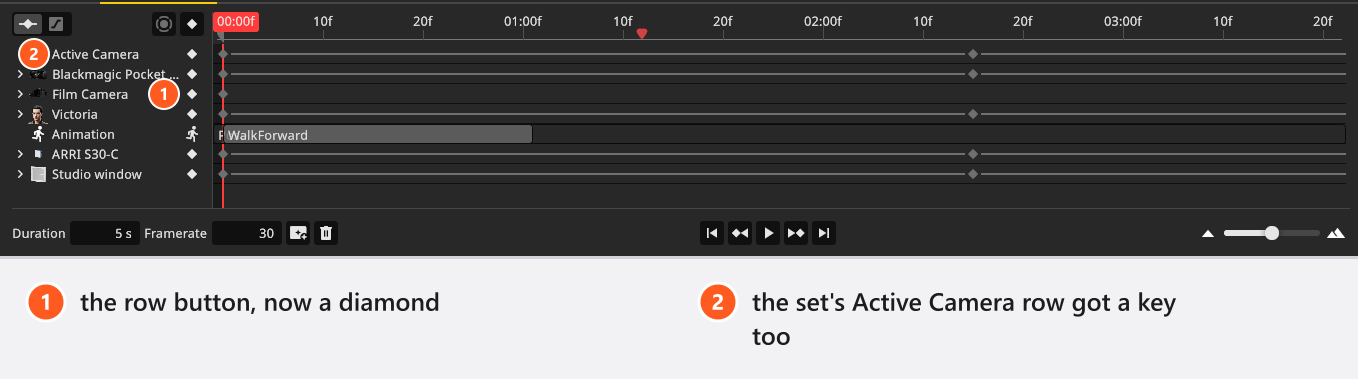
- Select the key light and press
I→ For Selected Objects again. → A second object with its own tracks appears in the list. Both objects are now pinned to the look you have at frame 149.
The method is worth watching once on a full set, with all the lights, the reflector and the background:
Pull the shot apart at the beginning
- Click Jump to Beginning. → The playhead sits on frame 0 and the scene still looks the way it did at the end; nothing has been keyed here yet.
- Move the camera back, away from the model, and set a shorter Focal Length so more of the set is in frame.
- Set the key light’s Brightness to
30. → The set gets noticeably darker; that is the start of your ramp. - Select the camera, press
I→ For Selected Objects; then select the light and do the same. → Each track now has two keys, one at frame 0 and one at frame 149.
Watch it
- Press
Ctrl+Space(Cmd+Space), the default shortcut for play and pause anywhere in the SETUP tab. → The studio view plays the move and loops.
What you are watching is the studio view — the working picture, with its own quality setting. Noise, depth of field and the finer lighting are not what the render will look like. On a heavy set the studio view cannot draw every frame in time, so playback skips frames: the timing is right, the motion looks choppy. The rendered video renders every frame.
Ease the movement
- Right-click the keyframe at frame 0 on the camera’s Position row. → The interpolation grid opens: three basic modes in the first column, then the same ten easing families under Out, In and In-Out.
- Pick Sine in the In-Out column. → Play again: the camera now leaves frame 0 gently and settles into frame 149 instead of stopping dead.
Easing belongs to the keyframe the movement leaves from, so the key at frame 0 governs the whole trip to frame 149. Shape the motion (curves and easing) covers the other 32 modes and the handles behind them.
Choose the frame the shot shows
- Drag the playhead to the frame that represents the shot best.
- Right-click the frame ruler and choose Set Current Frame as Preview. → The preview marker moves there. That frame is now the shot’s thumbnail in the TIMELINE and the frame any still render of this shot produces.
Put the move into the shot
- Click Apply on the tile you started from in the TIMELINE. → The tile takes over the animation and grows a small film icon.
Everything so far lived in the studio, not in the stored shot. Skip this step and the tile keeps the state it was snapped in: no film icon, and Render Video on the RENDER tab greyed out. If you would rather keep the still version too, take a new snapshot instead — the new tile carries the animation, the old one keeps the single image.
Render it
- Click the render button in the bottom row of the editor. → The video dialog opens with five settings: Resolution, Mode, Quality, Denoiser and Frame Lines.
- Choose
Previewas the mode and start the render. → A cheap pass that tells you whether the timing works. Denoiser disappears in this mode. The progress read-out names the frame it is on, the sample it is on and the time it estimates. - When you are happy with it, render again with
FinalandHigh. → The finished MP4 lands in the folder you pick.
Budget the time before you start the final pass: a video costs one still render per frame. Render a single still of this shot at the settings you want, then multiply by 150.
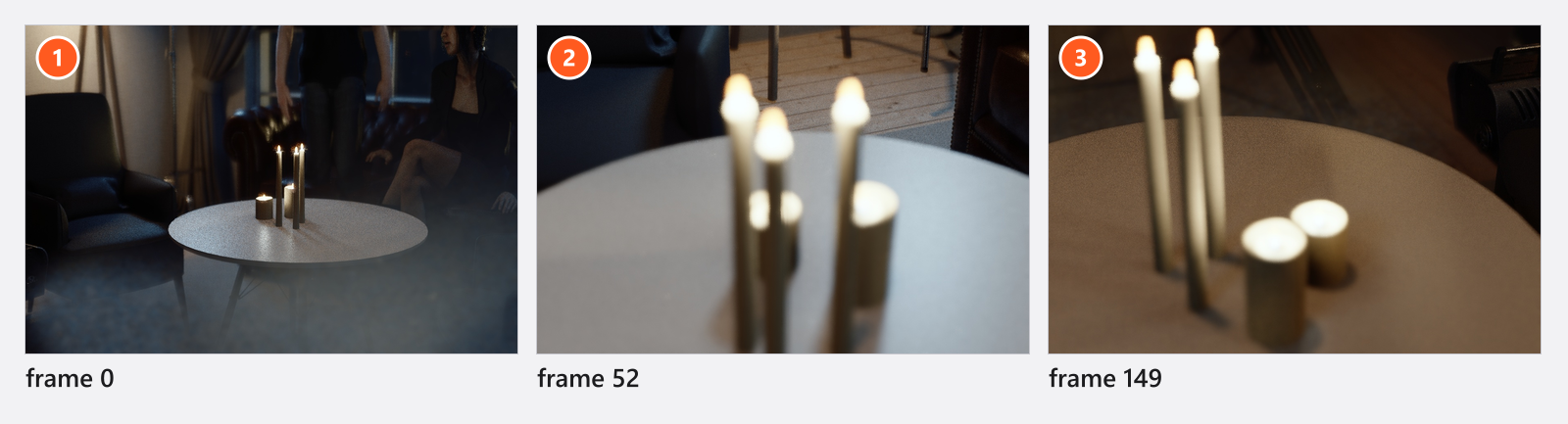
What to try next
- Set and edit keyframes — recording changes automatically, retiming, and the limits worth knowing early.
- Work in the Timeline Editor — loop a section, and turn any frame of the move into a still shot of its own.
- Shape the motion (curves and easing) — speed ramps, motion paths and tangent handles.
- Render a video — the batch route, and what the render settings cost.
- Something not moving? Animation problems collects the symptoms that look like faults and are not.