
 English
 Deutsch
 日本語
日本語 简体中文
简体中文 Français
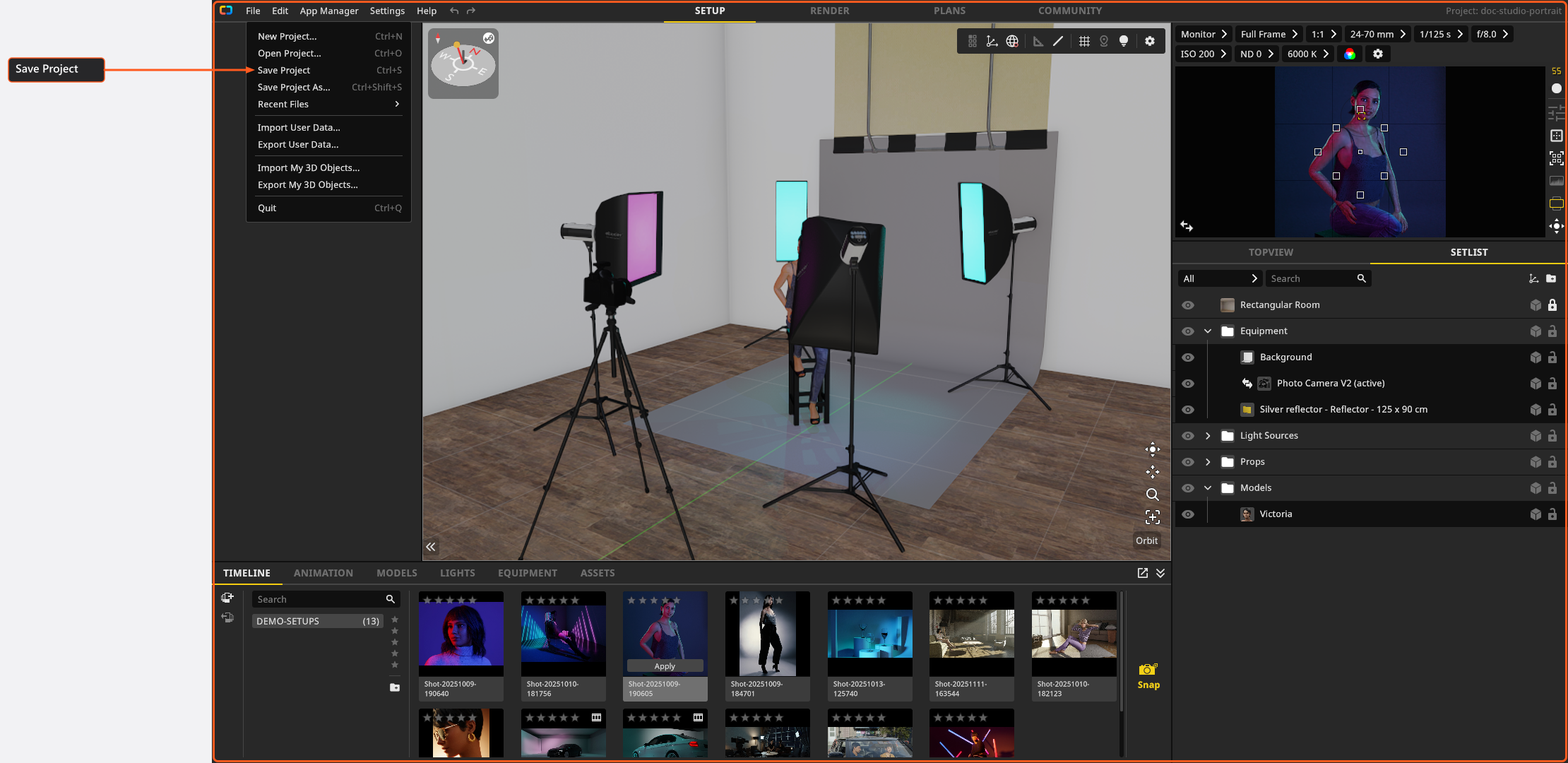
set.a.light 3D is one window with four tabs. You do the creative work in SETUP, produce images in RENDER, build the printable plan in PLANS and exchange setups in COMMUNITY. Inside SETUP the screen is divided into panels that always mean the same thing: what you selected on the left, the studio in the middle, the camera and the set list on the right, the library and the shots at the bottom.
Applies to BASIC, STUDIO, CINEMA · Some panels appear only with an edition or an add-on — see What depends on your licence at the end of this page.
The clip walks the whole window in four minutes, tab by tab and panel by panel.
The four tabs
You switch tabs by clicking their name in the top bar, next to the menus.
| Tab | What you do there | More |
|---|---|---|
| SETUP | Build and light the set. | Your first lighting setup |
| RENDER | Render shots and review the finished images. | Render an image |
| PLANS | Assemble and export the set plan. | Create a set plan |
| COMMUNITY | Browse, download and share setups. | The Community tab |
At the right end of the top bar the window shows Project: with the name of the open project, plus the graphics interface and the current frame rate. Both are read-outs, and the name of the graphics interface is the one Graphics problems asks you to report.
The menu bar

From left to right the bar reads File, Edit, App Manager, Settings, Help, followed by the undo and redo arrows.
File — new, open, save and Save Project As…, the recent files, Import User Data… and Export User Data…, the same pair for your imported 3D objects (add-on: 3D Import), and Quit. While the open project has a recovery copy on disk, Delete Autosave joins them and removes exactly that copy.
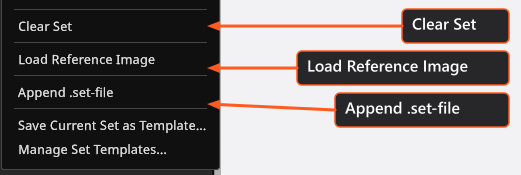
Edit — the two history entries, then Clear Set, Load Reference Image, Append .set-file, and outside BASIC Save Current Set as Template and Manage Set Templates. The history entries carry the number of steps they hold, so they read 2 Undo and 1 Redo rather than a bare label, and the number tells you how far back you can go. Clear Set deletes every object except the rooms and the active camera, and one undo brings them back.
App Manager — a button, not a menu. It opens the window where your own lights, light shapers, cameras, images, presets and all settings live. See Manage your resources in the App Manager.
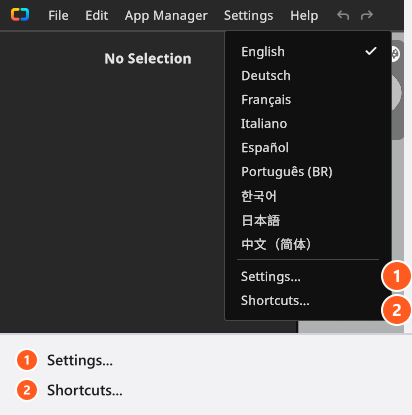
Settings — the nine interface languages, Settings… and Shortcuts…. Both entries open the same window as the App Manager button, on a different page: the program settings, or the editor for the keyboard shortcuts. See Settings and Change a keyboard shortcut.
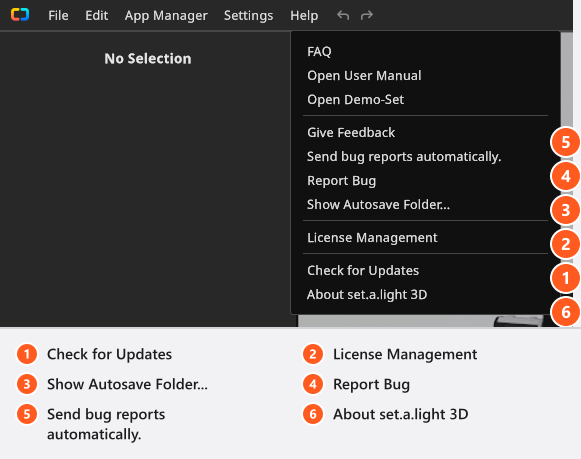
Help — FAQ, Open User Manual, Open Demo-Set, Give Feedback, the switch Send bug reports automatically. (off on a fresh installation), Report Bug, Show Autosave Folder, License Management, Check for Updates and About set.a.light 3D.
The panels of the SETUP tab
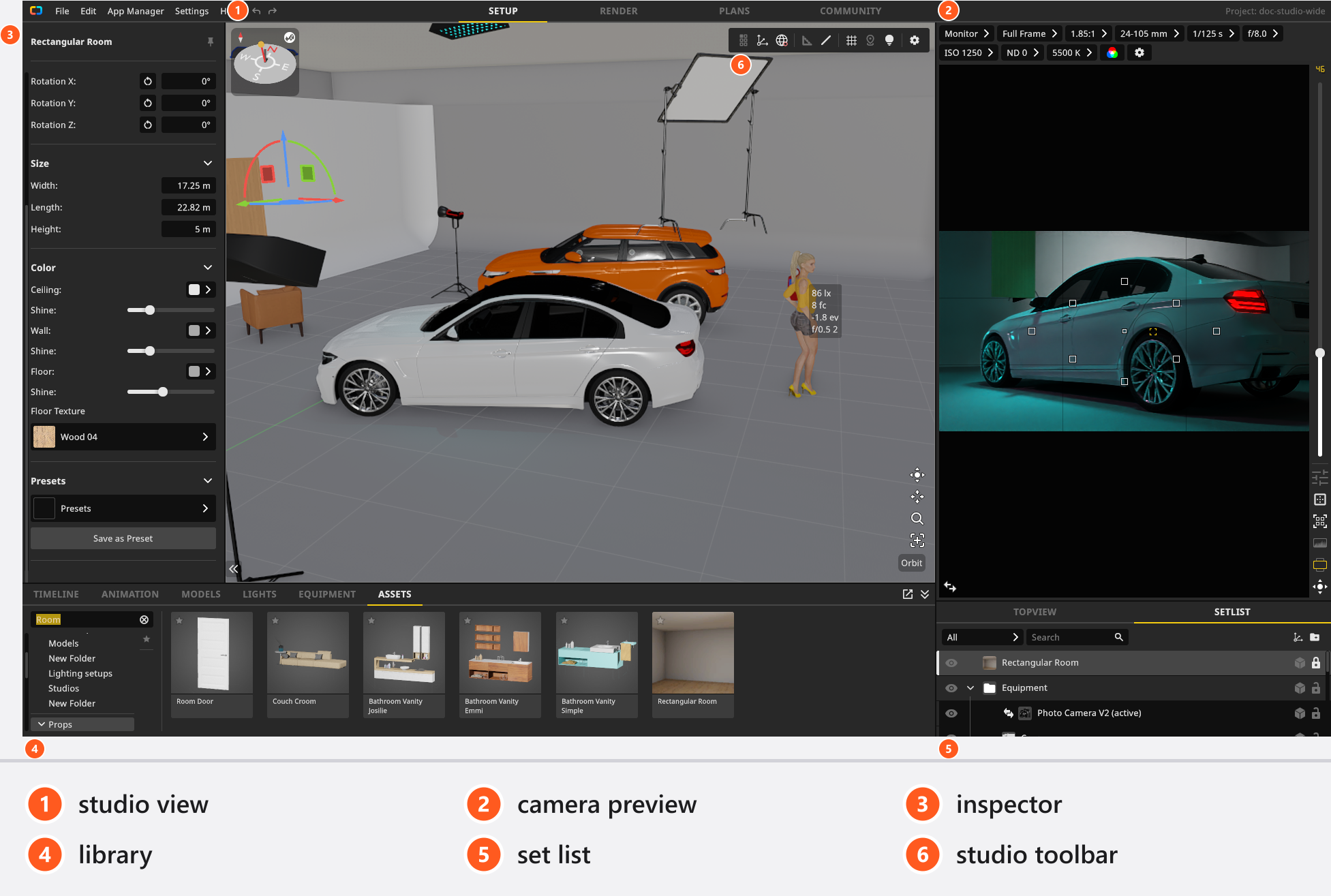
Studio view
The large view in the middle, and your workbench: you place and move objects here. The light in it is a fast approximation with a budget of its own, so lighting is judged in the camera preview or in a render, never here.
A tool strip floats over it. From left to right: the object controls beside a selection, the transform gizmo and its space (room or object), the measurement mode, the measurement lines, the floor grid, the Zero point menu, the studio lighting, and a gear.
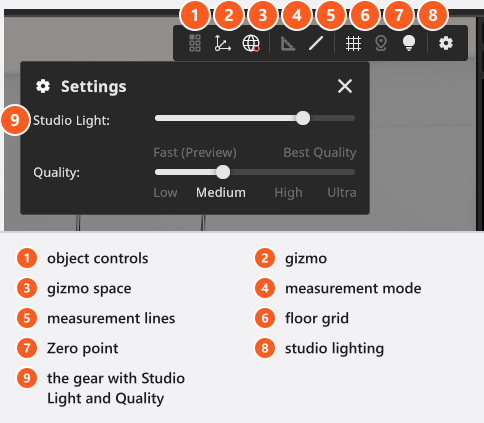
The gear holds two settings that belong to this view alone: Studio Light, a dimmer for the working light that starts at half its range and never touches your shot, and Quality, a ladder of Low, Medium, High and Ultra that starts at Medium. This is a third quality setting, next to the one of the camera preview and the one of the render — see Quality and denoiser settings.
The Zero point button decides what every typed position is measured from: a corner of the room, a point you pick, or — with no room in the set — the point the menu calls No room – set origin. Set the zero point for measured positions covers the menu.
The compass in the top left corner shows where north is and where the sun stands. Clicking it selects the Environment so its settings fill the inspector, dragging it turns north. See Light a set with the sun.
Camera preview
Top right by default, and the fully calculated image of the photo camera. Above it sits the camera bar, from left to right: the view mode (Monitor, IRE False Color, EL Zone), the sensor size, the aspect ratio, the lens, then exposure time, aperture, ISO, ND filter, white balance and the black-and-white switch. A film camera adds frame rate, shutter angle and the anamorphic factor. On the right edge sit the focal length with its slider, the toggles for the camera effects, the guides, the focus guide, the histogram and the portrait/landscape switch, and a gear with a Quality and a Denoiser of its own. A camera button in the corner stores the current state as a shot.
T swaps this panel with the studio view and back. See Camera preview.
Inspector
The left column. It shows the settings of whatever is selected and rebuilds itself per object type — light, camera, model, prop, room, Environment. With nothing selected it reads No Selection. B folds it away.
Top view and set list
The lower right panel carries two tabs.
- TOPVIEW — an orthographic view from above, good for distances and angles and for dragging equipment into place.
- SETLIST — every object standing in the studio right now, one row each. Three toggles sit on every row: hide the object, draw it as a semi-transparent (ghost) view so it stays out of your way in a busy set, and lock it against accidental moves. Rows of lights add the on/off switch, the solo switch, the power slider and the gel colour. A filter above the list narrows it to All, Equipment, Light Sources, Props or Models, and a search field filters by name.
New objects are filed into the group of their category automatically, and the group is created the first time it is needed. See The set list and the timeline.
Library and the shots
The bottom panel. TIMELINE holds the shots you took, with the Snap button at its end; ANIMATION is the animation editor (add-on: Animation Tool); MODELS, LIGHTS, EQUIPMENT and ASSETS are the catalogues you drag objects out of. Each catalogue has a filter column on the left and a search field. ASSETS contains 3D Objects (add-on: 3D Import), My Library with the objects you saved yourself, and Props.
N folds the whole panel away. E, or the arrow above a tab, lifts the active tab into a floating window you can move and resize; E puts it back. Every tab except TIMELINE carries that arrow, and the shortcut works in the SETUP tab only.
The reference image
Edit → Load Reference Image puts one of your own pictures on top of the window: drag it to move it, drag a corner to resize it between 100 and 2000 pixels high, and use the small cross to close it. H hides and shows it. It is a working aid for the session — it is not stored in the project.
What depends on your licence
| You do not see | Because |
|---|---|
| The ANIMATION tab | Needs the Animation Tool add-on. |
| 3D Objects in the ASSETS tab, and the 3D-object entries of the File menu | Need the 3D Import add-on. |
| Continuous and Practical Light in the LIGHTS filter column | From STUDIO on. |
| The Light Meter and the film cameras in EQUIPMENT | From STUDIO on. |
| Save Current Set as Template and Manage Set Templates in the Edit menu, and the My Templates tab of the start window | Not in BASIC. |
| The COMMUNITY tab as a browser | Some volume and education licences switch it off; the tab then reports Community is disabled through license settings. Ask whoever manages your licence. |
The full comparison is in BASIC, STUDIO and CINEMA compared.
What the window remembers
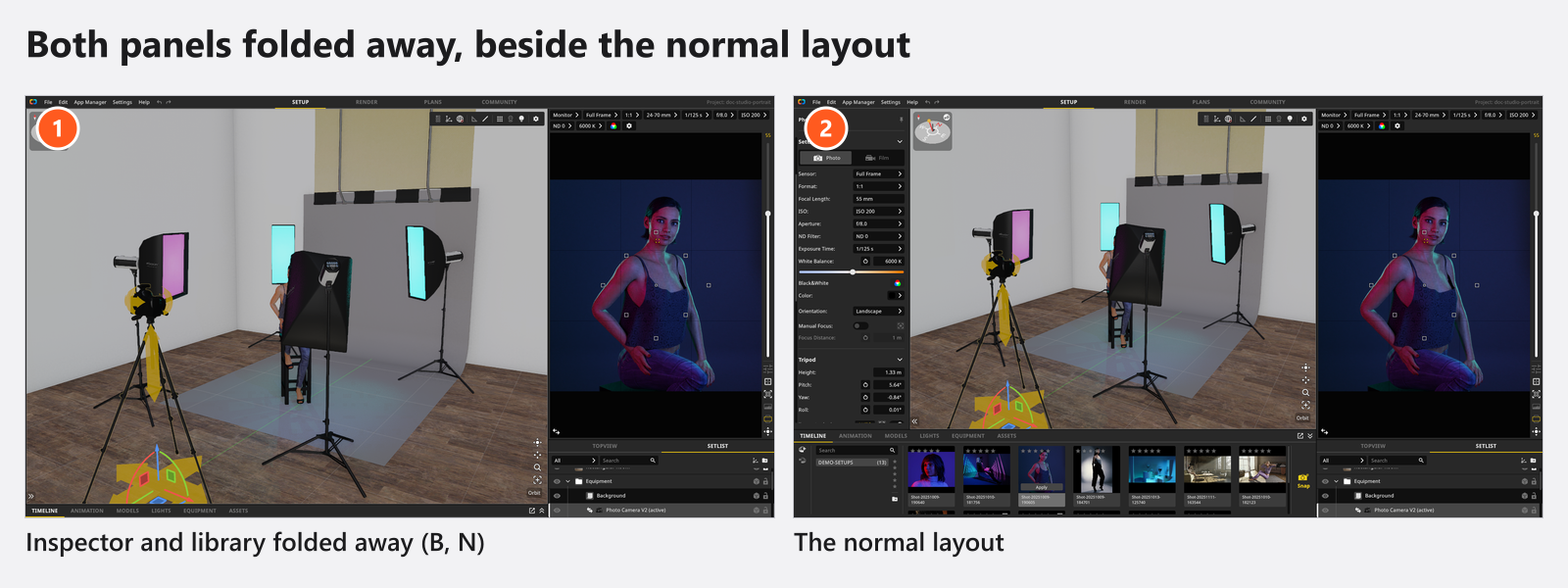
The widths and heights you drag the panel dividers to come back at the next start, and so do the library tab and the lower-right tab you left open. A folded panel does not: B and N start each session unfolded.
Troubleshooting
- A tab or a library category is missing. It probably belongs to another edition or to an add-on — see the table above. → BASIC, STUDIO and CINEMA compared
- A panel vanished.
Bfolds the inspector,Nthe library. Press the key again. - The studio view and the camera preview swapped places. That is
T. Press it again. → Move around the studio - The studio view looks flatter than the preview. It is the cheap working view; judge light in the camera preview or in a render. → Quality and denoiser settings
Related
- Move around the studio — the mouse in the three views.
- The set list and the timeline — the two lists in detail.
- Settings — the pages of the App Manager.
- Keyboard shortcuts — every key, and how to change it.
- Quick start: from empty studio to finished image — the window in use.