
 English
 Deutsch
 日本語
日本語 简体中文
简体中文 Français
The studio is the room you shoot in: four walls, a ceiling and a floor. Every surface bounces light, so a room’s measurements and colours are lighting controls. This page builds a room to your own studio’s measurements, puts a background in it and cuts a window into a wall.
Applies to BASIC, STUDIO, CINEMA · You need: a project open on the SETUP tab.
Where to find it
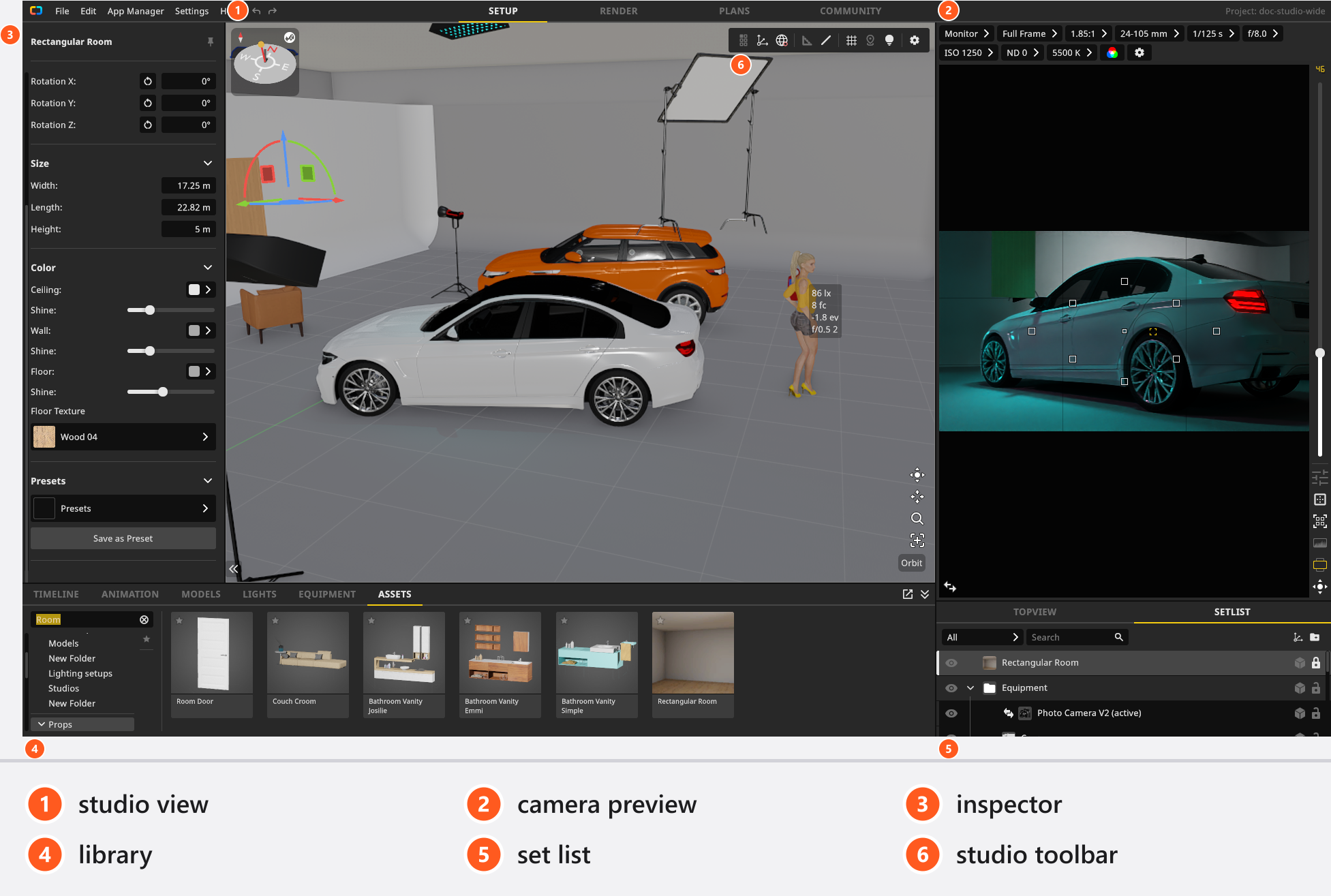
Click a wall or the floor in the studio view, or pick the room in the set list: the inspector then shows its settings. Rooms, backgrounds, windows and doors all come from the library.
How to build the room
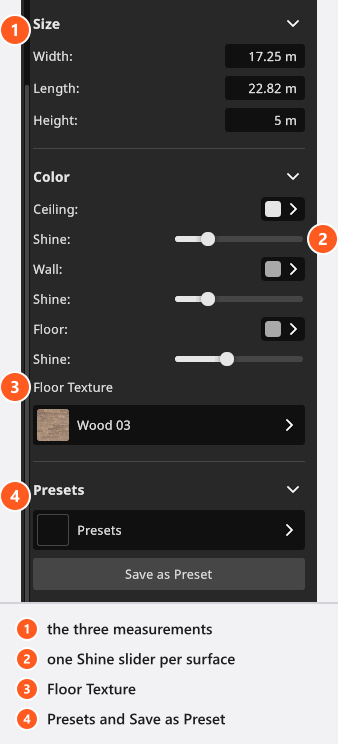
- Select the room and open Size. Enter Width, Length and Height — 0.01 m to 1000 m per axis, so a cramped hotel room and a cyc hall are both possible. → The walls move while you type.
- Open Color and set Ceiling, Wall and Floor. Each has its own Shine slider: low reads as matte paint, high as a lacquered floor.
- Pick a Floor Texture for a real material instead of a flat colour. Choosing one also applies that material’s colour and shine, so pick the material before the colour.
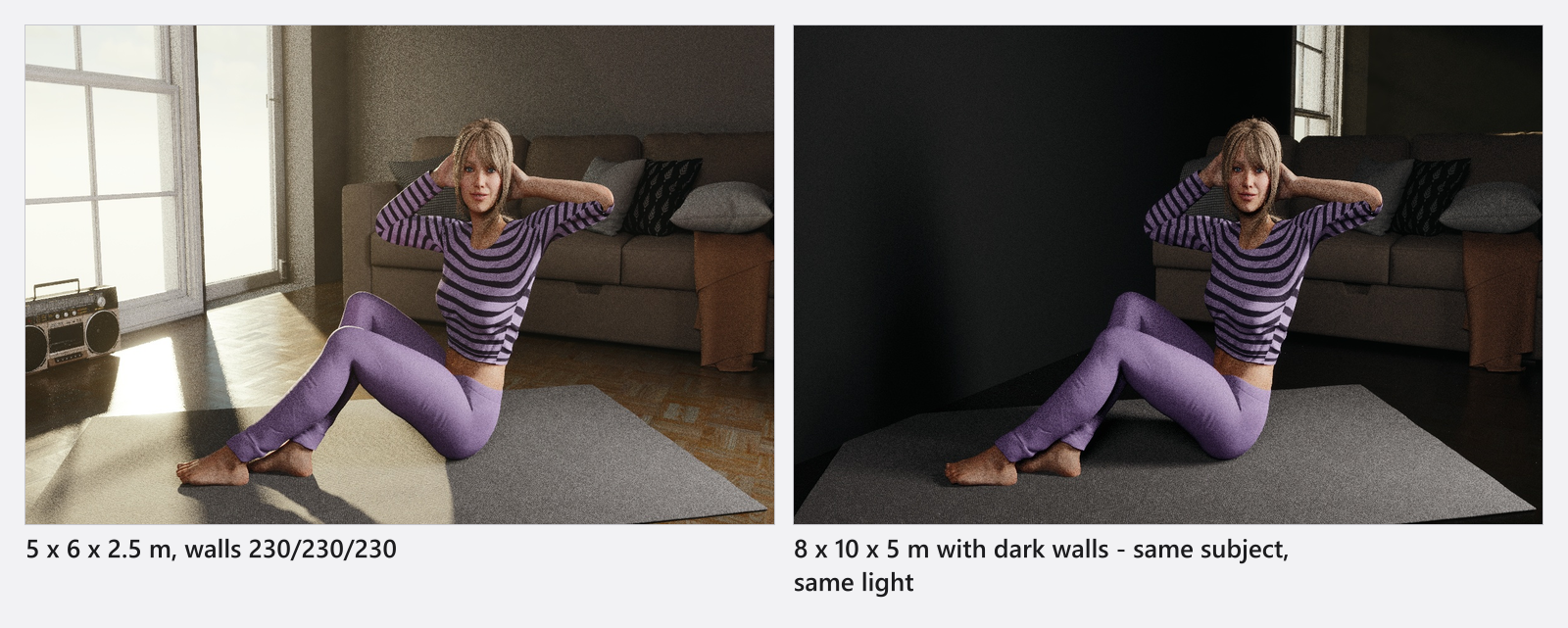
Size and surface colour are exposure controls:
How to use room presets
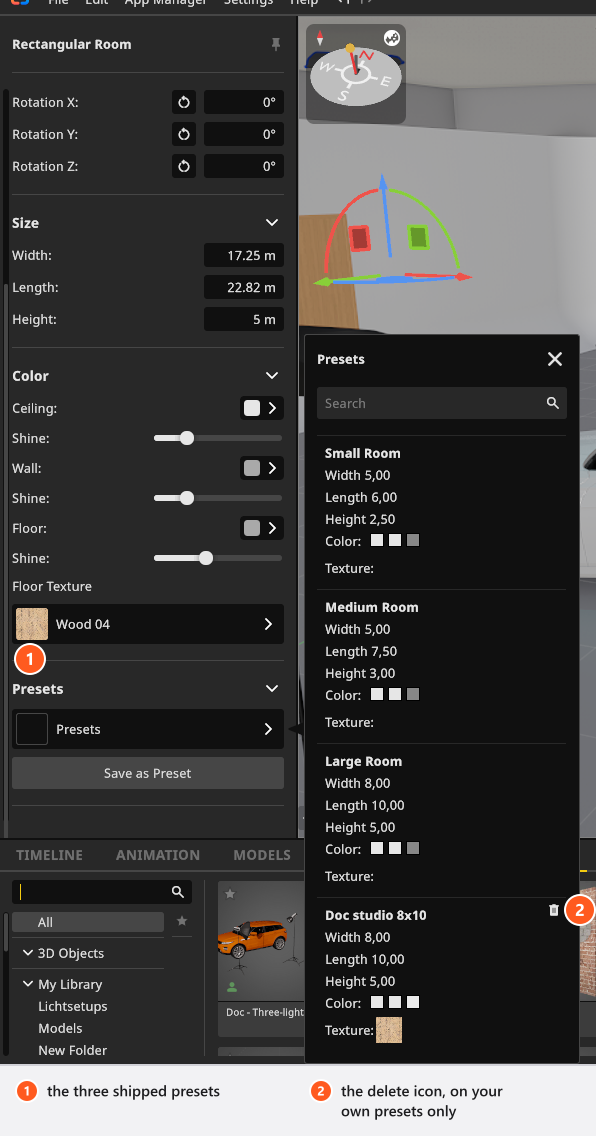
Presets holds three shipped rooms. A preset is more than a size: it also writes the surface colours and the floor texture.
| Preset | Width | Length | Height |
|---|---|---|---|
| Small Room | 5.0 m | 6.0 m | 2.5 m |
| Medium Room | 5.0 m | 7.5 m | 3.0 m |
| Large Room | 8.0 m | 10.0 m | 5.0 m |
All three set wall and ceiling to a light grey (230,230,230) and the floor to a mid grey (135,135,135). Shine is not part of a preset and survives unchanged.
To keep your own studio, click Save as Preset, type a Name (up to 50 characters) and click Create. Re-using one of your own names opens Modify Preset, where Save overwrites it; the bin icon deletes it after a confirmation. The three shipped presets cannot be deleted. Presets belong to the program, so they appear in every project on that computer.
Three tiles sit under the Rooms tag of the ASSETS tab: Rectangular Room, Hangar and New York Loft — the last a prop rather than a room, so it has no Size or Color group. A dropped room is always an additional one, never a replacement. While two rooms are visible, the Zero point menu lets you choose which one the coordinates come from — see Set the zero point for measured positions.
Room
| Setting | Range | Default | Unit | Animatable |
|---|---|---|---|---|
| Ceiling Color | depends on the room | yes | ||
| Floor Color | depends on the room | yes | ||
| Shine | 0 – 1 | 0.24 | yes | |
| Size | 0.01 – 1000 | depends on the room | m | yes |
| Wall Color | depends on the room | yes |
How to add a background
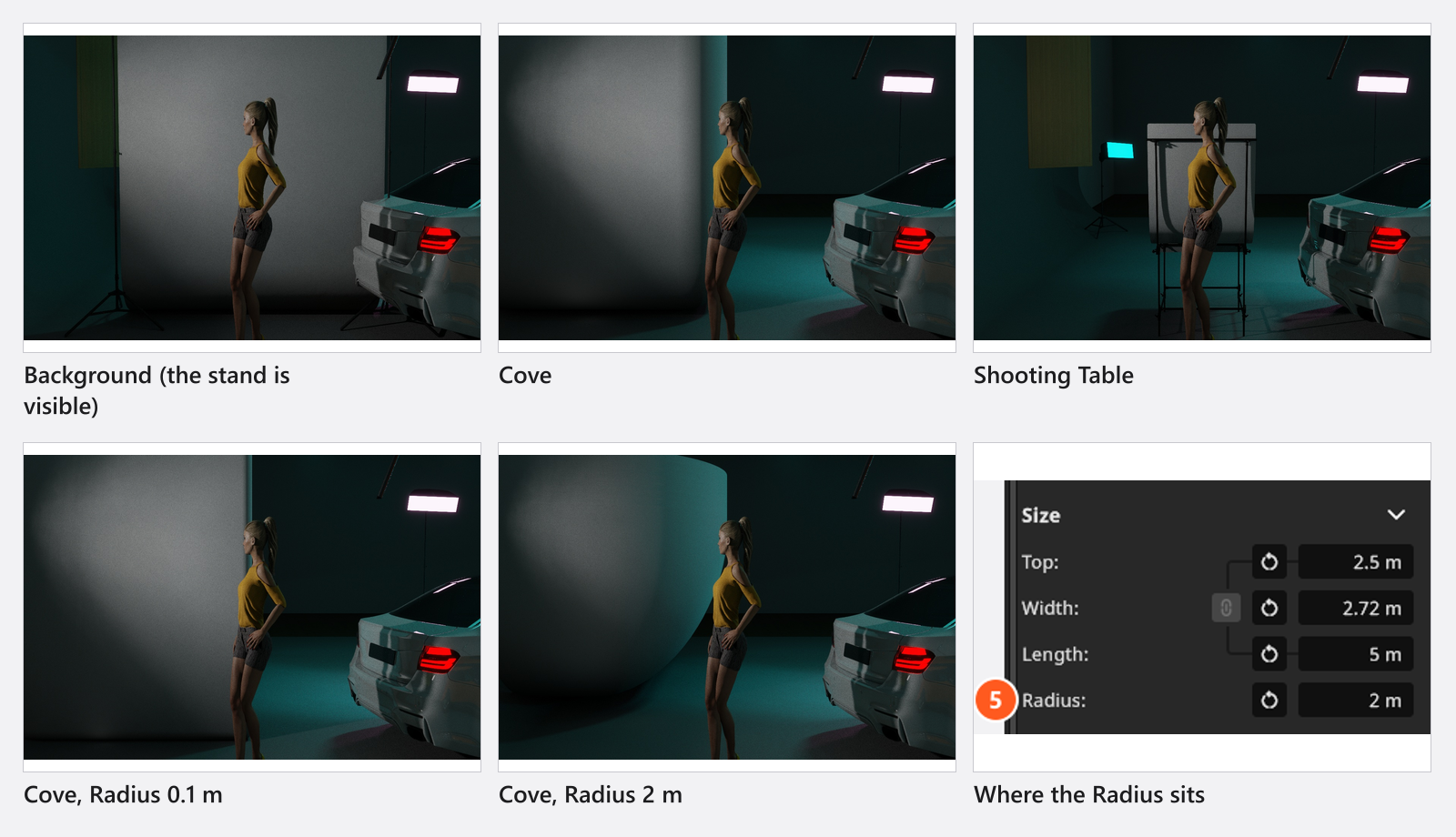
Backgrounds are in the EQUIPMENT tab under Backgrounds. Three ship: Background (a straight sheet on a stand), Cove (the sweep from wall to floor) and Shooting Table for still life.
- Size takes Top, Width and Length — height, width, and how far the sheet runs over the floor. Background and Cove start at 2.72 m wide, 2.5 m high, 5.0 m long; the Shooting Table at 1 m each way.
- Radius (0.1–2 m, default 0.5 m) sets how tight the sweep into the floor is. Every type but the Shooting Table has it, a straight Background included.
- Color switches between Custom for a free colour and Manufacturer for real background-paper ranges. Shine decides whether it reads as paper or a glossy sweep.
- The tripod button in the header shows and hides the stand (
Wby default). Only the Background has one; the Cove and the Shooting Table do not.
How to put a window or a door in a wall
A window or a door cuts a real hole, so daylight and the surroundings come through it. In this clip a window is dragged onto a wall, then swapped for one you can size yourself:
- Open the ASSETS tab, go to Props and pick the Doors & Windows tag. Twelve openings ship, eight windows and the doors Basic Door, Room Door, Hinged Door and Glass Door.
- Drag one onto a wall or a free-standing wall element. → It snaps into the surface; drag it again to slide it along.
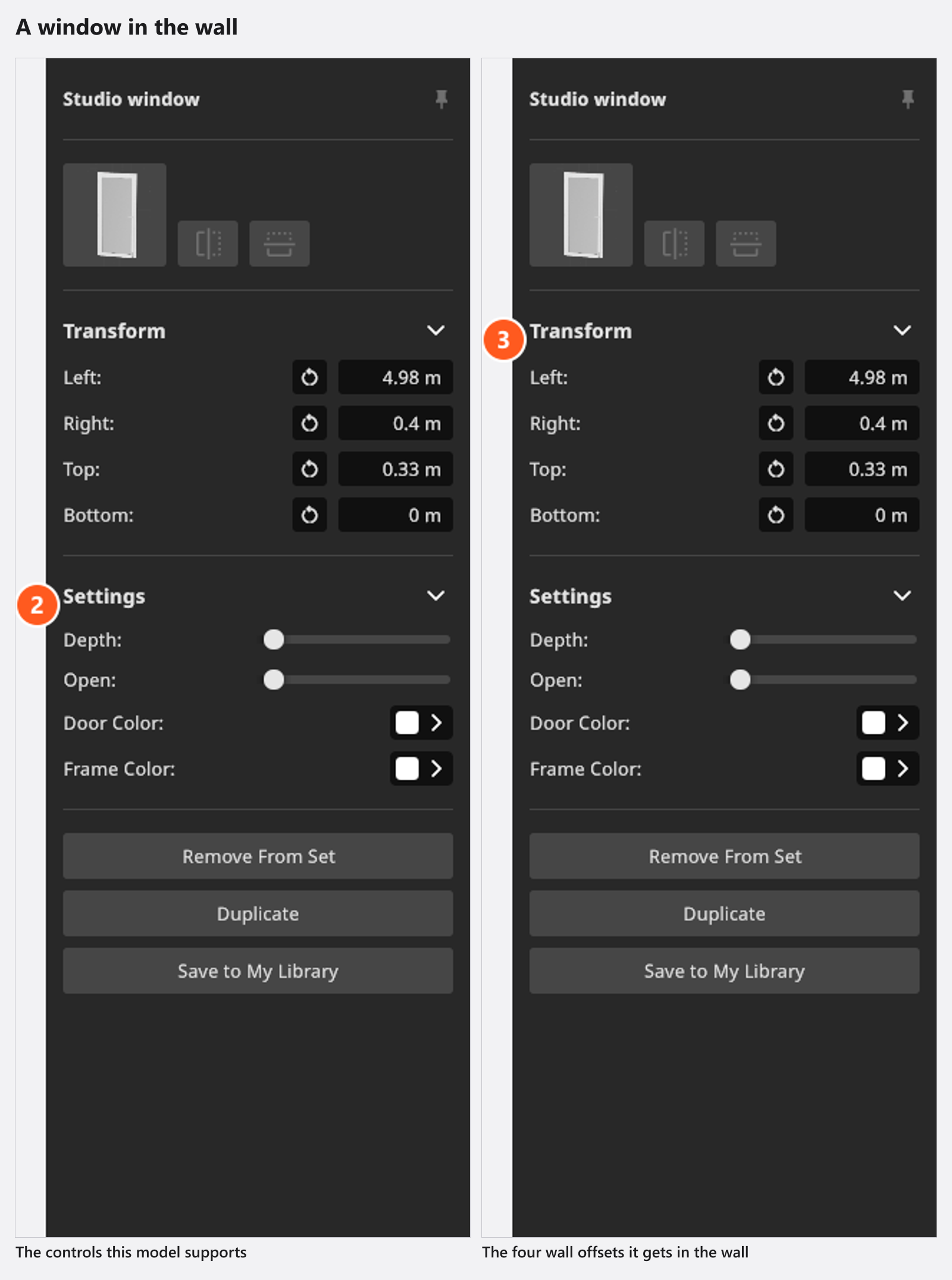
- Work in Settings. The group shows only what that model supports: Width and Height (0.01–10 m) on the Empty Window alone, Depth on every model that is not resizable, Open (plus a second Open for a second wing), Tilt, Window Color — Door Color on a door — and Frame Color. Window Color changes whichever surfaces that model declares as glazing.
- Once the opening sits in a wall, Transform replaces position and rotation with four offsets — Left, Right, Top, Bottom — the distance to each wall edge. The wall clamps them, so a typed value may come back smaller.
Two unlabelled mirror buttons in the header answer “it opens the wrong way”: one flips the model left to right where the model allows it, the other turns the opening round to the wall’s other face.
The detach button beside the object takes the opening off the wall: the wall closes and the opening steps 0.3 m out, so you can see it. It then trades the four offsets for free Position and Rotation — see Attach one object to another.
Take Empty Window for an opening measured on site: no frame, no wing, no Depth, no colours. Take a built model when the window is in shot.
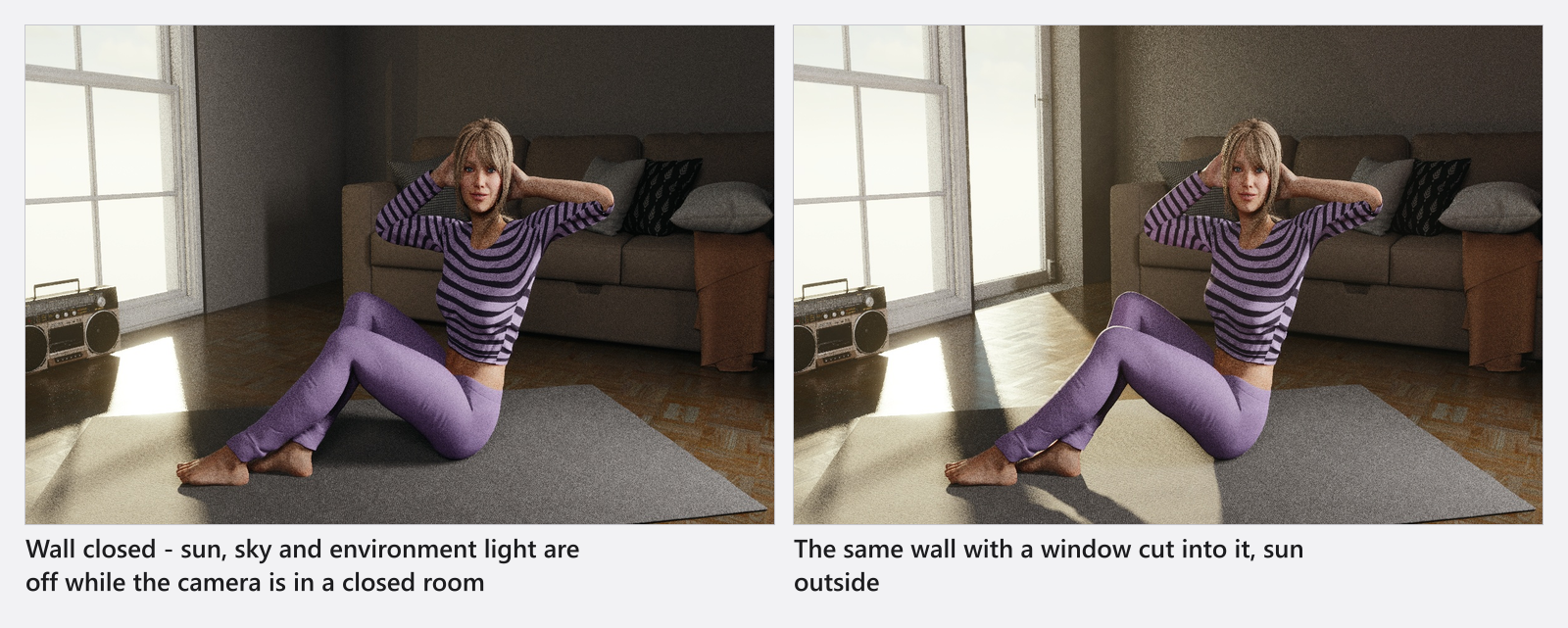
Sun and sky go dark only while the camera stands inside a visible room with no visible opening. One window, a hidden room or a camera outside the walls lets the environment back in — see Light a set with the sun.
Wall elements and floors
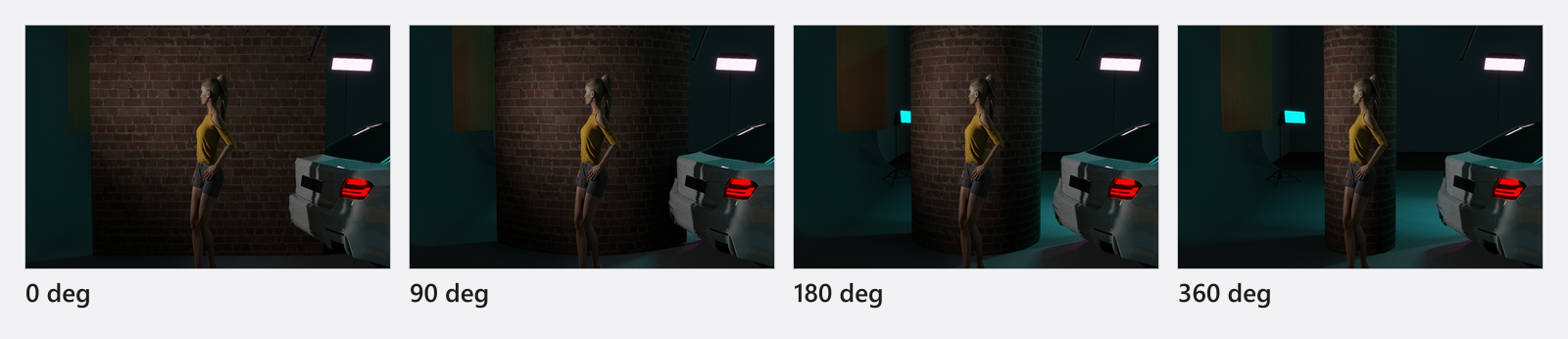
A Wall Element is a free-standing panel — a false wall, a flat, a riser. It is in the ASSETS tab under Outdoor and starts at 4 × 2.5 m.
- Presets → Image Template picks the surface: Basic 01 for a plain panel, or bricks, canvas, concrete, rust, stone, tiles and wood. Scale and Rotation set the pattern, Color tints it. The full list is in Change the surface of an object.
- Shape takes Width, Height, Thickness (0.01–1 m, default 0.05 m) and Curvature (−360° to 360°), which bends the panel into a curve, a corner or a tube.
The Floor object is a separate ground plane, used outdoors — see Work without a room (outdoor scenes). Whether every figure on this page reads in metres or in feet follows Unit of Measurement — see Settings.
Troubleshooting
- A room preset changed my wall colour. A preset stores the colours and the floor texture too. Apply it first, then colour.
- A Sliding Window has no Open slider. Two of the three tiles with that name have no opening movement. Take the third.
- Daylight does not come in. The camera is inside a closed room. Cut an opening, or work without a room.
- I dropped a room and now there are two. A dropped room is always an additional one. Delete the one you do not want in the set list.
More symptoms: Objects, rooms and measurement problems