
 English
 Deutsch
 日本語
日本語 简体中文
简体中文 Français
A project is one .set file. It holds every shot of your shoot, all the objects in your virtual studio, your cameras and your set plans; the rendered JPGs go into a folder beside it. One project per job — that file plus that folder is the whole job.
Applies to BASIC, STUDIO, CINEMA · Set templates need STUDIO or CINEMA · You need: nothing beyond a running program.
Where to find it
Everything about the project file lives in the File menu of the menu bar.
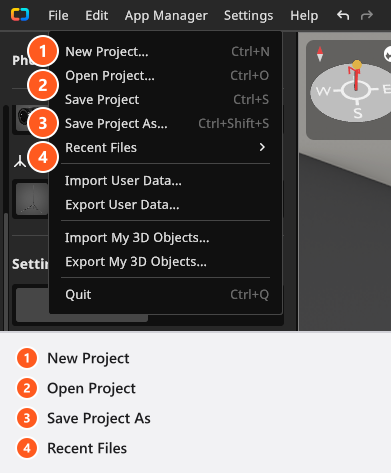
| Entry | Shortcut (by default) | What it does |
|---|---|---|
| New Project | Ctrl+N / Cmd+N |
Opens the New Project dialog |
| Open Project | Ctrl+O / Cmd+O |
Opens a .set file from disk |
| Save Project | Ctrl+S / Cmd+S |
Writes to the current file; greyed out until there is one |
| Save Project As | Ctrl+Shift+S / Cmd+Shift+S |
Asks for a name and a folder |
| Recent Files | — | The projects you opened last |
How to start a new project
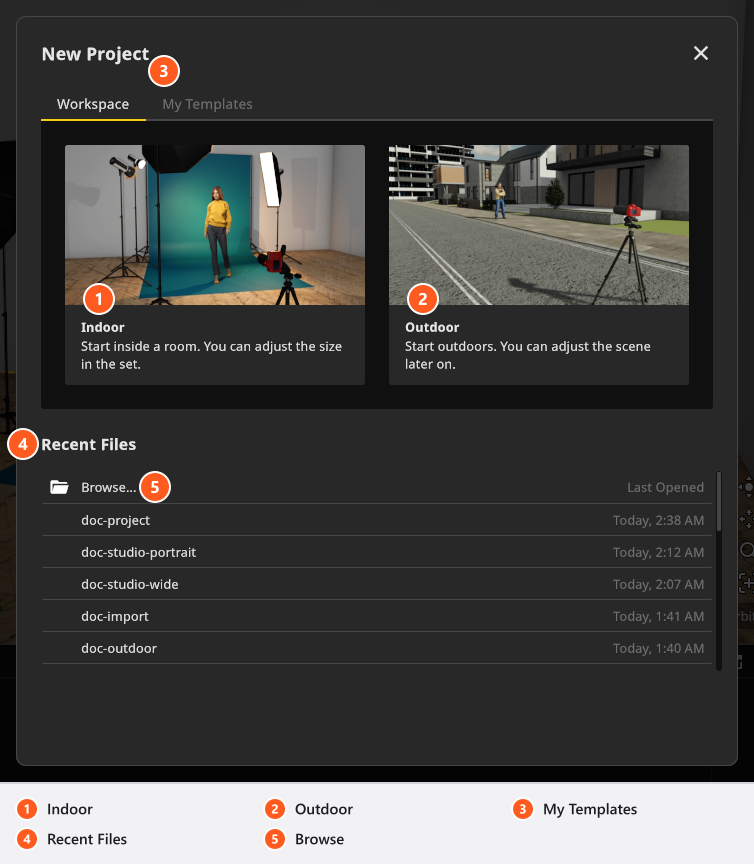
- Choose File → New Project. Unsaved changes are asked about first, with Save As, Discard and Cancel — plus Save, once the project has a file of its own.
- On the Workspace tab, click Indoor or Outdoor. → The scene loads; room, background and the rest stay editable. These are the only two workspaces; the rest of the tab leads back into existing files.
- Save it once, early, with File → Save Project As. → The title bar shows the name you gave it.
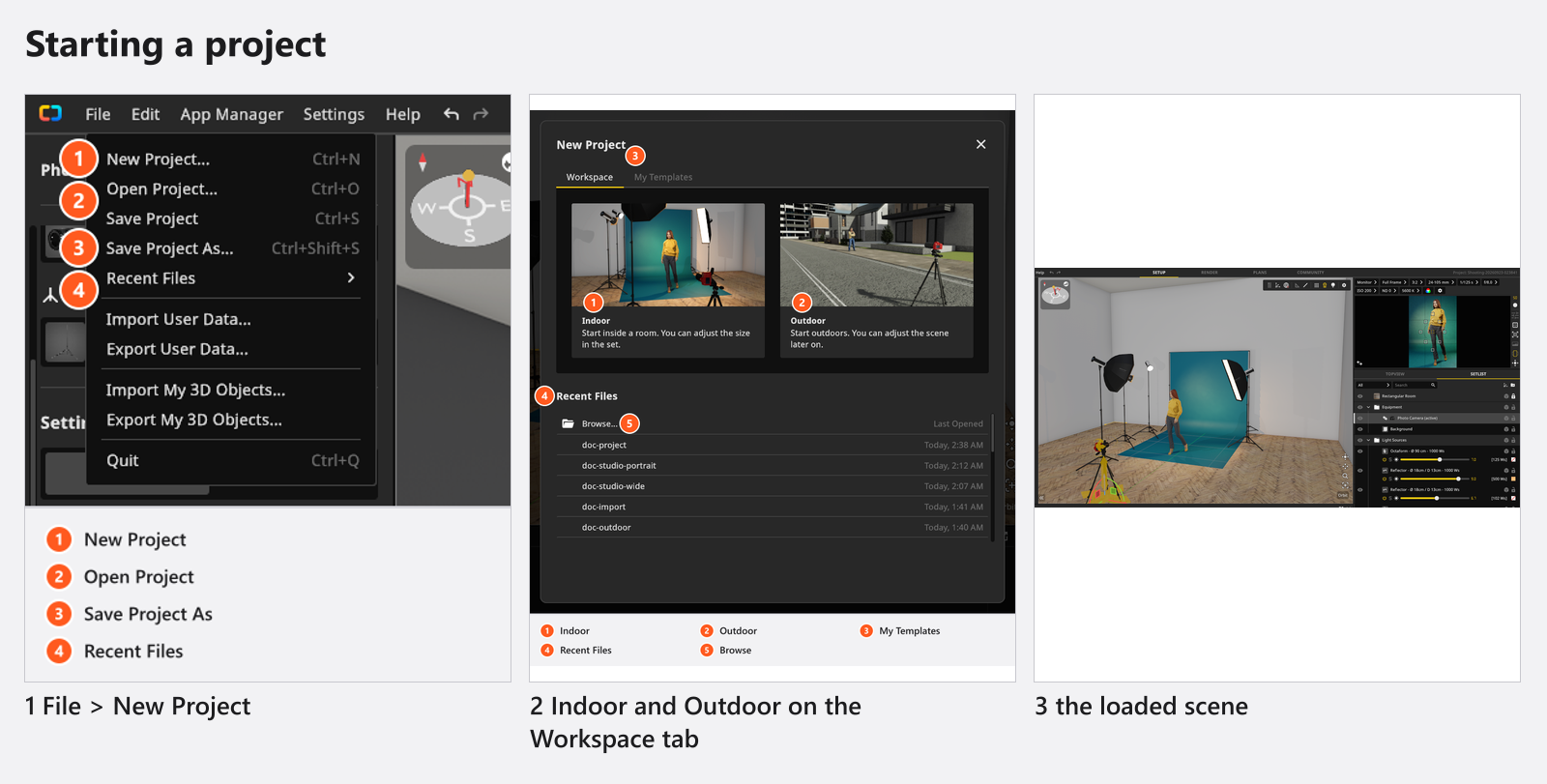
Until you save it, a fresh project is called Shooting- plus the current date and time.
How to open a project
Three routes lead to a file you have:
- File → Open Project (
Ctrl+O/Cmd+O), then pick the.setfile. - File → Recent Files, or the same list in the New Project dialog: at most 20 entries, newest first, never the same path twice.
- Browse in the New Project dialog — the same file dialog as Open Project.
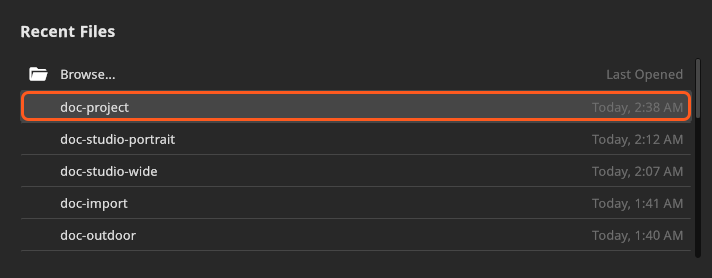
Opening a project replaces the open one, so unsaved changes are asked about first. On Windows the installer can register .set files, so a double-click starts the program with that project.
How to save a project
Use Save Project As the first time — that gives the project a place on disk. From then on Ctrl+S writes to the same file. Two consequences matter before the first render:
- Rendered images live in a folder next to the project, named after it, one JPG per shot. A project that was never saved renders into a temporary folder — save first.
- Save Project As moves that image folder with the project: new renders land beside the new file, earlier JPGs stay in the old folder.
How to save your studio as a template (STUDIO+)
A template stores one studio state — room, walls, lights, cameras, props — so a new job starts in your studio.
- Build the studio you want to keep. Locking the static objects in the set list stops you nudging them later.
- Choose Edit → Save Current Set as Template.
- In Add Template, type a Name (up to 50 characters, and it has to work as a file name) and a Description (up to 100 characters), then click Add. → The thumbnail is rendered for you and the template appears on the My Templates tab of the New Project dialog.
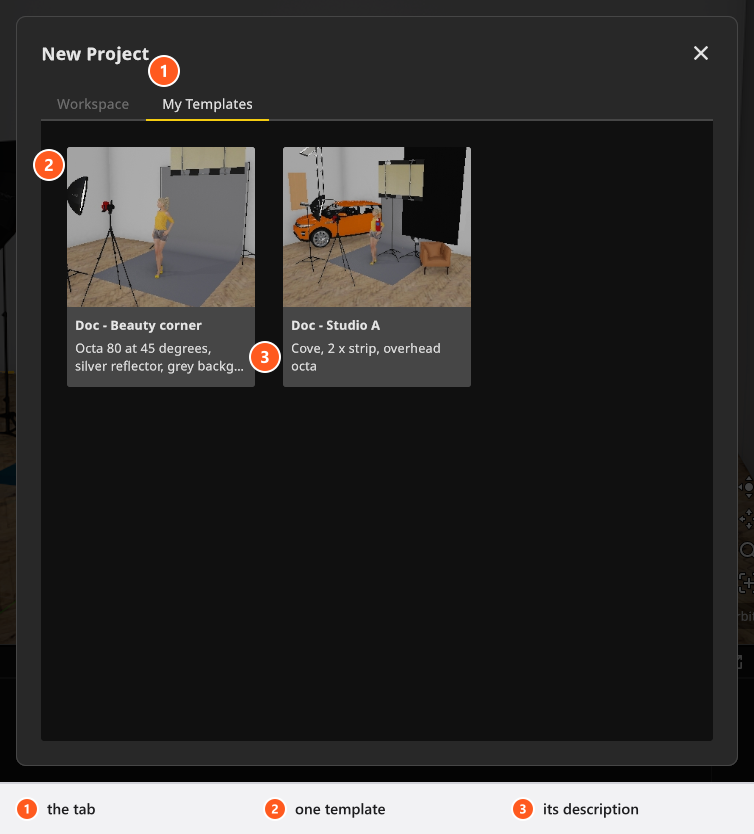
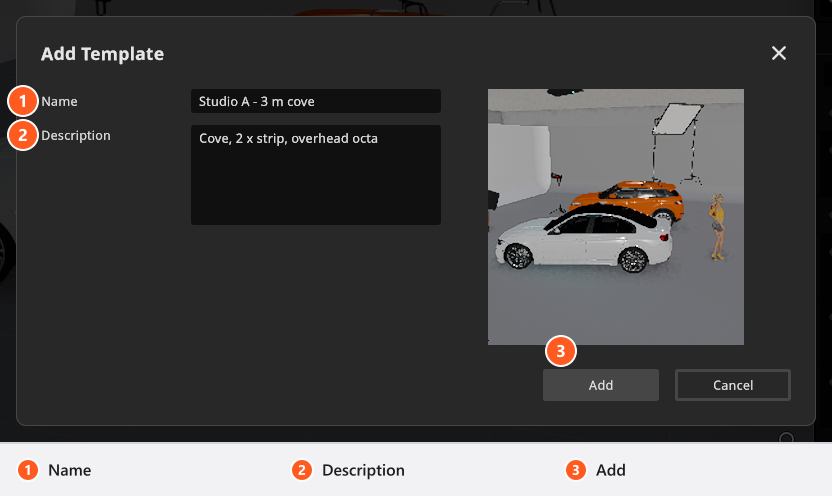
Manage them under Edit → Manage Set Templates or on the Set Templates page of the App Manager. A template keeps the studio state and a thumbnail and relies on this computer’s resources, so it is not a way to hand a set to somebody else.
From 07:39 the App Manager clip renames a stored template and gives it a description.
What travels inside the file
A .set file carries the material you made yourself, as long as the project uses it: your own picture-wall, gobo and projector images, camera LUTs, model materials, any light source, light shaper, light rig, camera, camera rig or lens you built, the lamps you made for practicals, and your set-plan logos. Catalogue items that ship with the program are not copied — the recipient has them.
Two things are not in it, by design: imported 3D objects and your own environment maps. Deliver those separately — see Hand over a shoot.
Recovery copies and crash files
Autosave is on by default. Enable Autosave and Autosave Delay (1–60 Minutes, 5 by default) sit in the App Manager under Program Settings; Settings → Settings opens it too.
A recovery copy is written after your first change, into one central autosave folder in your local application data — not next to the project, so a file-sync service leaves it alone. Help → Show Autosave Folder opens it. It waits while a dialog is open or a task runs, so the delay is a minimum, not a promise. It is removed when the project is closed or saved under a new name; an ordinary Save leaves it in place, and File → Delete Autosave removes it. The folder keeps ten copies: a later start deletes the oldest down to ten — move out what you still need.
If a recovery copy is found while a project opens, you are asked which file to take. Load File opens the original and keeps the copy until your own changes are autosaved over it; Load Autosave opens the copy, which has no file of its own, so your next save must be Save Project As.
“I closed without saving — can autosave get my work back?” No. Closing a project removes its recovery copy. Autosave protects you against a crash, not against a decision.
If the program hits a fatal error it tries to write a rescue file plus a log into your documents folder as CRASH_<date>_<time>_<project>.set. That is an attempt, not a guarantee, and nothing offers the file at the next start — open the folder and load it yourself: Recover a project after a crash.
Opening older and newer files
Files from older versions, V2 included, are converted while they load. Keep the original and check the converted shots before saving over it: set plans from before 3.0.26 are dropped in that conversion.
A file written by a newer version than yours is refused with Project Failed to Load and “Could not open file! The file was saved with a newer version (…) of set.a.light 3D.” — the brackets name the version that wrote it. The dialog can offer the update straight away.
Tips & limits
- A project on a drive that has gone away produces “Could not read the .set file. Make sure the storage device is accessible.”
- On Windows the title bar shows the project name in brackets, with
*while changes are unsaved. - File → Import User Data / Export User Data move settings, presets and own resources between computers, not projects.
- Edit Template rewrites a stored template; Cancel on the Overwrite Existing Template question leaves both templates as they were.
Troubleshooting
- My renders are gone after saving under a new name. They are still in the folder next to the old file — see Where your images are saved.
- I cannot find the recovery copy of my project. → Recover a project after a crash