
 English
 Deutsch
 日本語
日本語 简体中文
简体中文 Français
Two projects, one job: a second shooter sends you their .set file, or you want to hand three shots of yours to a colleague. Appending brings somebody else’s shots into your project; exporting writes a selection out as a normal .set file. If you only want a piece of a set in every future project — a rig, a corner, a dressed model — use My Library instead.
Applies to BASIC, STUDIO, CINEMA · You need: a project open, and the other .set file on a drive you can reach.
Where to find it
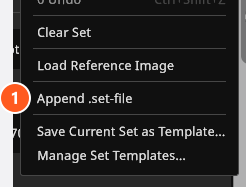
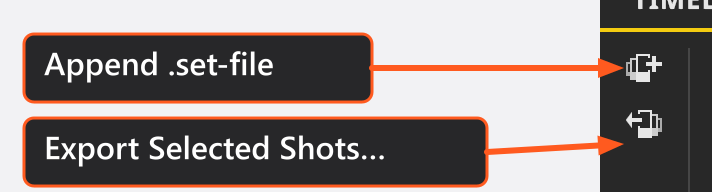
Appending is in the Edit menu; both directions also sit as small buttons at the left edge of the TIMELINE panel.
How to append another project
- Choose Edit → Append .set-file, or click the append button in the TIMELINE panel (tooltip Append .set-file).
- Pick the
.setfile. → Nothing in your project is overwritten and the other file is not changed. - The shots arrive in their own folders. A file that holds a single folder — the normal case — has that folder renamed after the file you appended; a file with several folders keeps their names. → The first appended folder becomes the active folder; click a shot in it to inspect or load it.
- Check the names. A shot whose name is already taken is renamed on the way in —
PortraitbecomesPortrait.001— so no two shots share a render file. The renamed shot counts as unrendered and is rendered on its own the next time you render all shots.
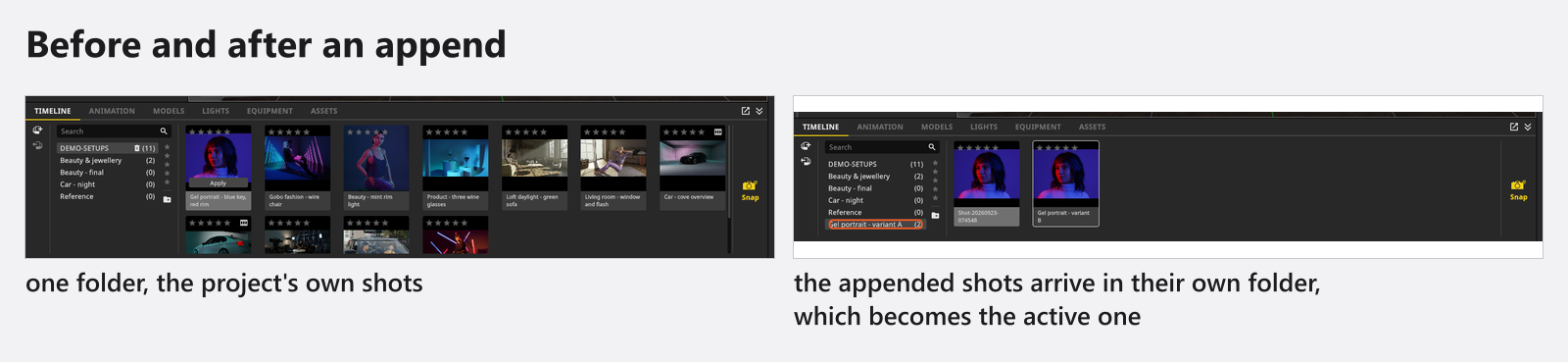
From there, drag the tiles into the order you want and move them between folders like your own. Save the result under a new name if the original file should stay untouched.
What comes along
The shots arrive with the material the other project had embedded: custom light sources, light shapers, light rigs, cameras, camera rigs, lenses and the lamps built for practicals, your colleague’s own picture-wall, gobo and projector images, camera LUTs and model materials. Two things do not come along:
- Set plans. Appending merges shots only; the plans of the other file stay behind. Export the plan as a PDF instead — see Create a set plan.
- Imported 3D objects and own environment maps. They never travel inside a
.setfile, so they have to be delivered separately.
Appending is not an undo step: Ctrl+Z will not take it back. Save first, or work on a copy.
The version rules are the same as for opening a file: older files are converted while they load, and only a file written by a newer version than yours is refused.
How to export shots
Three routes, one result — a normal .set file that can be opened on its own or appended somewhere else:
- Select tiles in the TIMELINE and click Export Selected Shots… at the left edge of the panel.
- Right-click one of the selected tiles and choose Export Selected Shots…. A right-click on a tile that is not part of the selection exports that one shot.
- Right-click a folder in the folder list and choose Export to write out the whole folder.
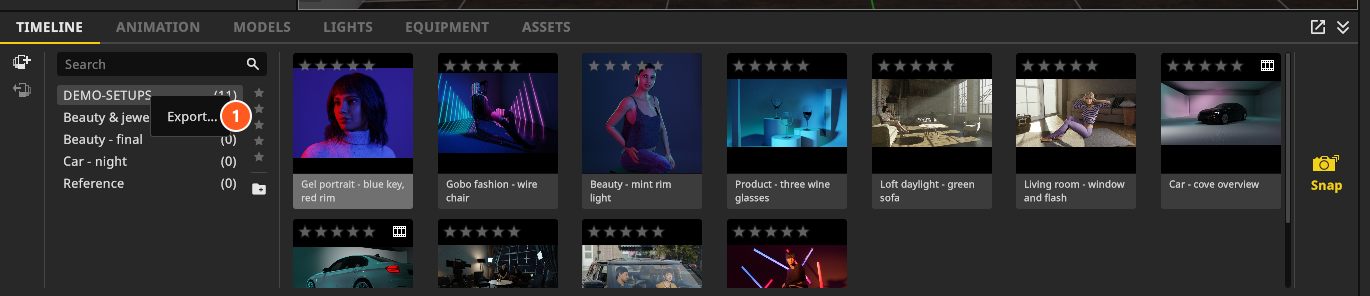
A folder export keeps the folder name, so the file arrives named after your session. An export of selected shots writes the folder name Default instead. That name only shows when somebody opens the file; appending it renames the folder after the file, as in step 3 above. No set plans are written either way.
The demo project
Help → Open Demo-Set loads the bundled demo project: a good source of finished shots to append from or to take apart. It is not linked to a file on your disk, so use File → Save Project As before you build on it.
See also: the other route
If you keep reaching for the same rig rather than for somebody’s shots, save it once instead of appending it every time. This quick tip shows that route from the first second — saving a lighting setup to My Library and dragging it into the next scene.
Tips & limits
- A community download lands in the folder that is active when it arrives and gets a unique name automatically; from there it behaves like any other shot — see Download a setup.
- Anything from an appended project that you do not need in this one is faster switched off with
Qor hidden with the eye than deleted — it is still there when you change your mind. - Every key named on this page is the default binding — see Change a keyboard shortcut.
- Deciding what a colleague, a client or a retoucher actually needs is a workflow of its own: Hand over a shoot.
Troubleshooting
- An appended shot arrived with
.001after its name. That name was taken, so it was made unique. Rename it to whatever you like — the render file follows the name. - I appended the wrong file. Undo does not cover an append. Close the project without saving, or delete the appended folder.
- The other project’s set plan is missing. Plans are not merged. Ask for the exported PDF, or rebuild the plan from the appended shots.