
 English
 Deutsch
 日本語
日本語 简体中文
简体中文 Français
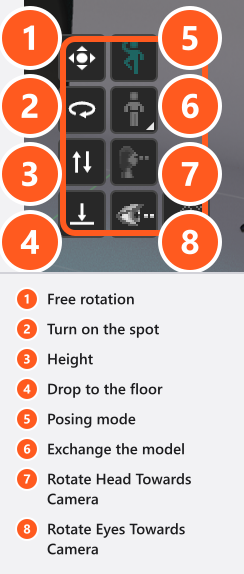
A pose does two jobs at once: it tells the story of the picture, and it decides where the light lands. Turning the head a few degrees towards the key turns short lighting into broad; lifting a chin fills the eye sockets. So you take a pose from a preset in one click, then move every joint by hand.
Applies to BASIC, STUDIO, CINEMA · You need: a project open on the SETUP tab and a model selected and fully loaded — posing mode refuses to start on anything else.
From 05:22 the clip opens the Pose mode and clicks through the preset groups.
Where to find it
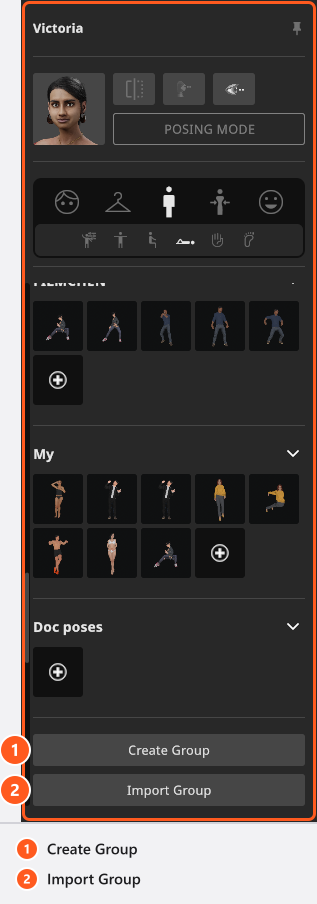
Select the model and switch the inspector to Pose, the third icon in the mode row. From top to bottom the groups are Transform, the preset groups Standing, Sitting and Lying, your own pose groups, and the Hands and Feet sliders. The six small icons above them jump to the built-in groups and to the sliders; your own groups are reached by scrolling. Their tooltips read Poses Standing, Poses Sitting and Poses Lying, while the group headers in the panel are the short Standing, Sitting and Lying.
Apply a preset pose
Click a tile and the model takes that pose at once. As shipped in 3.1.14, Standing is the largest group: 59 poses for the adults, 47 for the children, against 27 and 25 in Sitting and 17 and 15 in Lying. The animals have one standing pose; their sitting and lying groups are empty.
Preset poses belong to a model type: an adult pose is not offered on a child or an animal. A preset also rewrites the fingers, so it breaks a grip: set Grab again afterwards (see Let a model hold a prop).
Pose by hand
The clip shows both ways of moving the body, from 07:52.
- Select the model in the studio view.
- Press
P, by default — or click POSING MODE in the inspector, or the posing button in the object controls. → Lights and cameras disappear, a background stops showing its back side, and a frame marks the studio view. - Hover the model until the limb under the pointer turns yellow, then drag it into place. The application’s own help popup lists the keys: move with
Click+Drag, tilt withControl+Click+Drag, rotate withShift+Click+Drag. → The joint chain follows; the rest of the body stays. PressPagain when you are done.
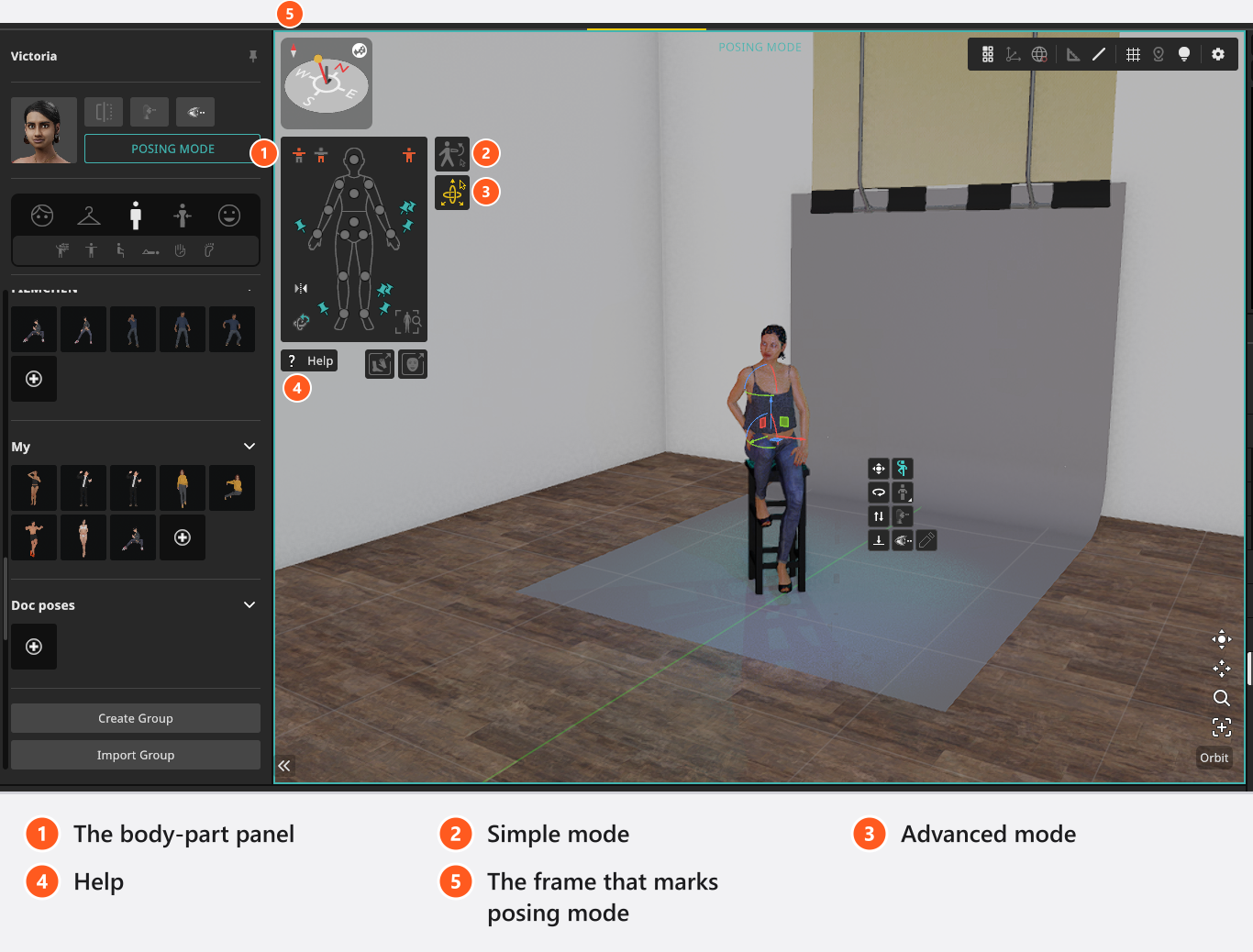
There are two ways to work and X switches between them, by default. Posing mode opens in the one you used last — simple mode, the dragging above, on a fresh installation. In advanced mode you click a body part and get rotation rings at its joints, move arrows on hands, feet and hips, and a twist handle for arms and legs.
The head and the shoulders can only be rotated and tilted, and tilting follows your viewing angle, so orbit the model as you work.
An animal with a tail gets two more handles: one rotates the tail, one on the tip bends it.
The body-part panel
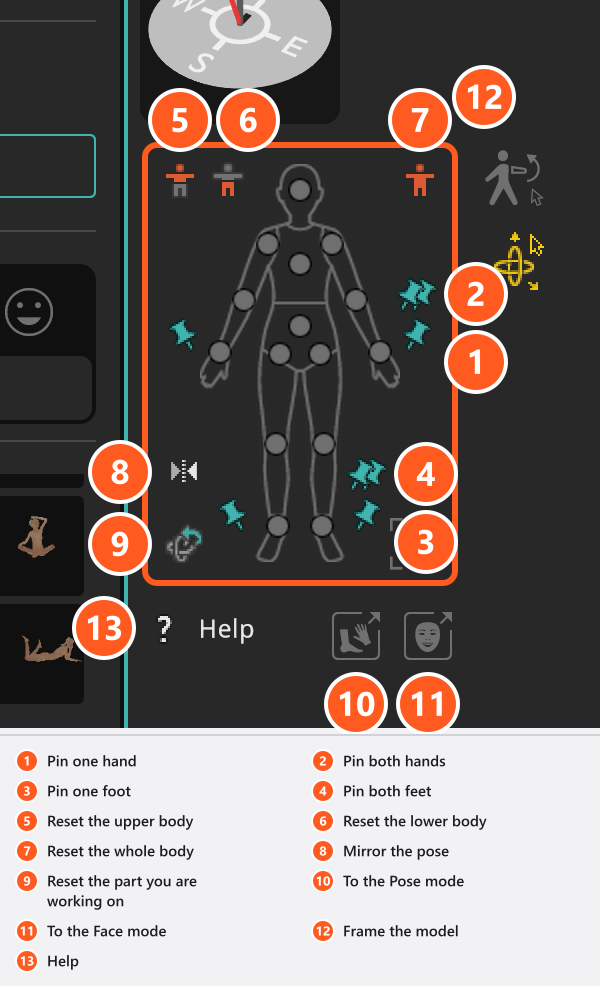
The small body outline beside the model is the posing control panel. Its three reset buttons are not symmetrical:
| Reset | What it puts back |
|---|---|
| Upper body | Every joint of the torso, arms and head, plus all the finger and thumb controls. |
| Lower body | Hips, thighs, shins, feet and toes, plus an animal’s tail. |
| Whole body | Both of the above. It does not touch the facial expression. |
All three restore the model’s base pose — the one the base model ships with, not a T-pose. A fourth button resets the part you are working on, a fifth mirrors the pose, two switch the inspector to Pose and Face, one frames the model, and Help opens the popup above.
The mirror button here rewrites the pose bones and leaves the model facing as it was, in one undo step. Mirror Object in the inspector header mirrors the whole model instead — see Position a model.
The pins look inverted, and they are not
Six buttons on the panel pin the hands and the feet, singly or as a pair, and all six start switched off. Off is what most photographers mean by “pinned”: bend the waist and the hand stays on the table. Switch a pin on and the hand travels with the body instead, as if taped to the hip. So a hand that keeps sliding off the table has its pin on.
Hands and feet
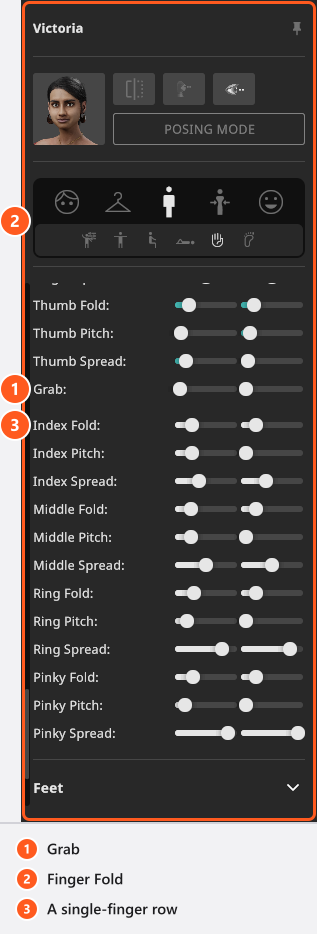
Fingers are not posed by dragging. They have sliders in the Hands group of the Pose mode, which work with posing mode off as well. Every row carries a left and a right slider:
- Finger Fold, Finger Pitch and Finger Spread move all four fingers at once; Thumb Fold, Thumb Pitch and Thumb Spread do the same for the thumb.
- Grab closes the whole hand in one move, for a fist or a hand around a prop. Set it first and refine single fingers afterwards: Grab rewrites every finger and the thumb, while a later single-finger edit leaves the Grab value alone.
- Below them come the single fingers: Index Fold, Index Pitch, Index Spread and the same three rows for the middle, ring and little finger.
- The Feet group has one row, Toes Pitch.
Most of these rows are angles in degrees, but the shared Finger Spread is a factor from -0.5 to 0.5, not an angle. Every range is in Model reference: families and settings. Right-click a slider to zero it — both columns answer, each on its own. On the Thumb Spread row and the four single-finger spread rows the left slider runs inverted on purpose, so equal values mirror each other instead of both hands drifting the same way. The shared Finger Spread is not inverted.
Work from a reference photo
Edit → Load Reference Image puts a picture over the interface. Drag it to move it, pull a corner to resize it, and press H to hide and show it, by default. It floats above every panel, so a casting photo can sit beside the model.
Tips & limits
- A pose can be animated: a key on its track stores the bones together with the facial expression, so a blink is possible. All 45 bundled motion clips are offered on every model without filtering, so try one before you plan a shot (add-on: Animation Tool) — see Animate models.
- Where the model looks is a job of its own, worth a check before every shot: Where the model looks.
- To keep a pose, store it in a group of your own: Reuse poses, expressions and models.
Troubleshooting
- The head will not move by hand. Rotate Head Towards Camera is on; switch it off first → Where the model looks.
- The hand travels with the body although the pin is off. Read the pin the other way round — see above.
- A finger slider will not come back with undo. Those rows are outside the undo history, reset included → Model problems.