
 English
 Deutsch
 日本語
日本語 简体中文
简体中文 Français
Where the model stands decides what the light does. The distance to the background sets how much spill reaches it, the angle to the key decides whether you get short or broad lighting, and a quarter turn of the shoulders changes the whole silhouette. So positioning is something you do constantly — by dragging, with the arrow keys, or by typing exact distances.
Applies to BASIC, STUDIO, CINEMA · You need: a project open on the SETUP tab with a model selected.
The tutorial’s first half-minute shows a model being dropped on the set and the studio camera moved so you can judge it in context.
Where to find it
Click the model in the studio view to select it. Two things appear: the object controls — the small button block next to the selection, switched with the Toggle Object Controls button — and the model’s inspector on the left. The tool strip at the top right of the studio view carries the switches for the object controls, the transform gizmo, the measurement mode, the grid and the zero point.
Drag it into place
Drag the model with the left mouse button and it slides over the studio floor. Hold a key while you drag to do something else instead:
| Hold | While dragging |
|---|---|
| — | Move over the floor |
H |
Move up and down |
Ctrl |
Rotate around the view axis |
Shift |
Rotate freely, like a trackball |
C before you start |
Move the model without taking attached objects along |
If you hold two of them by accident, the order is fixed: Shift wins over Ctrl, and Ctrl wins over H. These modifiers are Ctrl and Shift on macOS as well — only the clipboard keys become Cmd.
While you drag, a read-out follows the object and shows the two floor coordinates. Whenever you measure from something other than the plain set origin, a line above them names the zero point the numbers belong to — so you can see at a glance which corner they count from.
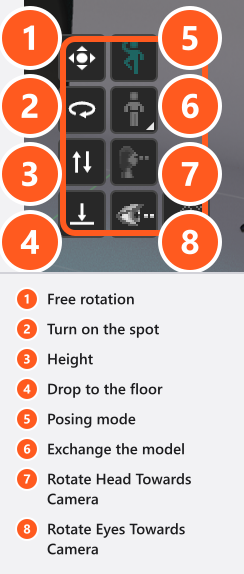
The object controls do the same thing in a controlled way. Their four buttons are, from the top: free rotation, turn on the spot, height, and drop to the floor. Click and hold one and the value changes as long as you keep the mouse down. Drop to the floor is a single click: it looks straight down from the bottom of the model and puts it on the first surface it finds — a platform, a table or a prop rather than the studio floor, so check the result near furniture or in an unusual pose.
Nudge with the keyboard
With the model selected, and with the default key assignment:
- Arrow keys move it 5 mm per press;
Page UpandPage Downchange the height. - Hold
Shiftfor 1 mm steps andCtrlfor 10 cm steps. If you hold both,Ctrlwins. - The arrows follow the axes of the room, not your viewing direction. After you have orbited the studio camera, “left” is still the room’s left — which is why a nudge can look as if the model walked sideways.
Fcentres the studio camera on the selection, which makes fine work much easier.
Type an exact distance
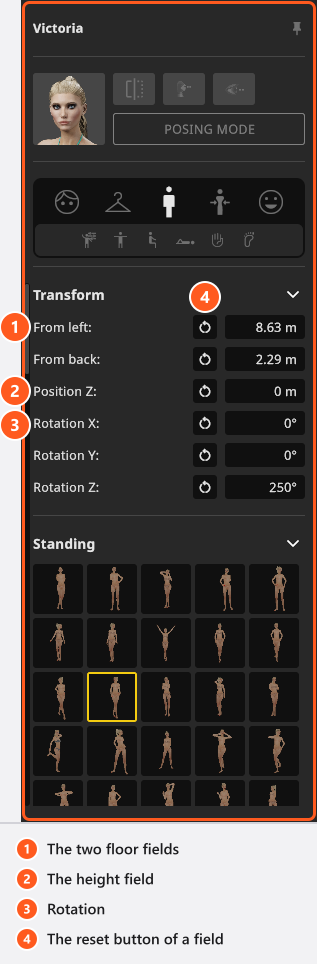
Open the Pose mode of the inspector and its Transform group. What the two floor fields are called depends on the zero point you measure from. With the set origin they are Position X and Y; pick a room corner and they re-label themselves to From left, From right, From back or From front and show the distance from that corner — see Set the zero point for measured positions. The third field is always the height above the floor, and it is never re-based: leave it at 0 for a model standing on the ground.
Type a value, or drag a field’s label to change it fluently; all of them follow your Unit of Measurement setting, so they read in metres or in feet and inches. Rotation has three fields as well — the last one turns the model on the spot, the other two tip it over — and holding Ctrl while you drag a rotation field snaps it to 15° steps. The reset button next to a field returns the displayed zero, so with a room corner chosen it puts the model into that corner rather than into the middle of the set.
Read the distance off the grid
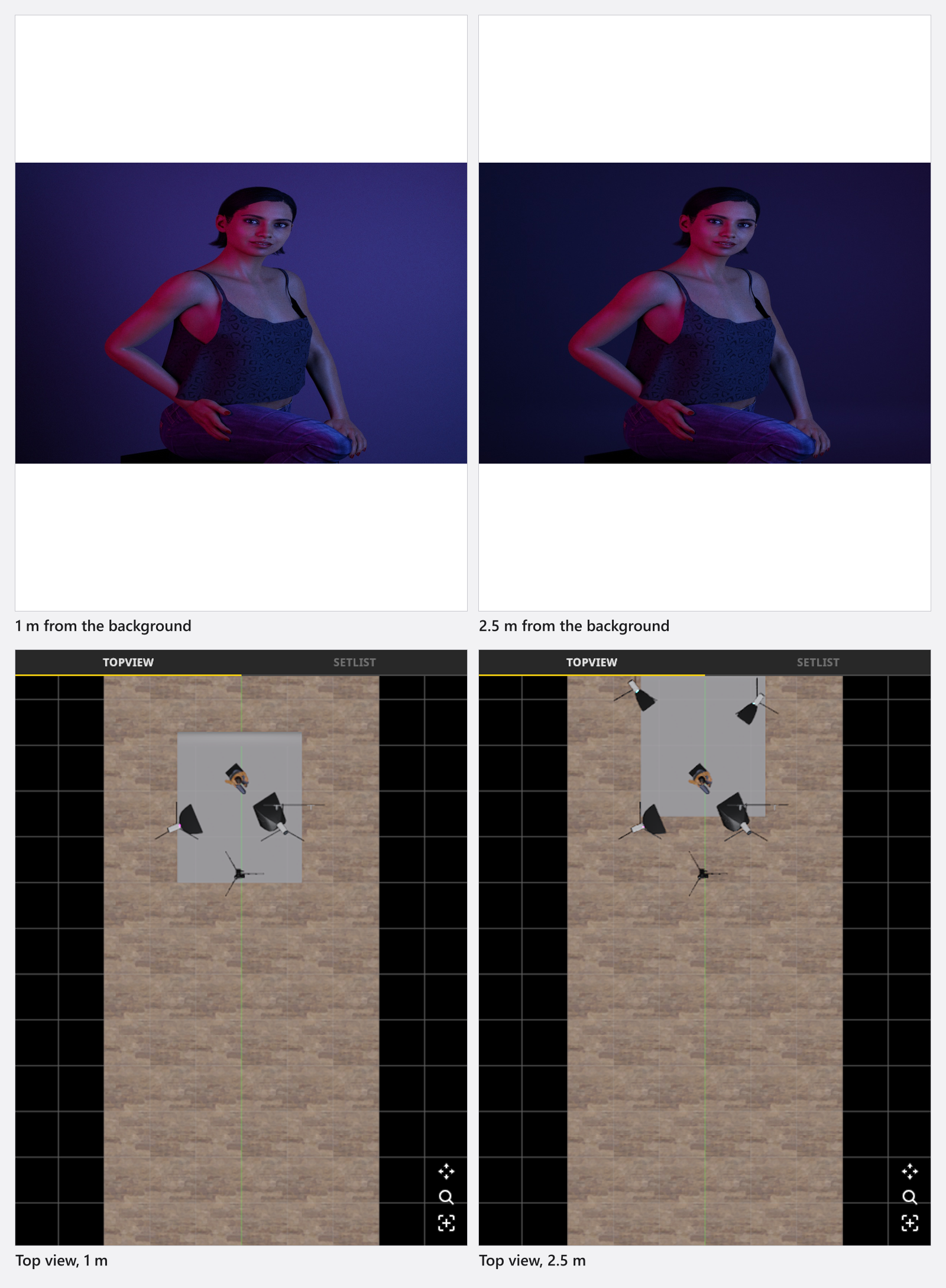
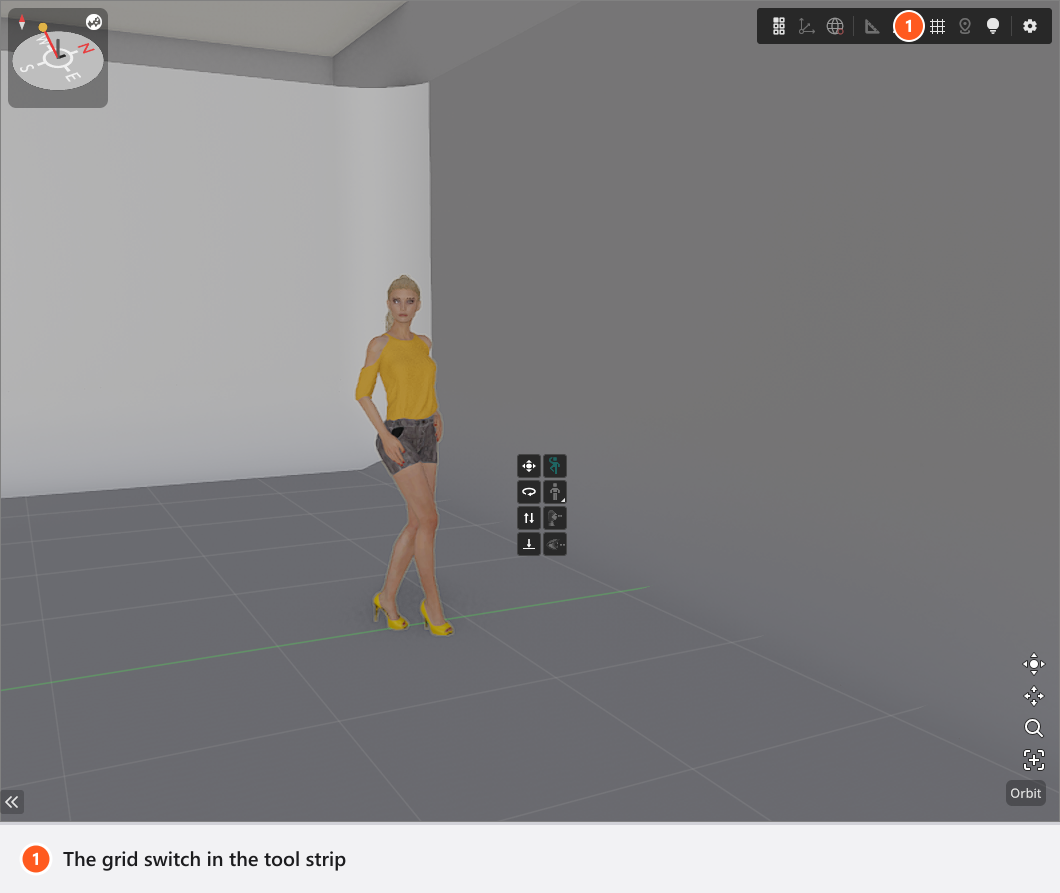
G shows and hides the studio grid, by default. One square is 1 m in metric units and 1 ft in imperial units, or 1 yd with Grid in Yard switched on in the App Manager under Program Settings, in the Unit of Measurement group (that switch can only be used while the imperial system is selected). The grid is the quickest way to make a setup reproducible, because the distance from model to background is a lighting parameter: move the model closer and your key spills onto the paper, move it away and the background goes dark on its own.
The transform gizmo, the measurement mode and the grid switch are shared by every object and are described once in Select, move and measure objects.
Turn the model, not the light
The head turn decides the lighting pattern. Light falling on the cheek that faces the camera widens the face (broad lighting); light on the cheek turned away from the camera slims it (short lighting). Turning the shoulders a quarter turn and the head a few degrees usually does more for a portrait than moving the key — and it costs nothing.
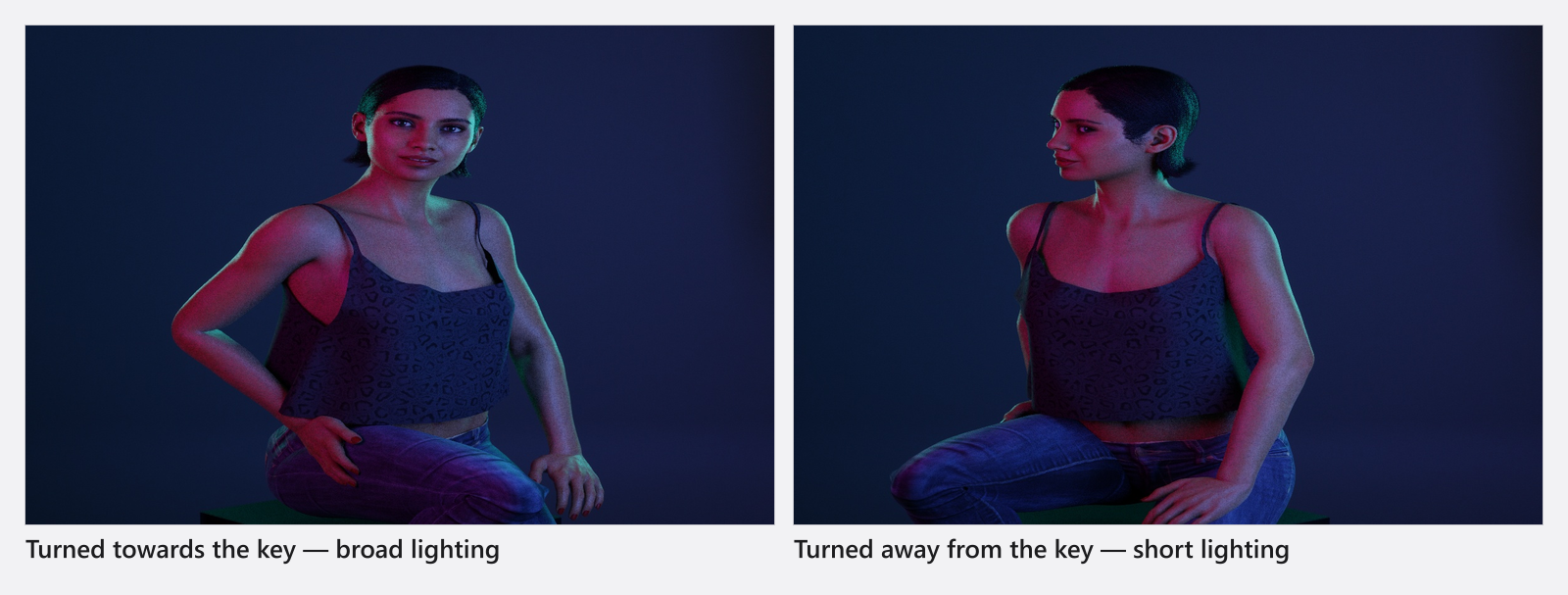
Mirror, lock, hide
- Mirror Object in the inspector header flips the whole model left to right, pose included — useful when a preset pose leans the wrong way for your key. It is not the same as the mirror button inside posing mode, which rewrites the pose itself and leaves the model facing as it was.
Llocks the selected objects, by default. A locked model cannot be dragged or nudged, and both delete routes —Deland Remove From Set — refuse it and report Objects are locked. The set list has a lock button per row.- The eye button in the set list takes the model out of the view without deleting it. Hidden objects are not rendered.
Tips & limits
- Position and rotation can be animated, so a model can walk through a shot (add-on: Animation Tool).
- The model’s height is not set here: it belongs to Size in the Body group of the Body Shape mode (see Match a model to your subject). There is no scale field for models.
- A prop is attached on the prop, not on the model — see Let a model hold a prop.
Troubleshooting
- The model will not move. It is locked, it is hidden, or it is attached to another object → Model problems.
- Drop to the floor put the model on a table. That is the first surface underneath it. Move it clear of the furniture and drop it again.