
 English
 Deutsch
 日本語
日本語 简体中文
简体中文 Français
A project in set.a.light 3D is one file with the extension .set. It carries the whole shoot: every shot of the timeline, every object in it, and the resources the project needs. Rendered images go into a folder beside that file. This page covers saving, the recovery copies the program writes while you work, and the routes that lead out of the program.
Applies to BASIC, STUDIO, CINEMA · You need: a project open. All keys named here are defaults you can change under Settings → Shortcuts….
Where to find it
Saving and opening live in the File menu.
| Command | Default key |
|---|---|
| New Project… | Ctrl+N (Cmd+N on macOS) |
| Open Project… | Ctrl+O (Cmd+O) |
| Save Project | Ctrl+S (Cmd+S) |
| Save Project As… | Ctrl+Shift+S (Cmd+Shift+S) |
| Recent Files | — |
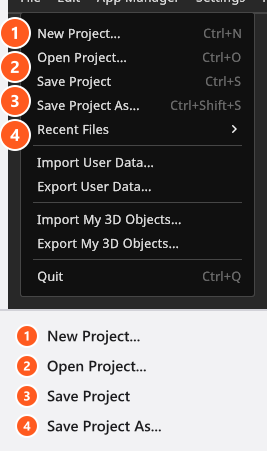
The Workspace tab of the start window lists your recent files too, so you can pick up where you left off before you open anything.
How to save a project
- Choose File → Save Project As… the first time and pick a folder and a name. → Two things appear on disk:
<name>.set, the project, and a folder<name>/beside it for the rendered images of this project. - From then on
Ctrl+Swrites to the same file. Save Project stays greyed out until the project has a file of its own.
Keep the two together when you move or back up a shoot. The .set file alone is a complete project, but your rendered images live in the folder.
What a .set file contains — and what it does not
The file is a compressed container, not a folder you can browse. Everything the project needs of your own material travels inside it, and anything from the shipped catalogue is referenced rather than copied — the recipient has it anyway. The full list is in Create, open and save a project, which owns the project file.
Two kinds of material stay outside, by design: imported 3D objects (add-on: 3D Import) and your own environment maps — an HDRI is a large image file and would be written into the project again at every save. Send those along separately if the other side needs them — see Share, update and back up your 3D objects.
The two questions the program asks
They look similar and mean different things.
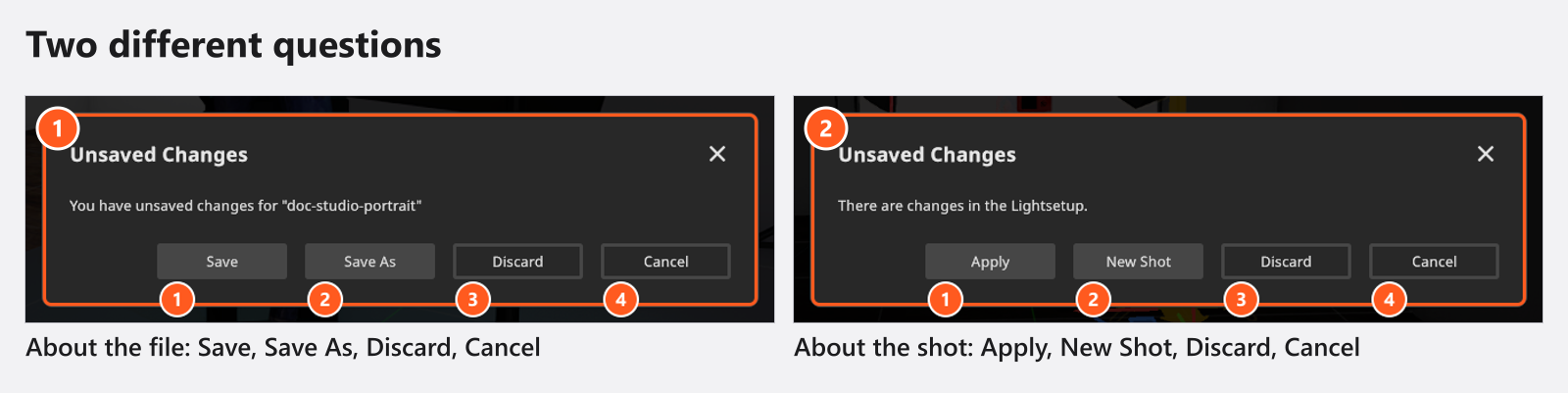
- Unsaved Changes with Save, Save As, Discard and Cancel is about the file: you are closing or replacing a project whose changes are not on disk yet. Save appears once the project has a file of its own.
- Unsaved Changes with Apply, New Shot, Discard and Cancel is about the shot: you changed the studio after taking a shot and are now leaving it. Apply writes the change into that shot, New Shot keeps it and stores your variation as a second shot. See Take and manage shots.
Recovery copies while you work
set.a.light 3D writes a recovery copy of the open project while you work — the autosave. It is switched on out of the box.
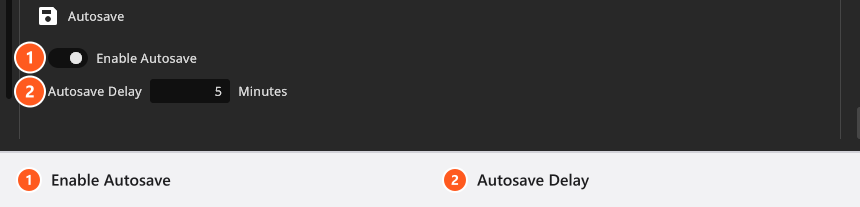
The clip below reaches the two fields at 0:43, at the foot of the same settings page.
- Enable Autosave — on or off.
- Autosave Delay —
1to60Minutes, five by default. The clock starts with your first unsaved change.
You reach both under Settings → Settings… → Program Settings, which is the same window the App Manager button opens, on a different page.
Two things are worth knowing on your first day. The copies do not sit next to your project but in one central folder, which Help → Show Autosave Folder opens; the file name carries the project name plus a marker for its location, so two projects of the same name do not overwrite each other. And the folder keeps ten of them: a later start deletes the oldest ones down to that number, so move out what you still need. File → Delete Autosave removes the copy of the project you have open, and nothing else.
Create, open and save a project owns the rest of the rules: when a copy is written and when it waits, why an ordinary Save Project leaves it in place, and what the Autosave Exists dialog does with it when you open the project again.
If the program hits a fault, it also writes a rescue project and a log into the folder elixxier in your documents, named CRASH_<date>_<time>_<project>.set. The whole route back is in Recover a project after a crash.
Which route leads out of the program
Save the project before you produce deliverables, so that the files have a stable home. It is good practice rather than a technical requirement: rendering and the set plan work from an unsaved project too, they just store their output where you will not look for it.
| You want | Route | More |
|---|---|---|
| A finished image | RENDER tab → Render Image | Where your images are saved |
| A plan for the real shoot | PLANS tab → export as PDF or image pages | Create a set plan |
| A camera move as a film | Animation editor → Render Video (add-on: Animation Tool) | The video file you get |
| To show a setup to others | COMMUNITY tab → share wizard | Share a shot with the community |
| Your settings and presets on another computer | File → Export User Data… | Settings |
| Your imported 3D objects | File → Export My 3D Objects… (add-on: 3D Import) | Share, update and back up your 3D objects |
What the program writes
| What | File types | Notes |
|---|---|---|
| Animation or camera move | MP4 | H.264 video; the frame rate comes from the timeline (2 to 120 frames per second) |
| Final render and the frames of an animation | JPG | Highest JPG quality, with the exposure data written into the file |
| Project and set | .set | |
| Set plan as a PDF | ||
| Set plan as images, one file per page | JPG | One file per page, into a folder you pick |
| The render stored with a snapshot | JPG | Highest JPG quality, with the exposure data written into the file |
| Your settings, resources and presets | .xdat | A single archive you can move to another computer |
Tips & limits
- Edit → Append .set-file merges another project into the open one — the practical way to combine two shoots. See Move shots between projects.
- Outside BASIC you can keep a set as a start scene: Edit → Save Current Set as Template puts it on the My Templates tab of the start window.
- A project written by a newer version of the program cannot be opened by an older one. Older files are migrated forward as they load.
Troubleshooting
- Failed to Save Project. The target folder is not writable or the drive is gone. The dialog offers Try Again — fix the folder and press it. Cancel takes you back to your project with the changes still in it, and whatever you were about to do (a new project, opening another file, quitting) is called off, so nothing is lost. Or pick another folder with Save Project As…. → Something looks wrong: start here
- Project Failed to Load with a note about a newer version — the file comes from a newer build than yours. → Update set.a.light 3D
- My session was interrupted and I want my work back. → Recover a project after a crash
Related
- Create, open and save a project — projects in detail.
- Take and manage shots — the shot side of the same file.
- Recover a project after a crash — the recovery route end to end.
- Supported file formats — everything the program reads and writes.
- Your first render — where rendered images go.