
 English
 Deutsch
 日本語
日本語 简体中文
简体中文 Français
A storyboard answers the question everybody asks before a shoot: how many setups are there, and what is each one for. In set.a.light 3D you build it out of the shots you have already lit, so the picture beside each line is the real frame rather than a sketch. This page runs the whole job — shot list, shots, ratings, page, export.
Applies to BASIC, STUDIO, CINEMA · You need: a saved project on the SETUP tab, and a rough shot list for the job.
What you will have at the end
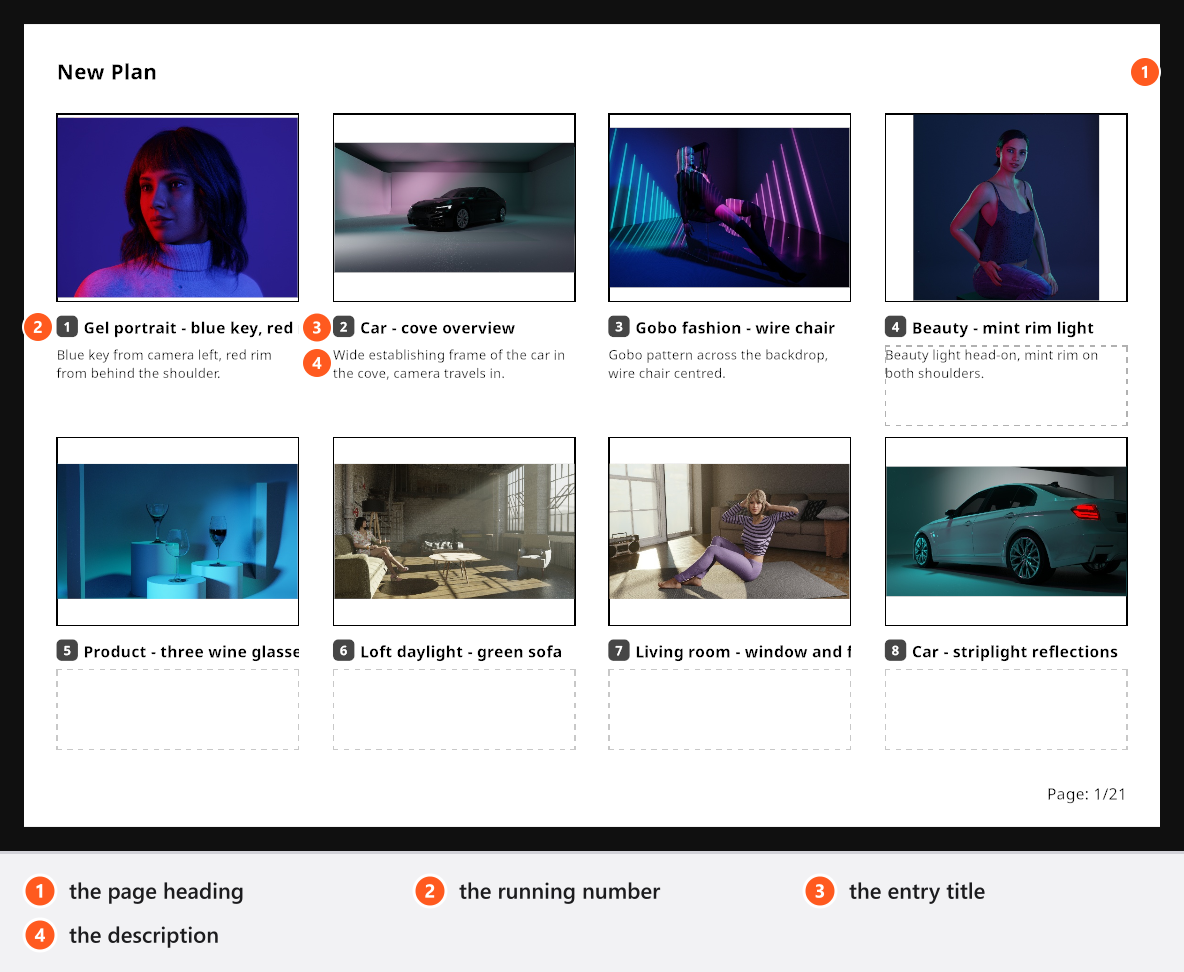
One or more numbered pages, each frame with its own title and a line of description, exported as part of a PDF plan or as an image per page.
The route
- Write the shot list first. Away from the program: the frames the job needs, in the order you intend to shoot them. Six entries are a clearer briefing document than sixteen.
- Build the first setup and store it. Light it, frame it, then press
Enter(by default) or click Snap at the end of the TIMELINE panel. → A tile appears, namedShot-plus the date and time. See Take and manage shots. - Work down the list, one shot per frame. For a variation of the setup you are on, change one thing and press
Shift+Enter(by default) so the two versions sit side by side. Rename the tiles as you go — the name is what the plan starts with. - Sort the shoot into folders if it is a long day. A folder per scene or per session keeps the strip readable; the first one is created for you.
- Rate and filter. Select tiles and press
0to5, or click a star on the tile. The star row above the strip then filters the shots of the open folder, which is how a sixteen-shot day becomes the six frames you show. - Render the frames you will show. While you work, the thumbnails are the stored previews of your shots; on export a rendered shot contributes its rendered image instead. See Render an image.
- Create the plan and switch the storyboard on. Open the PLANS tab, create a PDF plan — a JPG plan starts with Storyboard switched off, so switch it on in Layout. See Create a set plan.
- Tick the shots in the order the story runs. Hover a card in the left panel to reveal its tick box. → Each ticked shot takes a storyboard slot in the order you ticked it, and that order is also the order of the shot pages behind it. Drag entries to re-order them afterwards. See Build a storyboard page.
- Write the frame titles and the descriptions. Click the title beside the running number, then the line underneath it. Both belong to the plan, so a later rename of the shot leaves them alone.
- Set the heading and check the pagination. Click the page heading to give the storyboard a title of its own; a page holds eight frames and the ninth starts a second page with the numbering carried on.
- Export the plan. Export at the bottom of the right panel writes the PDF, or one image per page for a JPG plan.
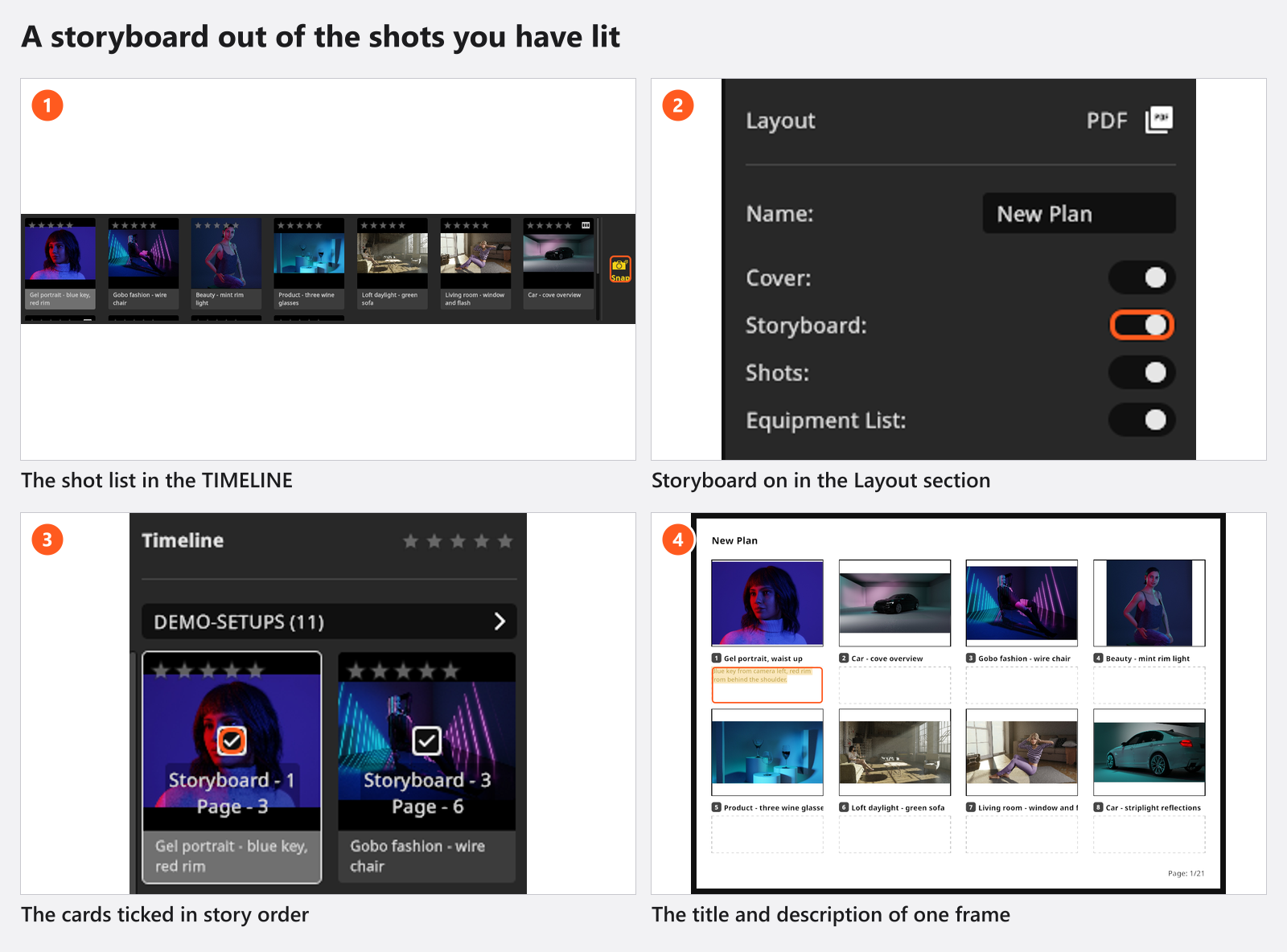
The clip ticks two shots into a plan and types their descriptions — the thumbnails appear by themselves:
The decisions a pro makes
- One frame per intention. A storyboard entry is a moment — “driver talks to passenger” — not a lighting variation. Keep the four versions of your key light out of the client’s copy and in a folder of their own.
- Description about the moment, technique on the page behind it. The shot page carries the diagram, the gear and the numbers; the storyboard line carries the reason the frame exists.
- Shooting order or story order. Tick in the order you will shoot if the storyboard doubles as the crew’s running order; tick in story order if it goes to the client. You cannot have both in one plan — create a second plan instead.
- PDF or JPG. PDF for a document with a cover and the gear lists behind it; JPG when the pages go into a message or a deck. Only a PDF plan has the cover, the per-shot list and the equipment list.
- Eight frames per page. If the job has nine, decide where the break falls rather than letting the ninth frame start a lonely second page.
Pitfalls
- The tick box on a card only appears while the pointer is over it, or once the shot is already in the plan.
- The bin icon on a thumbnail takes the shot out of the plan altogether — including its shot pages, not only that slot.
- An empty extra page from Next Page is not stored: it is gone as soon as you add or remove a shot, or re-open the project.
- A long entry title is cut off at the edge of its slot in the exported page.
- The Internal Note of a shot is never printed. Put anything the team should read in the description.
- Unrendered shots print as soft previews. Render first, export second.
- A plan lives inside the project file. Exporting or appending a selection of shots carries the shots, not the plans.
What you have now
- One shot per frame of the job, rated and sorted.
- A numbered storyboard in plan order, with a title and a line per frame.
- A PDF (or a set of images) you can send before the shoot — and the shot pages behind it for the crew: Reproduce the virtual setup on the real set.
Troubleshooting
- A missing storyboard, a missing tick box, soft thumbnails: Something looks wrong: start here.
- A render that will not appear on the page: Render problems.