
 English
 Deutsch
 日本語
日本語 简体中文
简体中文 Français
A dolly track turns a camera move into one number. You assemble the track from straight and curved segments, drag the camera onto it, and from then on a single distance drives the camera along the whole route — which is also the value you keyframe for a tracking shot.
Applies to BASIC, STUDIO, CINEMA · The two wheeled mounts, Dolly and Fisher 10, need STUDIO or CINEMA · You need: a project open on the SETUP tab with the library panel visible.
Where to find it
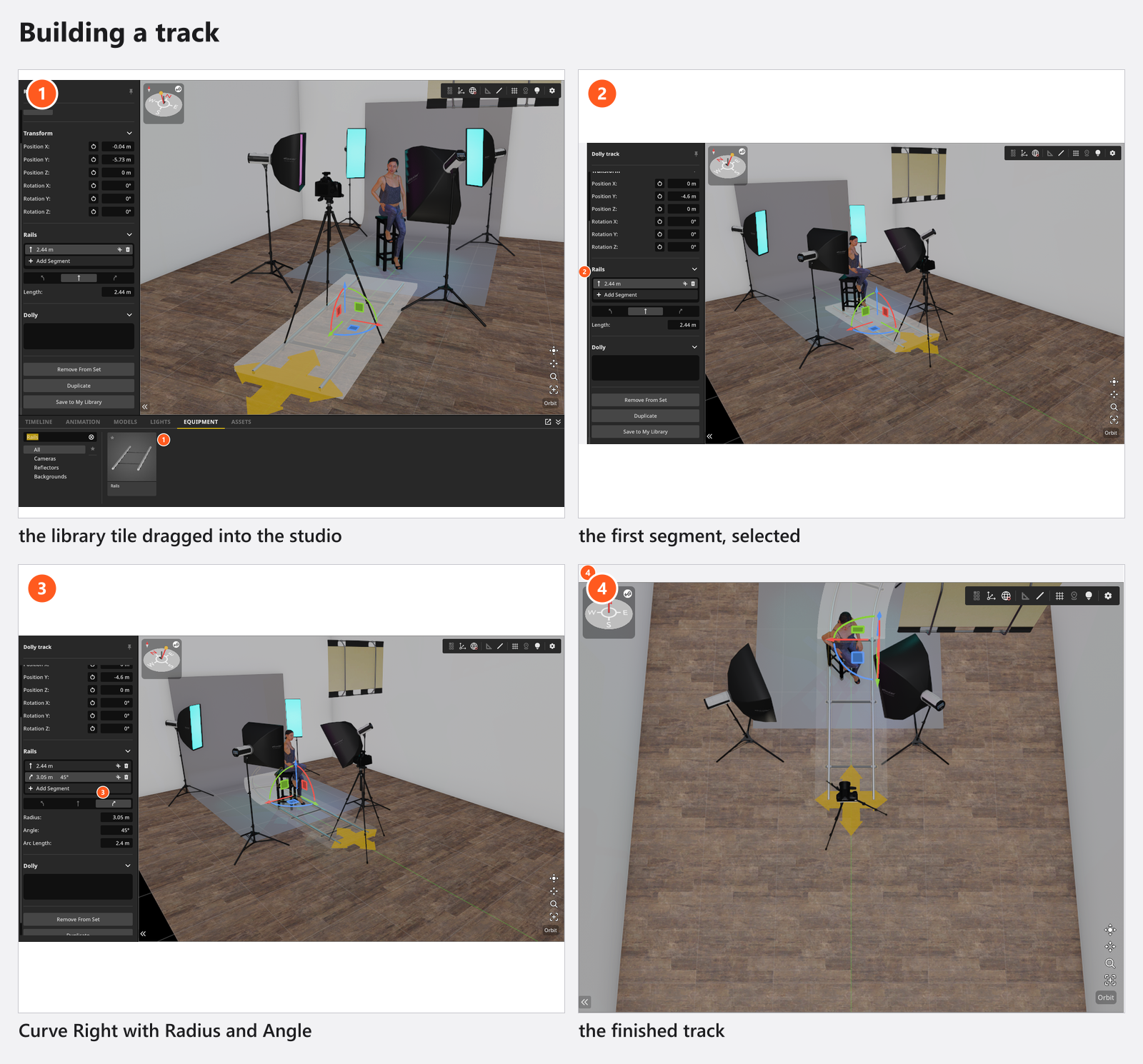
The track is a library object: EQUIPMENT tab → Rails. It carries no tag, so reach it through All or the search field, and drag it into the studio like any other object. A new track arrives as a single straight segment of 2.44 m.
A track works with every licence, and so does putting a camera on it — a BASIC camera on a Photo Tripod rides the track like any other. What BASIC does not offer are the film mounts, including the two wheeled ones.
How to build the track
- Drag Rails from the EQUIPMENT tab into the studio and place it where the move should happen. → The track appears with one straight segment, and the set list gets a row for it.
- Select the track and open the Rails group in the inspector. → The group lists the segments, one row each, with the length of a straight or the radius and angle of a curve.
- Click the Add Segment row at the end of the list and pick a preset from Segments. → The new piece is appended to the end of the track. For a curve, the two small buttons on its row choose whether it bends left or right.
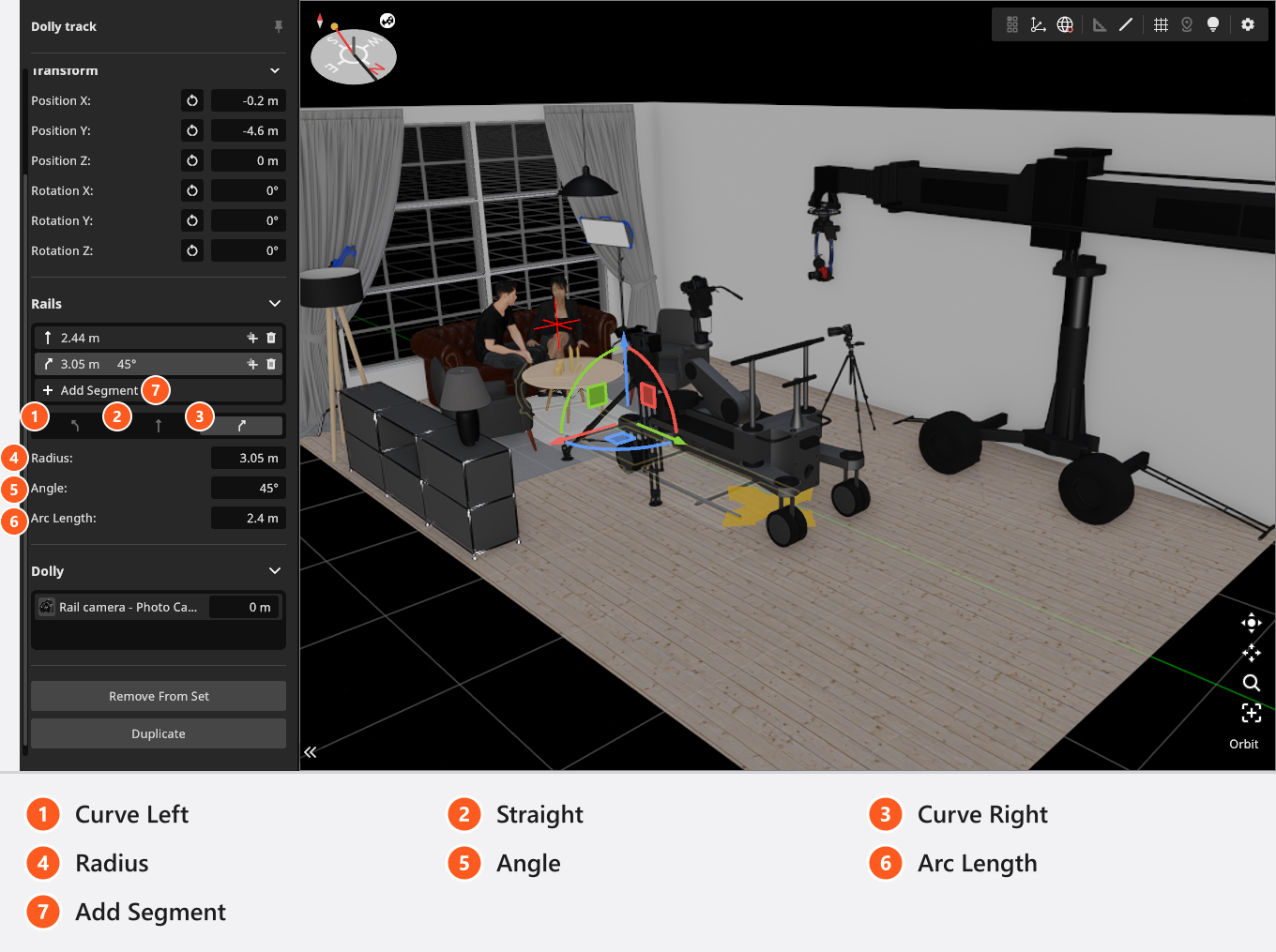
- Click a row to make that segment the active one. → The three shape buttons above the fields now apply to it: Curve Left, Straight, Curve Right convert it without deleting it.
- Adjust the active segment: a straight has a Length, a curve has Radius, Angle and Arc Length. → The track redraws, and every camera riding on it moves with it.
Each row has its own duplicate and delete button, so a symmetrical track is a matter of building one half and duplicating it.
The 13 segment presets
Thirteen presets, six straights and seven curves. Their names are the same in every interface language.
| Preset | Shape | Length or radius | Angle |
|---|---|---|---|
| Fisher TR2 | straight | 0.61 m |
— |
| Fisher TR3 | straight | 0.91 m |
— |
| Fisher TR4 | straight | 1.2 m |
— |
| Fisher TR6 | straight | 1.8 m |
— |
| Fisher TR | straight | 2.4 m |
— |
| Fisher TR10 | straight | 3 m |
— |
| Fisher CR10 | curve | radius 1.5 m |
90° |
| Fisher CR15 | curve | radius 2.3 m |
60° |
| Fisher CR | curve | radius 3 m |
45° |
| Fisher CR25 | curve | radius 3.8 m |
30° |
| Fisher CR30 | curve | radius 4.6 m |
30° |
| Fisher CR50 | curve | radius 7.6 m |
20° |
| Fisher CR70 | curve | radius 10.7 m |
15° |
A preset is only a starting point — every segment stays editable afterwards. For a straight 6 m push past a car, two Fisher TR10 pieces are the whole track, and Rail Position then runs from 0 to 6 m. Add a Fisher CR at the end and the track turns 45° over its last 2.4 m, which takes the camera around the front of the car.
Two places to add a segment, with two results
The Add Segment row in the inspector appends the new piece at the end of the track. The add button in the object controls that float next to the selected track — its tooltip reads Add Segment as well — inserts it directly after the active segment, which is how you lengthen the middle of a finished route. Both open the same Segments list; duplicate and delete exist in both places as well.
Segment settings
| Setting | Range | Default | Applies to |
|---|---|---|---|
| Length | 0.1–100 m |
2.44 m |
a straight |
| Radius | 0.1–100 m |
3.05 m |
a curve |
| Angle | 1–360° |
45° |
a curve |
| Arc Length | follows radius and angle | — | a curve |
Arc Length is the distance travelled through the curve. Typing a value into it keeps the radius and changes the Angle to match, and the resulting angle stays within 1° and 360° — so a 360-degree curve is a closed circle, not an error.
How to put the camera on the track
- Build the track first, then select the camera.
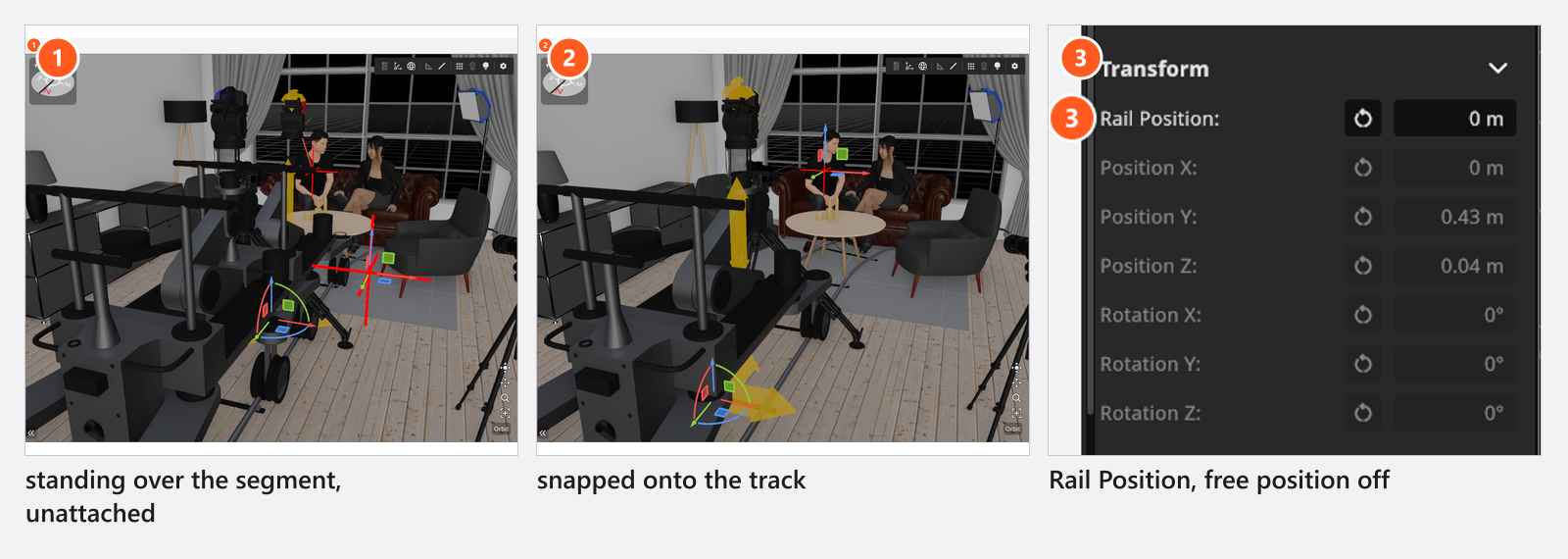
- Drag the camera along the floor onto a segment of the track. Use the plain drag — no key held down. → While the pointer is over a segment the camera snaps onto the rail.
- Let go and check the Transform group. → Rail Position has appeared, and the free position and rotation fields are switched off: while the camera rides, the track decides where it stands.
- Type or drag Rail Position to drive the camera. → It is the distance travelled from the start of the track, from
0to the full track length, and its default is0.5 m.
To take the camera off again, drag it away from the track.
On the two wheeled mounts, Dolly and Fisher 10, the camera is placed from both wheel positions instead of one point, so it follows a curve and crosses the joint between two segments without a jump. The other mounts ride the same track from a single point. Nothing banks — a curve turns the camera, it does not tilt it.
How to move several cameras on one track
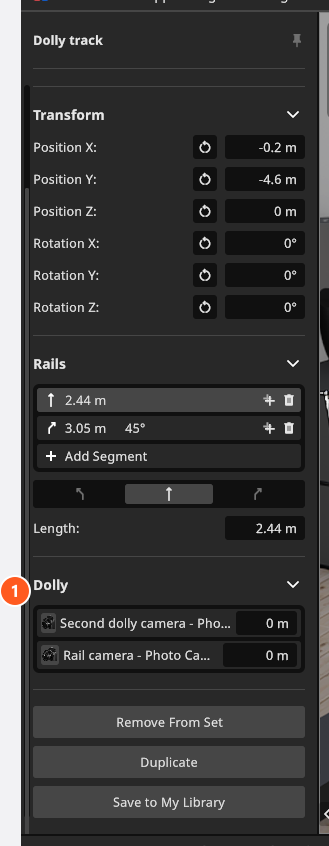
The track’s own inspector has a Dolly group that lists every camera riding on it, each with its rail position in an editable field. For a shot with two cameras on one track that is quicker than selecting each camera in turn.
Tips & limits
- Rail Position takes keyframes (add-on: Animation Tool), so a dolly move is a two-keyframe job: one at each end. See Animate the camera.
- Build the route before you attach the camera. A rail position is measured along the whole track, so editing or converting a segment re-evaluates it and moves the cameras that are riding.
- A track has no scale. Move and rotate it as a whole, and change the segment dimensions to resize the route.
- The last segment of a track can be deleted like any other, which leaves an empty track behind — with the cameras still attached to it. Undo brings the segment back.
- Fluid head on the wheeled mounts: Pitch, Yaw, no Roll. More in Camera rigs: axes and limits.
Troubleshooting
- The camera will not go onto the track. The camera only attaches during a plain drag along the floor.
Hswitches the drag to height,Ctrlto rotation around the view axis andShiftto free rotation, and in those modes the track is ignored. - The camera’s position fields are greyed out. It is riding a track. Use Rail Position, or drag the camera off the track to get the free fields back.
- Editing the track moved my camera. That is the mechanism: the rail position is a distance along the whole route, so a longer or shorter segment before it shifts the camera.
- More symptoms: Camera problems.