
 English
 Deutsch
 日本語
日本語 简体中文
简体中文 Français
An activated licence turns the trial into your edition: the watermark goes, the dialog at every start goes, and the add-ons you bought appear. Activation binds the licence to this computer and normally takes one minute. This page covers the online route, the route for a computer without internet access, and how to read the licence screen afterwards.
Applies to BASIC, STUDIO, CINEMA · Windows and macOS · You need: your licence key from the shop and, for the normal route, an internet connection.
Where to find it
Help → License Management. During the trial the Activate button of the welcome dialog opens the same screen.
Activate this computer
- Open Help → License Management. → The screen asks for your key and reads No License Activated if none is stored.
- Type or paste the key into Enter License Key. It is 35 characters in five blocks of 4, 6, 8, 7 and 6, separated by hyphens. → The untouched field says nothing; from the first character you type, Invalid License Key stands under it until the key is complete and right, and Activate stays greyed out meanwhile.
- Click Activate. → Activation Successful! appears. Confirm with Continue.
- Check the title bar: the word
DEMOis gone, and your renders come out without a watermark.
Activate a computer without internet access
If the program cannot reach the licensing service, it reports No Internet Connection! and offers Offline Activation. You then need a second device that is online — a phone is enough.
- Enter your key as above, click Activate, and choose Offline Activation on the screen that reports the missing connection. → Offline Activation – Step 1/2 shows a verification code.
- Click Copy to Clipboard and take the code to the licensing page of your customer account on the other device. Note it down if you have to type it over. → The page answers with an activation code.
- Click Continue in the program. → Offline Activation – Step 2/2 appears with an empty field.
- Paste the activation code from the website into that field and click Activate — which is what the screen asks for, too. → Activation Successful! appears.
Read the licence screen
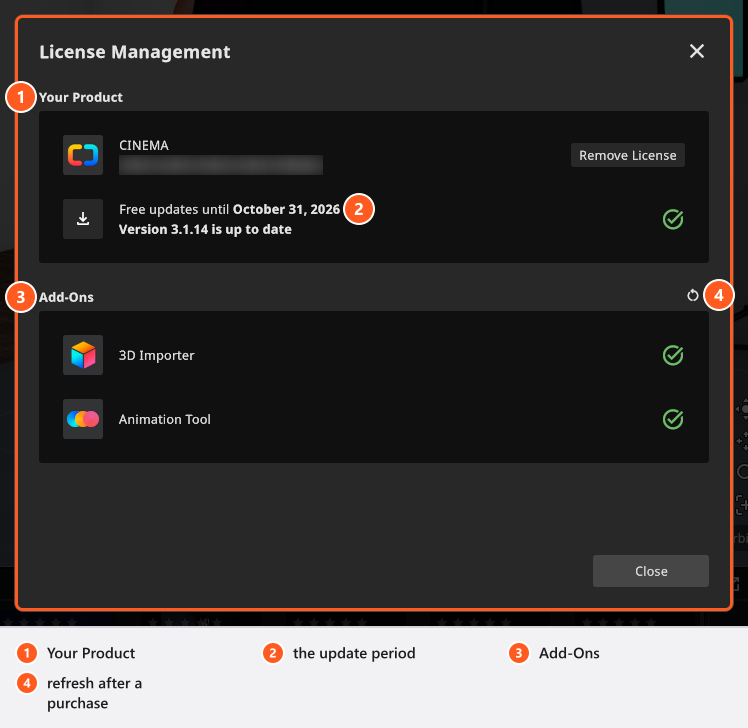
Your Product names your edition and the last characters of your key; the rest is masked. Under it stands your update period — Free updates until a date, Updates included without an end, Free updates ended on a date, or Update status unknown when the service could not be asked. A second line compares the installed version with the newest one. What the update period does and does not cover is in Update set.a.light 3D.
Add-Ons lists the two add-ons, 3D Importer and Animation Tool, and marks the ones your licence carries. A CINEMA trial carries both for as long as it runs.
After buying an upgrade or an add-on
You do not have to re-enter anything. The program notices the change by itself and shows a dialog titled License Updated with the text Good news: your upgrade or new add-on is now active. and a Show License button.
If you do not want to wait for it, open Help → License Management and click the refresh button beside Add-Ons (its tooltip reads Update License). → The add-on row and the update period are fetched again.
Move the licence to another computer
A licence is activated per computer, so free the old machine before you activate the new one.
- On the old computer, open Help → License Management and click Remove License. → Deactivation Successful! confirms it.
- Install the program on the new computer and activate it with the same key.
Removing a licence needs a connection: there is no offline route for this step. Wipe a machine without deactivating it first and the activation stays used up — contact support in that case.
Tips & limits
- Your key belongs to your customer account, not to the computer. The account lists the activations you have used, and the shop is the binding source for how many you get.
- Add-ons are licence features, not editions: (add-on: 3D Import) and (add-on: Animation Tool) can sit on any edition.
- A stored licence survives a server that cannot be reached: the program keeps it and tries again. Only a key the service explicitly rejects is removed.
Troubleshooting
- Activation Failed! with a message about the number of activations — free a computer with Remove License, or ask support. → License and activation problems
- License no longer active although you activated this machine — enter your key again to activate this computer. → License and activation problems
- The licensing server could not be reached while you work — your licence is safe, the program keeps trying. → License and activation problems
Related
- Install set.a.light 3D and start it the first time — the step before this one.
- BASIC, STUDIO and CINEMA compared — what your edition and your add-ons contain.
- Update set.a.light 3D — the update period on the licence screen.
- License and activation problems — every message and what to do about it.