
 English
 Deutsch
 日本語
日本語 简体中文
简体中文 Français
Installing set.a.light 3D is two steps: the program itself, and the content it works with — models, lights, light shapers, props. The content arrives on the first start, so plan a little time and a fast connection for it. This page walks both steps and ends where the Quick start begins.
Applies to BASIC, STUDIO, CINEMA · Windows and macOS · You need: your download from elixxier.com, an internet connection for the first start, and a graphics card that supports compute shaders.
Install on Windows
- Run the installer
Install set.a.light 3D.exe. → The setup wizard opens in English or German. - Accept the licence and keep the suggested destination, the folder
set.a.light 3D V3in your program files folder, or pick your own. - Decide about the two options the wizard offers: a desktop icon (off by default) and opening
.setfiles with set.a.light 3D (on by default). - Finish the wizard and start the program. → The start screen appears, and the first start continues below.
Install on macOS
You need macOS 12 Monterey or newer. The installer checks the version before it copies anything, so on an older system it stops with a message instead of leaving you an application that will not start.
- Open the installer
Install set.a.light 3D.pkg. - Confirm with your administrator password when macOS asks for it. → The program is installed into your
Applicationsfolder. - Start it from the Applications folder. → The start screen appears.
Get the content packages on the first start
A fresh installation carries the program, not the catalogue. The start screen therefore shows a row for the packages before anything else. It is in English in every interface language.
- Read the state next to the packages row. Download required means nothing is installed yet; the size beside it is what the download will cost you.
- Click Download. → The state changes to In Progress… and the button becomes Cancel; you can stop and continue later.
- Wait until the row reads Installed. → The button becomes Continue and takes you into the program.
If the program cannot reach the server, the progress line under the row reports No internet connection! while the state still reads Download required, and the button changes to Retry. When only part of the catalogue is out of date, the state reads Update required and the button reads Update — the same procedure, less to download.
Install a package by hand
If the download does not work on this machine, download the package from elixxier.com on another one and bring the file over.
- Click the gear at the end of the packages row. → Two rows appear, Import Package and Package Path, each with an unlabelled button at its end.
- Click the folder button at the end of the Import Package row and pick the package file. → It is unpacked into the folder shown as Package Path.
The button beside Package Path changes that folder, which is what you need when the default one is not writable.
Choose a trial or activate your licence
Without an activated licence the program starts in trial mode and asks which edition you want to try.
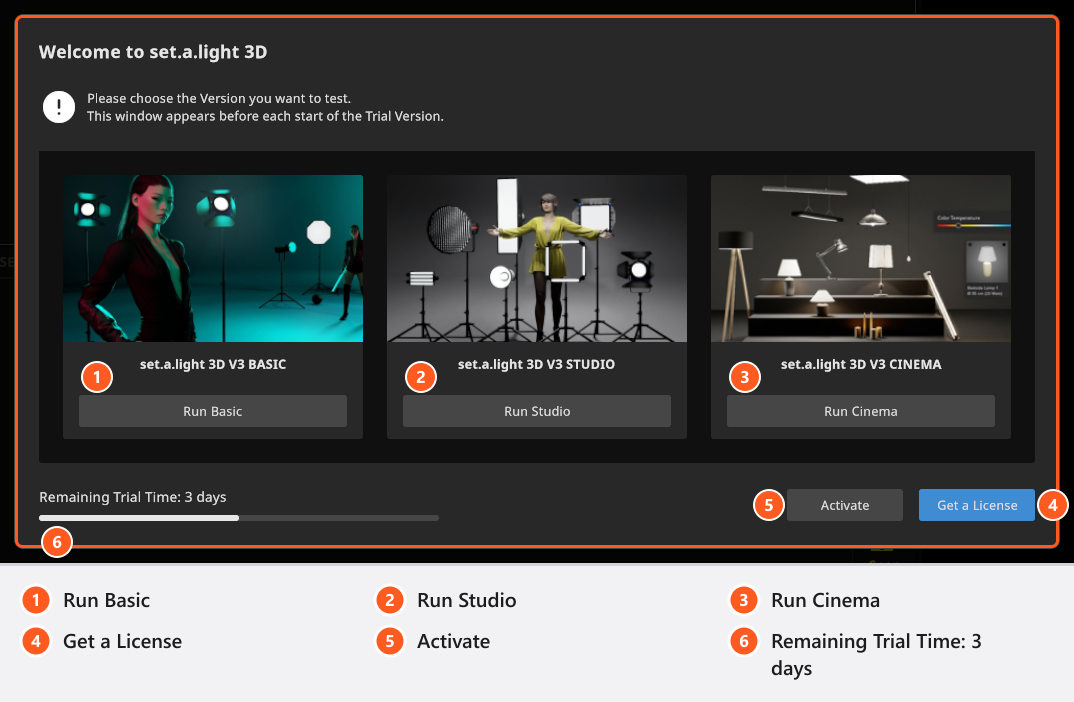
The dialog is titled Welcome to set.a.light 3D. While it reads Checking for available trial. the three cards stay greyed out — it is asking the licensing service what you are entitled to. Once the answer is in, pick Run Basic, Run Studio or Run Cinema; the line at the bottom counts your trial down as Remaining Trial Time in days. Get a License opens the shop, Activate takes you straight to Activate your license.
The dialog has no close button on purpose: one of the choices has to be made, and it returns at every start as long as you work in the trial. In the trial every rendered image and every video carries a watermark. What each edition contains is in BASIC, STUDIO and CINEMA compared.
Where your work and your settings live
- Projects go wherever you save them — one
.setfile per shoot, plus a folder of the same name for its rendered images. See Saving your work. - Your settings, your own gear and your presets live in a folder
elixxier→set.a.light 3D V3in your account’s local application data on Windows, and underLibrary/Application Supporton macOS. File → Export User Data… packs them into one.xdatfile you can carry to another computer. - Recovery copies are kept in a folder of their own; Help → Show Autosave Folder opens it.
- Rescue copies after a fault are written into the folder
elixxierin your documents.
Tips & limits
- set.a.light 3D needs a graphics card that supports compute shaders. Without one it shows a dialog titled Unsupported Hardware that names your graphics card, and closes when you confirm. See System requirements.
- The very first start takes over the user data of set.a.light 3D V2 if it finds it — own gear, presets, settings. This happens once, while the V3 data folder is created. Do not delete that folder later to repeat it; you would lose the V3 data instead.
- The packages screen, the package states and their buttons are English in every interface language.
Troubleshooting
- The first start never gets past the packages row. Check the connection, then use Retry; if it keeps failing, import the package by hand as described above. → Installation problems
- The trial dialog reports Licensing Server Unreachable. That is a connection problem, not a problem with your trial: Try Again repeats the request. → License and activation problems
- The program closes right after the start with Unsupported Hardware. → Graphics problems
Related
- Activate your license — key, offline activation, add-ons.
- Quick start: from empty studio to finished image — the first pass through the program.
- System requirements — what the machine has to bring.
- Installation problems — when the installer or the update fails.