
 English
 Deutsch
 日本語
日本語 简体中文
简体中文 Français
The Light Meter is a virtual incident meter you drop into the set. It measures the light that arrives at its sensor — not the light reflected off the model — and reports illuminance, an exposure value and the aperture that exposes for it, the way an incident meter does on a real shoot. Photographers call it an incident or a flash meter. Use it to find the aperture a setup calls for, to compare two positions in the set, and to put a number on a lighting ratio.
Applies to STUDIO, CINEMA · You need: a project open on the SETUP tab with the library panel visible (N shows and hides it, by default).
Where to find it
The meter sits in the library panel: EQUIPMENT tab → Light Meter. The tile carries no group of its own, so it is listed under the All heading rather than with Cameras, Reflectors or Backgrounds — typing light into the search field is the quickest route. Drag it into the studio and it behaves like any other object: move it, rotate it, hide it, delete it. With a BASIC licence the tile is not in the library at all.
How to take a reading
- Drag Light Meter from the EQUIPMENT tab into the set and place it where your subject’s face will be. → A row for the meter appears in the set list.
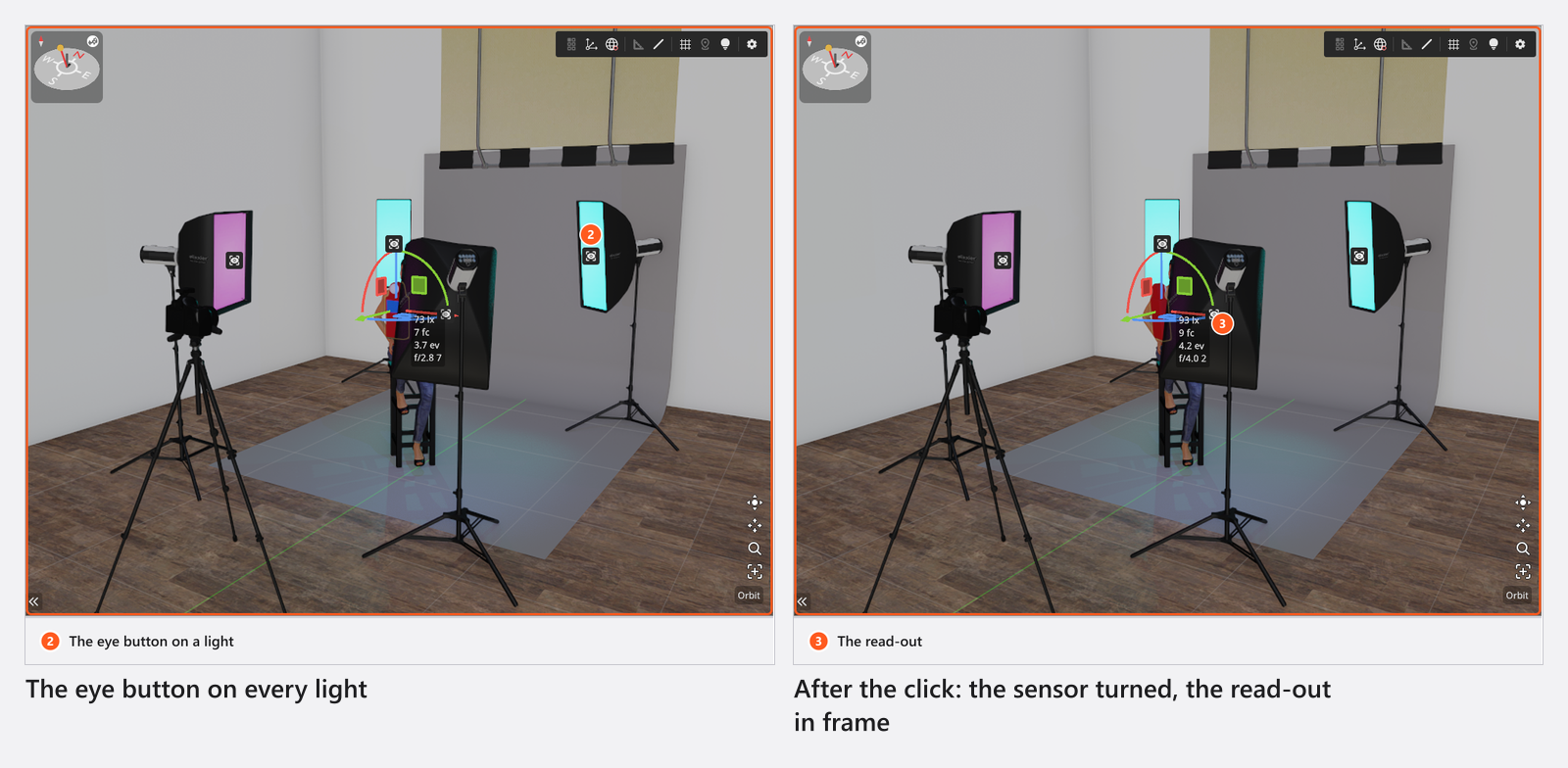
- Turn the sensor towards the light you want to measure. The sensor is the dome on the front of the body. While the meter is selected, every visible light in the studio view carries a small eye button: click it and the meter turns to face that light. You can also type the angles into Transform.
- Choose how the sensor gathers light. Halfdome Incidence on (the default) measures like a meter with the dome fitted: it collects light from the whole hemisphere in front of it. Switch it off for a flat sensor, which weighs each direction by its angle to the sensor face — more directional, and the better choice for a single light or a ratio.
- Set the exposure the reading is based on: ISO, and either Exposure Time or Shutter Angle. The pair of buttons above the fields chooses which of the two drives the reading; with Shutter Angle selected you also set Framerate.
- Read the result in the four read-only rows under the fields. → The numbers keep moving while the meter accumulates up to
65 536samples, and start again after every change to the set. Wait until they stop before writing one down.
Whether sun and sky are part of the reading is decided by the active camera, not by the meter: if that camera stands in a room with no visible window or door, both are left out of the reading — exactly as they are left out of the render — even for a meter standing outdoors.
How to measure a lighting ratio
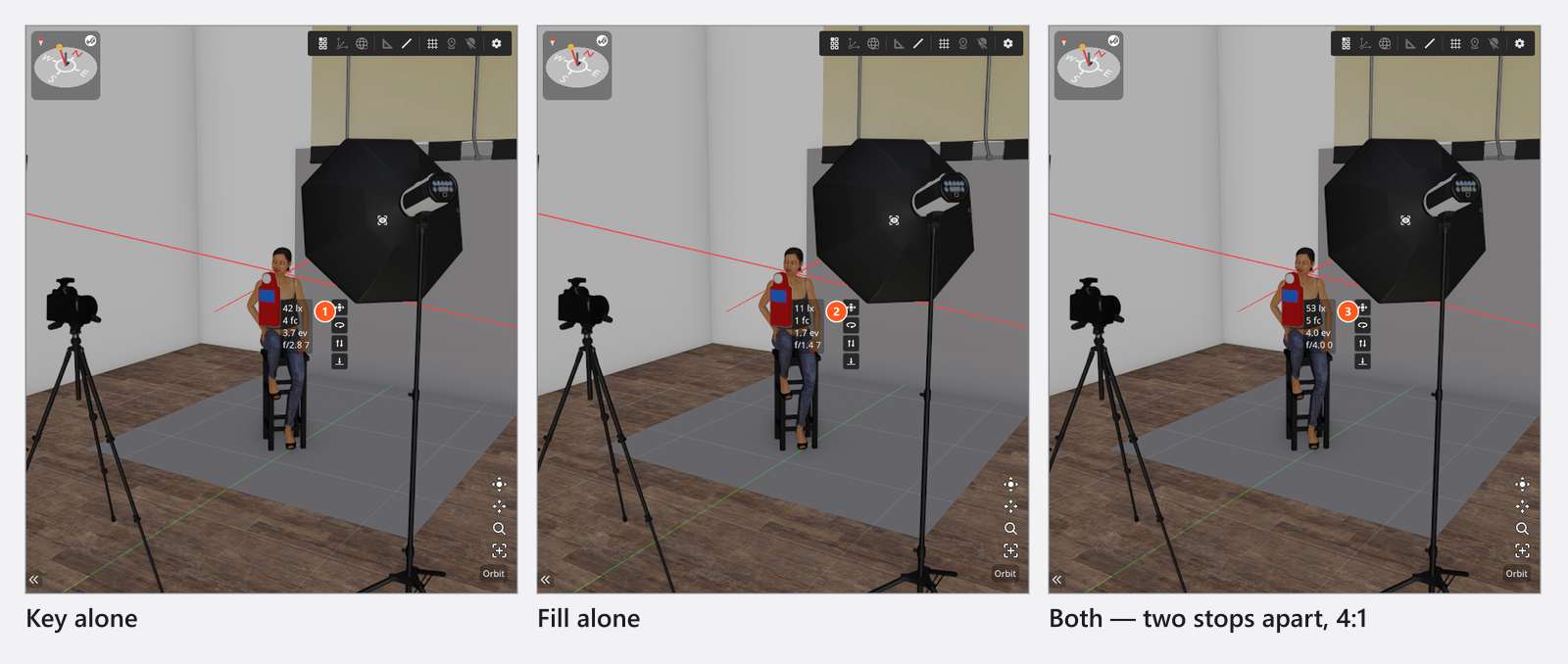
A ratio is the difference between two readings at the same point, so the meter never moves during the measurement. For a beauty portrait with a softbox as the key and a white reflector as the fill:
- Put the meter at the model’s face and aim it at the camera.
- Switch Halfdome Incidence off — the flat sensor is the better choice for a ratio.
- Select the key light and switch Set as Solo Light on (
S, by default). Only that light stays on. Note the Exposure Value. - Switch solo to the reflector’s light instead and note its Exposure Value.
- Subtract the two numbers. One stop of difference is a 2:1 ratio, two stops 4:1, three stops 8:1.
Give each meter its own Color when you keep several, so you can tell the readings apart at a glance; it only tints the body.
What the read-outs mean
| Read-out | Shows |
|---|---|
| Lux | Incident illuminance in lux (lx). |
| Foot-candles | The same value in foot-candles (fc) — lux divided by 10.76. |
| Exposure Value | The exposure value (ev) for the ISO and time you set. |
| Aperture | The f-stop that exposes correctly, written as the nearest stop plus tenths: f/8.0 3 means f/8 and 3/10 of a stop. Carry it to the camera yourself — it keeps its own exposure. |
The reading includes the light bounced off walls, reflectors and the floor, exactly as the render does; there is no way to meter one head’s direct light alone. Fog counts too, so raising Fog Density lowers what the meter sees — see Fog and atmosphere.
Flash and continuous light are metered the way they behave in reality: the flash contribution does not depend on the exposure time, the continuous contribution does. So changing Exposure Time moves Exposure Value and Aperture as long as a continuous light is part of the reading; in a set lit by flash heads alone nothing moves, exactly as on a real shoot. Lux and Foot-candles never follow the exposure time — they measure the light, not the exposure.
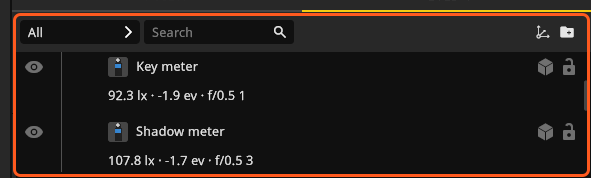
The meter’s row in the set list repeats the live reading as lx · ev · aperture, with the foot-candle value in its tooltip, so you can watch two or three meters at once while you move a light. All four values are also drawn beside the meter in the studio view, and they disappear with it when you hide the meter. All three places write the numbers in the format of the interface language, not of the machine: 134.3 lx in English, 134,3 lx in German.
Settings
All controls sit in the Measurement group of the inspector.
| Setting | Values | Default | Animatable |
|---|---|---|---|
| Halfdome Incidence | on / off | on | no |
| Exposure Time / Shutter Angle | which of the two drives the reading | Exposure Time | no |
| Exposure Time | 30 s … 1/12800 s |
1/125 s |
no |
| Framerate | 16 … 2000 fps |
30 fps |
yes |
| Shutter Angle | 5° … 360° |
180° |
yes |
| ISO | ISO 3 … ISO 204800 |
ISO 100 |
no |
| Color | colour of the meter body | red | no |
Framerate is ignored unless Shutter Angle drives the reading. The ISO, shutter and aperture scales are the same ones the camera uses.
Tips & limits
- The meter always calibrates at
320; with the dome off, expect a small offset against a hand-held meter. - In dense fog the sun’s shadows go soft in the render; the meter does not model that widening.
- Readings can differ slightly from an older version: the measurement was corrected in this release.
Troubleshooting
- The aperture says
Invalid. No light reaches the sensor, so there is no aperture to report (Exposure Value shows0as well). Check that the light is switched on, that the meter faces it, and that the active camera is not sealed inside a windowless room. - The numbers never settle. Every change to the set restarts the measurement. Stop moving objects and lights for a moment and let it finish.
- The reading ignores my sun. The active camera is enclosed in a room without a visible window or door. Put a portal in a wall or move the camera out — see Light a room through a window.
- More symptoms: Lighting problems.