
 English
 Deutsch
 日本語
日本語 简体中文
简体中文 Français
Everything you put on a set comes out of the library: the panel at the bottom left of the SETUP tab. By the end of this page you can find any entry, drop it where you want it, and keep the things you save yourself in folders.
Applies to BASIC, STUDIO, CINEMA · The 3D Objects group needs the 3D Import add-on, the ANIMATION tab the Animation Tool add-on · You need: a project open on the SETUP tab.
Where to find it
The panel carries one tab per kind of thing: TIMELINE (the shots you have taken), ANIMATION, MODELS, LIGHTS, EQUIPMENT and ASSETS. By default N shows and hides the panel while the pointer is in the SETUP tab, and E opens it as a floating window from anywhere — useful when you want a large grid of thumbnails while you dress a set.
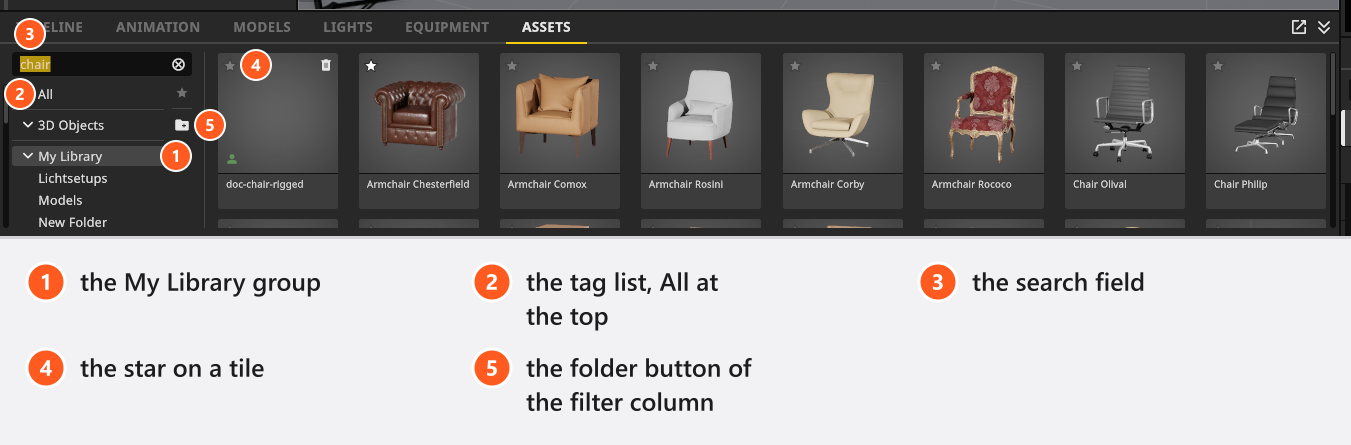
The ASSETS tab is the only one with groups of its own, listed above the tag filters:
- 3D Objects — models you imported yourself (add-on: 3D Import). See 3D import: what the add-on reads.
- My Library — the objects and object groups you saved. See Save your own rigs to My Library.
- Props — the 335 entries that ship with the program: 298 props plus the basic shapes, the mirrors, the windows and doors, the two rooms, the wall element, the floor and the picture wall.
How to find an entry
The column on the left of the grid filters what you see. All sits at the top and drops the filter; below it come the 13 tags of the group:
| Tag | Entries | Tag | Entries |
|---|---|---|---|
| Basic | 14 | Mirrors | 6 |
| Furniture | 78 | Doors & Windows | 12 |
| Antique | 10 | Outdoor | 70 |
| Accessories | 76 | Rooms | 3 |
| Fitness | 25 | Vehicles | 13 |
| Food & Drink | 34 | Cosmetic | 14 |
| Plants | 21 |
Two things about this column are worth knowing before you go hunting:
- Search ignores the tag you have selected. Type into the search field and the program looks through the whole tab — every group, every tag — and matches both names an entry carries. Picking a tag again clears the search field.
- The star in the filter column promotes, it does not filter. The star on a tile marks a favourite; the star beside the tag list moves your favourites to the front of the grid and leaves everything else below them.
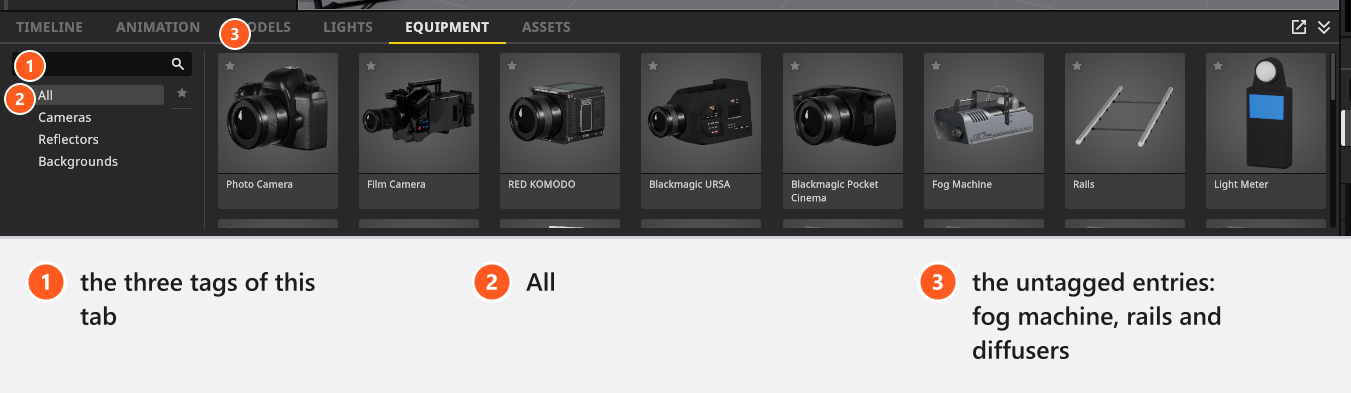
Entries that carry no tag
A handful of entries belong to a group but carry no tag at all, so no filter will ever show them. Reach them through All or the search field:
- In ASSETS → Props: the picture wall (search for
picture). - In EQUIPMENT: the Fog Machine, the Rails for a camera dolly, the five diffusers, and — outside BASIC — the Light Meter. Only Cameras, Reflectors and Backgrounds are tags there.
- Five props answer to no filter because their tags are not built into the program: Kitchen, Light Tripod, Photo Tripod, Camera Tripod and C-Stand M.
How to put something in the set
There are two routes, and they put the object in different places:
- Drag the tile into the studio view. The object follows the pointer and lands on whatever surface is under it — the floor, a table top, a wall for a window or a door. → The object appears selected, with a new row in the set list.
- Double-click the tile. The object lands in the middle of the current set, stepped 20 cm sideways if something already stands there.
A dropped object keeps its own orientation. Switch Align New Objects With View on under Project Settings → Editing (off by default) and new objects turn to face the studio camera instead. A room is the exception on both counts: it is never placed on top of another object and never turned towards the camera.
In this clip a set is dressed from the All filter by dragging crates and a pallet in:
How to keep your own entries in folders
My Library and 3D Objects are the two groups you can organise; the shipped entries stay where they are.
- Select the group in the filter column and click the folder button, whose tooltip reads Add New Folder. → A folder called New Folder appears in the column, ready to be renamed (up to 30 characters).
- Drag library entries onto a folder to move them in.
- The bin icon on a folder row deletes that folder; Delete Resource on a tile removes the entry itself.
The end of the same clip makes two folders and sorts saved setups into them:
Tips & limits
- Build a habit of starring the ten or twelve things you use on every job. The promoted rows save more time than any tag.
- (BASIC) A set holds at most 5 lights. Dropping a saved lighting rig that contains more brings in as many as fit and tells you so.
- The library is a catalogue, not a scene: what you drop is a copy, and editing the object afterwards never changes the library entry.
Troubleshooting
- I cannot find a tile under any tag. It carries none. Switch the filter to All or type part of its name into the search field → Objects, rooms and measurement problems
- The search shows things from another group. That is by design — the search field ignores the selected tag and looks through the whole tab.