
 English
 Deutsch
 日本語
日本語 简体中文
简体中文 Français
A keyframe stores the value of one setting at one frame. Two keys with different values make that setting move, and everything in between is calculated. You never build a track by hand: you set a value as you always do — in the inspector or in the studio view — and tell the program to remember it at the current frame. The only track you create yourself is the clip lane of a model or an imported object.
Applies to BASIC, STUDIO, CINEMA · Needs the Animation Tool add-on (included in the CINEMA trial) · You need: the ANIMATION tab open in the library panel and an object selected in the studio view.
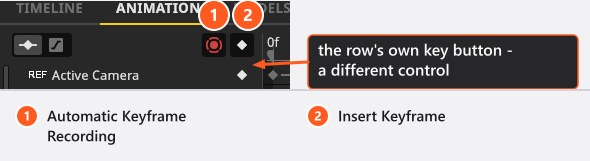
The quick tip keys one Position row by hand, then switches recording on:
Where to find it
Everything here lives in the ANIMATION tab of the library panel (where that is), except the commands for a single setting, which you reach by right-clicking its field in the inspector.
How to set your first keyframe
- Select the object in the studio view. → It appears in the object list at once, even before it has a single key.
- Move the playhead to the frame you want.
- Arrange the object as it should look at that frame — position, power, focal length, whatever matters.
- Click the key button at the right end of the object’s row. It shows a plus while the object has no animation. → First press: every animatable setting of the object gets a track and a key, and on a model the pose is keyed as well. The plus turns into a diamond.
- Move the playhead, change the scene, and click the same button again. → Later presses: only the tracks that already exist get a new key. The same button therefore does two different things.

For a narrow animation, use the key button on a single row instead: keying only Position keeps everything else out of the shot.
How to build a move backwards
- Move the playhead to the last frame and stage the shot as it should end.
- Walk the set once — camera, key light, fills, kickers, reflector, background — and key each object as you go.
- Move the playhead to the start and pull the same objects apart: camera further away and wider, lights out of frame and down in power.
- Key them again in the same order.
The shot then animates into the setup you designed, which is far easier than guessing a finish. Animate your first shot does it end to end.
How to use Insert Keyframe
The Insert Keyframe button in the toolbar opens a small menu; by default I opens the same menu anywhere in the SETUP tab — as long as ANIMATION is the active tab of the library panel and something is selected. With nothing selected, button and key do nothing, silently.
| Entry | What it keys |
|---|---|
| For Selected Objects | Every animatable setting of the objects you have selected. If a camera is among them, the set’s Active Camera is keyed too — recording whichever camera is active, not the one you selected. |
| For Existing Tracks | One key on every track that already exists, for every object already in the animation. It adds nothing: a setting you changed but never keyed gets no track from it. To start a new track, use For Selected Objects or the key button on that one row. |
| For Model Pose | The pose and the facial expression of the selected model. Only offered while a model is the active object. |
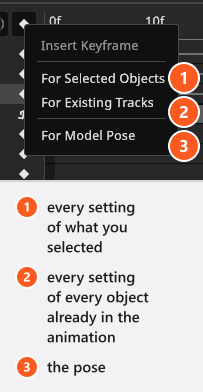
The intro tutorial picks For Selected Objects on a real set:
To key one single setting, right-click its field in the inspector. Most fields offer Insert Keyframe and Delete Animation; a checkbox offers Add Keyframe and Remove Animation instead — the same two jobs in different words, and those two labels stay English in every language.
How to record changes automatically
Automatic Keyframe Recording writes a key whenever you change a value that is already animated. The working order is therefore: key the setting once by hand, switch recording on, then move the playhead and rearrange the scene.
- A setting with no track yet is not recorded. If you stage a whole move with recording on and nothing lands on the timeline, that is why: key it once by hand and repeat the move.
- Recording is switched off whenever a project or a shot is loaded, so a file you open never records by accident.
What the rows in the object list mean
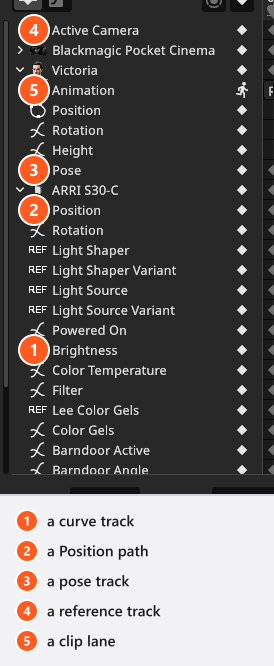
Fold an object open and you get one row per keyed setting, with an icon for the kind of track: a curve, a Position path, a pose, a reference such as Light Shaper, or a clip lane. Settings that can be keyed but have no track yet are listed too, with a plus instead of a diamond. What can be animated says what each kind can do.
How to select, move and delete keyframes
- Select — click a diamond; hold
Ctrl(Cmd) to add or remove single keys. - Select a group — hold
Shiftand drag a box across them, plusCtrl(Cmd) to keep the existing selection. A plain drag on empty space pans instead. - Move — drag the selection left or right. The whole selection travels together, so a section keeps its rhythm. Drop a key on a frame that already has one and the key that was there is replaced; undo brings it back.
- Delete keys — put the pointer over the frame area and press
Delby default; on macOSFwd DelorDelete. - Delete a whole track or object — put the pointer over the object list and press the same key. The row and all its keys go.
- Delete everything — the delete button in the bottom row removes every key of the shot after asking Do you want to delete all keyframes in this animation?
Note. All of these go through the normal undo system, clearing the whole animation included:
Ctrl+Z(Cmd+Z) brings the tracks back complete, tangents and timing with them.
Tips & limits
- Single keyframes have no clipboard — they cannot be copied or pasted. To repeat a value, move the playhead and key it again.
- Keys sit on whole frames. For finer timing raise Framerate before you start; raising it later keeps the frame numbers and shifts the timing of the shot.
- Shortening Duration deletes no keys. Those past the end stay, invisible, and still bend the curve before it.
- Copying or duplicating an object brings its animation along: the Position keys shift with the copy, every other track unchanged.
- Deleting an animated object leaves its tracks behind and the row reads
<missing>. Select it and pressDel.
Troubleshooting
Ior the key button does nothing. Nothing is selected, or ANIMATION is not the active tab of the library panel.- Recording is on and nothing is stored. The setting has no track yet.
- The duplicate runs beside the original. By design — its Position keys carry the offset.
More in Animation problems.