
 English
 Deutsch
 日本語
日本語 简体中文
简体中文 Français
A plan is only worth carrying to the set if the frame in it is the frame your camera takes. This page sets the virtual camera up as the body and the lens you actually own, keeps a framing when the body changes, and marks the delivery crops — and it says plainly which of those numbers you can read off and use on the day.
Applies to BASIC, STUDIO, CINEMA · The four film bodies and the film mounts need STUDIO or CINEMA · You need: a project open on the SETUP tab with a camera in the set.
What you will have at the end
A camera whose sensor, format and focal length match your own gear, three delivery crops drawn over one live image, and a starting aperture you can dial on the real body.
The route
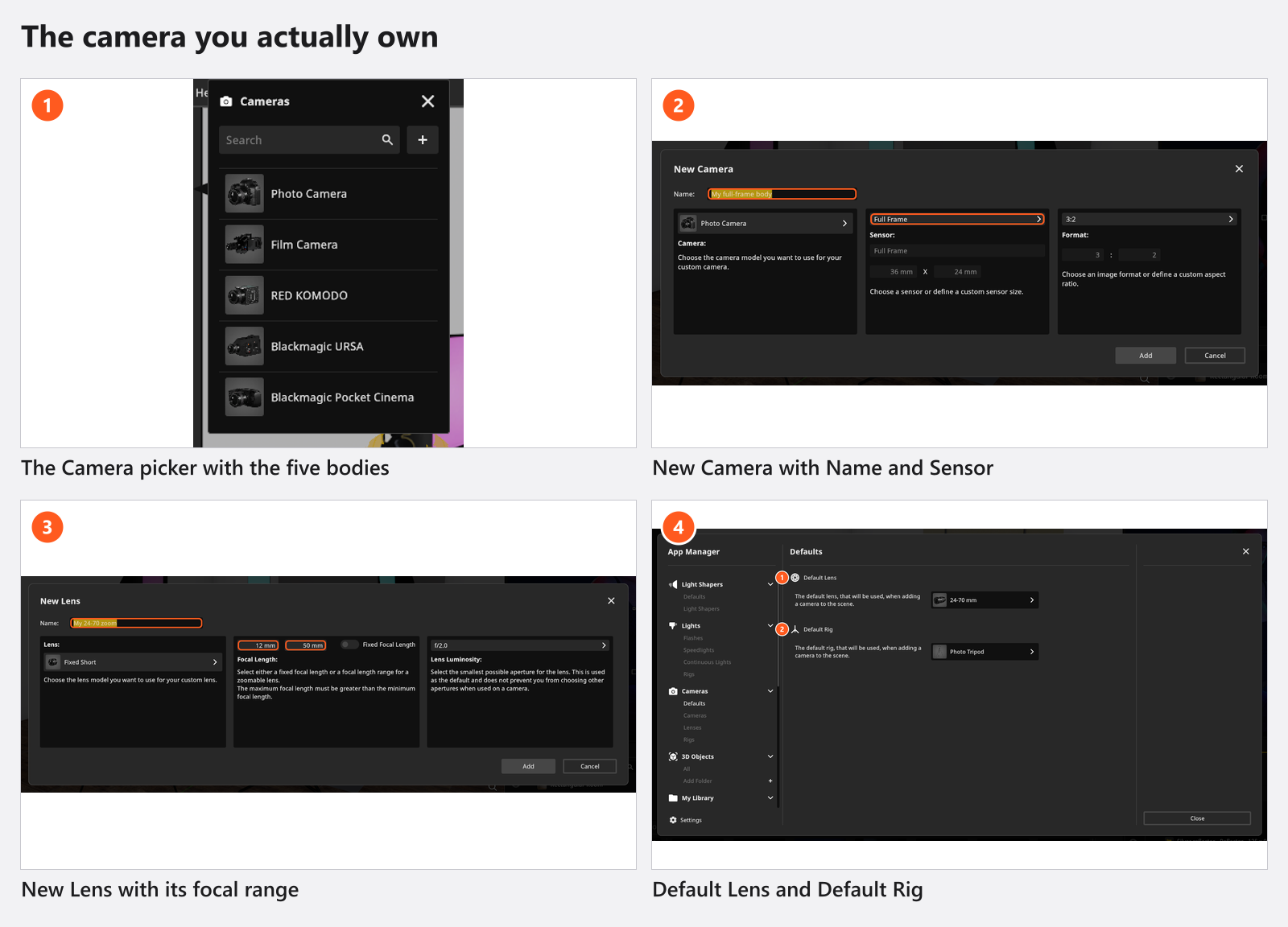
- Pick the body. In the camera’s Equipment group open the Camera picker. Five bodies ship — one photo body and four film bodies — and choosing one writes its Sensor, its Format and its photo-or-film mode onto the camera in one step. See The photo camera.
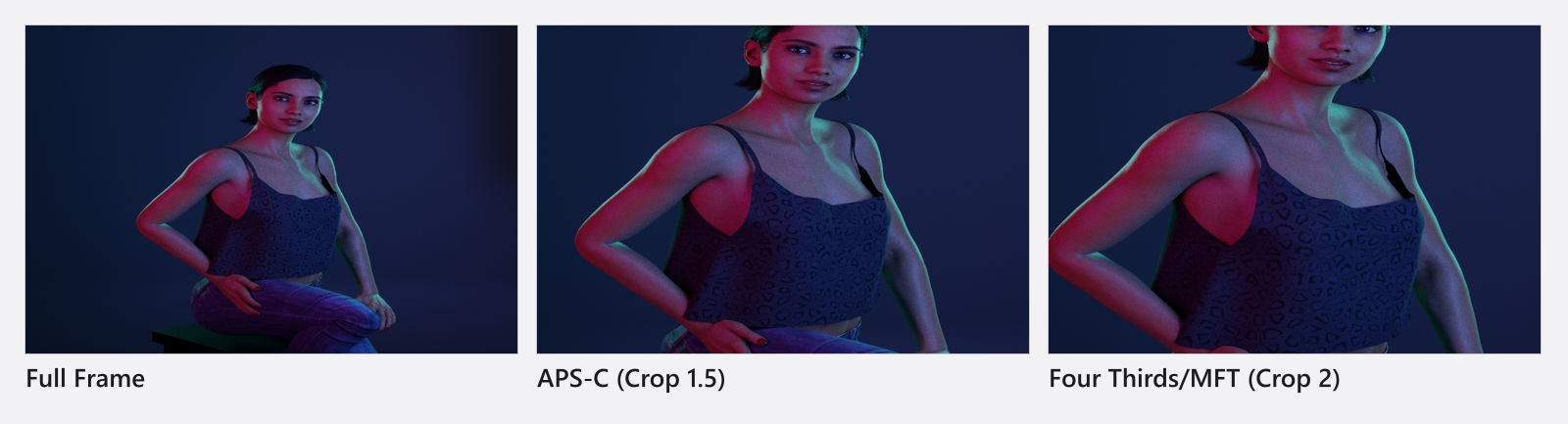
- Check the sensor against your spec sheet. Sensor is the recording area in millimetres, Format the ratio you crop it to. Most names carry their crop factor — APS-C (Crop 1.5), Four Thirds/MFT (Crop 2), Medium Format (Crop 0.64) — and you can read the full-frame equivalent straight off those. Full Frame, Rollfim 6×6,
4x5",8x10"and2/3"carry none; for those, compare the millimetre figures. - Build the body if it is not in the list. New Camera takes a Name, a camera model for the body you see standing in the studio, and a Sensor and Format — each with presets and a
Customentry for a size the list does not have. See Set up your own camera kit. - Build your lens. New Lens takes a Name, the barrel model, and the focal range; for a prime switch Fixed Focal Length on instead, and the zoom slider on the camera goes dead as it does on a real prime.
- Set what a new camera arrives with. Default Lens and Default Rig in the App Manager decide the kit every camera you place from the library comes with. Cameras already in the set keep theirs.
- Hide what you do not own. The eye button on any entry takes it out of the pickers and the library without deleting it — with a run of entries selected, in one click.
- Translate the focal length when you change bodies. The same
50 mmframes tighter on a smaller sensor, so to keep a framing you need a shorter focal length on the smaller body: divide by the new crop factor and multiply by the old one. See Choose a focal length. - Mark the deliveries. Each camera carries three frame-line slots. Put the main delivery on
Awith a composition grid, the second shape onBwith its Aspect Ratio and Darken Cropped, the third onC. Use Scale for a safe area. See Plan one shot for several deliveries. - Carry the exposure over. Aperture, shutter and ISO mean what they mean on your camera, and the meter’s Aperture read-out is the stop to start from. Flash does not care about the shutter here either, so the split between flash and ambient transfers as well. See Set the exposure and Measure light and lighting ratios.
From 05:05 the clip builds a body of its own in the App Manager — base model, sensor size, aspect ratio — and then hides the lenses it does not need:
The decisions a pro makes
- Body first, then lens, then focal length. A body brings its own sensor and format, so it changes the framing you had — set it before you compose.
- One camera per viewpoint, not one camera re-aimed. A second camera keeps its own exposure, lens and crops, and you can flip between the two.
- Equivalence or the real number. Work in the focal lengths written on your barrels and let the sensor do the cropping; convert only when you compare a plan with a frame shot on another body.
- Format or frame lines. A frame line is a marking over the full frame; Format actually delivers the other shape. Use lines while you light, change the format when the deliverable changes.
What does not transfer
- Lens Luminosity records the fastest stop of a lens for your own reference. Mounting the lens does not change the camera’s Aperture, and nothing stops you choosing a faster stop than the lens has.
- The lenses are generic focal-length ranges, not simulations of particular products. Distortion, breathing and the character of your glass are not modelled.
- On a film camera, Anamorphic widens the frame and nothing else: no squeezed image, no oval bokeh, no flare.
- ISO is purely an exposure lever — high values add no noise. Film grain is a separate effect in the Effects popup.
- A long shutter does not smear movement: motion blur is not simulated.
Pitfalls
- The camera bar always belongs to the active camera, not to the one you selected. If a change seems to do nothing, check which camera is active.
- Mounting a lens pulls the focal length into that lens’s range, so a
200 mmframing quietly becomes70 mmwhen you mount a24-70 mm. - The frame-line switch in the render settings is independent of the slots: switched on there, every rendered file carries the rectangles until you switch it off again.
- A body you built with a
Customsensor keeps its sensor name through an edit, so Apply after changing something else does not blank it.
What you have now
- A body and a lens in the pickers that match what is in your bag, and the rest of the catalogue hidden.
- A framing you can reproduce on the real camera, and the crops for every delivery drawn over it.
- A starting aperture, shutter and ISO to dial in on the day: Reproduce the virtual setup on the real set.
Troubleshooting
- A dead zoom slider, a greyed-out Film button, a body missing from the picker: Camera problems.