
 English
 Deutsch
 日本語
日本語 简体中文
简体中文 Français
Placing a light is half the job: it also has to point somewhere. set.a.light 3D keeps the beam on its subject for you, so a light you push across the room stays on the model instead of sweeping past it. This page covers aiming a light, keeping it aimed, setting height and angle by hand, and the three working aids that make a crowded set manageable.
Applies to BASIC, STUDIO, CINEMA · Animating the aim or the stand needs the Animation Tool add-on · You need: a project open on the SETUP tab with a light selected.
Where to find it
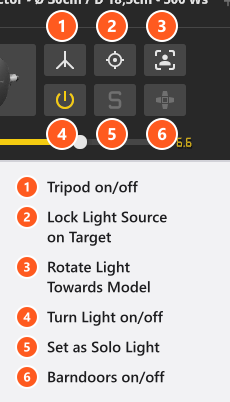
The buttons sit at the top of the inspector and again on the object controls floating next to the light in the studio view (0 shows and hides those, by default). A light shows up to six of them; a practical lamp has only two, which is why its row looks short. The keys below are the default bindings and can be changed — see Change a keyboard shortcut.
| Button | What it does | Key |
|---|---|---|
| Tripod on/off | shows and hides the stand | W |
| Lock Light Source on Target | switches target lock on and off | — |
| Rotate Light Towards Model | swings the light onto a model | — |
| Turn Light on/off | switches the light off without removing it | Q |
| Set as Solo Light | shows this light on its own | S |
| Barndoors on/off | only on equipment that has barndoors | — |
Q and S act on studio lights only. A practical lamp has both buttons in its inspector, but the keys do not reach it — and S with a practical selected switches an existing solo off instead.
How target lock works
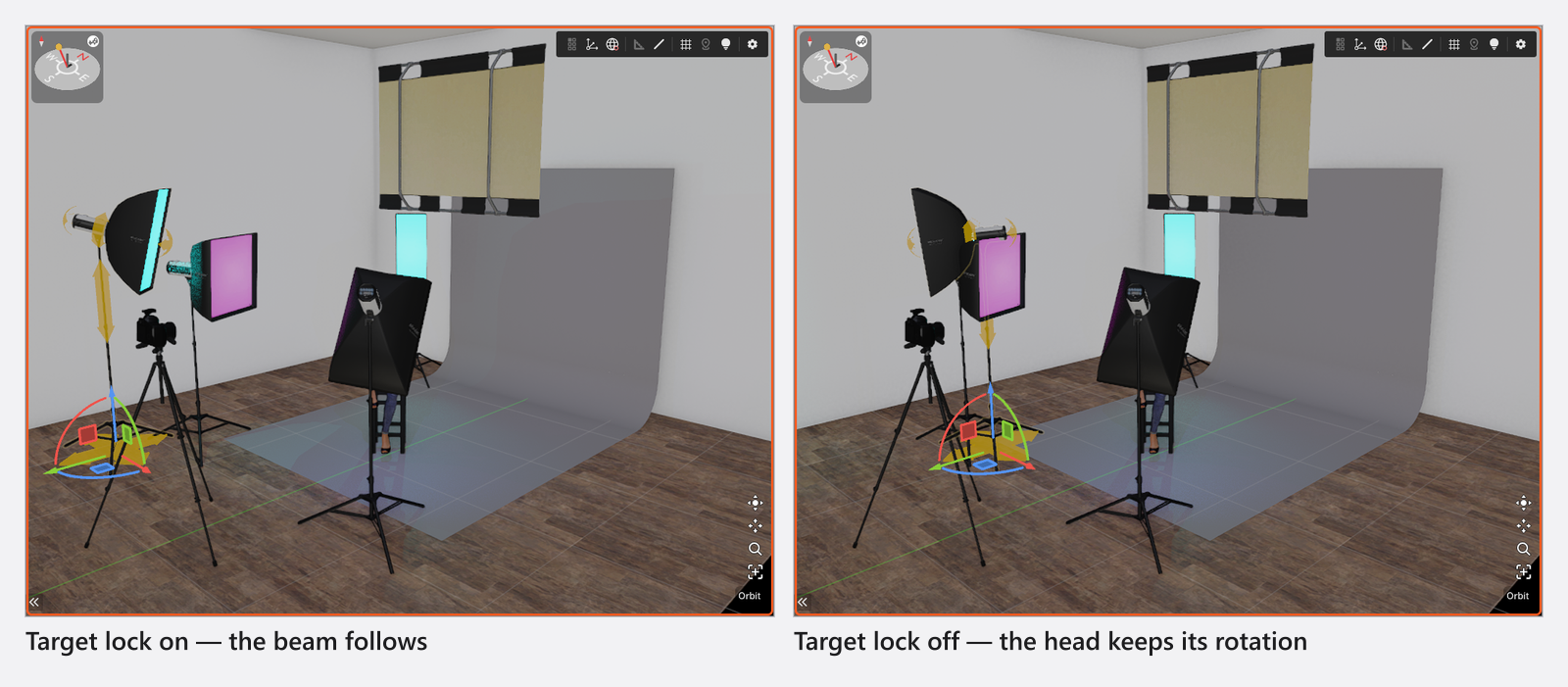
Every new light arrives with the lock on. What the program stores is not the model but a point: the moment you start dragging the light, it looks down the beam, takes whatever the beam hits, and keeps the head pointed at that spot while you move. So the light on the model stays put while its distance and angle change, and a feathered light stays feathered.
One consequence is worth knowing: if the beam hits nothing at all, the point lands far out in empty space along the beam direction, which is why a light aimed at the sky sometimes seems to “forget” its subject — aim it at something first, then move it.
With the lock off, the head keeps the direction it had, and moving the light sweeps the beam across the set.
How to aim a light at a model
- Select the light.
- Click Rotate Light Towards Model. → The light swings onto the model closest to its current direction and target lock is switched on in the same move.
- Click again to jump to the next model, which is how you cycle through a group shot.
Without a model in the set the aim does not change, but the button still switches the lock on. A light you drop into a set that already holds a model comes in aimed at it.
When the light keeps re-aiming itself
You type a head angle, the light takes it, and the next time you move the light the angle is gone.
The cause: editing an angle by hand does not switch target lock off. It clears the stored point, and your next move picks a fresh one from wherever the beam is then pointing.
To keep the angle, switch Lock Light Source on Target off before you set the angle, and the direction survives every move afterwards.
How to set height and angle by hand
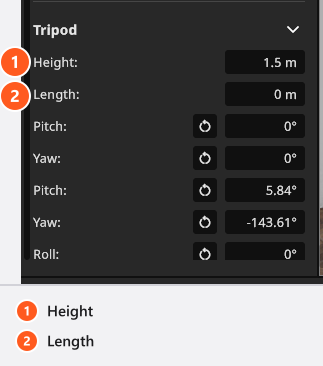
Under the button row sits the stand group. For lights it is always headed Tripod — all nine light stands are tripods to the program, including the two C-stands with a boom arm. It holds the numbers behind the on-screen handles. Which fields you get comes from two parts: the stand contributes the height, the boom length and the base angles, the fitted head contributes the head angles.
- Height — how far the head sits above the floor. Every light stand has it; a new light starts at
1.4 m. - Length — the reach of the boom arm. Both C-stands with a boom can be extended by dragging the arm handle, but only the C-Stand M w/ Boom also has the numeric field.
- Pitch and Yaw of the stand base — added by the C-Stand M w/ Boom only, and it has no base Roll.
- Pitch, Yaw, Roll of the head — where you tilt and pan the light itself. These come from the fitted head, not from the stand, which is why a missing head axis is not the stand’s fault. The reset arrow next to each angle sets it back to
0°.
Below it, Transform holds the position of the whole light in the room and its rotation on the floor, in the unit system you chose in the settings.
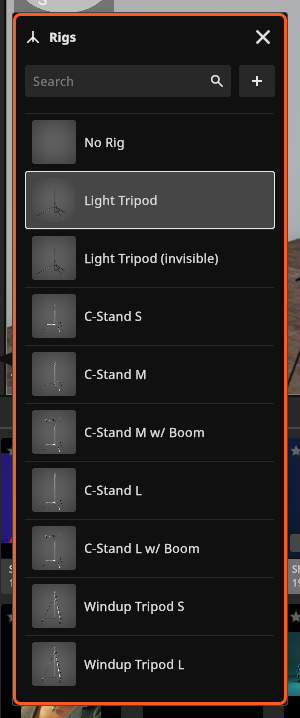
Pick the stand from the Rig button in the Equipment group. The choice is cosmetic for the light but not for the picture: stands are visible objects, and the Light Tripod (invisible) exists for a light that should look as if it hangs from a rail.
How to work in a crowded set
- Press
L(by default) to lock the lights you are done with. A locked object cannot be dragged by accident, so you can grab the one you mean. - Press
Sto solo a light: only its contribution is rendered, which makes it obvious what your aim is doing. Only one light can be solo at a time, and solo is stored with the set — it comes back when you load the project or apply the shot, so switch it off before you save. Deleting the soloed light clears it. Solo cannot be animated. - Press
Wto hide a stand that blocks the view.
Stand settings
The table covers every kind of stand. Target Locked and Target Point are camera fields; on a light the point is sampled from the beam and only reachable in the animation editor.
Stand / tripod
| Setting | Range | Default | Unit | Animatable |
|---|---|---|---|---|
| Base Rotation | depends on the object | 0 | ° | sometimes |
| Head Rotation | depends on the object | 0 | ° | sometimes |
| Height | depends on the object | 0 | m | sometimes |
| Length | depends on the object | 0 | m | sometimes |
| Offset | depends on the object | 0 | m | sometimes |
| Target Locked | on | yes | ||
| Target Point | 0 | m | yes |
Tips & limits
- A stand can disappear although its visibility is on: a stand whose model covers only a certain height range hides itself outside that range. The light stays exactly where you put it.
- Target lock, the target point and the stand angles can all be animated (add-on: Animation Tool). The target point of a light is reachable there and nowhere else, which is how a light follows a moving model — see Animate lights.
- A diffuser panel or scrim carries the same two aiming buttons with its own wording: Lock Diffuser on Target and Rotate Diffuser Towards Model; see Soften, bounce and subtract light. Reflectors have no aiming buttons at all.
Troubleshooting
- My stand vanished. The height you set is outside the range that stand model covers. Change the height or pick another stand.
- The light will not stay where I aimed it. Target lock is on and re-acquires a point on the next move. Switch it off.
- More symptoms: Lighting problems.