
 English
 Deutsch
 日本語
日本語 简体中文
简体中文 Français
A moving frame sells a set in a way a still cannot: a slow push-in on a face, a dolly past a car, a focus pull from the foreground to the eyes. The work is short — two keyframes carry a move — and the order matters more than the number of controls. This page runs one push-in on rails from a lit shot to an MP4.
Applies to STUDIO, CINEMA · Needs the Animation Tool add-on (included in the CINEMA trial) · The Film button and the wheeled mounts need STUDIO or CINEMA — in BASIC the add-on still animates a photo camera on a track · You need: a saved project with one lit shot, and the ANIMATION tab open in the library panel.
What you will have at the end
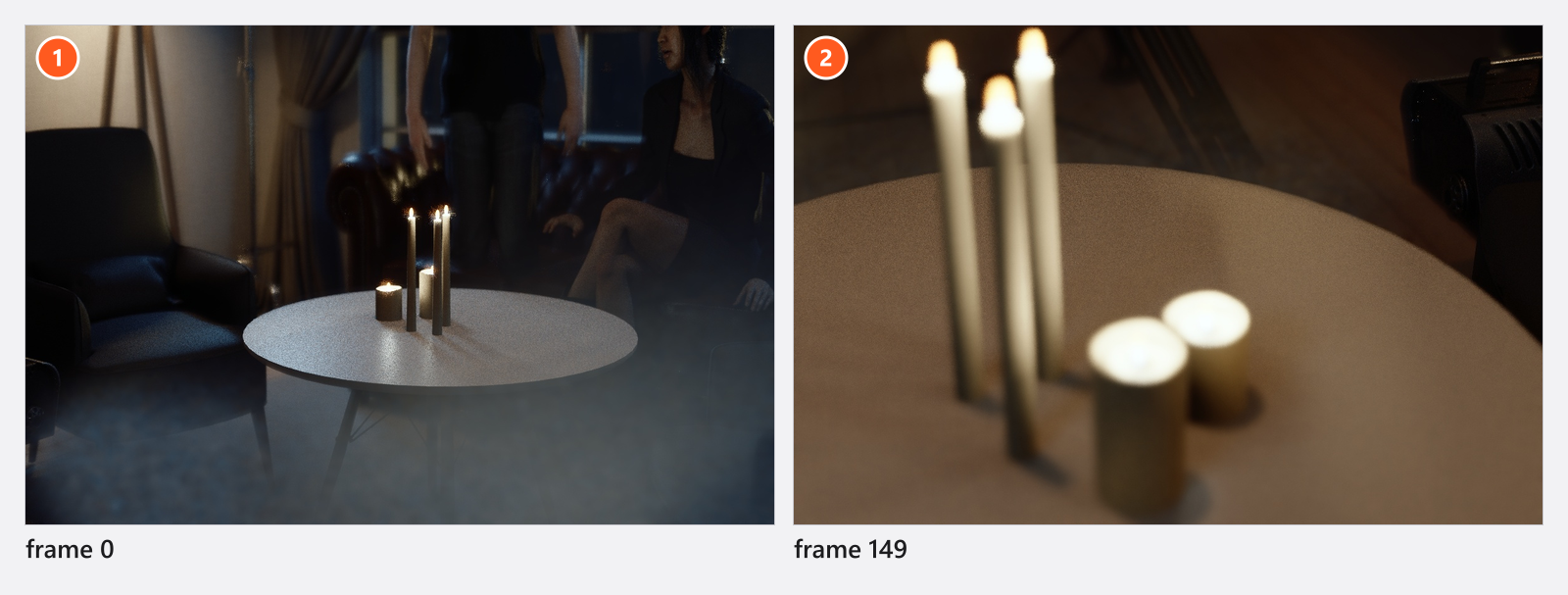
A five-second move that starts wide and ends on the frame you designed, eased at both ends, with the focus travelling with it — rendered as one video file.
The route
- Start from a finished frame and store it. Light the shot so that the end of the move is the picture you want, then take a snapshot: an animation lives inside a shot, and the render button stays inactive while no shot is loaded. See Take and manage shots.
- Switch the camera to Film. In the camera’s Settings group pick Film — in BASIC the button is inactive, so skip this stage and key the photo camera instead. In Film the aperture reads as T-stops, a Framerate appears and you set the exposure with a Shutter Angle.
180.0°is the everyday look;172.8°is the flicker-free angle for24 fpsunder 50 Hz light. See Film camera. - Put the camera on the mount the move needs, and build the track. A crane for a rise, a wheeled mount for a run. Then drag Rails out of the EQUIPMENT tab, add the segments, and drag the camera onto the track — one distance now drives the whole route. See Camera rigs and height and Build a dolly track.
- Set the length of the shot. Duration and Framerate at the bottom of the ANIMATION tab decide the frame count:
5s at30fps is 150 frames, and the file holds frames0to149. This Framerate is the animation’s, not the camera’s exposure framerate. See How animation works in a shot. - Key the end of the move first. Jump to the end of the ruler, step back one frame to
149, select the camera and insert a keyframe for the selected objects. → Every keyable camera setting gets a track. See Set and edit keyframes. - Pull the shot apart at the beginning. Go to frame
0, take the camera back and set a wider Focal Length, then key it again. → Widening the lens is what makes it a push-in rather than a plain move. On rails, key Rail Position at0and at the far end instead. - Watch it. Press
Ctrl/Cmd+Space(by default) and the studio view plays the move. It is the working picture: noise, depth of field and the finer lighting are not what the render will look like. - Ease it. Right-click the keyframe the movement leaves from — the one at frame
0— and pick an easing family in the In-Out column, so the camera starts and settles instead of stopping dead. See Shape the motion (curves and easing). - Pull focus. Switch Manual Focus on, key Focus Distance on the foreground at the start and on the model’s eyes at the end. With autofocus on, keys on that row change nothing. See Animate the camera.
- Choose the frame the shot shows. Put the playhead on the frame that represents the move and set it as the preview frame; that frame becomes the tile’s thumbnail and the frame any still render produces. See Work in the Timeline Editor.
- Put the move into the shot, then render it. Click Apply on the tile you started from — until you do, the tile keeps its still state. Then render a
Previewpass to judge the timing and aFinalpass for delivery. See Render a video.
The clip builds exactly this move in a minute, including the working-backwards order:
The decisions a pro makes
- Backwards, always. Frame the last picture first. The end of a move is the shot you are selling; the beginning only has to arrive there.
- Rails or free keys. A track keeps a long move straight and repeatable and turns it into one number to key. Free keyframes are better for a short drift where the path matters more than the geometry.
- How much movement. A push-in of half a metre reads on a face; two metres reads as a car ad. Decide it in the studio view before you key anything.
- One camera or a cut. Active Camera belongs to the set, so a shot can cut from one camera to the next — and it cuts hard, with no blend. Do not cut between a landscape and a portrait camera in one shot.
- Preview pass first. Timing is judged in
Preview, quality inFinal. A video costs one still render per frame, so time one still and multiply.
Pitfalls
- While the camera rides a track, keys on Position do nothing. Animate Rail Position, or drag the camera off the track.
- A mount with target lock on is aimed after the tracks are read, so it overrides a keyed head rotation. Key the target point instead, or switch the lock off.
- Keying the selected object records everything the camera has, exposure included. For a pure move, key the single rows you need.
- Aperture, ISO, exposure time and the ND filter are lists of fixed steps: key one per stop and do not smooth them.
- The last frame of the ruler is not in the file — a 150-frame shot ends at frame
149. Put the closing pose there. - The frame size of the file is fixed by the camera that is active on the first frame.
- Moving the camera does not blur anything: there is no motion blur in a render.
What you have now
- A shot in the TIMELINE that carries the animation, with a film icon on its tile.
- An eased push-in with a focus pull, and a preview frame that represents it.
- One MP4 per shot, ready to send: Hand over a shoot.
Troubleshooting
- Nothing moves, a key does nothing, the export is greyed out: Animation problems.
- The camera will not go onto the track, or its fields are greyed out: Camera problems.