
 English
 Deutsch
 日本語
日本語 简体中文
简体中文 Français
A model moves in two ways, and they work together. You can pose it yourself and store each pose as a keyframe, which is how you previsualise a shoot: the exact turn of a head, a hand that comes up to the face. Or you can drop one of the bundled movement clips on the model and let it walk, dance or idle through the shot.
Applies to BASIC, STUDIO, CINEMA · Needs the Animation Tool add-on (included in the CINEMA trial); clips of an imported object additionally need the 3D Import add-on · You need: a saved shot with a model, open on the SETUP tab with the ANIMATION tab active in the library panel.
Where to find it
Select the model: it appears as a row in the object list of the animation editor. Under it you will find its pose track and its clip lane, next to the ordinary rows such as Position and Height. Posing itself is covered in Pose a model.
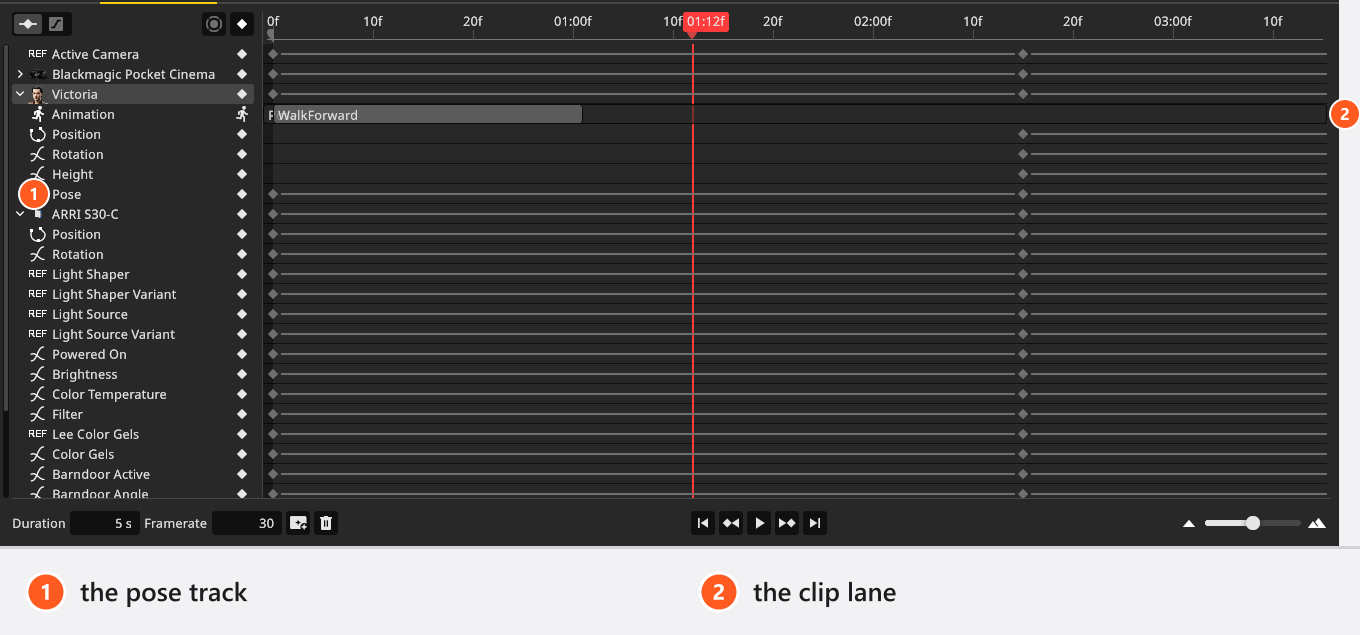
How to key a pose
- Put the playhead on the frame the pose belongs to.
- Pose the model in the studio view.
- Click Insert Keyframe and choose For Model Pose. → The model’s pose track gets a keyframe. The entry only appears in the menu while a model is the active object.
- Move the playhead to the next pose, change the model and insert a pose keyframe again.
- Press
Ctrl/Cmd+Spaceto play it back. → The model travels from pose to pose.
One pose keyframe holds every bone of the body and the facial expression, so a blink or a smile is part of the pose, not a separate track. The model’s Height is an ordinary row and is keyed on its own.
Between two pose keyframes the bones move in a straight line, at an even speed, and there is no easing to set on them. Where the movement should speed up or slow down, put more pose keyframes closer together.
How to use a bundled clip
45 movement clips ship with the program, from Idle1 to a catwalk, a jog and a dance.
- Select the model and find its Animation row in the object list.
- Click the
+on that row. → An empty clip lane appears. Nothing else happens yet. - Click the button on the new lane — it now shows a running figure instead of the
+. → The Animations window opens. - Pick a clip in the window and drag it onto the lane. → The clip sits at the frame you dropped it on.
- Play it back.
The clips are listed by their internal English names, in every language, each with a thumbnail. A small loop icon marks the ones that were made to repeat cleanly. Two of them carry the same name, Blow A Kiss — their thumbnails differ.
These are the clips you can choose from; the ones grouped as Looping are the ones with the icon.
Poses and animations
Other
| Name |
|---|
| Boxing |
| Catwalk1 |
| Kicking |
Looping
| Name |
|---|
| Blow A Kiss |
| Blow A Kiss |
| Catwalk Prancing |
| Crawling |
| Dance1 |
| Dance2 |
| Dance3 |
| Dance4 |
| Happy |
| Idle1 |
| Idle2 |
| Idle3 |
| Jogging |
| Jump |
| Looking Behind |
| Reacting |
| Sad |
| Singing |
| SittingTalking |
| Sleeping Moving |
| Sleeping Still |
| Slow Run |
| Sneaking |
| Standard Run |
| Swimming |
| TalkingOnPhone |
| Texting And Walking |
| Threaten |
| WalkForward |
| Walking |
| Walking Backwards |
| Yawn |
In the clip below the lane is created and two clips are dropped onto it.
How to place, trim and blend clips
Drag a clip along its lane to move it in time; its length does not change. The two edges do different things:
- The left edge moves when the clip starts and shortens it by the same amount. There is no separate in-point: the action still plays from its own beginning, so what you lose is the end of the movement.
- The right edge changes the length only, never the speed. Stretch a clip past its own length and it starts again from the beginning.
Right-click a clip for Fade In and Fade Out (English in every language) and drag to set how long the fade is. A fade can never be longer than the clip. Where a fade-in and a fade-out would overlap in one clip, the fade-in wins.
Two clips that overlap are not averaged: they are applied in the order they sit on the lane, so the later clip is mixed over the earlier one with the weight its fade gives it. Pose keyframes are the base underneath — the clips are blended on top of them.
Models that travel by themselves
Some clips move the model, some keep it on the spot; a walk carries the hips forward every time it repeats. Play a clip once before you add a Position track, or the model walks twice as far as you meant.
Imported 3D objects
An imported object brings whatever movement the program could read out of its file. Its clips appear in the same Animations window and can only be dropped on the object they came from. What arrives depends on how the file was exported — check the clip list in the importer before you plan a shot around it — and the movement is read as straight lines between its keys, which covers position, rotation and scale of the parts of the object.
See also Pose and animate an imported object. The clip below is titled for characters but shows exactly this: from 00:37 the + on the object’s Animation row, the Animations window, and one of the file’s own clips dragged onto the track.
Model settings you can key
Model
| Setting | Range | Default | Unit | Animatable |
|---|---|---|---|---|
| Abdomen | up to 1.5 | 1 | no | |
| Animation | yes | |||
| Arms | up to 1.5 | 1 | no | |
| Breasts | up to 1.5 | 1 | no | |
| Chest | up to 1.5 | 1 | no | |
| Height | depends on the model | m | yes | |
| Legs | up to 1.5 | 1 | no | |
| Locomotion | 0 – 1 | 0 | no | |
| Muscular | 0 – 1 | 0 | no | |
| Pelvis | up to 1.5 | 1 | no | |
| Pose | yes | |||
| Pregnant | 0 – 1 | 0 | no | |
| Weight | -1 – 1 | 0 | no |
The body sliders and the looks — skin, hair, make-up, glasses — are not keyable: a model’s build and appearance stay as they are for the whole shot.
Tips & limits
- Single keys cannot be copied or pasted. To repeat a pose, move the playhead and store it again.
- A clip that has no loop icon may jump visibly where it repeats. Check the wrap point before you stretch one.
- Deleting the model does not delete its tracks. Select the row that is left behind and press
Del(Backspaceon macOS, by default). - A copy of an animated model brings the whole animation with it — pose track, clip lane and all. Only the Position keys change: they are shifted by the offset the copy gets, so the second model walks its route beside the first one’s.
Troubleshooting
- The model twitches every few seconds. A clip without the loop icon was stretched past its own length. Shorten it, or use a looping clip.
- The model walks too far. The clip travels by itself and a Position track pushes it as well. Remove the Position track.
- For Model Pose is not in the menu. The active object is not a model. Click the model first.
- More symptoms: Animation problems.