
 English
 Deutsch
 日本語
日本語 简体中文
简体中文 Français
The Timeline Editor is the working view of the Animation Tool: one row per animated setting, one diamond per keyframe, a playhead you drag to scrub. Do not confuse it with the TIMELINE tab beside it — that panel holds the shots of your project, this one the frames of one shot. Use it for when something happens; the shape of a movement between two keys belongs to the Curve Editor.
Applies to BASIC, STUDIO, CINEMA · Needs the Animation Tool add-on (included in the CINEMA trial) · You need: the ANIMATION tab open in the library panel and a shot that carries at least one keyframe.
Where to find it
SETUP tab → library panel → ANIMATION. The left of the two view buttons above the object list is the Timeline Editor, the view the editor opens in.
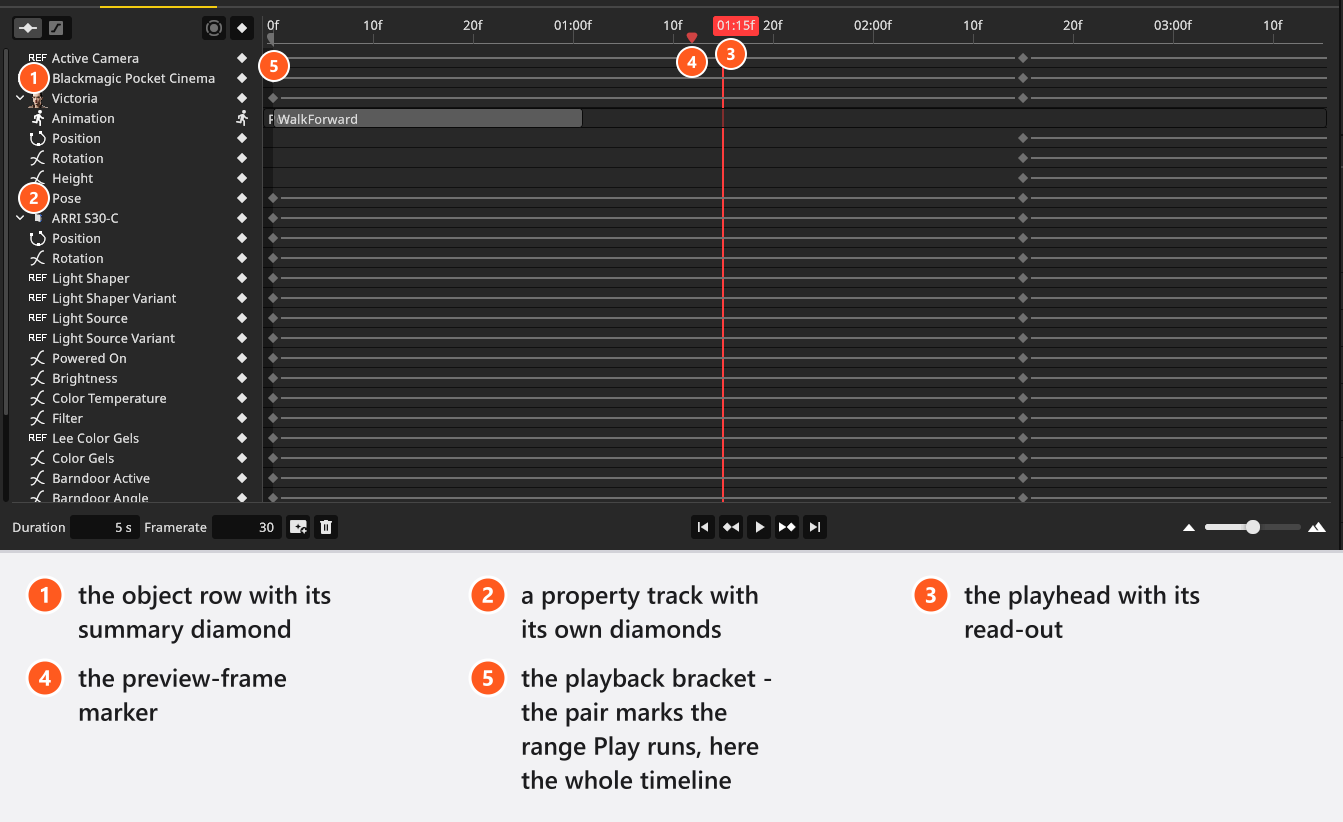
| What you see | What it means |
|---|---|
| Frame ruler | Time in seconds and frames. The playhead’s read-out matches: 04:29f is 4 seconds and 29 frames. |
| Playhead | The frame the studio view is showing. |
| Preview-frame marker | The frame the shot’s tile and any still render of the shot use. |
| Playback brackets | Two markers that limit playback to a section; a working aid, not saved. |
| Object row diamonds | The summary of the object’s tracks: a diamond wherever at least one has a key; picking it picks that frame on all. |
| Track rows | One row per keyed setting, aligned with the object list. |
What the frame-ruler menu offers
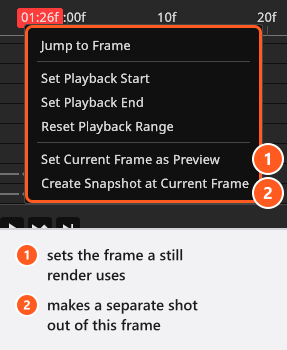
Right-click the frame ruler for six entries: Jump to Frame, Set Playback Start, Set Playback End, Reset Playback Range, Set Current Frame as Preview and Create Snapshot at Current Frame. All but the first are procedures of their own below. Jump to Frame moves the playhead to the frame under the pointer without re-evaluating the scene, so the studio view catches up on the next scrub.
How to move through the shot
- Click in the frame ruler and drag to scrub. The studio view follows.
- Double-click a keyframe to send the playhead to that frame.
- Use the transport buttons at the bottom: Jump to Beginning, Previous Keyframe, Play / Pause, Next Keyframe, Jump to End. The two keyframe buttons jump to the nearest keyframe in that direction, across all tracks and not just the selected row, and stop at the outermost key. Clips in a lane do not count.
- Jump to End goes one frame past the last rendered frame: a 5-second shot at 30 fps ends at frame 150, and the video holds frames
0to149. - Press
Spaceby default with the pointer over the editor, orCtrl+Space(Cmd+Space) anywhere in the SETUP tab.

Playback loops: at the end of the shot — or of the range — it starts again at the beginning of that range. What plays is the studio view, not the render, and it runs in real time, so on a heavy set the preview skips frames: the timing stays right, the motion looks choppy, and the rendered video draws every frame.
How to zoom and pan
The zoom slider in the bottom right and the mouse wheel do the same job: across the slider the time axis runs from about 200 pixels per frame down to half a pixel per frame.
From 01:22 the clip uses all three:
- Mouse wheel — zooms the time axis, anchored on the pointer.
- Right or middle mouse drag — slides the view.
- The slider: dragging it left zooms in, right zooms out.
How to loop a section
- Right-click the frame ruler at the first frame of the section and choose Set Playback Start.
- Right-click at the last frame and choose Set Playback End, or drag the two bracket markers.
- Put the pointer over the editor and press
Space, or pressCtrl+Space(Cmd+Space) anywhere in the SETUP tab. → Playback now loops inside the brackets only. - Reset Playback Range in the same menu returns to the full length.
The brackets are not clamped to the shot: one can sit before frame 0 or past the last frame. A range of zero length sends playback to frame 0 instead of the range, so keep at least one frame between them.
From 00:42 the quick tip loops a one-second range:
How to set the preview frame
An animated shot needs one representative frame, for its tile and for any still image of it.
- Move the playhead to the frame you want.
- Right-click the frame ruler and choose Set Current Frame as Preview. → The preview marker moves there, and rendering this shot as an image now renders exactly that frame.
The preview frame is saved with the shot: re-opening an animated shot puts the playhead back on it, not on frame 0, and resets the playback range to the full length.
How to turn a frame into its own shot
- Move the playhead to the frame you caught while it played.
- Right-click the frame ruler and choose Create Snapshot at Current Frame.
The new shot is added to the TIMELINE right behind the shot it came from, in the folder you are working in, and it is selected for you. It holds the scene exactly as it looks at that frame but carries no animation, so it behaves like any hand-built shot. Its title is a fresh, timestamped shot name with the frame number appended — Shot-<date>-<time> Frame <n>, not the name of the shot you took it from, so search the TIMELINE for the frame number. That suffix is English in every language. The animated shot keeps its animation, and one undo removes the new shot again.

The quick tip shows where the new tile lands in the TIMELINE:
The Snap button at the end of the TIMELINE panel behaves differently: it copies the shot with its animation and stores the frame you stand on as the copy’s preview frame.
Shortcuts
Which row applies depends on where the pointer is: over the frame area the delete key removes the selected keyframes, over the object list the whole row.
Animation Editor
| Action | Windows | macOS | Can be changed | Notes |
|---|---|---|---|---|
| Delete the selected keyframes | Del | Fwd Del, Delete | yes | Delete works on macOS only |
| Fit the curves into the curve editor | F | F | yes | |
| Play or pause the animation | Space | Space | yes |
| Gesture | In the timeline editor |
|---|---|
| Mouse wheel | Zoom the time axis, anchored on the pointer |
| Right or middle mouse drag | Pan the view |
Shift + left drag |
Draw a selection box over keyframes; add Ctrl (Cmd) to keep what was selected |
Tips & limits
- The playback range, the playhead, the zoom and the pan belong to the session, not to the shot.
- The delete button next to the render button clears every keyframe of the shot after a confirmation, and it is one undo step; to remove one object’s animation, select its row and press
Del.
Troubleshooting
- Playback stutters. Real-time playback skips frames on a heavy set; the render is smooth.
- Playback restarts at frame 0. The two brackets sit on the same frame.
- A still render shows a different frame than the screen. Still renders use the shot’s preview frame.
More in Animation problems.