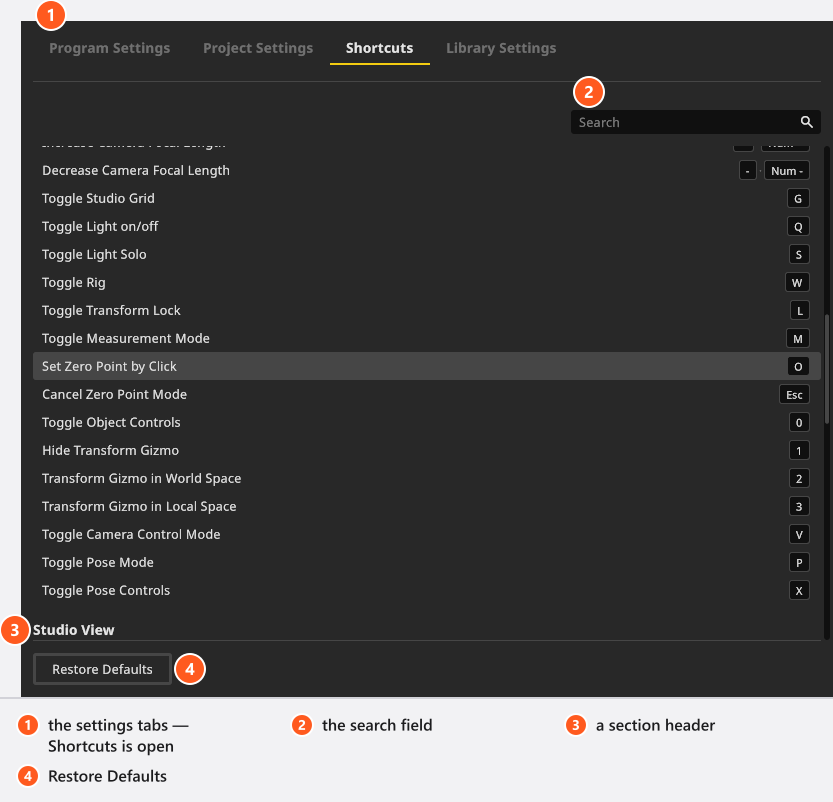
This page is the lookup table: every key, mouse button and gesture set.a.light 3D binds, grouped by the part of the window that listens for it. Use it to find the key for a job you keep doing with the mouse — taking a shot, isolating one light, hiding the panels, framing the studio view on the object you are editing.
Applies to BASIC, STUDIO, CINEMA · A few rows only do something with the Animation Tool add-on.
Everything below is a default. Since 3.1.14 you can change almost any of it: Settings → Shortcuts… opens the editor, and Change a keyboard shortcut walks through it. If a key on your machine does something else, look it up there first — a changed row carries a modified badge.
The Shortcuts page lists every action with its current key
How to read the tables
The Windows and macOS columns print the combination the way the program writes it. On macOS press Cmd wherever Windows uses Ctrl, and read Enter as Return.
The names of the keys follow your interface language. These tables are the English ones, so a German app writes Strg for Ctrl, Entf for Del and Eingabe for Enter; the key on the keyboard is the same one either way. A name that has not been translated yet stays English.
Most keys are not global. They belong to one part of the window, and the tables are grouped accordingly.
A few keys do two jobs in the same view: + and - change the focal length of a camera or the power of a light, depending on what is selected when you press them.
Shift + left-drag draws a selection box in the studio view while you are in object mode; hold Ctrl (Cmd on macOS) as well and the box adds to the selection instead of replacing it.
Dispatch follows the pointer, not the panel you clicked last. set.a.light 3D looks at the element under the mouse and walks outwards from there until a panel claims the key. Only when none of them does is the key offered to the Global rows. So the same key can legally mean two things:
Inside the SETUP tab 0 shows or hides the object controls — over the studio view and over the TIMELINE alike, because the timeline is part of that tab. The rating keys 0–5 are Global rows, so they get through where no panel claims the digits: over the TIMELINE of the RENDER and the PLANS tab, for example. At least one shot has to be selected.
G shows the composition guides over the camera preview and the floor grid over the studio view; F shows the focus guide over the preview and frames the selection in the studio view; H shows the histogram over the preview and the reference image everywhere else.
Two things switch keys off completely: a text field or the embedded browser has the text cursor, or a mouse button is held down — during a drag no key fires. A modal dialog does something narrower: it switches the Global rows off, while the keys of the dialog itself keep working. So a key that looks dead is usually a pointer that sits in the wrong panel. Esc closes the open dialog, and typing any character jumps into the search field of a selection popup; neither row is in the editor, so do not go looking for them there.
A note on the locked objects in the set list: selecting everything in the set selects them too. What locking prevents is transforming them — the move, rotate and nudge commands skip a locked object, the selection does not.
The editor sorts the same rows into eleven sections, in this order: Global, Studio, Studio View, Camera Preview, Set List, Timeline, Library, Image Viewer, Animation Editor, Animation Targets, App Manager. The tables below use those names, in that order, so a row is in the same place on this page and on the screen.
Five places share their keys with one of those sections instead of getting one of their own: the two community share views, the shot view of the PLANS tab, the 3D object importer and the set list. Change the key once and all of them follow.
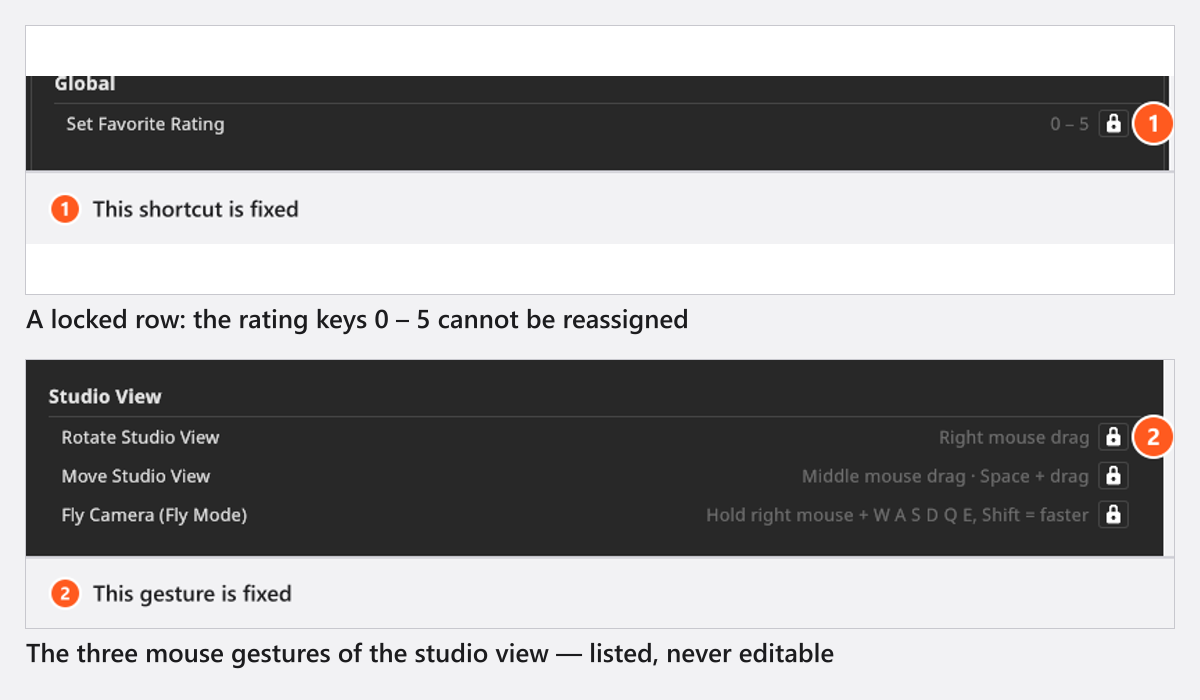
Three groups are locked. A locked row shows a padlock with the tooltip This shortcut is fixed, and a gesture row This gesture is fixed:
Locked rows
Why
Set Favorite Rating in Global — a single row for the whole keyset 0 – 5, on the number row and on the numeric keypad
The program marks this one fixed
Move Studio Object in Studio — a single row for the keyset Arrow Keys · PgUp · PgDn — and the four shot-selection rows of Timeline, each of them Arrow Keys
They accept any modifier key, and a combination like that cannot be recorded
The three mouse gestures — Rotate Studio View, Move Studio View, Fly Camera (Fly Mode)
Read-only rows; they describe the mouse, not a key
Everything else can be changed. The fly keys are not a row at all: WASDQE are polled while the right mouse button is held, and no key binding fires during that drag.
The rows of both sections appear in the editor whether or not you own the add-on. It is the commands the licence gates: playback works in every edition, while inserting and removing keyframes, removing animation targets and fitting the curves into the curve editor need the Animation Tool add-on — see How animation works in a shot.
The 3D views share the same navigation. Orbit turns the camera around the point you look at, Fly moves it like a first-person camera — press V to switch between them.
How the studio camera is steered — Space and drag to pan, the right mouse button to orbit, WASDQE and Shift to fly — is explained step by step in Move around the studio.
A key does nothing. Move the pointer into the panel you want to control, leave any text field and close an open dialog, then press it again. If it still does nothing, check whether the row was rebound: Change a keyboard shortcut.
You are currently viewing a placeholder content from Facebook. To access the actual content, click the button below. Please note that doing so will share data with third-party providers.
You are currently viewing a placeholder content from reCAPTCHA. To access the actual content, click the button below. Please note that doing so will share data with third-party providers.

 English
 Deutsch
 日本語
日本語 简体中文
简体中文 Français