
 English
 Deutsch
 日本語
日本語 简体中文
简体中文 Français
Two keyframes decide where a value starts and ends; the Curve Editor decides what happens in between — whether a camera glides in and settles softly, snaps into place, or overshoots and comes back. This is where acceleration lives: easing, speed ramps and the shape of a camera path in space.
Applies to BASIC, STUDIO, CINEMA · Needs the Animation Tool add-on (included in the CINEMA trial) · You need: the ANIMATION tab open and a track with at least two keyframes.
Where to find it
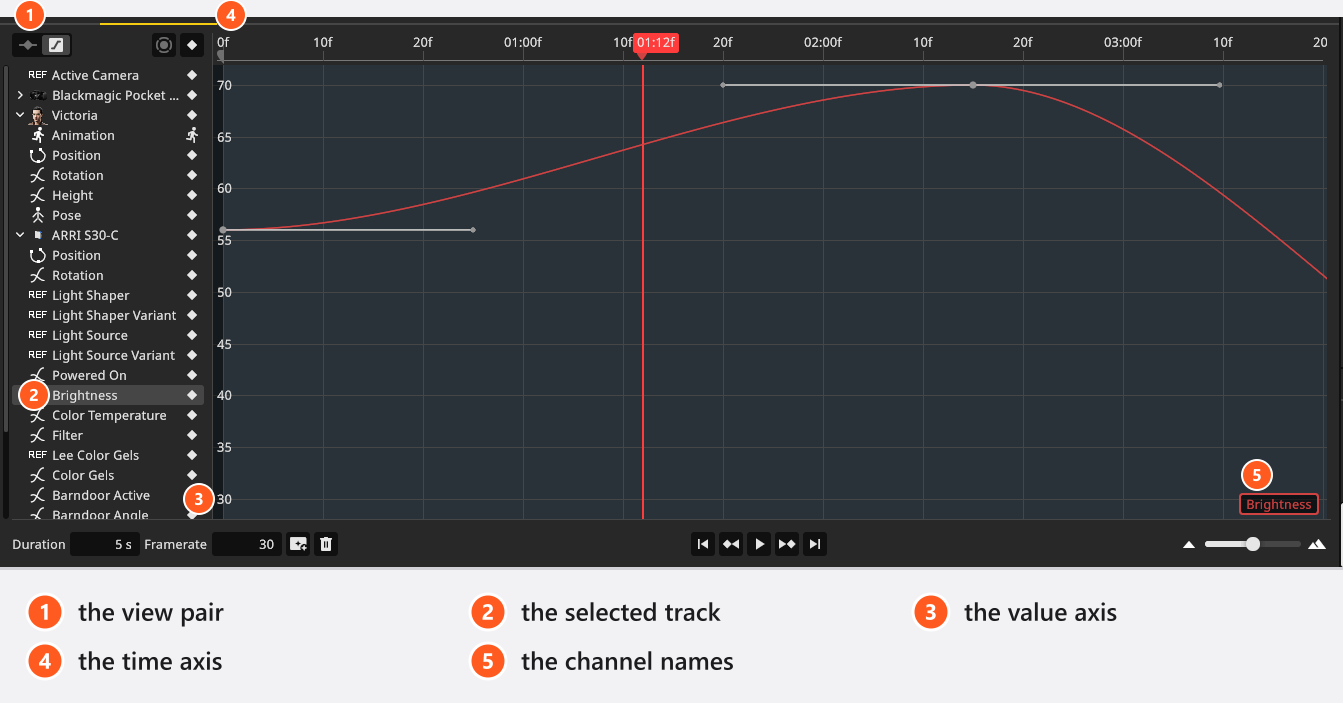
SETUP tab → ANIMATION → the right of the two view buttons above the object list switches to the Curve Editor. Click a track row and its curve appears; the editor shows exactly one track.
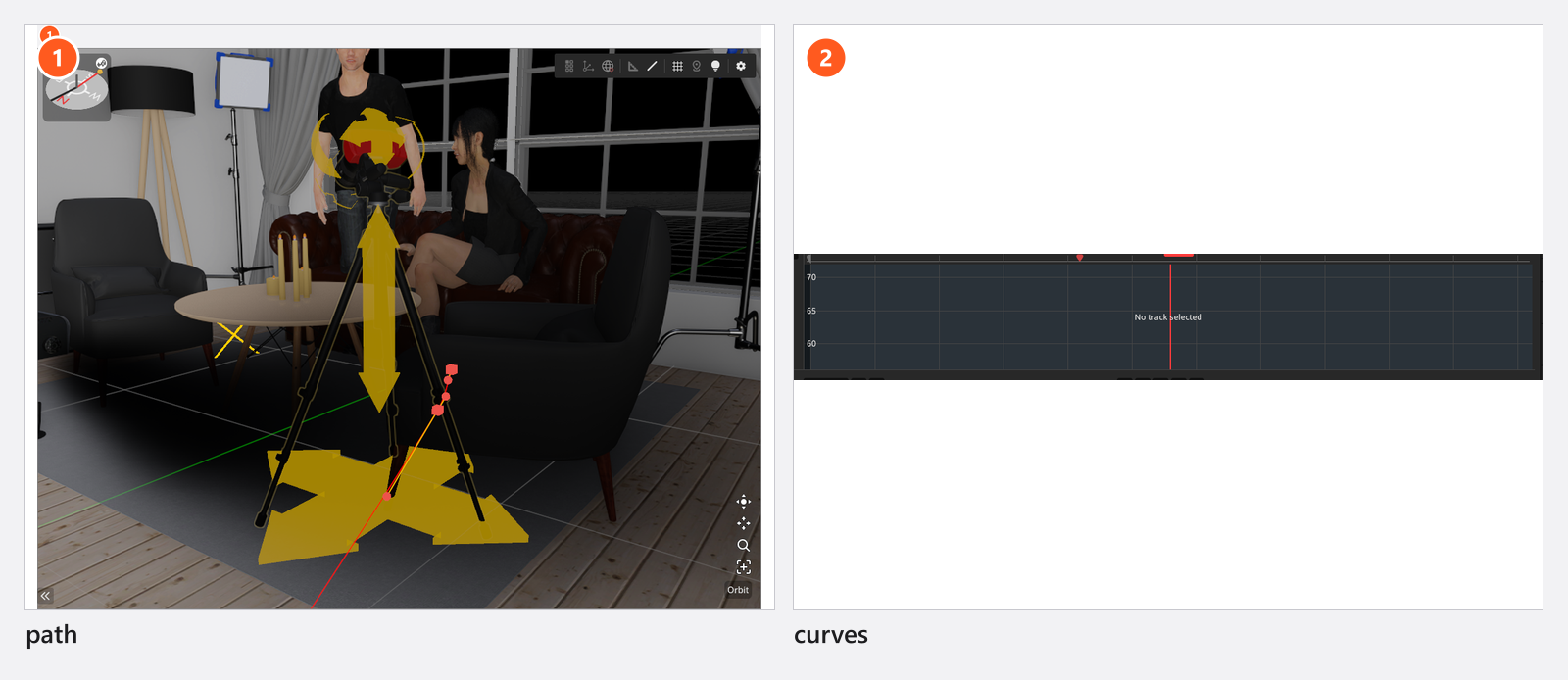
Three kinds of track have nothing to draw and say so: a clip lane reports Curve editing not supported for animation track, a reference track such as Light Shaper reports Curve editing not supported for reference track, and a pose track — like an object row — reports No track selected. All three stay English in every language.
How to read the view
Time in frames runs across, the value runs up. A setting with several channels draws one colour-coded curve per channel, labelled in the bottom right corner — X, Y, Z, and X, Z, Y on a Position track; a single-channel setting carries its own name there, and a Position path shows one channel, Distance, the travel along the path. Only three labels exist, so a four-channel track — Barndoor Angle — draws four curves and names three.
- Mouse wheel — zoom the time axis, anchored on the pointer.
Shift+ mouse wheel — zoom the value axis.- Right or middle mouse drag — pan.
Fby default — fit the curve into the height of the view.- Double-click the curve — add a keyframe there, anywhere between its first and last key. Curve tracks only: a Position path takes no new key in this view.
How to ease a movement
- Click the track row so its curve is on screen.
- Right-click the keyframe the movement leaves from — here or its diamond in the Timeline Editor; both open the same popup.
- Pick a family and a flavour. → Play: the value now travels differently between the same two keys.
The popup is a grid of four columns and ten rows — 33 modes. Its headers are English in every language.
| Column | What it does |
|---|---|
| Default | Bezier — smooth, shaped by the handles. Linear — a straight line to the next key. Constant — hold the value, then jump at the next key. |
| Out | Fast at the start, slowing towards the next keyframe. |
| In | Slow at the start, accelerating into the next keyframe. |
| In-Out | Slow at both ends, fastest in the middle. |
The ten families are Quadratic, Cubic, Quartic, Quintic, Sine, Circular, Exponential, Elastic, Back and Bounce. Quadratic to Quintic accelerate ever harder, Sine and Circular are gentle, Exponential is extreme. Elastic and Back overshoot the target and come back; Bounce rebounds inside the transition without ever passing it.
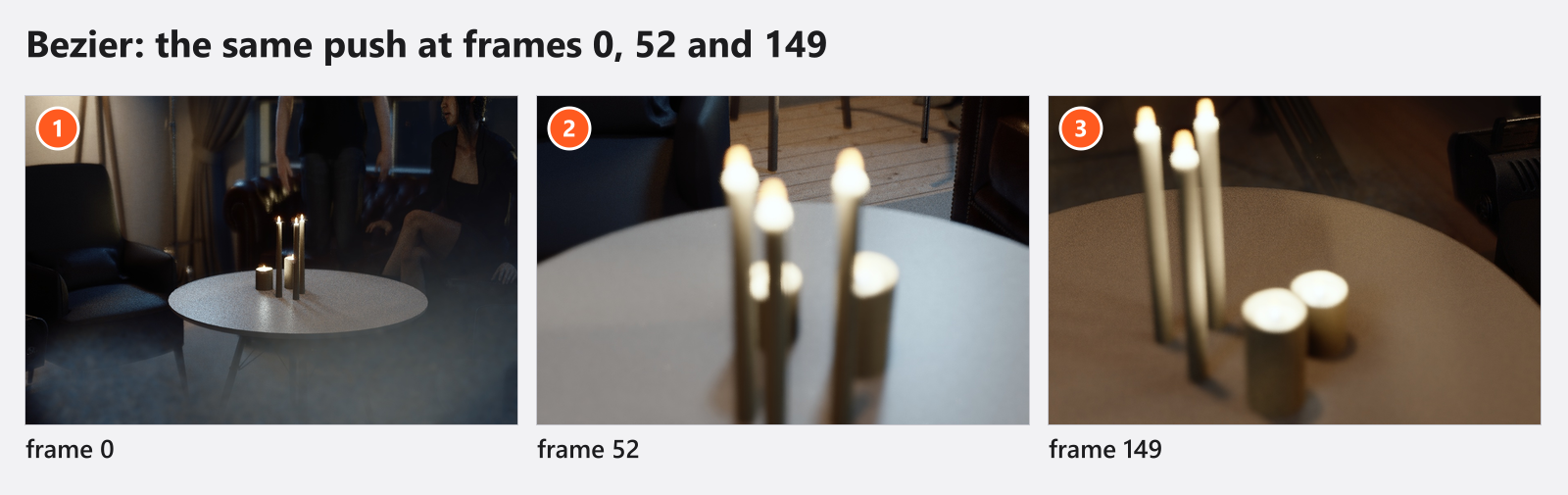
Two rules save confusion. The mode belongs to the keyframe the segment departs from, so it governs the stretch to the next key — for a falling object it goes on the key at the top, not the landing key. And picking a mode never adds a keyframe and never puts a ready-made movement on an object: it only changes how the value travels between your own keys.
The quick tip below shows the workflow and calls the easing “a ready-made animation” — it is not. The program uses that phrase for the movement sliders a prop brings and for the clips a model can play.
How tangent modes work
A Bezier segment is shaped by the handles sticking out of its keyframes. Drag one to shape the transition, hold Alt (Option) to break the pair and steer both sides separately, and hold Shift to snap a handle to steps of 90°. A Linear or Constant segment has no handles.
Right-click a handle — not the keyframe — to pick how the pair behaves.
| Mode | Behaviour |
|---|---|
| Automatic | Computed from the neighbouring keys and held back so the curve never overshoots them. Flat at peaks and dips. |
| Free | Both handles move on their own, for a deliberate corner; dragging with Alt does the same. |
| Aligned | Both stay on one straight line, so the curve passes through the key without a kink; their lengths stay independent. |
| Vector | Both handles point at the neighbouring keys, for a straight-line feel through the keyframe. |
A new key on a numeric track starts as Bezier with Automatic tangents, so picking those two returns it to how it arrived. A key on a switch or a drop-down starts — and stays — Constant.
Paths and curves
Position is treated differently from every other setting. Keying it creates a path: a Bezier curve through your keys, drawn as a red line in the studio view while the object is selected. Drag the point and handle gizmos there to shape the route in 3D, and double-click a point to send the playhead to its keyframe. In the Curve Editor the path shows only its Distance channel, so this is where you retime and ease the travel — not where you bend it, and not where you add to it: new keys come from the object list, by moving the playhead, placing the object and keying its Position row.
The intro tutorial bends a path into an S-curve camera move:
For per-axis control, right-click the Position row in the object list and choose Convert to Curves: the path becomes three curves, labelled X, Z, Y after the studio’s own axis names — the second is the height, the third the depth, as in the inspector. Every key comes across with Automatic tangents, so convert first and shape afterwards. The drawn route stays visible either way, so only the object list tells you which form a track is in.
Convert to Path goes the other way and brings the keys with it: the path takes a key wherever a curve had one, at the value the curves hold there. The positions match, the timing between them does not.
Add keys by double-clicking the curve, or from the right-click menu — Insert Keyframe X, Y and Z land on the curve with the same label.
Tips & limits
- Modes are per keyframe, not per track: a Sine entry and a Bounce landing on one track is normal practice.
- The time axis is shared with the Timeline Editor; only the value axis belongs here, and
Ffits only that one. - Pose tracks carry no mode of their own — see What can be animated.
Troubleshooting
- The movement runs differently after Convert to Path. The keys are all there; only the interpolation changed.
- A curve has four lines and three labels. A four-channel track; the unnamed line is the fourth channel.
- A Position track is labelled X, Z, Y. Correct — the labels follow the studio’s axis names, so
Zis the height.
More in Animation problems.