
 English
 Deutsch
 日本語
日本語 简体中文
简体中文 Français
Once a set of shots is rendered, the RENDER tab is where you choose which ones to deliver: side by side in a grid, or one at a time at 100 %, with a star rating and the camera data of every shot within reach.
Applies to BASIC, STUDIO, CINEMA · You need: a project with at least two rendered shots, and the RENDER tab.
Where to find it
Your shots are listed on the left, the gallery fills the middle, and the two buttons at the right end of the bottom toolbar switch between the single view and the grid. The panel on the right always shows the data of the shot that is active.
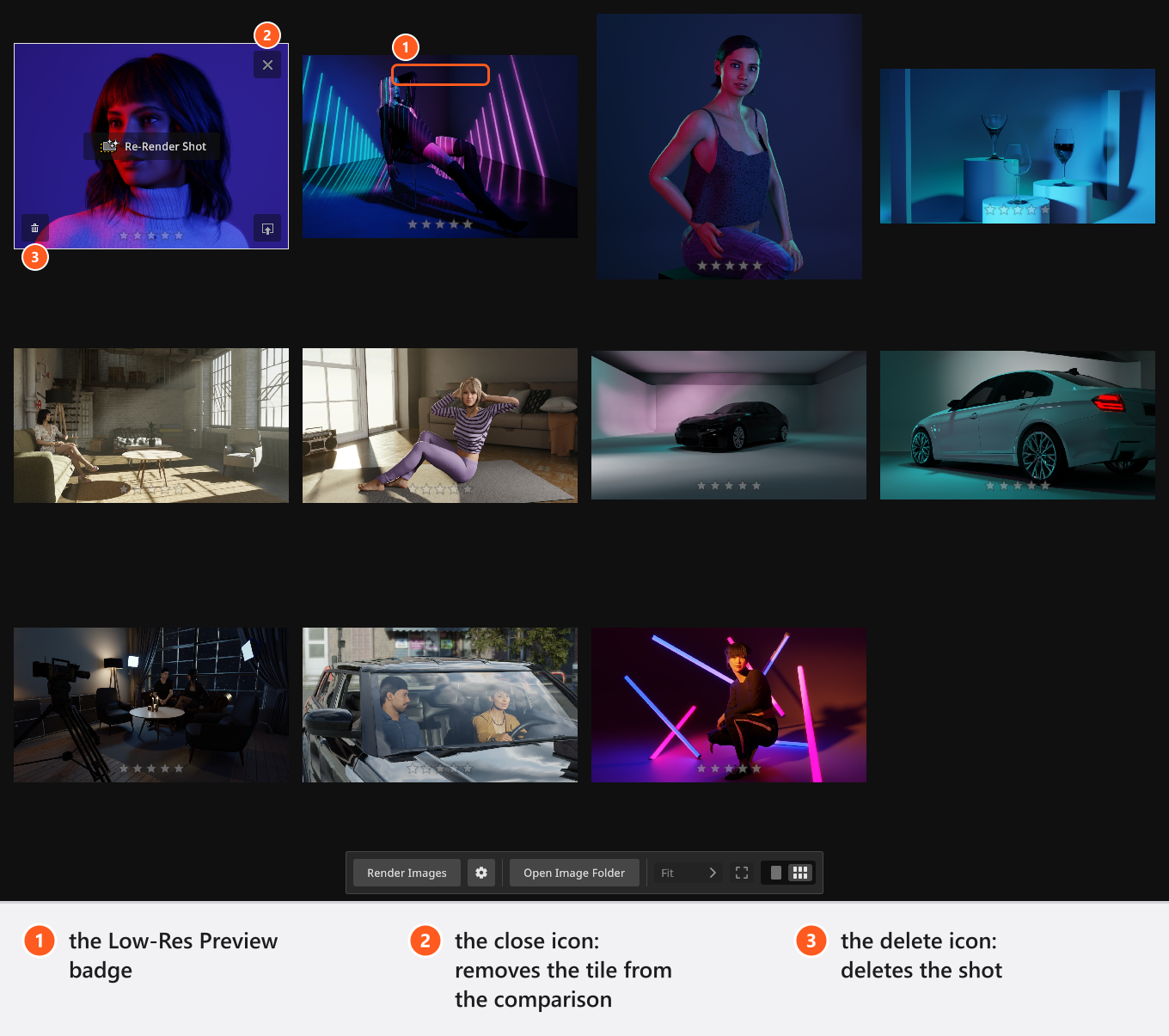
A picture with the badge Low-Res Preview is not a render: the gallery is showing the 512-pixel image stored with the shot, either because it has never been rendered or because its file is still loading. The badge stays English in every interface language.
One image, or the grid
- Select one shot to look at it on its own; select several to compare them.
- Changing the selection switches the view for you: more than one shot goes to the grid, a single shot to the single view.
- The two buttons in the bottom toolbar override that choice at any time.
Zoom and pan
Zoom works in the single view only.
- The list in the bottom toolbar offers fixed steps from 10 % to 1000 % plus Fit; the button beside it fits the image to the visible area, and
Fdoes the same, by default. - The mouse wheel zooms continuously, around the pointer — put the pointer on an eye and the eye stays where it is.
- Hold
Ctrlwhile you use the wheel for very fine steps, for judging sharpness at around 100 %. - Drag with the mouse to pan a zoomed picture.
Step from shot to shot
Left and Right step to the previous and next image, by default, and switch to the single view while they do. With one shot selected they walk through the shots the list is currently showing — the group and the star filter both apply — and wrap around at the end; with several shots selected they stay inside that selection. That is the fastest way to judge a series at a constant zoom.
Compare several renders
- Select the candidates in the list on the left. → The gallery switches to the grid and shows them side by side.
- Point at a tile you have ruled out and click the close icon. → That shot leaves the comparison; the remaining tiles grow. The close icon only appears while more than one shot is selected.
- Look closely at the picture you are unsure about: select it alone, use
F, then zoom to 100 %. → The single view shows it at the size you deliver.
The close icon takes a tile out of the comparison. The icon beside it, the waste bin, deletes the shot itself and asks for confirmation first (Delete Shot). Deleting a shot does not delete its rendered JPG from the folder.
Rate the shots and filter by rating
Every tile carries five stars, and so does the single view.
- Click a star to set that rating; click the star that is already set to go back one step.
0to5set the rating of the active shot from anywhere in the program. These twelve keys — the number row and the numeric keypad — are fixed and cannot be reassigned in the shortcut editor.- The star row above the shot list is a filter, not a rating: set it to three stars and the list shows only shots rated three or better.
Ratings are stored with the shot, so they survive saving, and they are what you sort a shoot with. See Take and manage shots.
Read the data of a shot
The panel on the right belongs to the active shot and holds everything you need in front of a client:
- the shot title, editable in place — renaming the shot renames its JPG with it, and if that file cannot be moved the title stays as it was rather than losing the picture. A title longer than 50 characters is shortened, and a duplicate one is made unique;
- Camera with the histogram of the picture and the full exposure block: camera and lens with the focal length, sensor, framing, shutter, aperture, ISO, ND filter and white balance;
- Top View, the plan of the set as it was when the shot was taken;
- Internal Note, your own text for this shot — it stays in your project: it is never printed on a set plan and it is not part of a community upload either;
- Set List, everything that stood in the studio for that shot.
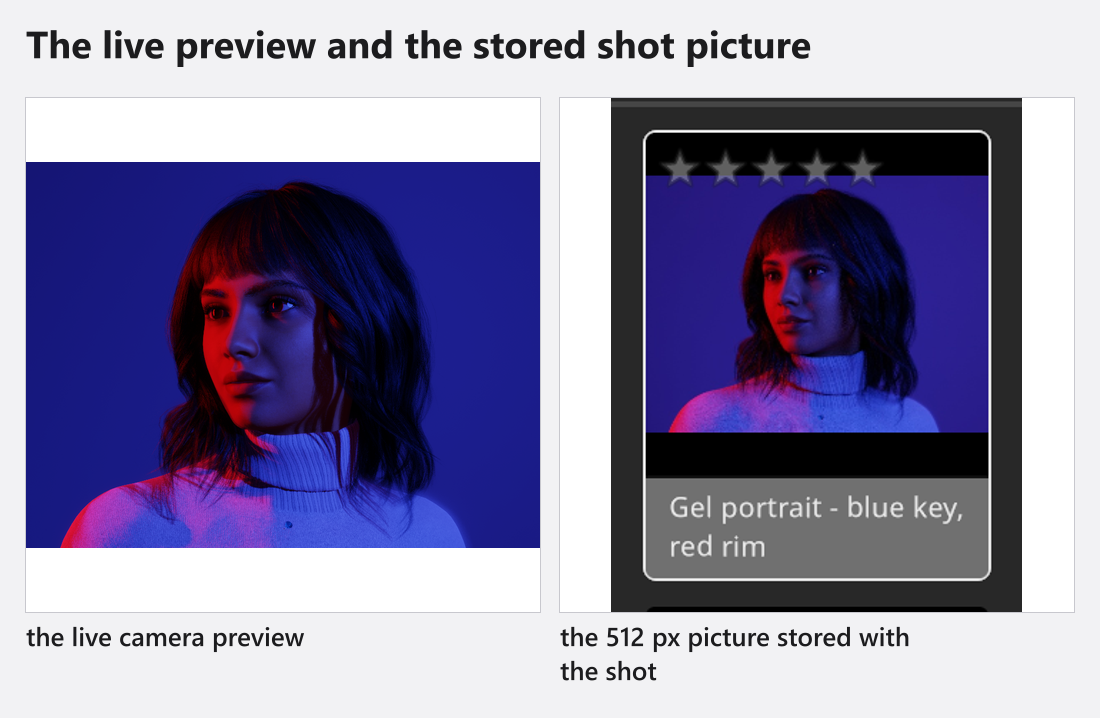
The histogram reads the picture that is on screen. While a render is still loading — or for a shot that has none — it therefore describes the stored 512-pixel image, not your render. Wait for the badge to disappear before you read tonal values off it.
Tips & limits
- The icons on a tile you point at also let you render the shot again (Render Shot, or Re-Render Shot once it has an image) and load it back into the SETUP tab. In the single view the same button always reads Render Shot.
- The gallery shows the shots you have selected, not the whole project. If a picture you expect is missing, check the group and the star filter above the list.
- There is no comparison slider and no A/B overlay: comparing means the grid, or stepping through the single view at a fixed zoom.
Troubleshooting
- A picture stays at
Low-Res Preview, or my renders cannot be found. → Render problems - The gallery reacts slowly with many large images. → Make it faster