
 English
 Deutsch
 日本語
日本語 简体中文
简体中文 Français
set.a.light 3D keeps two lists open while you work, and they answer two different questions. The SETLIST in the bottom right answers “what is standing in my studio right now?”; the TIMELINE in the bottom left answers “which shots have I already taken?”. Neither of them is the frame ruler of the ANIMATION tab — that Timeline Editor is a third thing.
Applies to BASIC, STUDIO, CINEMA · The light meter row needs STUDIO or CINEMA · You need: a project open on the SETUP tab.
Where to find them
Both sit at the bottom of the SETUP tab. The TIMELINE is one of the tabs of the library panel on the left, next to ANIMATION, MODELS, LIGHTS, EQUIPMENT and ASSETS; N folds that panel away. The SETLIST shares the panel on the right with TOPVIEW.
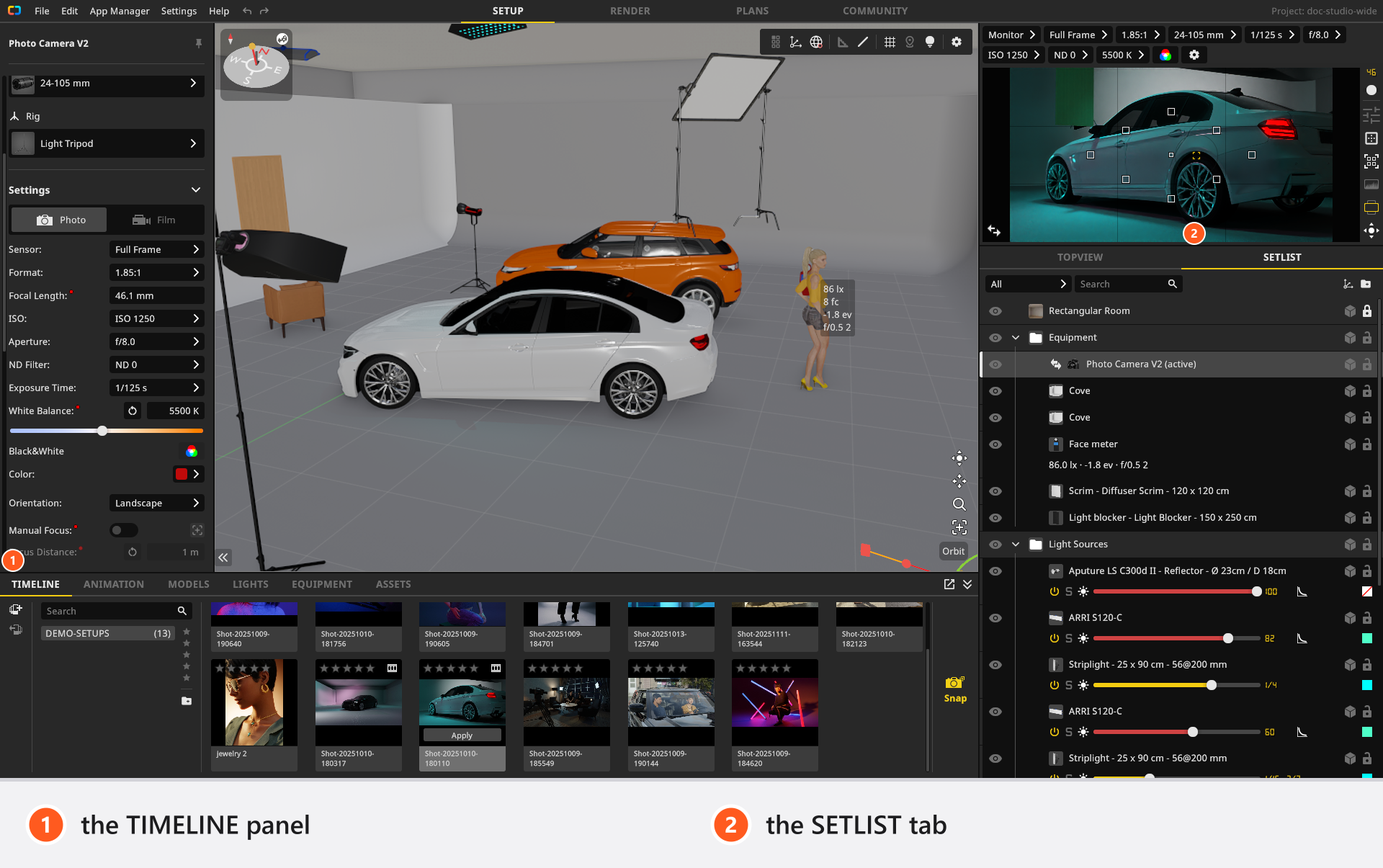
On a fresh installation the right-hand panel opens on TOPVIEW. Click SETLIST once and it stays.
Every key named on this page is the default binding — see Change a keyboard shortcut.
What the set list shows
Everything you put into the studio appears here: the environment, the room, equipment, lights, props and models. The list mirrors the structure of your set — objects sit under the group, axis or wall they belong to, and a fold arrow hides what sits under a row. Selecting a row selects the object in the studio, and the other way round.
Anything you drop into the studio is filed into the group of its category — Equipment, Light Sources, Props or Models — and that group is created the first time it is needed. Drag rows out of it when the automatic sorting is not what you want. The Environment row is the exception to “everything is listed”: it disappears while the camera stands inside a closed room, and also as soon as you type in the search field or pick any category but All.
The dropdown above the list filters by category (All, Equipment, Light Sources, Props, Models), the field next to it by name.
The row controls
Which controls a row carries depends on what the row is. These are the ones that appear on an object row:
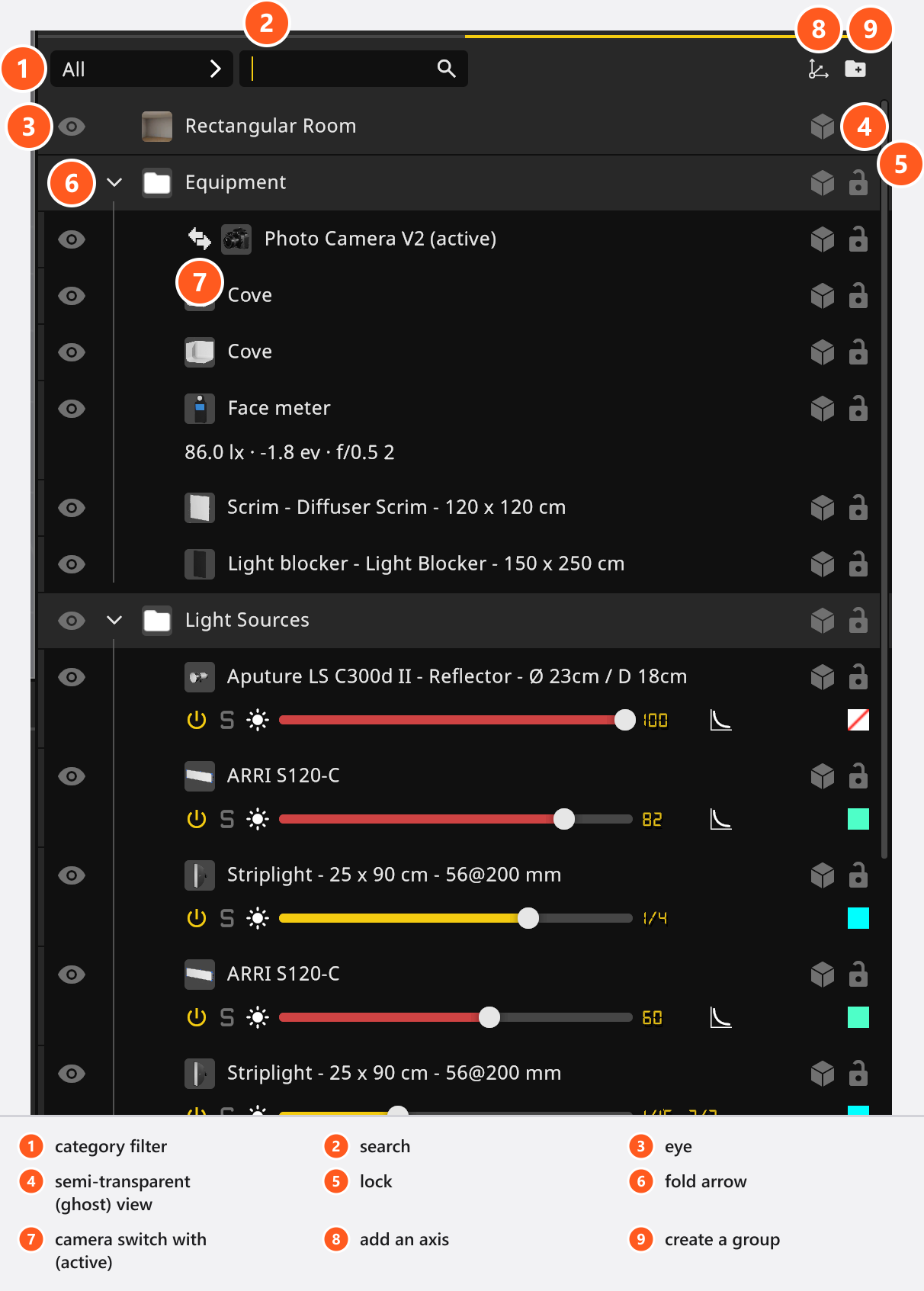
| Control | Where on the row | What it does |
|---|---|---|
| Eye | Far left, the first thing on the row | Shows or hides the object. Hidden objects are missing from renders and from the set plan |
| Fold arrow | Next to the eye | Opens and closes a row that has something under it — a group, but also a light with its stand or a wall with what is mounted on it |
| Camera switch | Left of the object icon and the name, on camera rows only | Makes that camera the active one; the active camera is marked (active) |
| Semi-transparent (ghost) view | Far right | Draws the object see-through in the studio view so it stops blocking your view |
| Lock | Far right | Protects the object from being picked or moved in the studio view |
The name label takes up whatever is left, which is what pushes the last two icons to the right edge. Eye, ghost view and lock work on the whole selection as soon as the row you click belongs to it — that is the usual reason why “everything disappeared” after one click. Clicking the switch of the camera that is already active goes back to the camera that was active before it, which makes a quick A/B between two cameras.
Double-click the name of any object to rename it. The Environment row is the exception: it cannot be renamed. Meaningful names pay off twice — you find objects again, and the names are printed on the set plan.
From 00:53 the set-list tutorial walks along one row: the eye, the light controls, the toggle for the semi-transparent (ghost) view — the clip calls it the ghost button — and the lock.
The light row and the light meter row
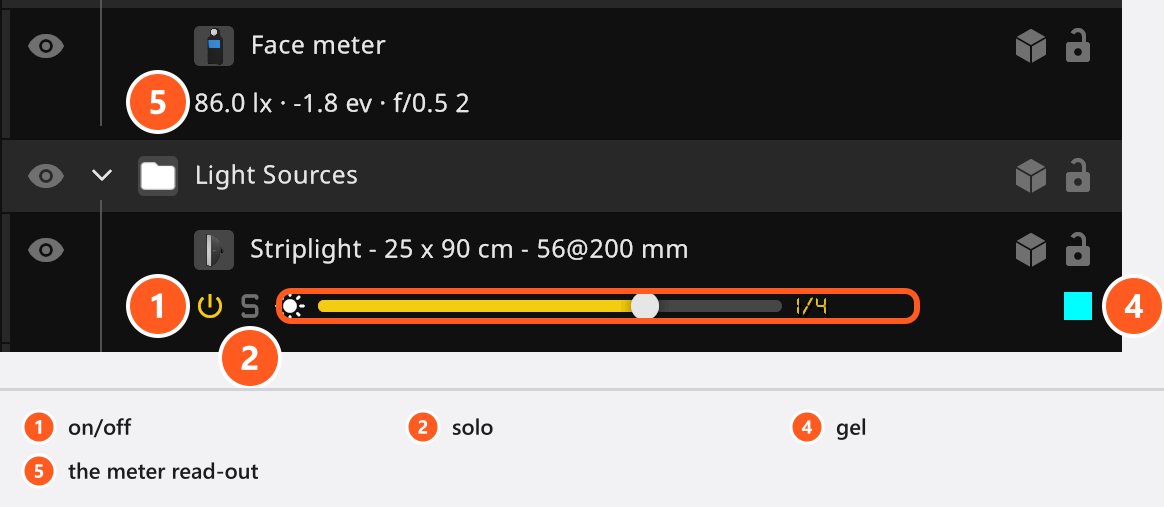
A light row carries a second line of controls: on/off, solo, the power slider with the current power as a read-out, and the colour gel. What the values mean is described in Light settings.
A light meter row shows its measurement live instead, as lx · ev · aperture; the tooltip adds the same value in foot-candles. The meter is a piece of equipment you place in the set — see Measure light and lighting ratios. It is not in the BASIC library.
The Environment row
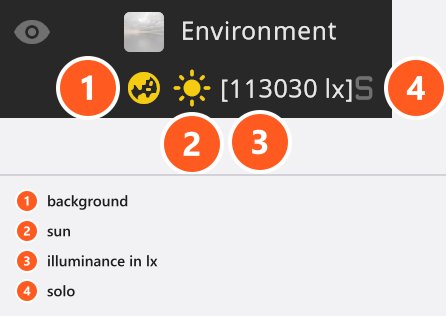
The first row of the list has controls of its own instead of the usual ones. It keeps the eye, but has no lock, no semi-transparent (ghost) view and no fold arrow:
| Control | What it does |
|---|---|
| Globe | Switches the background of the environment on and off |
| Sun | Switches the sun on and off |
| Read-out | The illuminance of the sun in lx, while the sun is on |
| Solo | Shows the environment on its own, like the solo of a light |
Groups, axes and the right-click menu
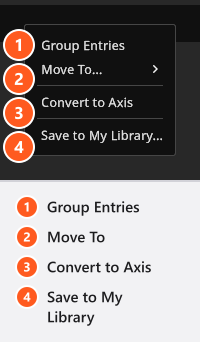
Right-click a selection of rows for the commands that change the structure of the set:
| Command | What it does |
|---|---|
| Group Entries | Puts the selected objects into a new group (Ctrl+G / Cmd+G) |
| Move To | Moves them into an existing group or back to the top level |
| Convert to Axis | Turns a group into an axis |
| Save to My Library | Stores the selection as one library entry — see Save your own rigs to My Library |
Two buttons sit at the top right of the list: one adds an axis (its tooltip reads Add Axis and stays English), one creates an empty group (tooltip Create Group).
An axis gives a collection of objects one position, one rotation and one scale, so the whole collection moves as a unit. Position and rotation can be keyframed with the Animation Tool; scale cannot. A group has no transform of its own — that is the difference between the two.
Inside the list, Ctrl+A / Cmd+A selects every entry and F focuses the studio camera on the selection.
Three things called a folder
| Folder | Where | Holds |
|---|---|---|
| Group in the set list | SETLIST | Objects that stand in the studio now |
| Folder in the timeline | TIMELINE | Shots of the project — see Take and manage shots |
| Folder in a library | ASSETS tab and App Manager | Your own library entries. My Library folders are available in every edition; folders under 3D Objects need the 3D Import add-on |
The timeline panel
The TIMELINE is the strip of shot tiles. It has four parts: the folder list with the rating filter and the search field on the left, the tiles in the middle, the Snap button at the end (Snap is English in every language), and two small buttons at the far left edge — Append .set-file and Export Selected Shots…. The same strip appears vertically on the RENDER, PLANS and COMMUNITY tabs, so you can pick a shot to render, to place on a page or to share without going back to SETUP.
By default the newest shot is shown first. The switch is Display Most Recent Shot at Front in the App Manager under Project Settings, in the Timeline group; it is stored with the program, so it applies to every project you open.
What you do with the tiles — take, rename, rate, apply, delete, sort into folders — is in Take and manage shots.
Which timeline is which
| Name | Where | Holds |
|---|---|---|
| TIMELINE | SETUP tab, library panel | Your shots, one tile each |
| Timeline Editor | ANIMATION tab | Keyframes over time for one shot (add-on: Animation Tool) |
When this manual says “timeline” without qualification, it means the shot timeline.