
 English
 Deutsch
 日本語
日本語 简体中文
简体中文 Français
A shot is one frozen state of your virtual studio: lights, light shapers, models, props, room, camera and exposure at once. Every shot is a tile in the TIMELINE, and you can return to any of them. That is how one project holds a whole shoot — key light only, the version with the reflector, the tight portrait.
Applies to BASIC, STUDIO, CINEMA · Taking a shot at an animation frame needs the Animation Tool add-on · You need: a project open on the SETUP tab.
Where to find it
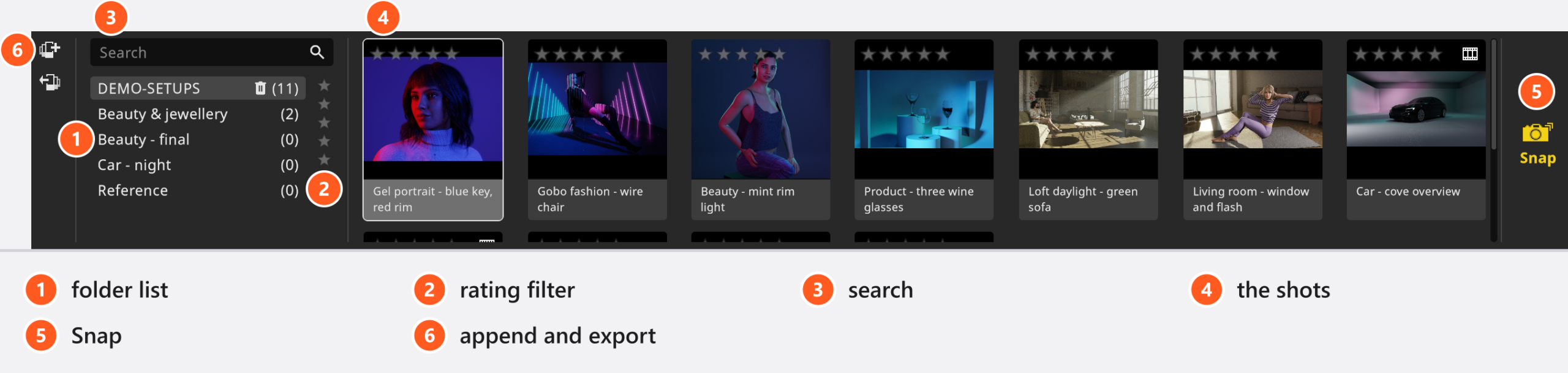
Shots live in the TIMELINE panel at the bottom left of the SETUP tab, and in the vertical strip on the left of the RENDER, PLANS and COMMUNITY tabs.
The interface uses several words for one tile: the button is captioned Snap (English in every language) with the tooltip Take Snapshot, the inspector says Delete Shot, the RENDER tab Render Shot, the community a setup. This manual says shot and quotes the buttons as they are.
How to take a shot
Any of these stores the current studio as a new tile at the end of the open folder:
- Press
Enter(by default). - Click Snap at the end of the TIMELINE panel.
- Click the camera button over the camera preview.
- Right-click between two tiles and choose Create Snapshot Here.
- On the ANIMATION tab, right-click the frame ruler and choose Create Snapshot at Current Frame (add-on: Animation Tool). The frame becomes a shot without animation; the animated one is left alone.
From 05:06 the introductory tutorial takes a shot, changes the studio and builds a second version instead of overwriting the first.
To put the new tile directly behind the one you are working on, press Shift+Enter or hold Shift while clicking Snap. That is the variation route: load a shot, change one light, Shift+Enter.
How a shot is named
New shots are called Shot- plus date and time. A name you type is shortened to 50 characters, and one another shot has already gets .001 — including two names that differ only in a character a file name cannot carry, because the render file would be the same. Renaming moves the JPG with it; if that fails, the shot keeps its old title rather than losing the picture.
In an animated shot, taking the shot remembers where the playhead stands. Later renders use that moment, not wherever the playhead sits.
How to go back to a shot
Double-click a tile. On the SETUP tab it is loaded into the studio; from another tab you land on SETUP with it loaded. A single click selects it and fills the inspector, where Apply to Stage does the same and Open Viewer jumps to RENDER.
How to update a shot — or keep both versions
As soon as you change anything in the studio, an Apply button appears on the tile you loaded.
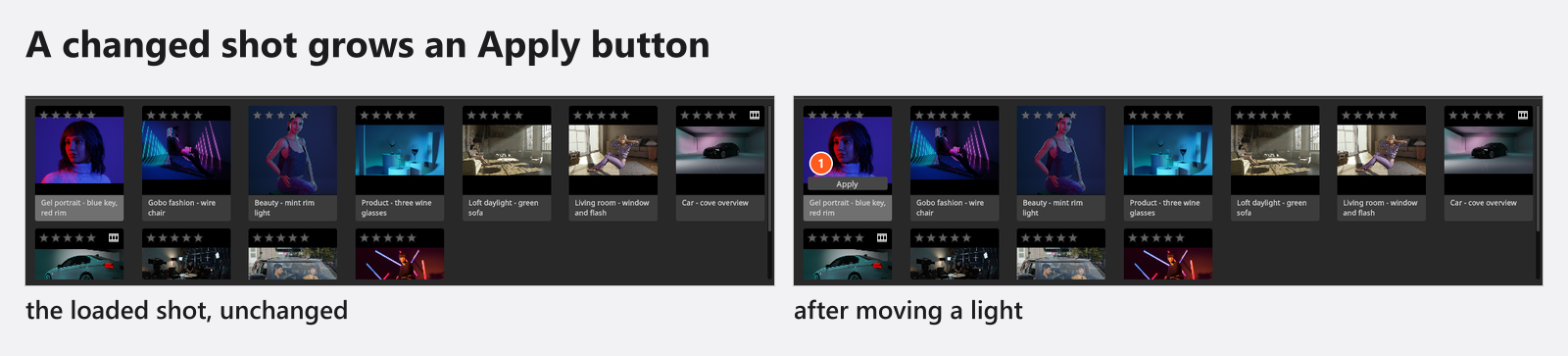
Apply overwrites the stored shot and deletes its rendered JPG, because that image no longer matches the set. Choose New Shot instead if you want to keep both.
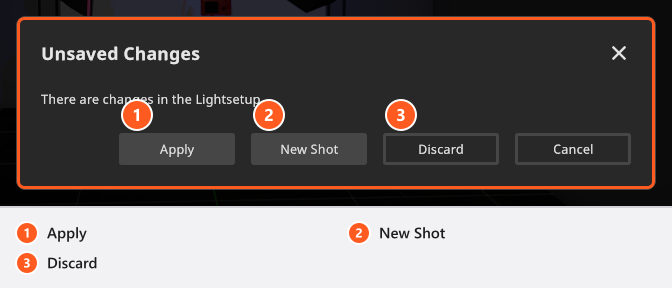
Leaving a changed shot — switching tabs, loading another tile — asks the same question in a dialog: Apply overwrites, New Shot stores the change as its own tile, Discard drops the change and reloads the stored shot, Cancel keeps you where you are.
What the inspector shows
Selecting one tile fills the inspector: the preview image, the camera and exposure data of the shot, the top view of the set, the Internal Note and three buttons — Open Viewer, Apply to Stage and Delete Shot. The pin at the top keeps the shot in the inspector while you click elsewhere.
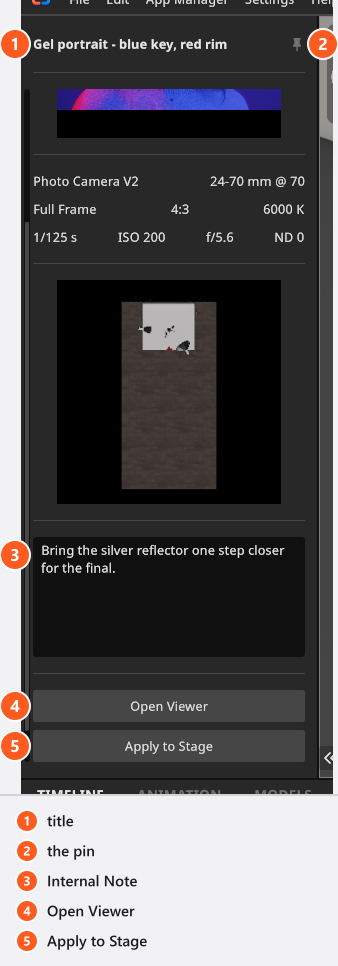
The note is for lighting notes, client remarks or the reason you kept this version. It is not printed on a set plan — but it is published when you share the shot.
How to organise shots
- Rename: double-click the name on the tile or at the top of the inspector, type, press
Enter. - Reorder: drag a tile to another position in its folder.
- Rate: select the shots and press
0to5, or click a star on the tile. Clicking the star that already marks the rating drops it by one, and the rating goes to every selected shot. - Filter: the star row filters by rating, the field next to it by name. Both act inside the open folder, and the strip reports how many shots are hidden. The rating filter is also on the RENDER, PLANS and COMMUNITY tabs.
- Delete: Delete Shot in the inspector, Delete in the tile’s context menu, or the
Deletekey (macOS:DeleteorBackspace). A confirmation follows, and a tile that is part of a selection takes the whole selection with it.
Deleting a shot leaves its rendered JPG on disk and removes it from the set plan you have open. Ctrl+Z brings the shot back, but not its place in the plan — tick it on again there.
Two badges can sit on a tile: a film symbol for a shot with an animation, an upload symbol for one you published.
How to sort shots into folders
The TIMELINE groups shots into folders and the strip shows the open one only. The first folder is created for you and called Session with a number.
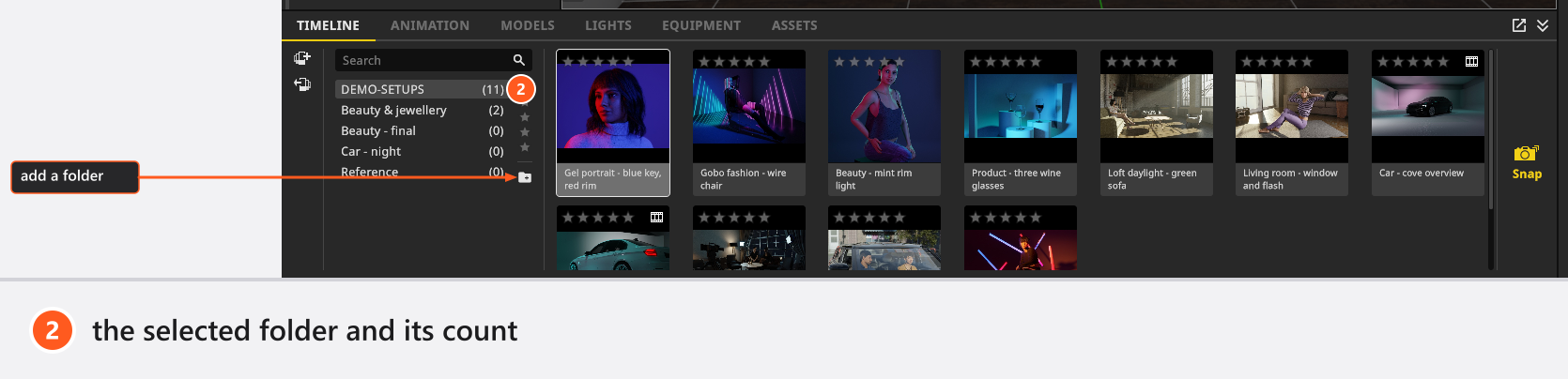
| What you want | How |
|---|---|
| A new folder | The add-folder button above the list (tooltip Add New Folder) |
| Rename one | Double-click its name, type, press Enter |
| Open one | Click it — this also clears the search field |
| Move shots | Drag the tiles onto the folder |
| Reorder folders | Drag them in the list |
| Delete one | The bin on the folder row, then confirm |
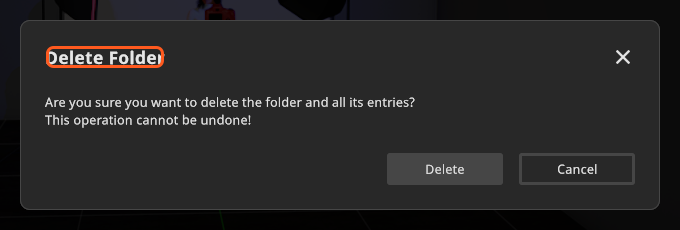
The confirmation says the operation cannot be undone. In 3.1.14 Ctrl+Z does bring the folder and its shots back — but save before you delete instead of relying on that. Deleting the last folder leaves the timeline empty until your next shot creates one.
Shortcuts
These are the defaults; every one of them can be changed — see Change a keyboard shortcut.
| Action | Windows | macOS |
|---|---|---|
| Take a shot of the current setup | Enter |
Return |
| Take a shot right after the selected one | Shift+Enter |
Shift+Return |
| Rate the selected shots | 0 – 5 |
0 – 5 |
| Walk through the tiles | Arrow keys | Arrow keys |
| Select all shots of the folder | Ctrl+A |
Cmd+A |
| Delete the selected shots | Delete |
Delete or Backspace |
Tips & limits
- Folders are a flat list: no folder inside a folder.
- Shots are the unit of rendering and of set plans — see Render an image and Create a set plan.
- Taking a shot is one undo step (
Ctrl+Z/Cmd+Z).
Troubleshooting
- My render disappeared after I clicked Apply. That is what Apply does: the stored JPG is deleted because the set changed. Render the shot again.
- The render of my animated shot shows a different moment than I expected. It uses the moment the shot was taken at. Load the shot, move the playhead, then Apply.
- A shot came back with
.001after its name. The name was taken, so it was made unique — see Move shots between projects.