
 English
 Deutsch
 日本語
日本語 简体中文
简体中文 Français
The catalogue covers a lot of studio gear, but not yours. Build your own heads, shapers and lamps once and they behave like catalogue entries from then on: they appear in the library, they can be dragged into a set, and they travel inside the projects that use them. The same pages let you hide everything you do not own, which is the fastest way to make the library look like your own kit.
Applies to BASIC, STUDIO, CINEMA · Creating and editing your own continuous fixtures needs CINEMA · The Default Dimming Curve and your own gobo masks need STUDIO or CINEMA · You need: nothing beyond a running program.
Where to find it
Click App Manager in the menu bar. Its left column holds Lights (with Flashes, Speedlights and Continuous Lights), Light Shapers, Rigs and Resources — the last one for gobo masks, projector images, lamps and the rest. The shorter route while you work: open the picker of a light’s head, shaper or stand and click the edit button in it, which opens the same dialog.
Build a flash head
The clip below walks through this in the App Manager, from 1:38:
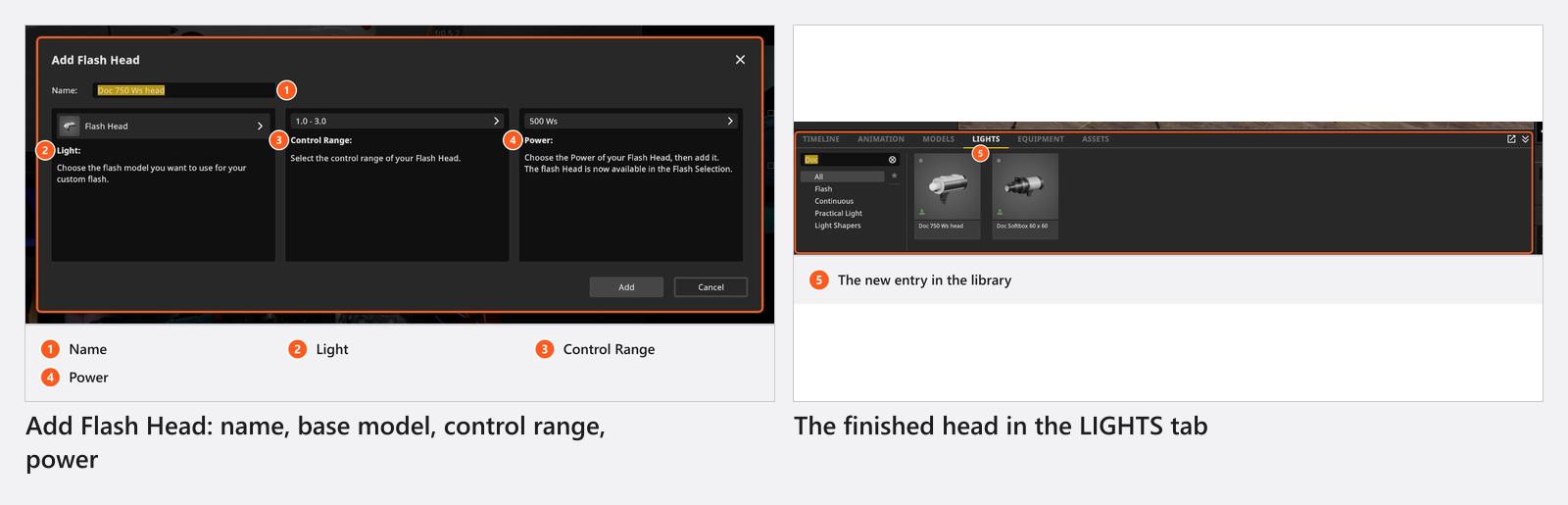
- Go to Lights → Flashes and click Add Flash Head.
- Type a Name — the name you will look for in the library, so use the one on the head.
- Under Light, pick the model your head behaves most like: Flash Head for a studio strobe, Small Flash Head for a compact one. The model brings the light distribution with it.
- Choose the Control Range that matches your device, from the Common and Elinchrom groups. This is the scale you will dim on. On a decimal range such as
3.0 – 10.0, one whole number is one aperture stop. A fractional range such as1/1 – 1/128halves the power at every step instead, and it adds a row of three readout styles — 0.3 & 0.7 Steps, 1/3 Steps, 1/10 Steps — that decides how the value is written on the slider. - Choose the Power in watt-seconds, from
50 Wsto6000 Ws; a new head starts at500 Ws. An Elinchrom range already carries its power, so the field is filled in and locked. - Click Add. → The head appears in every head picker and in the LIGHTS tab.
Build a speedlight
Add Speedlight asks for the same name and control range, then for two things out of your flash manual: the Focal Length range of its zoom head (a new entry starts at 24–80 mm) and the Guide Number. Set the zoom range first: it decides which guide numbers are offered and resets the guide-number field, so a value you pick beforehand is thrown away.
Build a continuous fixture (CINEMA)
New Light under Continuous Lights needs CINEMA — with any other licence the head picker’s edit button opens the flash dialog instead. You choose a Template (the model and the stand it comes on), then how the fixture throws light: IES imports a photometric file from the maker, Spot builds a cone from an Angle (1° to 270°, default 60°) and a falloff, and Builtin uses one of the program’s own distributions. Then give it its output — an illuminance in lux and the distance that figure was measured at, straight off the data sheet — and watch the preview beside the fields. A photometric file the program cannot read is refused with IES Parse Error.
Build a light shaper in your own size
Sizes are not edited on a standing light: you create a sized copy once and then use it like any other entry. The same clip shows it from 3:14 — note that it promises a shaper in any size you like, while the shipping version keeps each template inside its own range:
- Go to Light Shapers → Light Shapers and click New Light Shaper.
- Type a Name and pick the Template the copy is based on; the list holds the whole catalogue, so use its search field.
- Set the Size. Round and tube templates offer Diameter, rectangular ones Width and Height, and a template that cannot be resized leaves the fields disabled.
- Click Add. → The entry appears in every shaper picker.
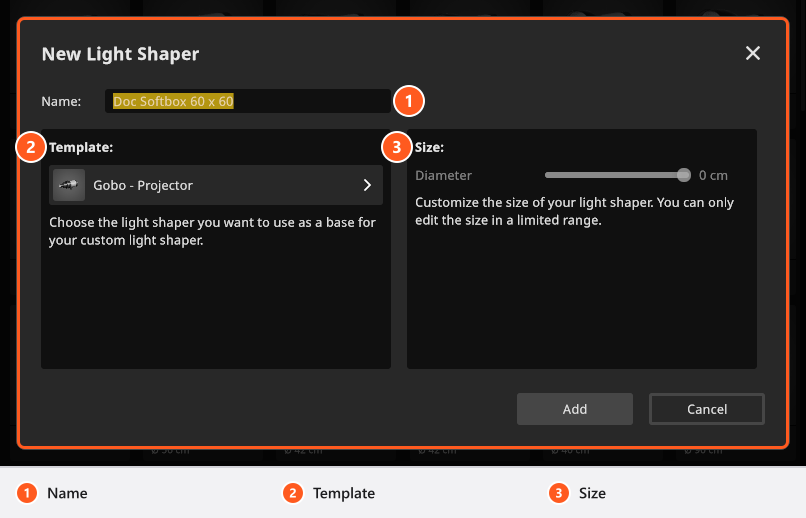
Pick the template closest to the light shaper you own: a copy uses the template’s light distribution, so a 95 cm octabox is better based on the 90 cm entry than on the 150 cm one. Only entries you built yourself can be changed later — select one and Edit Light Shaper becomes available.
Build a lamp for a practical
Resources → Lamps → New Lamp asks for the lamp technology, the power in watts and the brightness in lumen — in that order, because technology and watts recalculate the lumen value from a typical efficiency. Type your own figure last. Edit Lamp keeps the stored figure; only technology or watts recalculate it.
Add a stand, and set your defaults
Rigs → New Rig works like the shaper dialog and is shorter: a Name and the Template stand the copy is based on, then Add. Use it to keep a differently named version of a stand in the picker; Edit Rig changes one you built yourself.
Light Shapers → Defaults decides what a light shaper dragged out of the library arrives with: Default Light Source is the head it is fitted to, Default Rig the stand both stand on. Two caveats: a head that carries its own stand keeps it, and a shaper that does not fit your default head gets a compatible one instead of yours. Under Continuous Lights, Default Dimming Curve sets whether a fixture dims exponentially or linearly from the start (STUDIO+) — the page itself needs STUDIO or CINEMA, building and editing the fixtures on it needs CINEMA.
Show only your own kit
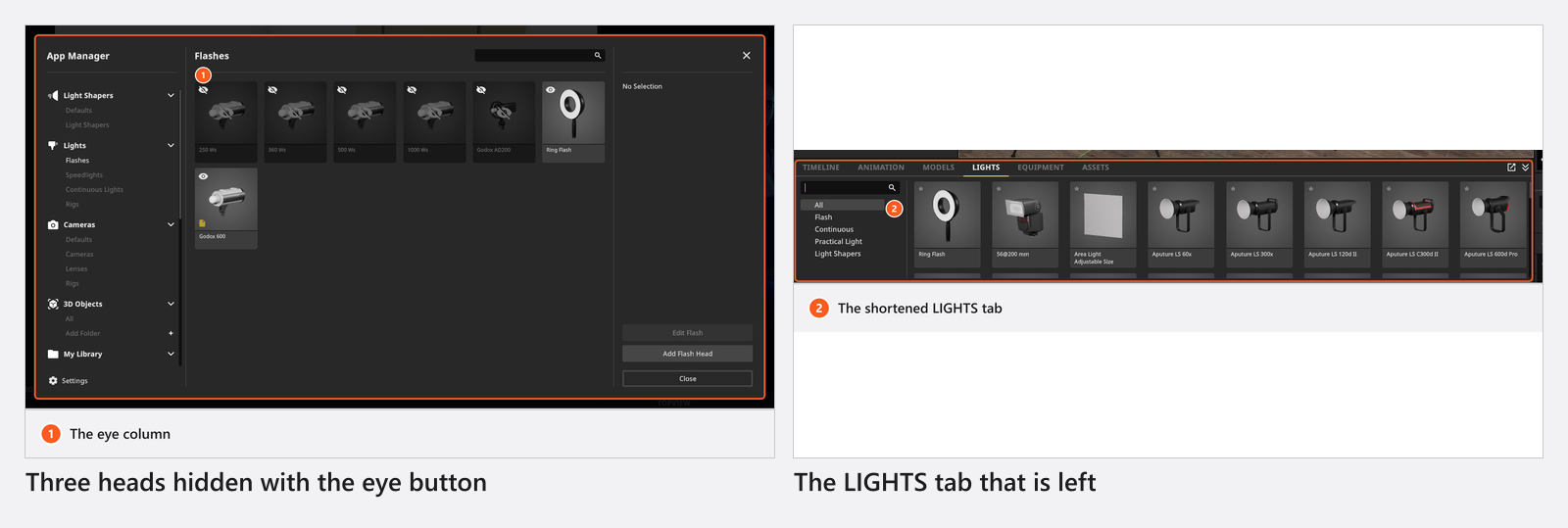
Every list in the App Manager has an eye button per row. Select a run of entries with Shift, click the eye once, and they disappear from the library — a preference you can undo at any time, not a deletion, so a rental can be switched back on next week. Delete Resource is the other thing: it removes an entry you built yourself for good, and only your own entries can be deleted at all.
Troubleshooting
- My own light is missing on another computer. Own gear lives in your user data on this machine. Projects that use it carry it along, but the library does not follow you by itself.
- The size fields are greyed out. That template cannot be resized. Pick the nearest fixed size instead.
- An image is refused. The dialog answers Image is too large or Image is not supported or corrupt. Save it again as a smaller
.jpgor.png— see Project a pattern or an image for the limits. - Failed to Save Resource. The entry could not be written: the file is open in another program, or the disk is full. The dialog names which of the two it is; fix that and click Add again.
- More symptoms: Lighting problems.