
 English
 Deutsch
 日本語
日本語 简体中文
简体中文 Français
A preset model is a starting point, not a fixed person. Skin, hair, brows, eye colour, the shape of the face and the proportions of the body can all be changed, and the camera preview shows it at once — skin shine and hair are what a hard key will expose. What you can change depends on the base model you started from.
Applies to BASIC, STUDIO, CINEMA · You need: a project open on the SETUP tab and a model selected.
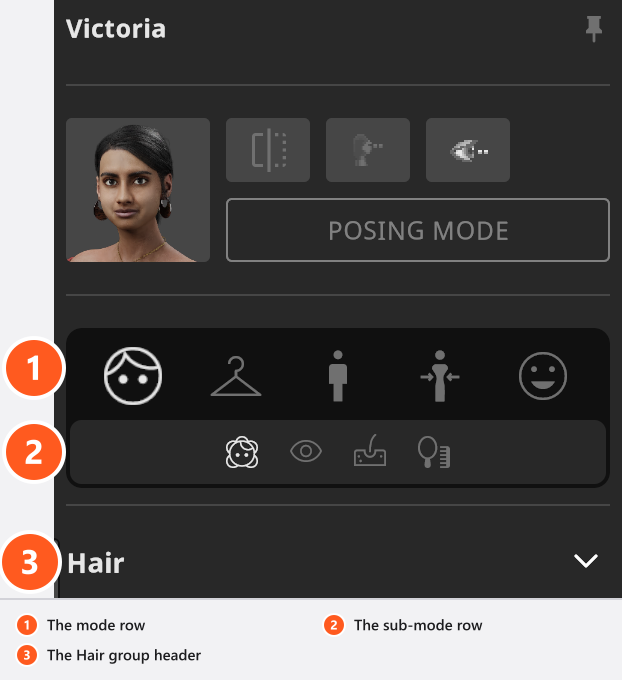
From 00:46 the clip walks the Face mode and the row of shortcuts to Hair, Eyes, Skin and Makeup.
Where to find it
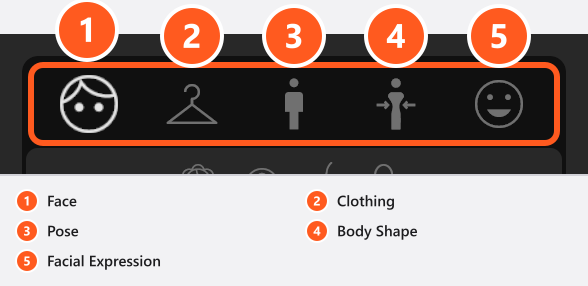
Select a model and look at the inspector on the left (B shows and hides it, by default). The icons at the top switch between five modes; the smaller row below jumps to a group inside the current mode.
| Icon position | Mode | What it holds | Described in |
|---|---|---|---|
| 1 | Face | Hair, brows, beard, eye colour, skin, makeup | this article |
| 2 | Clothing | Glasses, outfit presets, the garment groups | Dress a model |
| 3 | Pose | Transform, preset poses, hands and feet | Pose a model |
| 4 | Body Shape | Face and body mixers, proportions, height | this article |
| 5 | Facial Expression | The expression editor, sliders and presets (not on animals) | this article |
Start with skin, then shine
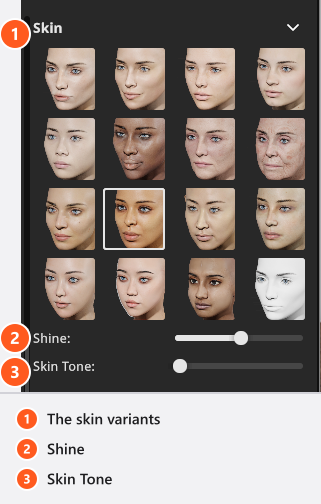
Pick the skin variant first. Shine and Skin Tone both work on top of the entry you selected, so the base skin decides which complexion you can reach: going darker means a darker skin, not a higher Skin Tone.
Shine is the skin control you will feel in the light: low values give matte, powdered skin, high values the oily sheen a beauty dish or a hard key exaggerates. Its range comes from the base model — on Victoria it runs from 0.17 to 1, on Mike only to 0.93 — so a slider that will not reach 0 or 1 is not broken. It starts at 0.6 on every family except the Cat, which starts at 0.14.
One skin entry is left unpainted. With it selected, Skin Tone is replaced by a Skin Color field, so the model can take any colour, and the makeup group shrinks to Nails.
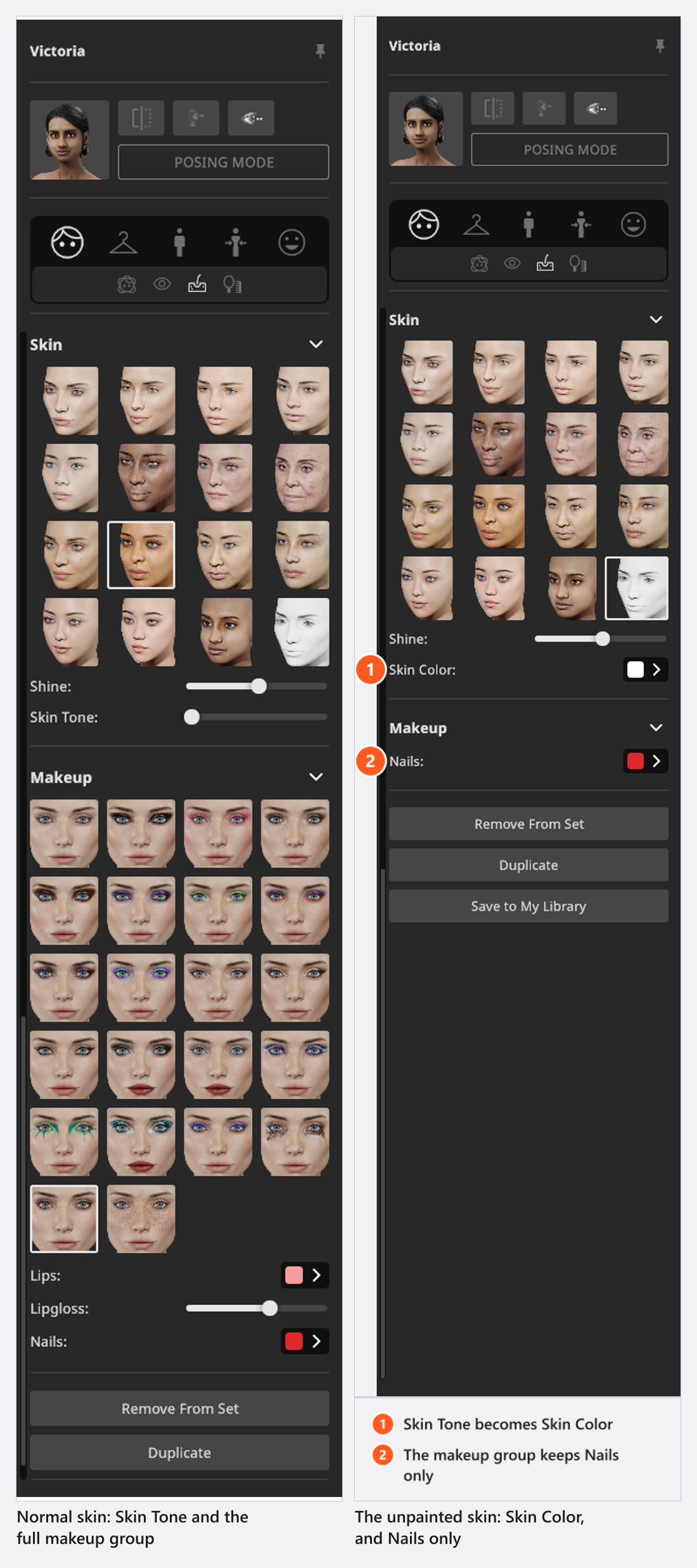
From 01:12 the clip runs through the skin variants, Skin Tone, the unpainted skin and the makeup group.
Hair, brows, beard and eyes
The Hair group lists every hairstyle of the base model as a thumbnail — 48 entries on Victoria and 30 on Mike, the first of them bald. Click one, then set its Color from the swatch row of that style: grey, blond, brown and red each in a bright, a mid and a dark variant, plus black, pitch and a Custom swatch, as far as that style offers them.
Hat Color appears when the style includes a cap, and some styles bring a slider of their own — the motorcycle helmet has Open Visor.
Eyebrows sit in the Eyes group together with the eye-colour swatches: 14 entries on the adults and on Sarah and Lucas, the first of them Custom. Eye colour decides how much life the eyes keep under a hard key — a light iris shows a catchlight more clearly than a dark one. Mike also has a Beard group with its own list and colour row, named as the hair swatches are, so the two can be matched.
Makeup, on Victoria
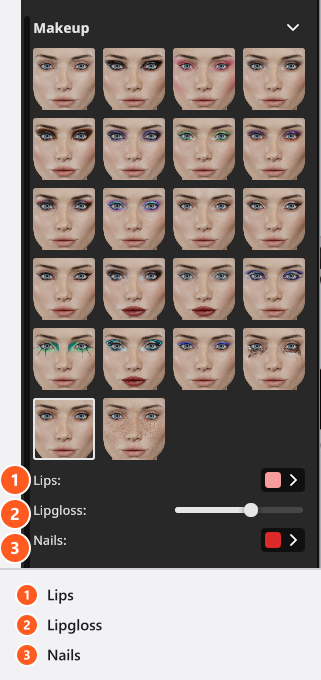
The Makeup group runs from no makeup to strong looks and adds Lips (colour), Lipgloss (0–1) and Nails (colour). It exists on Victoria only.
Mix the face and the body
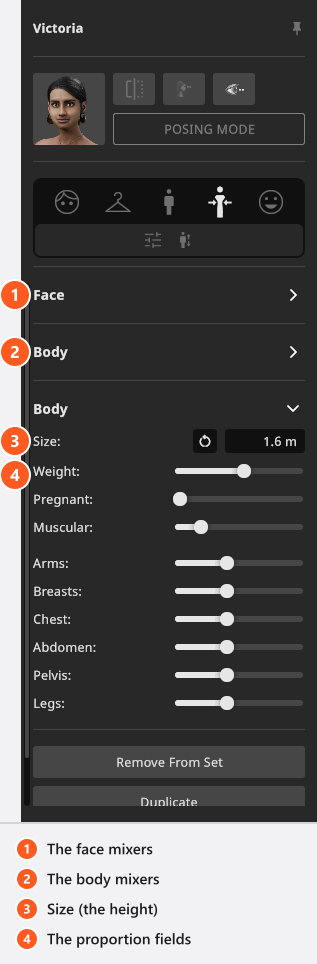
The Body Shape mode has two groups of mixers and one of proportions. The Face group mixes the face-shape options of the base model: 15 on Victoria, 8 on Mike, 2 on Sarah and on Lucas, none on the Toddler or the animals. Push one up and the face moves towards that shape; mix several and you get a face that is in no preset. Mixing never leaves the base model: a Victoria blends with every other Victoria, never with Mike.
Two groups in this mode carry the same name, Body: the upper one mixes the body shapes, the lower one holds the proportions. Size is the height, Weight runs thin to full, Pregnant and Muscular appear only on models that have them, and Arms, Breasts, Chest, Abdomen, Pelvis and Legs size the single regions. There is no waist field — take the waist in with Abdomen and Pelvis.
From 05:50 the clip mixes faces and bodies and then sets the proportions and the height.
Give it an expression
From 06:51 the clip walks the whole expression editor:
The Facial Expression mode has three parts, and animals do not have it.
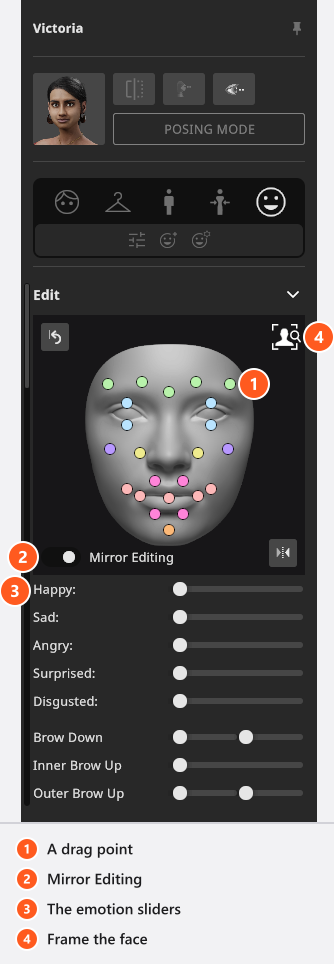
Edit shows the face from the front with drag points on brows, eyelids, nose, cheeks, mouth, lips and jaw. Drag a point to shape that region, right-click a point to reset the channels it drives. The button in the corner brings the studio camera to the face, a reset button clears the expression, and a mirror button flips it left to right. Mirror Editing is on by default and applies every drag to both sides — switch it off to raise one brow or close one eye.
Below the face sit the five emotion sliders Happy, Sad, Angry, Surprised and Disgusted, each 0–4 and mixable, then 30 named rows for the single facial muscles. Fourteen of them are split into a left and a right slider, which is why the panel holds 44. Right-click any slider to reset it.
The bundled preset groups are at the bottom: Happy, Sad, Angry, Disgusted, Scared, Surprised and Various for the adults, five of them for the children. Click a tile to apply it, and save your own with Reuse poses, expressions and models.
Judge it under your key light
Hair and skin are what the studio view gets wrong: it is a working view with its own quality setting. Judge them in the camera preview, with your key light in place.
Tips & limits
- Styling does not depend on your edition: every edition offers the same models and options.
- A missing group is expected: the styling groups follow the base model.
- On a model, only the height, the pose and an animation clip carry keyframes. Styling, makeup and wardrobe never do — but a pose key stores the facial expression, so blinks and mouth movement are possible (add-on: Animation Tool).
- Styling belongs to that model in that project. Expression groups you save yourself live in your user data and are available in every project — while the editor’s own switches, such as Mirror Editing, belong to neither and last only for the session.
Troubleshooting
- A group I read about is missing. That base model has no options for it → Model problems.
- Skin Tone has disappeared. On the unpainted skin it is replaced by a Skin Color field. On any other skin with fewer than two complexion variants it is simply absent and nothing takes its place — the state of every painted animal skin.