
 English
 Deutsch
 日本語
日本語 简体中文
简体中文 Français
A model is the subject of almost every lighting setup: it catches the key light, throws the shadow you are testing and gives the frame its scale. Start from the preset that is closest to the person you have in mind — hair, skin, wardrobe, body shape and pose are all changed afterwards, so the one choice that really sticks is the base model underneath. set.a.light 3D ships eight base models and 30 ready-made models built on them.
Applies to BASIC, STUDIO, CINEMA · You need: a project open on the SETUP tab and the library panel visible (N shows and hides it, by default).
The first half-minute of the model tutorial shows the whole move — deleting the model that is there and bringing in a new one from the library.
Where to find the models
Models live in the library panel at the bottom left of the SETUP tab, on the MODELS tab. Three controls help you find a subject, and the first two are alternatives rather than a combination. The tag row filters the list into Women (15 entries), Men (8), Children (4) and Animals (3). The search field matches names as you type and searches the whole tab: while something is typed the active tag is ignored, so a man turns up while Women is still lit. The star is not a filter — it sorts the entries you marked as favourites to the top and leaves the whole rest of the list below them. A small star on each entry is what marks it. The button on the tab header pops the library out into its own window, and E opens it as a floating panel, by default.
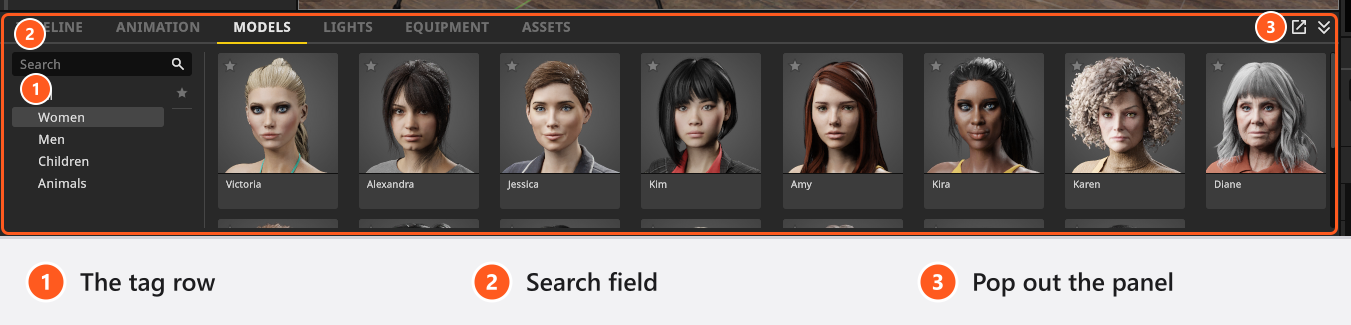
How to add a model
- Open the MODELS tab in the library panel.
- Pick a tag or type into the search field until you see a suitable subject. The star pulls your favourites to the top of whichever list is shown.
- Double-click the entry. → The model appears at the centre of the set, standing on the floor. If something already stands there it is offset sideways in 20 cm steps until the spot is free.
Or drag it in: pull the entry out of the list and drop it in the studio view where you want it. A dropped or double-clicked model faces the way it does in the library; switch Align New Objects With View on in the App Manager under Project Settings, in the Editing group, and new objects face the studio camera instead.
Which base model you start from
Two of the eight base models are adults, Victoria and Mike; three are children, Sarah, Lucas and Toddler; three are animals, Cat, Dog and Horse. Each of the 30 library entries belongs to exactly one of them and is that base model with a body height, a body shape, a skin, an eye colour, a hairstyle, makeup and an outfit already set.
The base model decides which controls exist at all, and the differences are large: makeup exists on Victoria only, a beard on Mike only, and the Toddler has no face or body mixing at all. Cat (4 eye colours) and Dog (9) let you change the eye colour, while the Horse has one fixed eye colour and therefore shows no Eyes group. Animals have no hair, no makeup and no facial expressions, and a single Standing pose group. The Cat has one collar in its Accessories group and the Dog two; the Horse wears nothing. The full per-family list is in Model reference: families and settings.
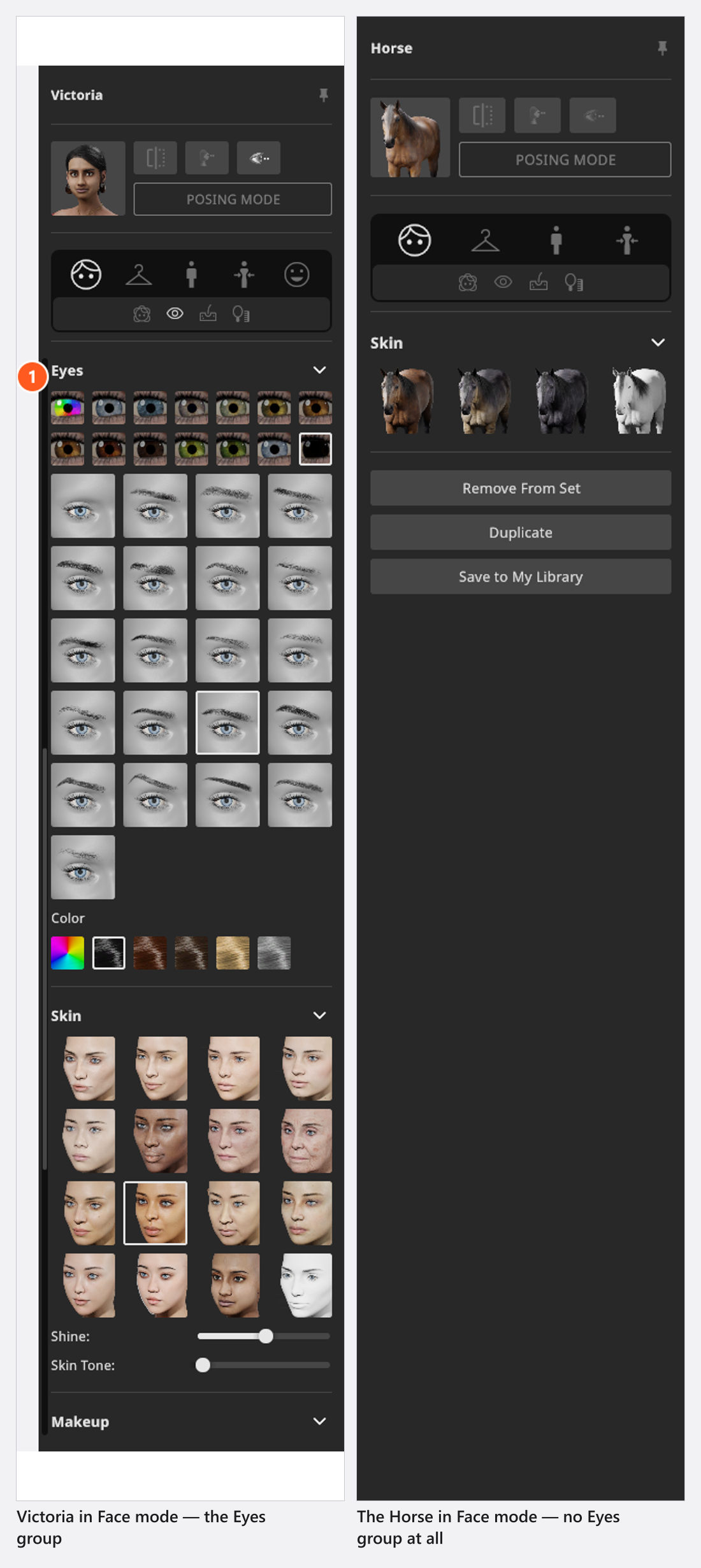
Exchange, duplicate, remove
Click the model in the studio view to select it. Two things appear: the object controls — the small button block next to the selection, switched with the Toggle Object Controls button — and the model’s inspector on the left.
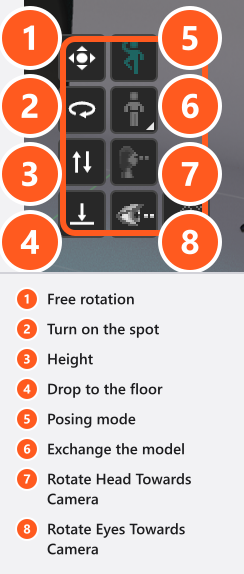
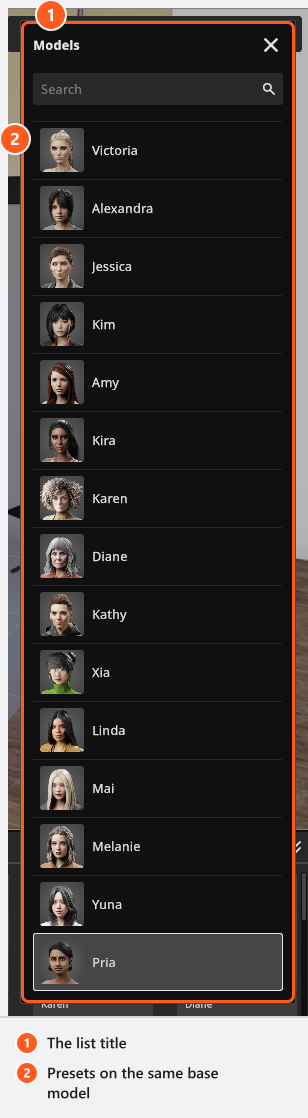
One button of the block opens a Models list and exchanges the model for another preset. It offers only the presets built on the same base model, and it replaces the styling and the body proportions while position and pose stay as they are. So you cannot turn a Victoria into a Mike: add the new model, delete the old one, and be aware that the pose does not come along. Because an exchange overwrites proportions too, store a look you want to keep with Save to My Library before you swap.
Three buttons at the bottom of the inspector do the everyday work. They treat attached objects differently, which matters as soon as your model holds a prop:
| Button | What it does | What happens to children and animation |
|---|---|---|
| Remove From Set | Deletes the model. | Deletes everything attached to it and removes its rows from the animation editor. Like Del (by default) it refuses a locked model and one with locked children, and reports Objects are locked. |
| Duplicate | Makes a second model with the same settings. | Copies that one object only — a prop attached to a hand stays on the original — but takes the animation along (add-on: Animation Tool), Position keys shifted to the copy’s new place. |
| Save to My Library | Stores the model as a re-usable entry under My Library in the ASSETS tab. | Collects the whole group, so an attached prop travels with it — pose and wardrobe included. |
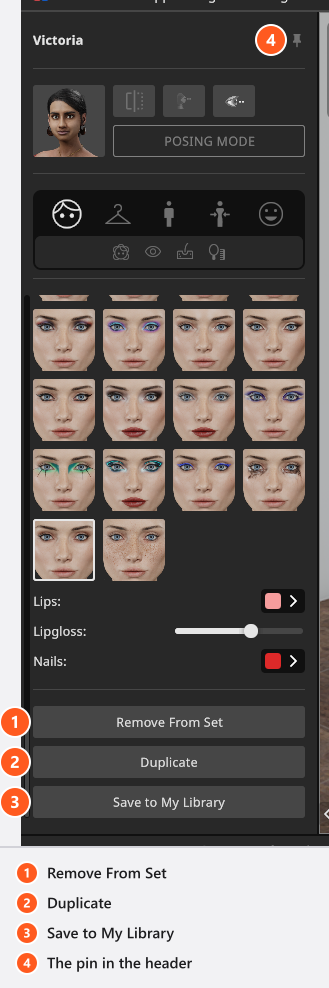
The pin in the inspector header keeps the selected object in the inspector while you click something else in the set — handy while you compare a model against a light. Ctrl+C and Ctrl+V copy a selection, also from one shot into another; on macOS those two are Cmd+C and Cmd+V, while the modifiers you hold while dragging stay Ctrl on both systems (see Keyboard shortcuts). To rename a model, double-click its name in the inspector header — that name is what the set list shows.
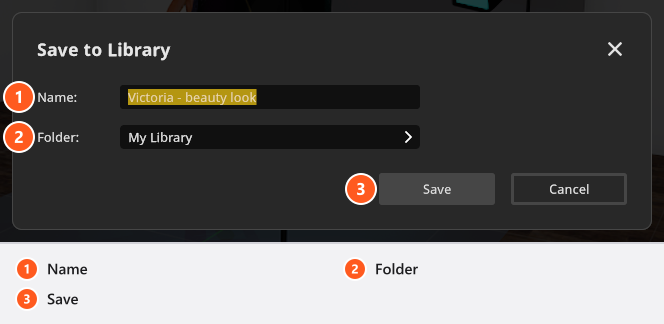
Saving a subject you shoot often is worth the ten seconds; Reuse poses, expressions and models covers naming, folders and moving your entries to another computer.
Tips & limits
- Models are available in every edition and there is no limit on how many you put on a set. The BASIC limit of five light sources applies to lights only.
- You cannot bring your own model in. The 3D Import add-on imports objects, and an imported object stays an object: it cannot be posed, dressed or given an expression, because posing mode only accepts a model (see 3D import: what the add-on reads).
- Adding a model does not aim anything at it. Use Rotate Light Towards Model on a light or Rotate Camera Towards Model on the camera (see Aim a light (target lock)).
- Children and, with some school and volume licences, every model stay covered automatically — Dress a model explains when that fallback applies.
Troubleshooting
- The model will not move. It is locked, hidden, or attached to another object → Model problems.
- A group I read about is missing from the inspector. That base model has no options for it → Model problems.