
 English
 Deutsch
 日本語
日本語 简体中文
简体中文 Français
A shader describes what a surface is: how light bounces off it, passes through it or is stopped by it. Every material of an imported model gets one, and the shader decides which settings that material then offers. Picking the right one is what makes an imported object look real rather than plastic.
Applies to BASIC, STUDIO, CINEMA · Needs the 3D Import add-on (included in the CINEMA trial) · You need: the 3D Importer open on a model.
Where to find it
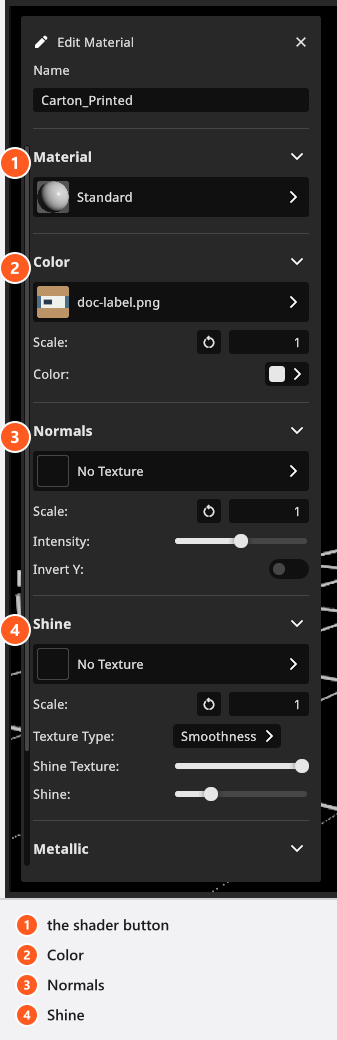
Select a material in the Materials list, or click that part of the model in the viewport — the part you hit lights up, so you see what the material covers. The Edit Material panel opens beside the viewport with the material’s Name at the top; the Material group below it opens Select Shader. A double-click in the list renames the material.
The five shaders
| Shader | Use it for | What it brings |
|---|---|---|
| Standard | almost everything: wood, fabric, stone, painted and metal parts | colour, normals, shine, metallic |
| Transparent | a window pane, a bottle label, a lampshade — anything you see through | an opacity map and a Transparency amount |
| Cutout | fine shapes cut out of a flat surface with a mask: leaves, grids, lace | the same, plus a Threshold |
| Hair | hair and fur cards | a shader of its own for fine strands, with Transparency but no Threshold |
| Glass | solid, thick glass | Refraction and Absorption instead of the metal map |
Which groups a material shows depends on that choice, so a slot you are looking for may belong to another shader. Metallic is hidden on Glass, Transparency on Standard and Glass, and Threshold appears on Cutout only. The full matrix, with every range and starting value, is in Imported materials: every control.
Glass is for a body of glass rather than a thin pane — a bottle or a tumbler. Refraction bends the light passing through it and is on when you pick the shader; Absorption decides how much colour the material swallows on the way, which is what makes thick glass darker and greener at its edges.
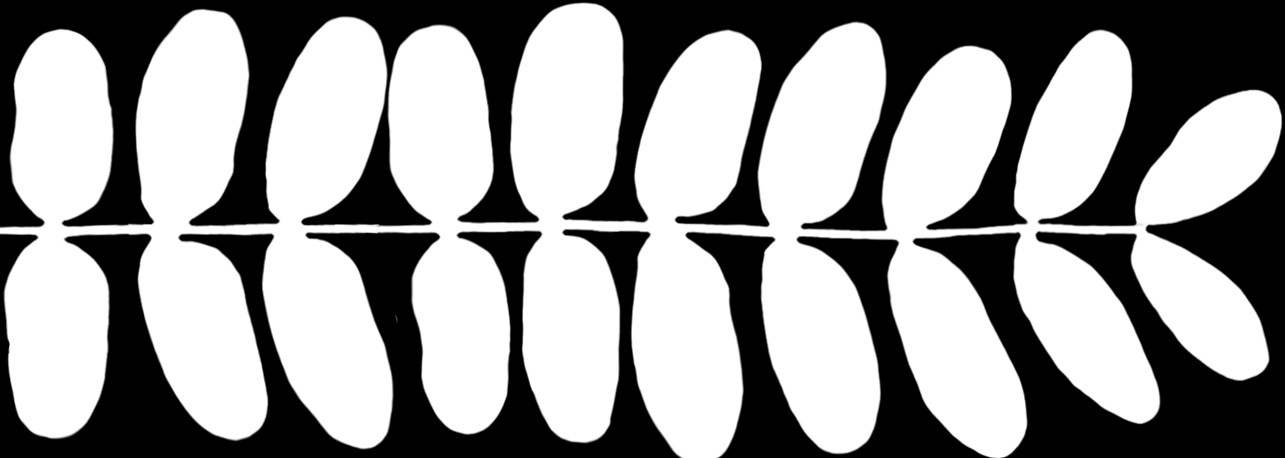
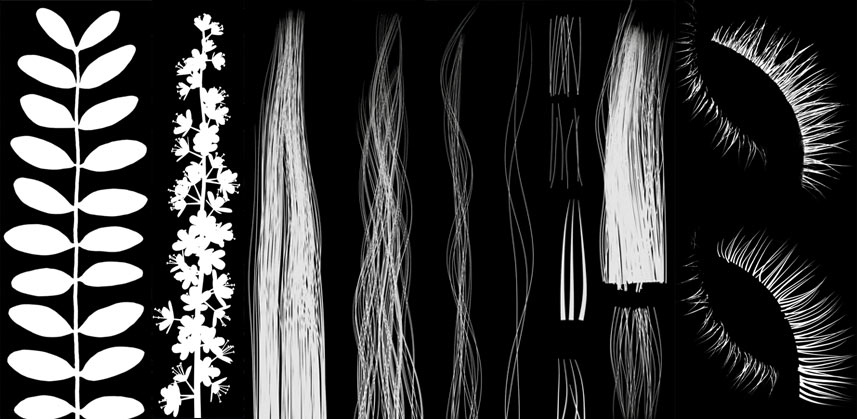
Cutout saves geometry: the mesh stays a simple strip and a black-and-white mask decides which parts of it you see. A tree modelled leaf by leaf costs a huge number of polygons; built from masked strips it costs a fraction.
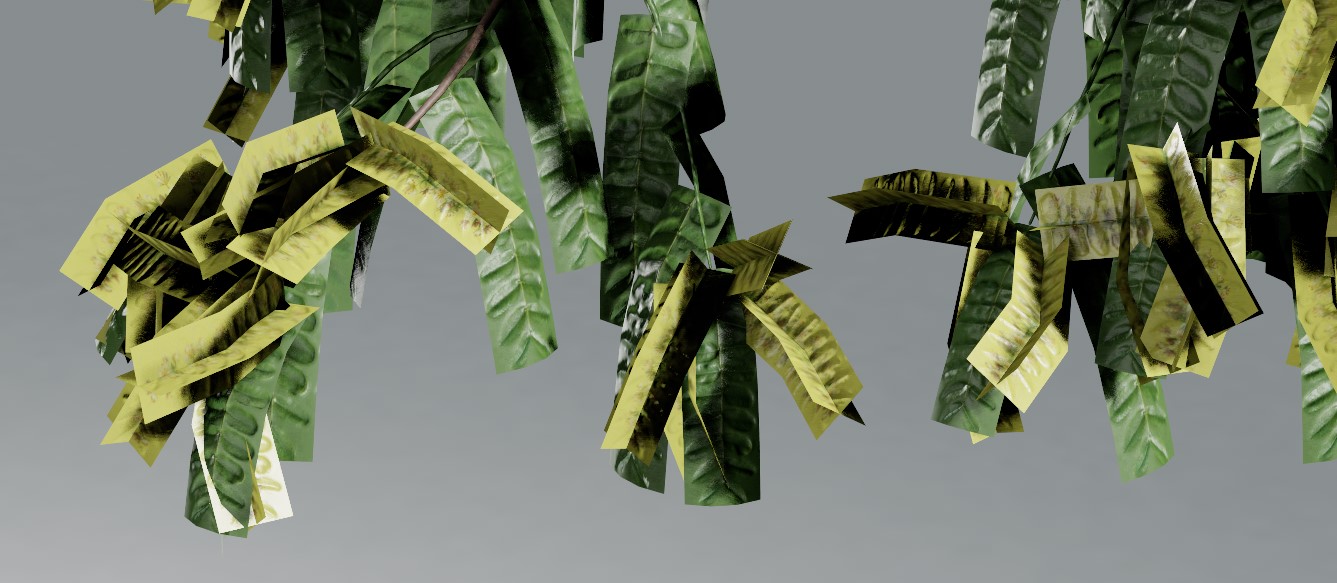
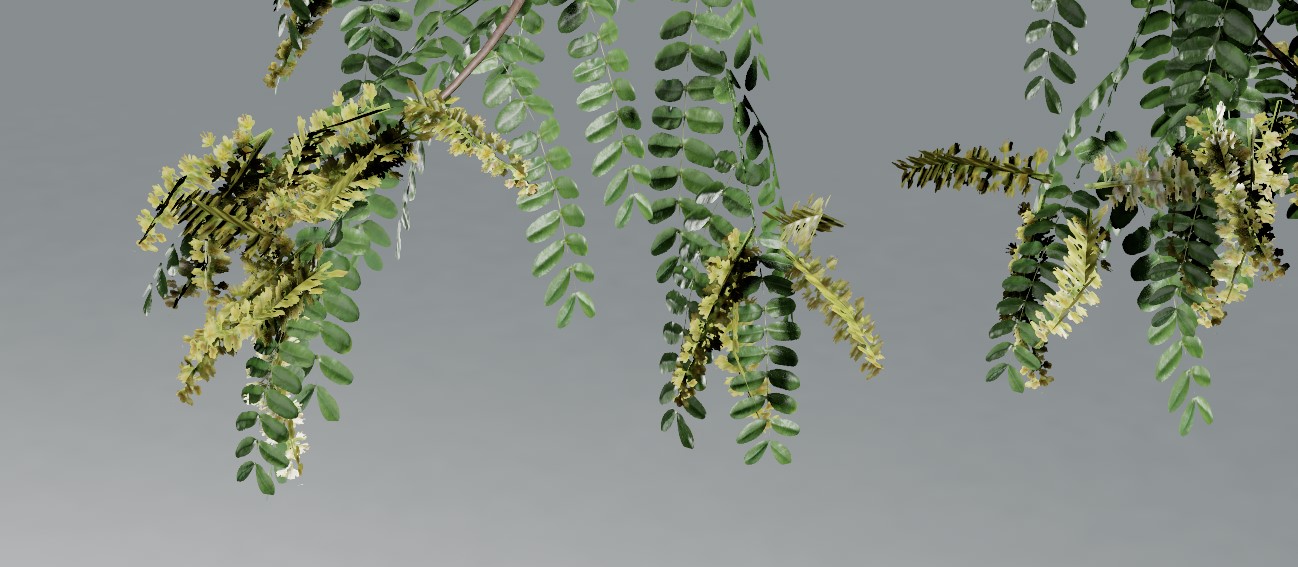
The mask itself is a plain black-and-white image: white stays, black disappears.
The slots of a material
Each group has a texture button, a Scale value for tiling and one or two sliders.
- Color — the colour map, plus a Color swatch that tints it. With no map the swatch alone is the colour. Many marketplace models arrive exactly like that: normal and shine maps, no colour map, so you give each part its own colour.
- Normals — the small bumps of the surface, with Intensity and Invert Y for maps authored the other way round. Check this slot after every import: a height map can land in it instead of the real normal map, and the surface then looks embossed in the wrong places. Put the normal map back yourself.
- Shine — the gloss map. Texture Type says whether it is a Smoothness or a Roughness map; the two run in opposite directions. Shine Texture weighs the map, Shine sets the overall gloss.
- Metallic — the metal map and an overall Metallic amount.
- Transparency — the opacity map and a Transparency amount, plus the Threshold at which a Cutout mask cuts.
Some maps are interpreted during the import: a file name containing rough or smooth sets Texture Type accordingly — unless the file already says which it is, and a packed map from a .gltf or .glb is always read as Roughness whatever it is called. A packed file is unpacked into the gloss and metal slots. That guess runs once. Pick a different map later and the slot takes it, but Texture Type stays where it was — check it yourself.
The clip works through the materials of a basket at this point: a normal map and a shine map came with the file, and each colour is set by hand.
Where a texture lives
The texture button opens Select Texture with two shelves. Embedded holds the textures stored with this object: the ones from inside the file and the ones the importer read from files next to it. My Textures is your reusable collection, shared by every object.
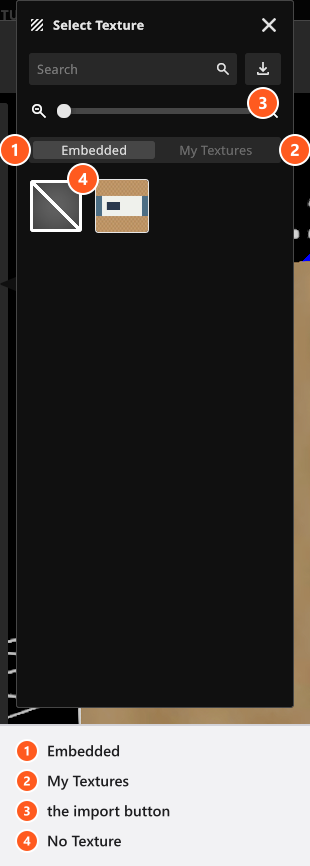
Three things before you go looking for a map:
- Each shelf shows only textures of the slot’s own kind. An image you once imported as a gloss map is not offered in the colour slot — import it again in the slot where you need it.
- The import button fills whichever shelf is open. Switch to My Textures first if other objects should be able to use the image too — a texture imported there stays in your collection even if you cancel the import.
- No Texture empties the slot without deleting the image.
An image may be up to 8192 px on an edge, but what is kept is smaller — 4096 px for colour, normals and transparency, 2048 px for gloss and metal — so an 8k map costs memory and buys you nothing. Gloss, metal and transparency are read as grey values; a coloured image is averaged down to one.
The four kinds of map
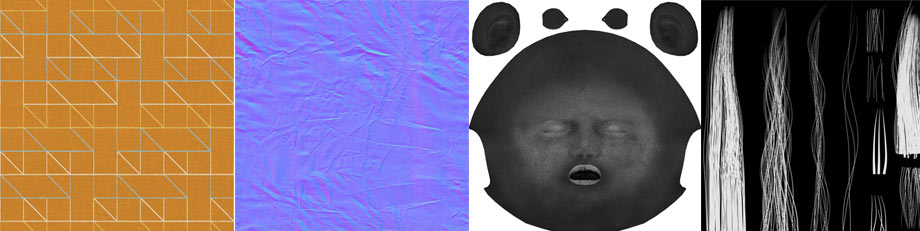
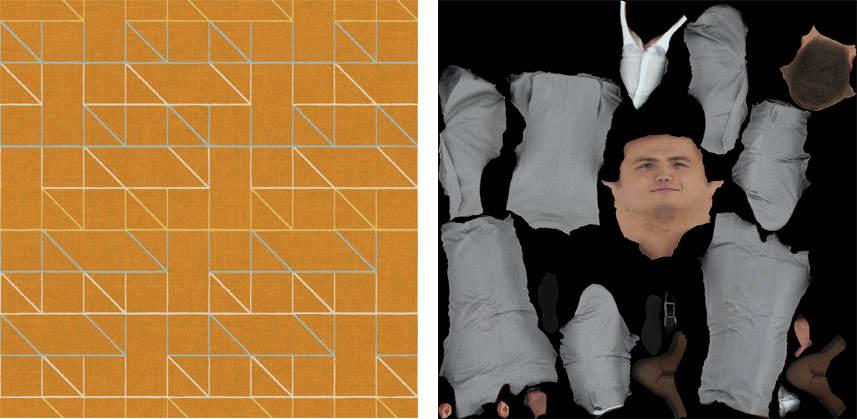
Colour map. The colour of the surface, usually named Diffuse, Color or BaseColor. It can cover the whole model once, or hold a small tileable patch that repeats — a carpet needs a few centimetres of pattern and a high Scale.
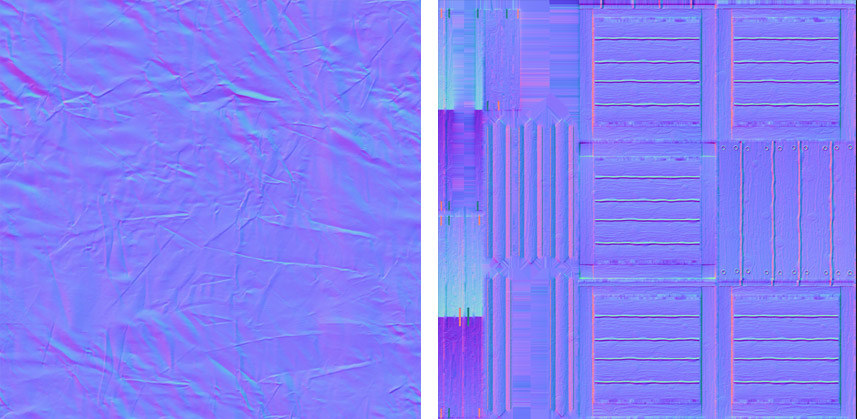
Normal map. Small dents and creases that are not in the geometry but catch the light. They look blue, which is the quickest way to recognise one.
Gloss map. Where the surface is shiny and where it is dull. Grey, and named Smoothness, Roughness or Gloss. Read the wrong way round it makes the object look flat or oily; Texture Type corrects it.
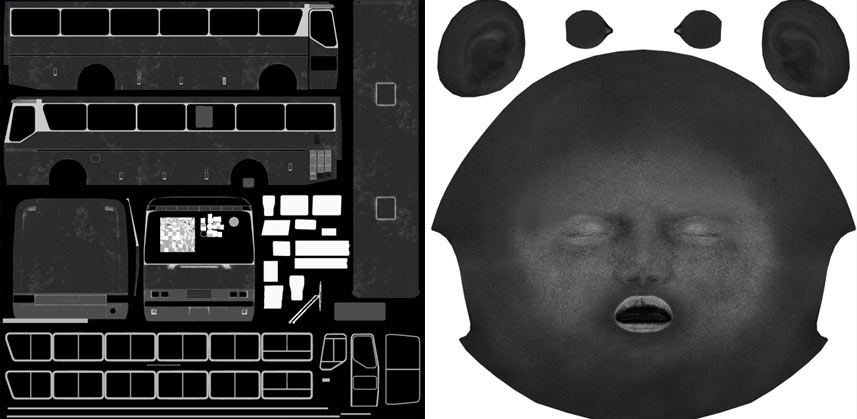
Transparency map. The mask that cuts fine shapes out of a simple surface. Black and white with hard edges, usually named Mask or Opacity, and easy to confuse with a gloss map at first sight.
Tips & limits
-
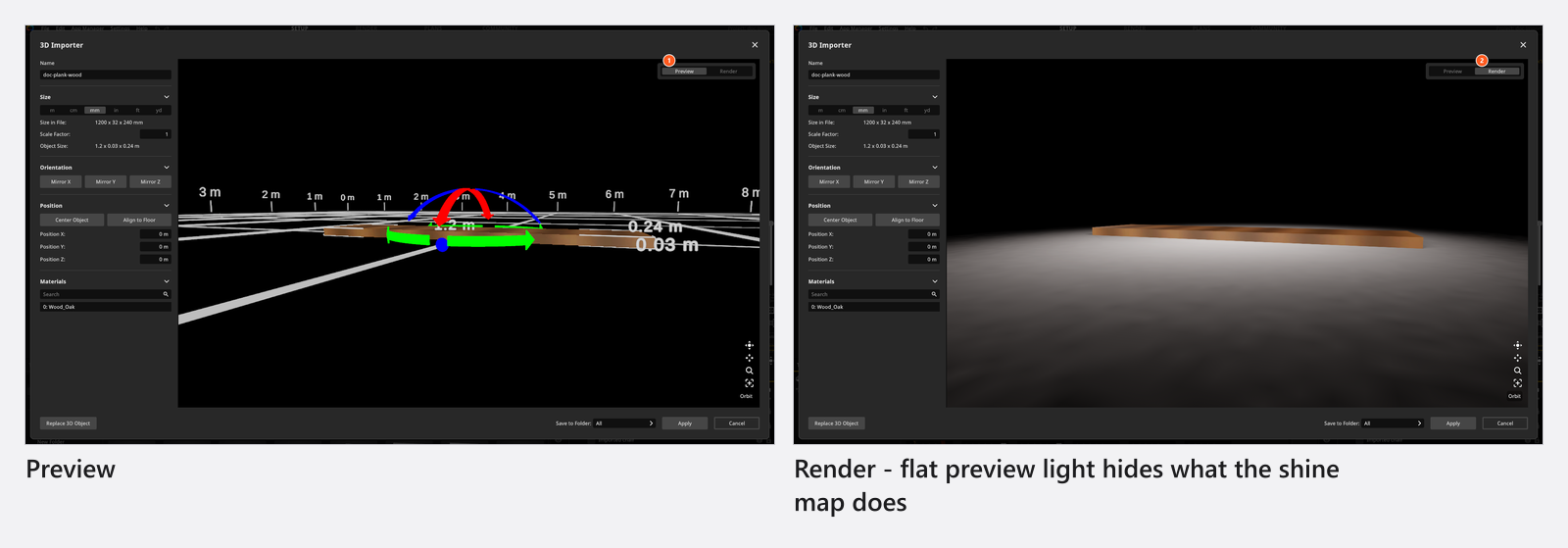
Judge normals, shine and metal in the Render view, turning the model as you go: the flat light of Preview hides all three. Its three lamps follow your viewing direction, so a surface can look different after you orbit — that is the light moving, not the material.

The same material in Preview and in Render — flat preview light hides what the shine map does - A material that glows in your modelling program arrives unlit — the importer has no slot for self-illumination. Build the glow in the set: a picture wall set to Self-Luminous, or a light behind the object.
- Edits in the importer change the object for every set that uses it — but a copy already standing in a set keeps its own Color and Shine. See Share, update and back up your 3D objects.
Troubleshooting
- My map is not in the list, or the gloss looks inverted. → 3D import problems
Related
- Imported materials: every control
- Import a 3D object
- 3D import: what the add-on reads
- Change the surface of an object
- Share, update and back up your 3D objects
Next step
Every control with its range: Imported materials: every control.