
 English
 Deutsch
 日本語
日本語 简体中文
简体中文 Français
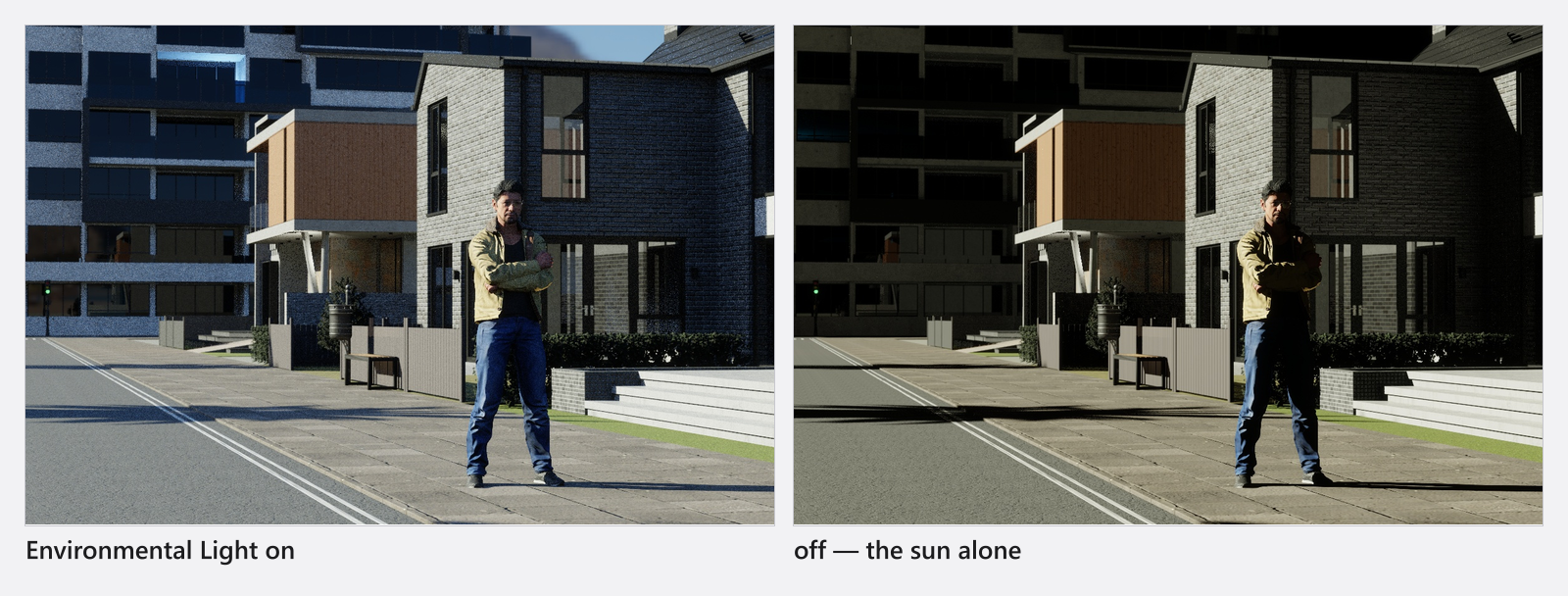
An HDRI is a 360° photograph of a real place with its full brightness range recorded. It does two jobs: it lights the set from every direction — the soft ambient light that fills the shadows outdoors — and it is the background behind the subject. Together with the sun it makes up the Environment, and it arrives ready to use: your work is to override what it brought, not to build a sky.
Applies to BASIC, STUDIO, CINEMA · Importing your own maps needs CINEMA · You need: a project open on the SETUP tab.
Where to find it
Select the Environment (the first row of the set list, or a click on an empty part of the background in the studio view) and open the Background group.
How to set the sky light up
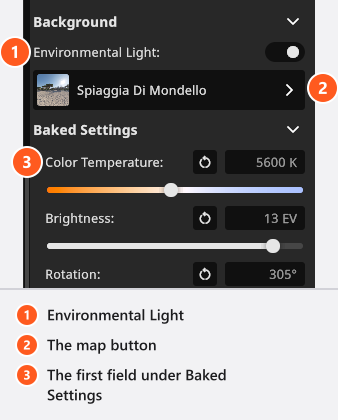
- Switch Environmental Light on. It is the master switch for the sky: with it off you lose both the ambient light and the image behind the subject, and the background falls back to a plain colour. The globe icon in the header does the same.
- Click the image button below it to open the picker and choose one of the eight built-in maps. The picker has a search field and a thumbnail-size slider.
- Look under Baked Settings, the group below the map button. It is open, and it holds the values the map brought with it — you do not have to touch any of them, which is what makes a map work out of the box.
- Trim the three you usually want: Brightness in EV, Color Temperature to warm or cool both the light and the visible sky, and Rotation to turn the panorama.
You can shut the group to get the fields out of the way. That is a program-session state, not a project setting: it stays shut until you restart, and shutting it changes no value. A field’s reset button goes back to the map’s own value.
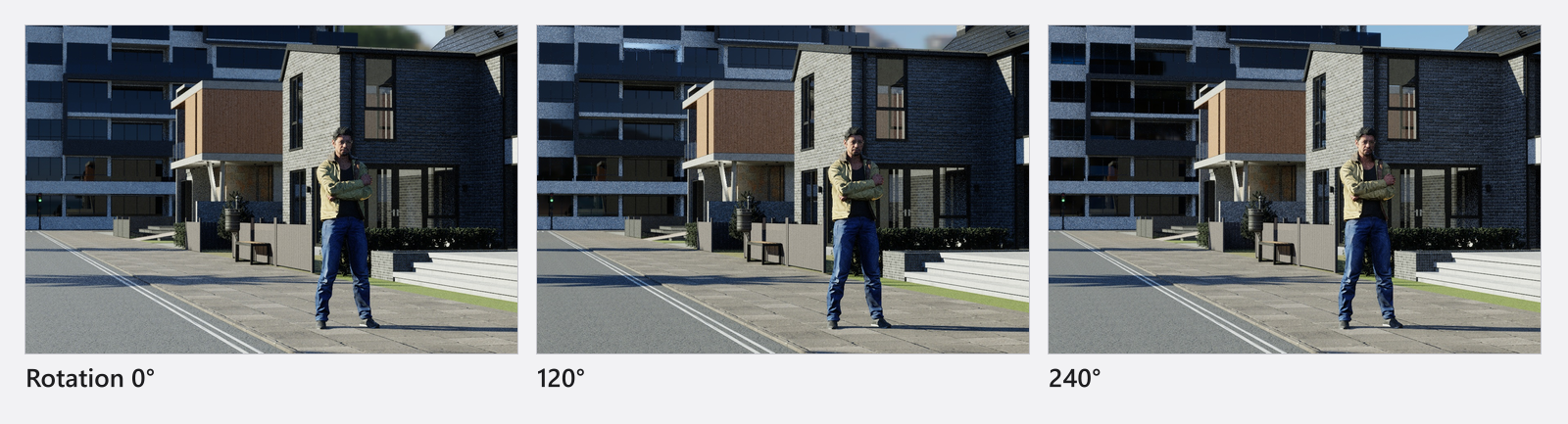
Rotation moves the brightest part of the sky, so it decides where your fill comes from as well as what is behind the subject. The backdrop follows North Offset too: dragging the compass turns the panorama and the sun together. Older sets are converted so that they look unchanged.
What a map brings with it
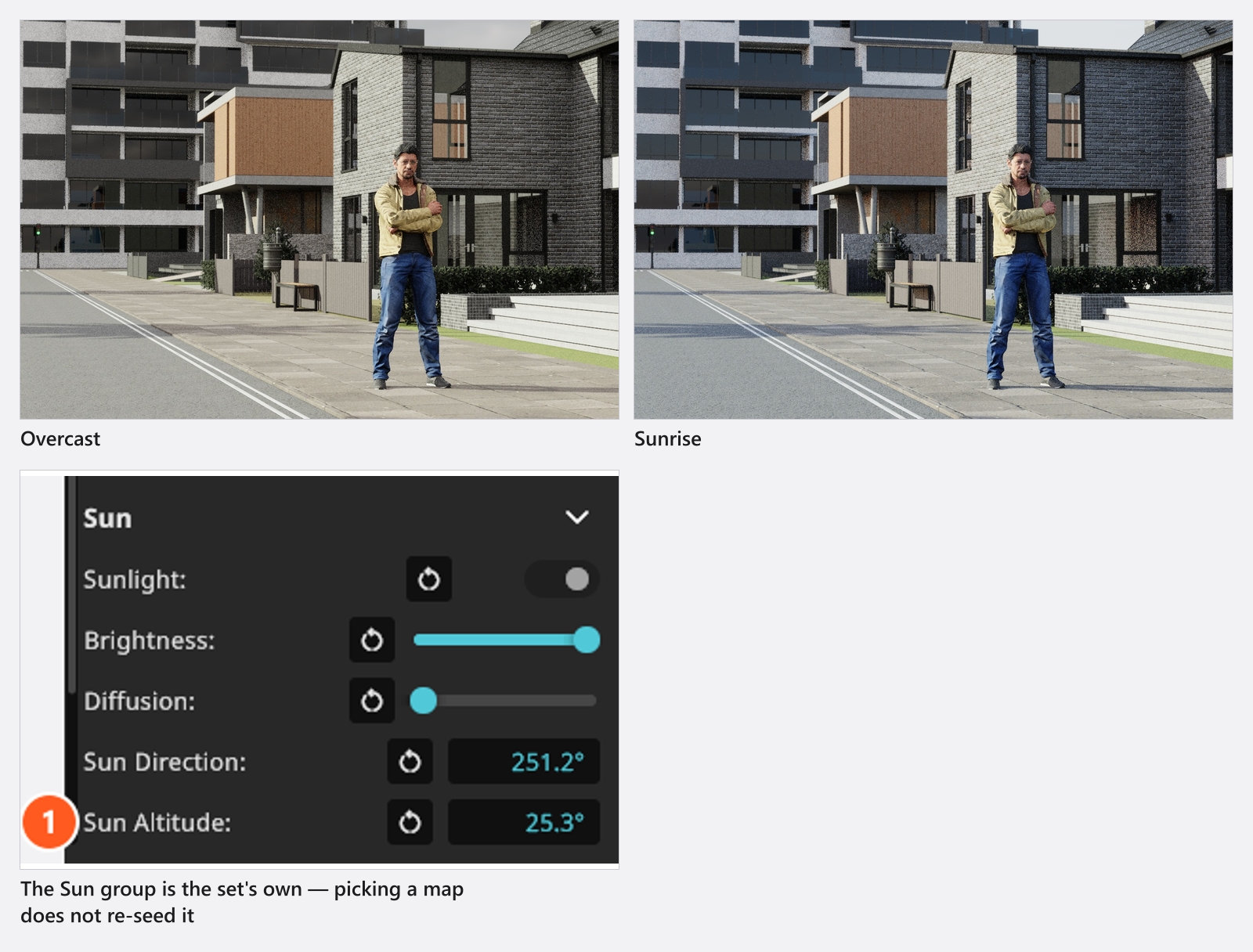
Choosing a map seeds more than the picture: the exposure, the colour temperature, the rotation — and the whole sun, including whether it is on at all. That is why the overcast maps arrive with a soft, dimmed sun and the night map with none. The names below are the ones the picker shows, in every interface language.
| Map | Brightness | Sun | Direction | Altitude | Sun brightness | Sun diffusion |
|---|---|---|---|---|---|---|
ClearSky |
13 EV | on | 306° | 29° | 0 | 0 |
Cloudy |
13 EV | on | 306° | 43° | 0 | 0 |
Overcast |
13 EV | on | 258° | 38° | −4 | 0.2 |
Heavy Overcast |
13 EV | on | 180° | 70° | −8 | 0.2 |
Sunrise |
10 EV | on | 306° | 2° | −3 | 0 |
NightSky |
−4 EV | off | — | — | — | — |
Riverside |
13 EV | on | 306° | 20.5° | 0 | 0 |
Spiaggia Di Mondello |
13 EV | on | 251.2° | 25.3° | 0 | 0 |
Spiaggia Di Mondello also arrives rotated 305° so its sun lines up with the image. Pick the map first, then adjust the sun — the other way round your sun values are overwritten.
How much effort goes into the sky light
Two sliders in the Rendering group steer how many render samples go to the sky. They change noise, not look; the price is render time.
- Sample Multiplier (
1…8, default4). Leave it at4; raise it to6–8only for an interior lit by the sky alone. It is active while the sky light is on and at least one other light in the set is switched on. - Sample Portals (
0…1, default0.5) aims that effort through windows and doors — see Light a room through a window.
How to import your own map
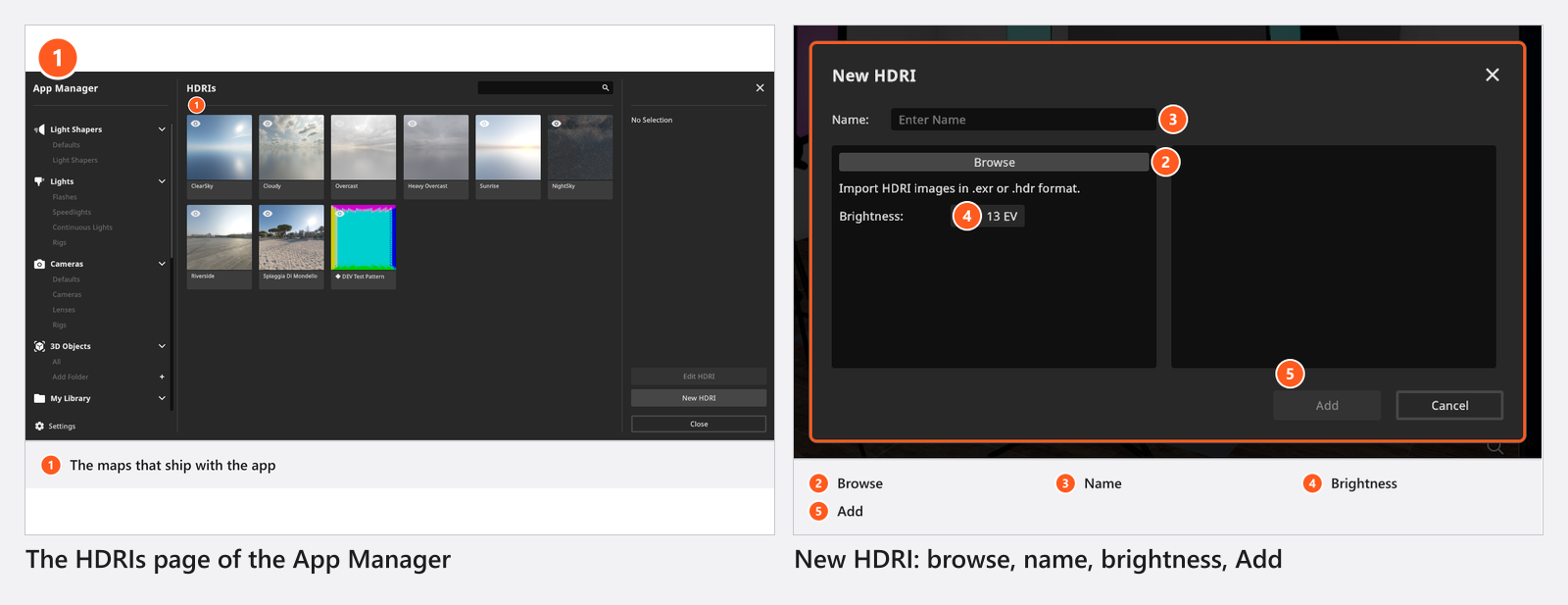
Own maps are stored with the program, not in a project, and creating one needs a CINEMA licence: the App Manager under Resources → HDRIs, or the + in the map picker, which opens the same dialog and is shown on CINEMA only. From 08:33 the clip reaches that page; it does not mention the licence.
The New HDRI dialog asks for three things:
- Browse — the image file. The dialog states the rule: Import HDRI images in .exr or .hdr format. An ordinary JPG or PNG has no brightness range above white; the answer is Image is not supported or corrupt. Neither edge may exceed
8192px, or you get Image is too large. - Name — up to 50 characters, filled in from the file name if you have not typed one yet.
- Brightness — the EV the map is loaded with,
13 EVunless you change it.
Add stays inactive until there is both a name and a readable image. Your maps then appear in the picker beside the built-in ones, and the App Manager can hide or delete them again.
A .set file does not carry the image. Use Export User Data to move your maps to another computer, and send them with a set that uses one.
Tips & limits
- Switching Sunlight off removes the separate directional sun; the photographed sky in the image stays as it is, and is the soft half of daylight on its own.
- Inside a closed room — no visible window or door — the sky light is dropped and the Environment row is hidden from the set list. Atmospheric fog still renders.
- Brightness and Rotation can be given keyframes, so a sky can brighten or turn during an animation.
Troubleshooting
- My sun moved (or went out) when I picked a map. Expected: a map seeds the sun too. Set it again afterwards, in the Sun group under Baked Settings.
- The brightness, temperature and rotation fields are missing. The Baked Settings group under the map button has been shut — it is open by default. Click its header to open it again.
- My own map is gone from the picker. It is hidden, not deleted. Show it again in the App Manager under Resources → HDRIs.
- A set from a colleague opens with the overcast sky. The map it used is not on this computer and a
.setdoes not contain the image. Ask for the file and import it.
More symptoms: Lighting problems.